
This page documents the configuration model for the Activity Panel, including how buttons, activity records, and default filters are defined and controlled through JSON. Use this guide to understand or modify the component’s behavior without changing code.
Overview
The Activity Panel is a configurable component that displays various types of activities (Tasks, Events, Emails, SMS, eForms) in a unified timeline. The configuration is managed through three JSON that control buttons, activity records, and default filters.
1. Activity Buttons Configuration
This configuration controls the action buttons displayed in the activity panel header.
Configuration Structure
{
  "buttonMapping": [
    {
      "name": "log_a_call",
      "label": "Log a Call",
      "iconName": "standard:log_a_call",
      "class": "slds-m-right_xx-small",
      "modalClass": "",
      "order": 1,
      "isDropdown": false
    }
    // ... more buttons
  ]
}
Button Properties
|
Property |
Type |
Description |
Example |
|---|---|---|---|
|
|
String |
Unique identifier for the button |
|
|
|
String |
Display text for the button |
|
|
|
String |
SLDS icon name |
|
|
|
String |
CSS classes for styling |
|
|
|
String |
CSS classes for modal styling |
|
|
|
Number |
Display order (lower numbers first) |
|
|
|
Boolean |
Whether button appears in dropdown menu |
|
|
|
String |
Screen Flow to launch (optional) |
|
|
|
String |
Parameter to pass to flow (optional) |
|
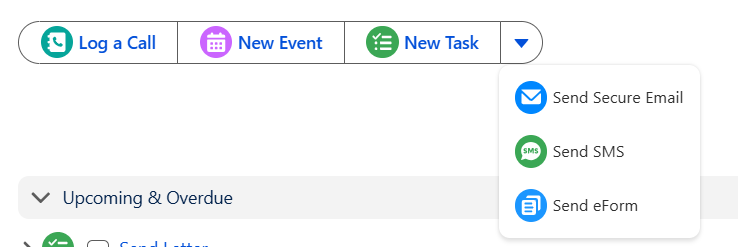
Button Types
Standard Buttons
-
Log a Call: Creates a task with Call subtype
-
New Task: Creates a standard task
-
New Event: Creates a calendar event
Flow-based Buttons
-
Send Secure Email: Launches a screen flow which wraps a lightning component.
-
Send SMS: Launches a screen flow which wraps a lightning component.
-
Send eForm: Launches a screen flow which wraps a lightning component.
2. Activity Record Configuration
This configuration defines how different activity types are displayed and queried.
Configuration Structure
{
  "Activity_Record_Configuration": [
    {
      "sObjectName": "Task",
      "fields": "Id, Subject, ActivityDate, Status, Description...",
      "whereClause": "WHERE TaskSubtype IN :ALLOWED_TASK_SUBTYPES...",
      "subject": {...},
      "summaryTemplate": [...],
      "detailTemplate": [...],
      "objectConfig": {...},
      "icon": "standard:task",
      "iconColor": "#ff9a3c",
      "bgColor": "#ff9a3c"
    }
    // ... more activity types
  ],
  "Related_To_Objects": "Account,Opportunity,Case",
  "Record_Lookup_Configuration": {...}
}
Activity Properties
|
Property |
Type |
Description |
Example |
|---|---|---|---|
|
|
String |
Salesforce object API name |
|
|
|
String |
SOQL fields to query |
|
|
|
String |
SOQL WHERE clause |
|
|
|
Object |
Configures subject display |
See below |
|
|
Array |
Short summary sentence template |
See below |
|
|
Array |
Expanded view fields |
See below |
|
|
Object |
Parent-child relationship rules |
See below |
|
|
String |
Activity type icon |
|
|
|
String |
Icon color |
|
|
|
String |
Background color |
|
Subject Configuration
Controls how the activity subject is displayed:
"subject": {
  "type": "text",
  "fieldName": "Subject"
}
Subject Types:
-
text: Direct field value -
conditionalText: Different text based on conditions -
record: Display related record name
Summary Template
Generates short summary sentences like "John sent an SMS to James":
"summaryTemplate": [
  {
    "type": "owner",
    "fieldName": "OwnerId",
    "labelField": "Owner.Name"
  },
  {
    "type": "text",
    "staticValue": " sent an email"
  }
]
Template Element Types:
-
owner: Shows record owner -
text: Static text -
record: Related record name -
conditionalGroup: Different text based on conditions
Detail Template
Controls fields displayed when activity is expanded:
"detailTemplate": [
  {
    "type": "link",
    "label": "Sender",
    "href": "mailto:{}",
    "fieldName": "cm_datatransfer__FromAddress__c"
  },
  {
    "type": "text",
    "label": "Subject",
    "fieldName": "cm_datatransfer__Subject__c"
  }
]
Detail Element Types:
-
text: Plain text field -
link: Clickable link (mailto:, tel:) -
record: Related record with navigation

Object Configuration
Defines parent-child relationships for activity roll-up:
"objectConfig": {
  "Case": {
    "parentFields": ["AccountId"],
    "childConfig": []
  },
  "Account": {
    "parentFields": [],
    "childConfig": [
      {
        "sObjectName": "Case",
        "relationField": "AccountId",
        "whereClause": ""
      }
    ]
  }
}
Example: When viewing an Account, also show activities from related Cases.
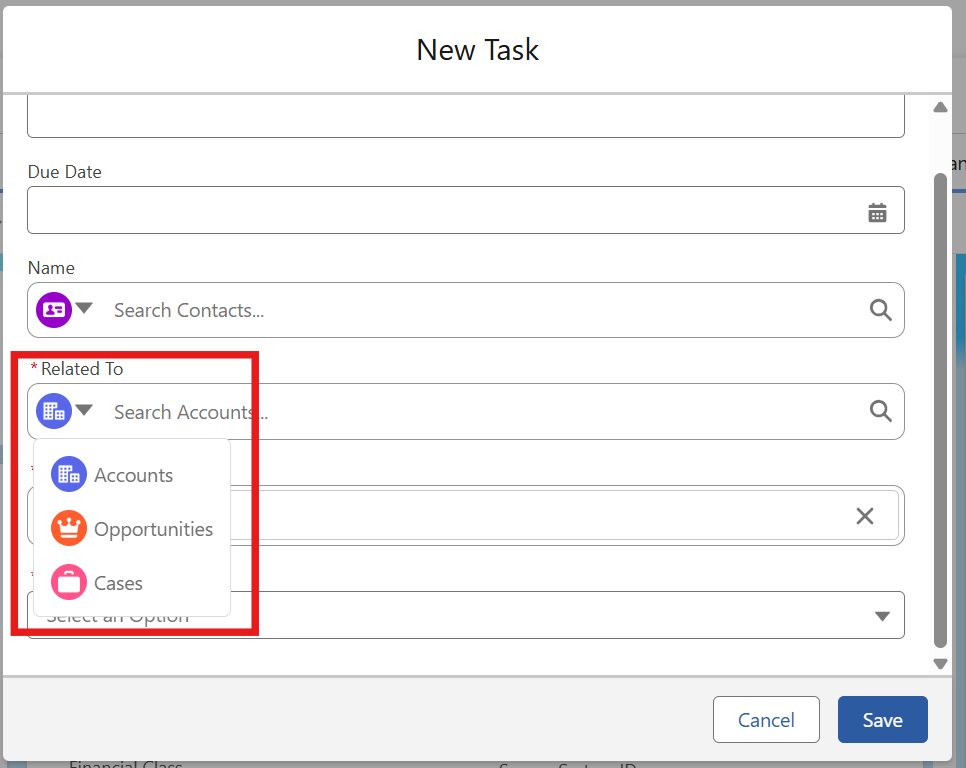
Related_To_Objects Configuration
This configuration controls which objects are available in the "Related To" lookup field when creating new Tasks and Events.
Configuration Structure
"Related_To_Objects": "Account,Opportunity,Case"
Property Description
|
Property |
Type |
Description |
Example |
|---|---|---|---|
|
|
String |
Comma-separated list of object API names that appear in Related To lookup |
|
Usage Examples
Basic Configuration:
"Related_To_Objects": "Account,Opportunity,Case"
Extended Configuration (Multiple Objects):
"Related_To_Objects": "Account,Contact,Opportunity,Case,Lead,Custom_Object__c"
How It Works
-
Object Selection: Determines which Salesforce objects appear in the Related To dropdown when users create:
-
New Tasks
-
New Events
-
-
Lookup Behavior: When users search in the Related To field, they can only find records from the specified objects.
Record Lookup Configuration
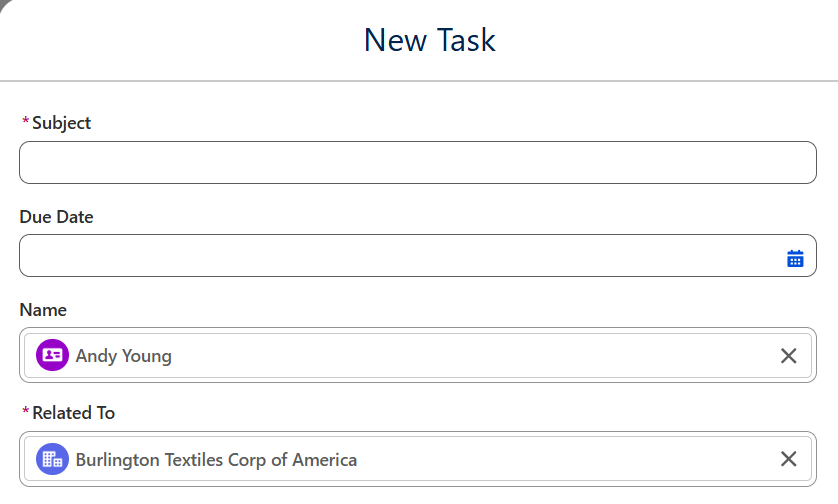
Pre-populates Name and Related To fields when creating activities:
"Record_Lookup_Configuration": {
  "Account": {
    "whatIdField": "Id",
    "whatIdDisplayName": "Name",
    "whoIdField": "PersonContactId",
    "whoIdDisplayName": "PersonContact.Name"
  },
  "Case": {
    "whatIdField": "Id",
    "whatIdDisplayName": "CaseNumber",
    "whoIdField": "Account.PersonContactId",
    "whoIdDisplayName": "Account.Name"
  }
}
Record Lookup Properties
|
Property |
Type |
Description |
Example |
|---|---|---|---|
|
|
String |
Field API name for Related To lookup |
|
|
|
String |
Field to display for Related To records |
|
|
|
String |
Field API name for Name/Contact lookup |
|
|
|
String |
Field to display for Name records |
|
3. Default Activity Filters
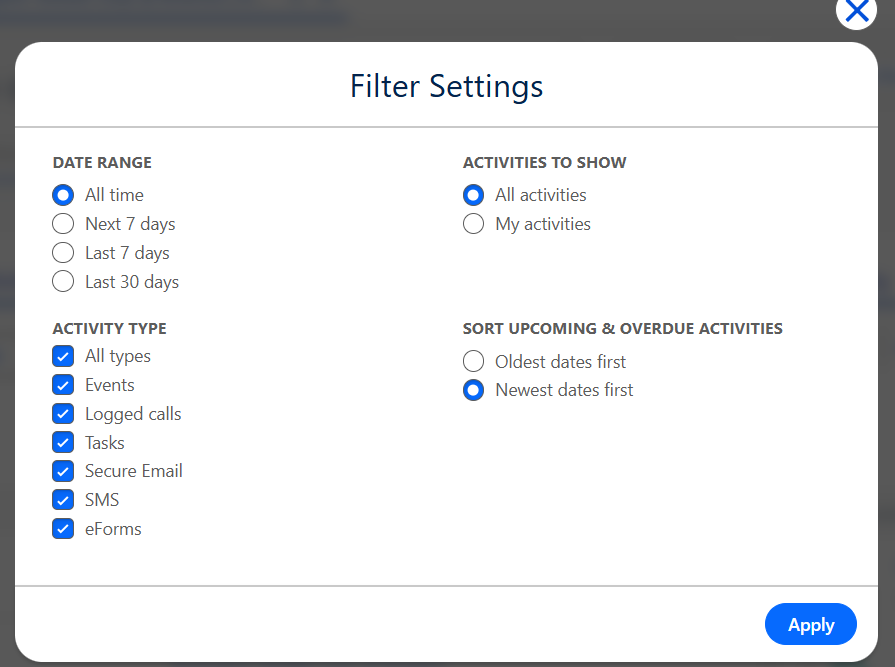
This configuration controls the filter options available in the activity panel.
Configuration Structure
{
  "options": {
    "activityTypeOptions": [
      {"label": "All types", "value": "All types"},
      {"label": "Events", "value": "Event"}
    ],
    "dateRangeOptions": ["All time", "Next 7 days", "Last 7 days"],
    "activitiesToShowOptions": ["All activities", "My activities"],
    "sortOrderOptions": ["Oldest dates first", "Newest dates first"]
  },
  "selectedValues": {
    "selectedDateRange": "All time",
    "selectedActivitiesToShow": "All activities",
    "selectedActivityTypes": ["All types"],
    "selectedSortOrder": "Newest dates first"
  }
}
Filter Options
|
Option Type |
Description |
Available Values |
|---|---|---|
|
|
Types of activities to filter |
Task, Event, Call, Email, SMS, eForms |
|
|
Time period filters |
All time, Last 7/30 days, Next 7 days |
|
|
Ownership filters |
All activities, My activities |
|
|
Sorting direction |
Newest/Oldest dates first |
Default Selections
|
Setting |
Description |
Default Value |
|---|---|---|
|
|
Default date filter |
|
|
|
Default ownership filter |
|
|
|
Default activity types |
|
|
|
Default sort order |
|
📩 Need Help?
For any questions or support, don't hesitate to get in touch with us at: