
CM QuickBooks Connector - Product Overview
The CM QuickBooks Connector by Cloud Maven, Inc bridges your Salesforce CRM and QuickBooks accounting environment — keeping customers, vendors, invoices, payments, products, and journal entries in sync across both platforms without manual data entry or reconciliation.
It is designed for the teams who live in both systems every day: finance, operations, sales, and accounting. If your work involves raising invoices, tracking payments, managing vendors, or reconciling accounts, the connector handles the sync automatically so you can focus on the work — not the data entry.
What the CM QuickBooks Connector Does
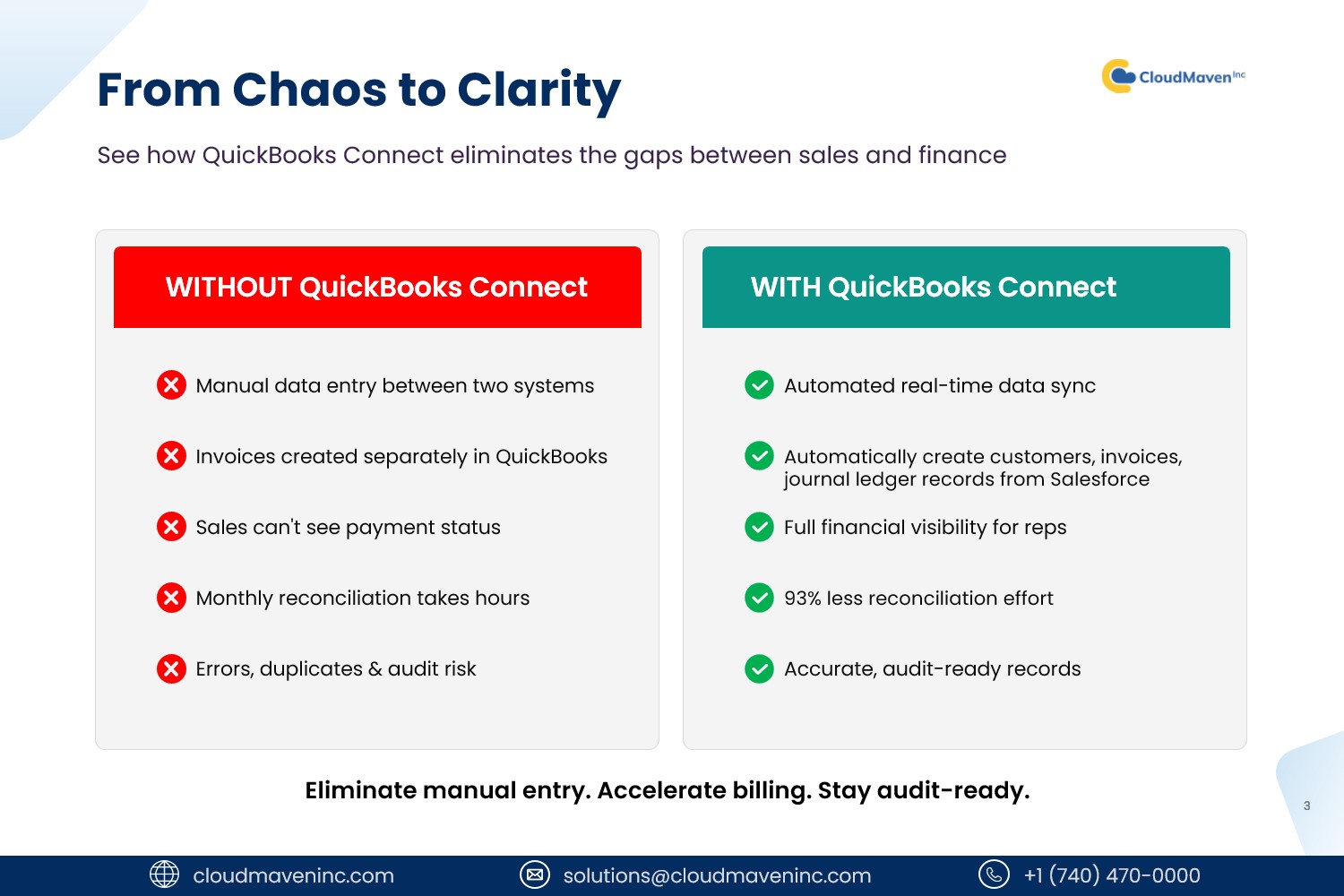
At its core, the connector handles four things:
Syncs records — customers, vendors, products and services, invoices, payments, journal entries, and accounts move between Salesforce and QuickBooks based on your configuration.
Works bi-directionally — changes made in either Salesforce or QuickBooks are reflected in the other system for supported entities.
Stays native to Salesforce — no external middleware or third-party platform. The connector lives inside your org and uses standard Salesforce primitives: Flows, Apex, and record pages.
Authenticates securely — connects to the QuickBooks Online API using OAuth 2.0, with credentials managed inside Salesforce.
How the QuickBooks Integration Works
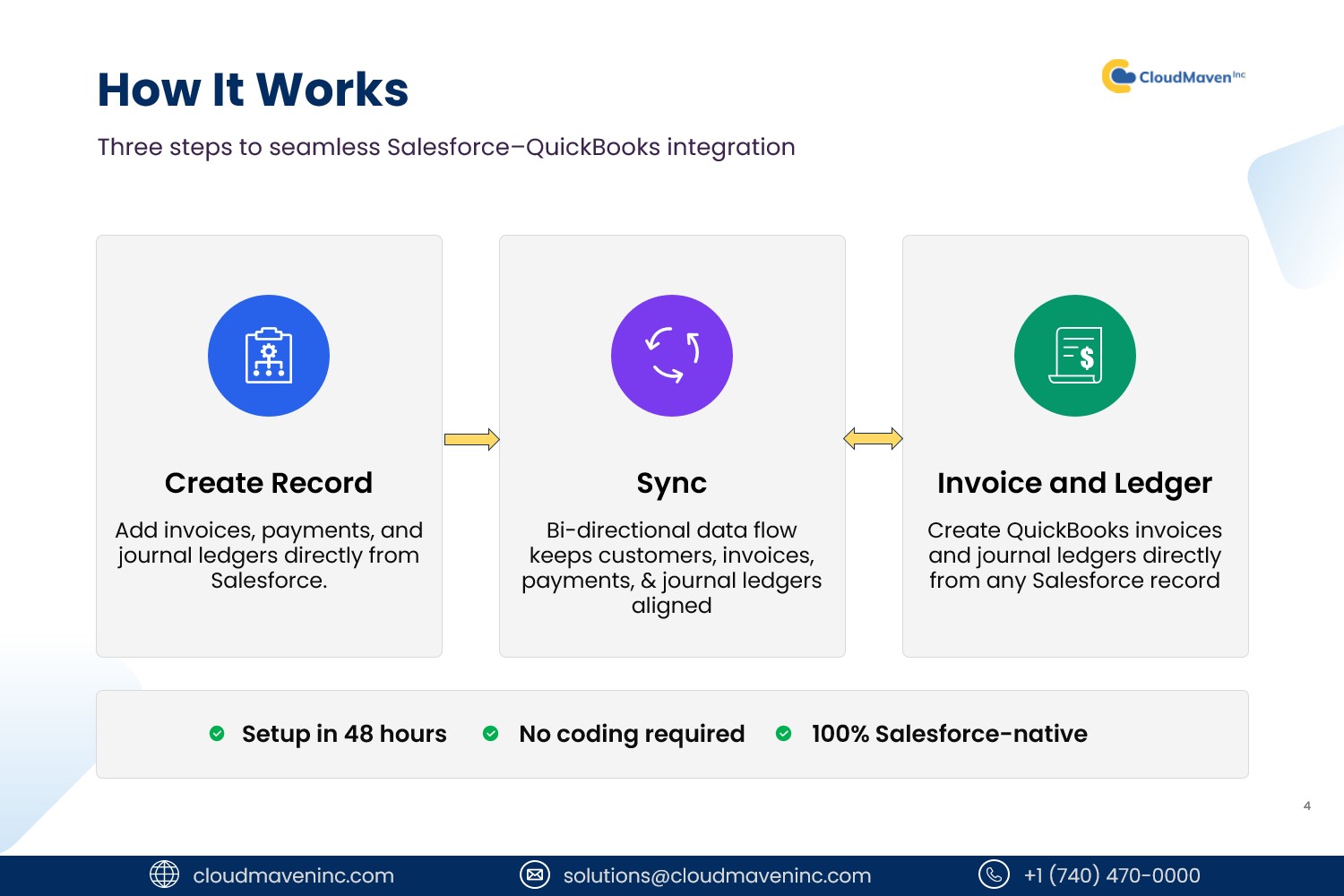
Getting your Salesforce and QuickBooks environments working together takes just three simple steps — and once set up, it runs automatically in the background.
Step 1 — Create a Record in Salesforce Your team works the way they always have — creating invoices, logging payments, and recording journal entries directly within Salesforce. No need to switch between systems or enter data twice.
Step 2 — Sync Automatically The moment a record is created or updated, the connector kicks in. Data flows bi-directionally between Salesforce and QuickBooks — keeping customers, invoices, payments, and journal ledgers perfectly aligned across both platforms at all times.
Step 3 — Invoices & Ledgers Appear in QuickBooks QuickBooks invoices and journal ledgers are created automatically from your Salesforce records — so your accounting team always has accurate, up-to-date financials without waiting on anyone to manually push the data across.
The result: a seamless, always-on bridge between your sales and accounting teams — so your data is accurate, your books stay clean, and your team can focus on the work that matters.
Before You Begin
Do not begin installation until you have reviewed the Prerequisite Checklist. Installing the managed package in an org that does not meet requirements may cause configuration errors that are difficult to reverse.
You will need:
-
A Salesforce org on Professional, Enterprise, Unlimited, or Developer Edition
-
A QuickBooks Online account on Simple Start, Essentials, Plus, or Advanced
-
Salesforce System Administrator access to perform the installation
-
QuickBooks Admin access to authorize the OAuth connection
For the full requirements list, see the Prerequisite Checklist.
What's Next
New to the connector? Start with the Product Overview to confirm it fits your use case.
Setting up your org? See the Prerequisite Checklist, then follow the Setup Guide.
Having issues? Head to the Troubleshooting Guide to get back on track.
Contact
Need help? Contact support at support@cloudmaveninc.com