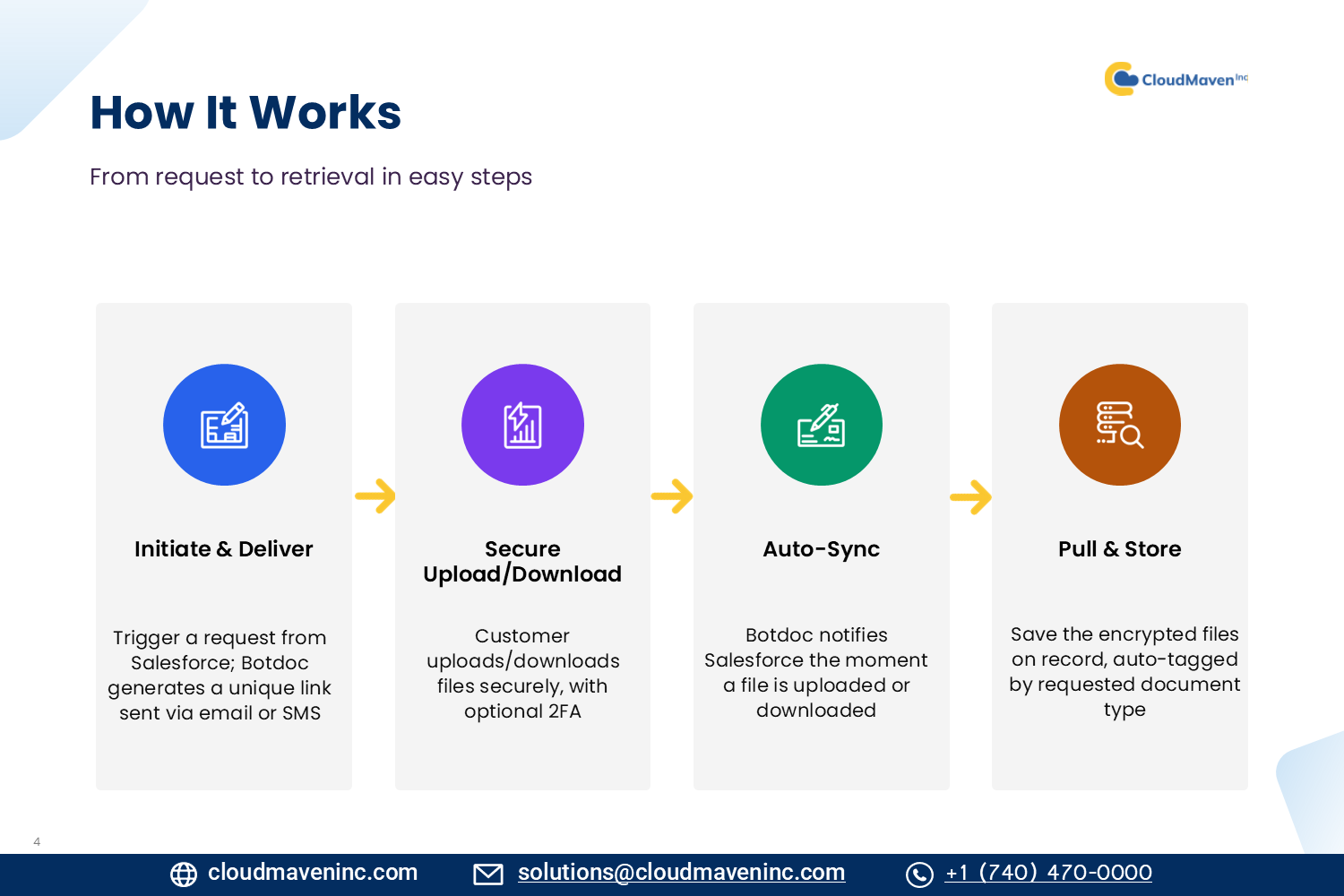
This page explains how Secure File Transport is built and how files flow through the system. Visual diagrams are included to show system architecture and document workflows.
Architecture Diagram
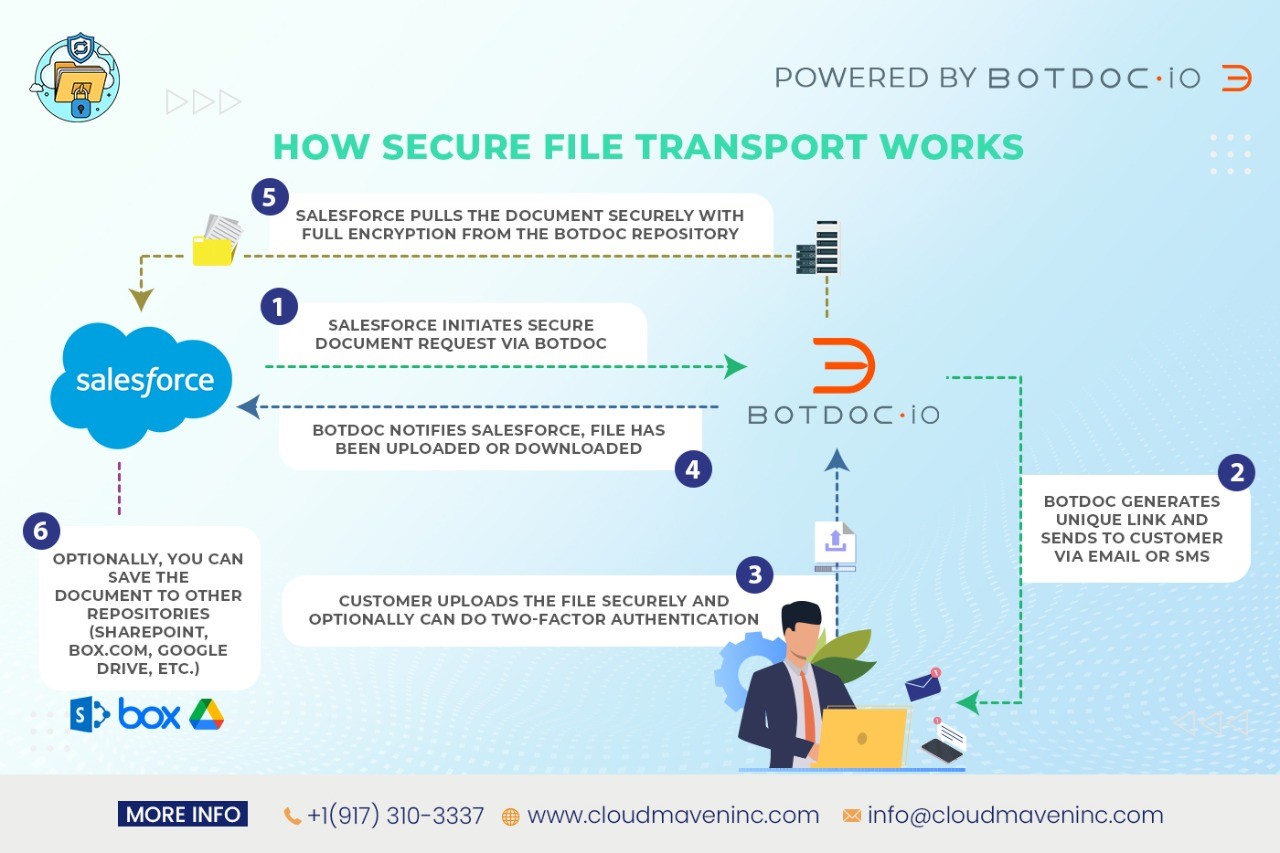
End to End Workflow
A message moves through Salesforce, Botdoc, and the recipient's email and mobile in six steps:
-
Compose in Salesforce. The user opens the File Request component on a record (Account, Opportunity, Case, Contact, etc.), specifies recipients (individuals), sets the mode(email or sms) adds optional subject and instructions, and clicks Send. Salesforce creates a File Request record linked to the parent record, storing the request ID, recipient list, creation time, and status. The file request is now ready and waiting for the recipient to upload or download the documents.
-
Salesforce calls the BotDoc API. Salesforce transmits the file request details to BotDoc over HTTPS using TLS 1.3+ encryption. BotDoc receives the request, validates it (correct recipients, valid permissions), and generates a unique secure upload link. BotDoc returns the upload link and tracking reference back to Salesforce, which stores this reference for monitoring, audit logging, and matching uploaded files back to the original request.
-
The recipient receives the message via Email or Message. The recipient receives an email notification containing the file request details, the sender's name and message, and a secure upload link (no password or login required initially). The email does not contain sensitive information—only the secure link that recipients click to access the upload portal. Recipients can also receive the same link via SMS if configured.
-
The recipient's upload/download the file. The recipient clicks the secure link and is taken to the BotDoc upload portal, where they can drag-and-drop or select files to upload. Uploaded files are encrypted in transit (HTTPS/TLS 1.3+) and stored securely. The recipient can track upload progress, see confirmation when complete, and optionally upload multiple files if the request allows it. Each file upload is logged with timestamp, file name, file tag and recipient identity.
-
Salesforce polls BotDoc for status. Salesforce automatically checks the BotDoc API using the stored tracking reference to see if files have been uploaded. When files are detected, Salesforce updates the File Request record with: upload status (Pending → Received), file names and sizes, upload timestamp, and number of files received. This automatic polling keeps Salesforce current without the requester having to manually check—status is always up-to-date.
-
Files are linked & Tagged automatically. Once files are received, BotDoc transfers them to Salesforce Files Storage (encrypted with AES-256). Salesforce automatically links each uploaded file to the File Request and parent record, tags files based on document type and compliance rules (HIPAA, PCI, GDPR), and triggers any configured workflows (create task, send notification, route to department). The file request status is marked "Complete," and audit logs record all actions with user, timestamp, and IP address.