
1. Introduction
Payment Connect is a comprehensive Salesforce application designed to facilitate seamless payment processing through integrated payment gateways. This guide will walk you through the steps required to set up and configure Payment Connect within your Salesforce environment.
Click here to discover the full range of features offered by the Payment Connect.
2. Intended Users
-
Salesforce Admins – Responsible for setup and configuration.
-
End Users – Business users who make payments.
-
Developers – Those integrating with external systems.
3. Prerequisites
System Requirements
Salesforce Professional, Enterprise, Unlimited, or Developer Edition
User Roles & Permissions
Admin Access – Required for installation and configuration
4. Installation
4.1 Using Salesforce AppExchange
-
Go to Salesforce AppExchange
-
Search for Payment Connect
-
Click "Get It Now" and select the Salesforce environment (Production or Sandbox)
-
Follow the on-screen prompts to install the package
-
Assign user permissions during the installation process
4.2 Using Direct Package Link
-
Reach out to support@cloudmaveninc.com for the latest managed package link.
-
Follow the on-screen prompts to install the package
-
Assign user permissions during the installation process
5. Post-Installation Setup
5.1 Payment Setup
Complete the post-installation setup to ensure seamless application functionality.
5.1.1 Assign the License to the intended users
Every user must be assigned a user license to access the App Payment Connect . A user's license determines the baseline of features that the user can access.
-
Navigate to Setup.
-
Use the Quick Find or Search Setup box to search for and select the specific user requiring the Payment Connect license.
-
Click on the user's name to access their detailed user record.
-
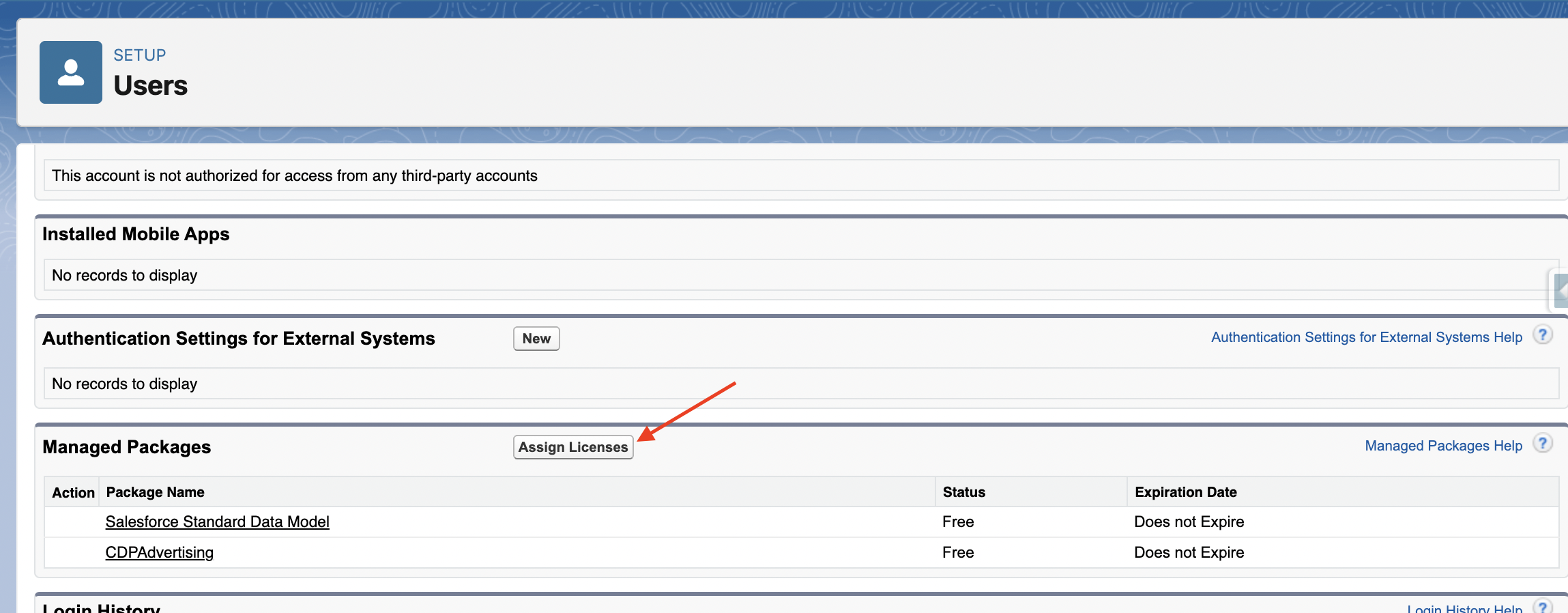
Scroll down the user detail page to locate the "Managed Packages" related list.
-
Click the "Assign Licenses" button associated with the "Managed Packages" section.
-
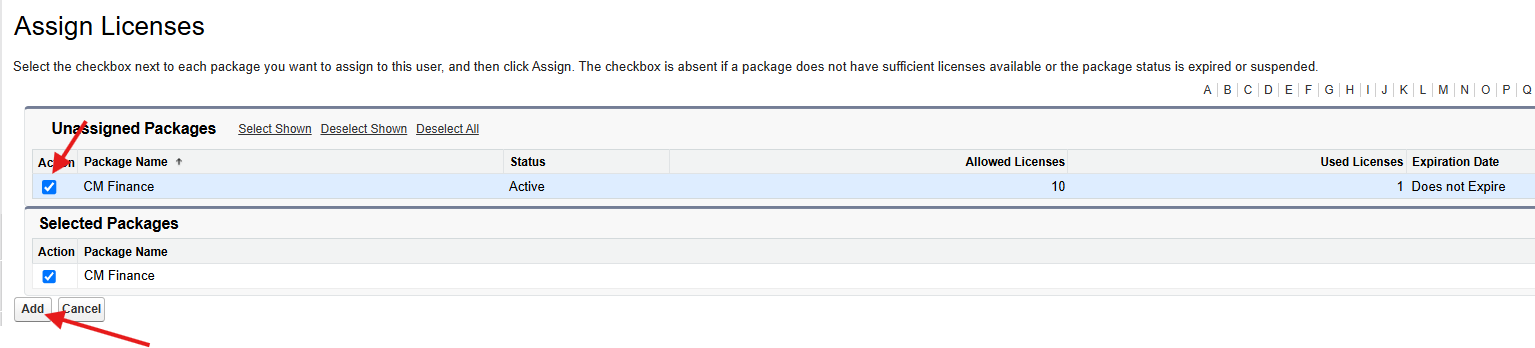
Click the "Add" button to assign the selected "CM Finance" license to the user.
5.1.2 Assign the Required Permission Set
-
Navigate to Setup.
-
Use the Quick Find box to search for "Permission Set".
-
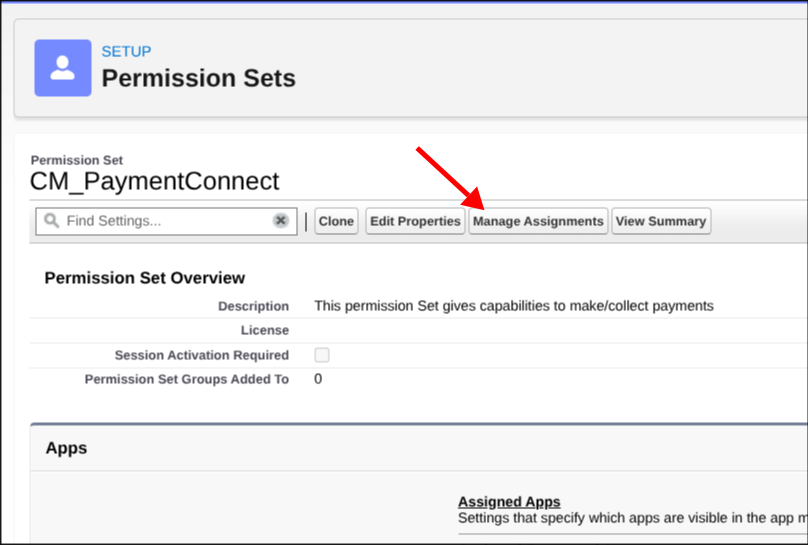
Locate the "CM_PaymentConnect" permission set from the list.
-
Click on "Manage Assignments".
-
Assign the permission set to the relevant users.
5.1.3 Create a Salesforce Site
A Salesforce Site is required to securely expose specific Salesforce data and functionality through a custom web interface. It grants limited access to Site Guest Users, allowing them only to view or edit permitted data and complete actions such as signing documents electronically.
Skip This setup if you want to reuse an existing Site
-
Navigate to Setup.
-
Use the Quick Find box to search for "Site".
-
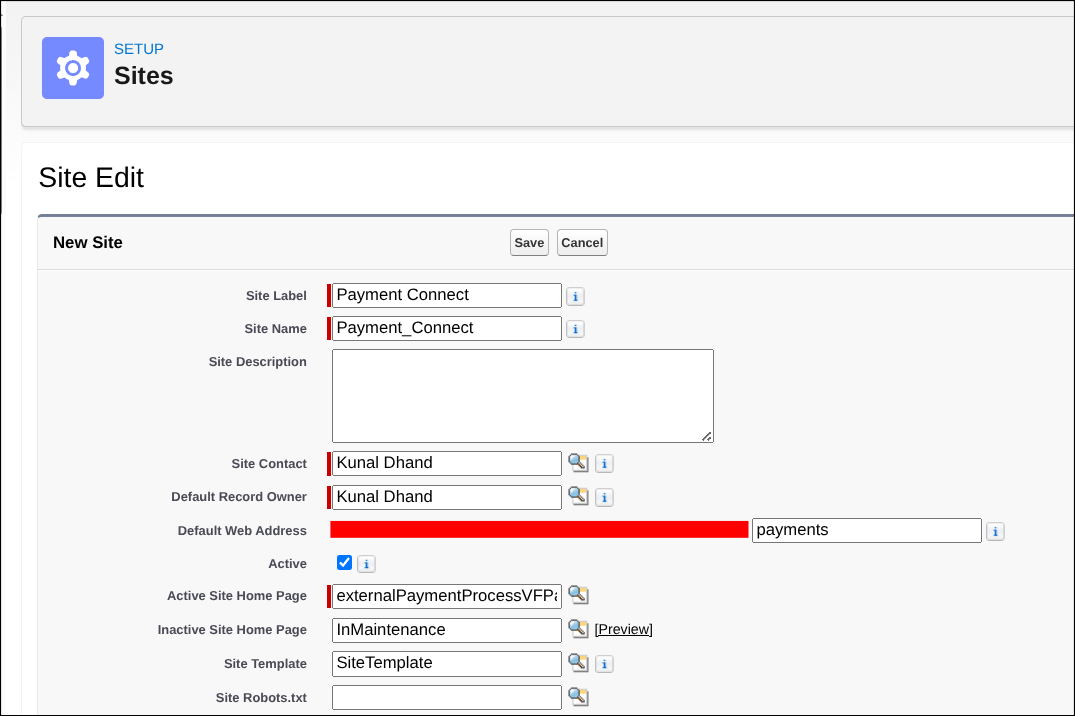
Click "New" to create a Salesforce Site.
-
Enter all required details as depicted in the provided image.
-
Click "Save".
5.1.4 Grant App License to Site Guest User
-
In Setup, use the global search bar to locate "<<Site Name>> Site Guest User". (Replace <<Site Name>> with the name of the site created in step 5.2.)
-
Click on the "<<Site Name>> Site Guest User" from the list.
-
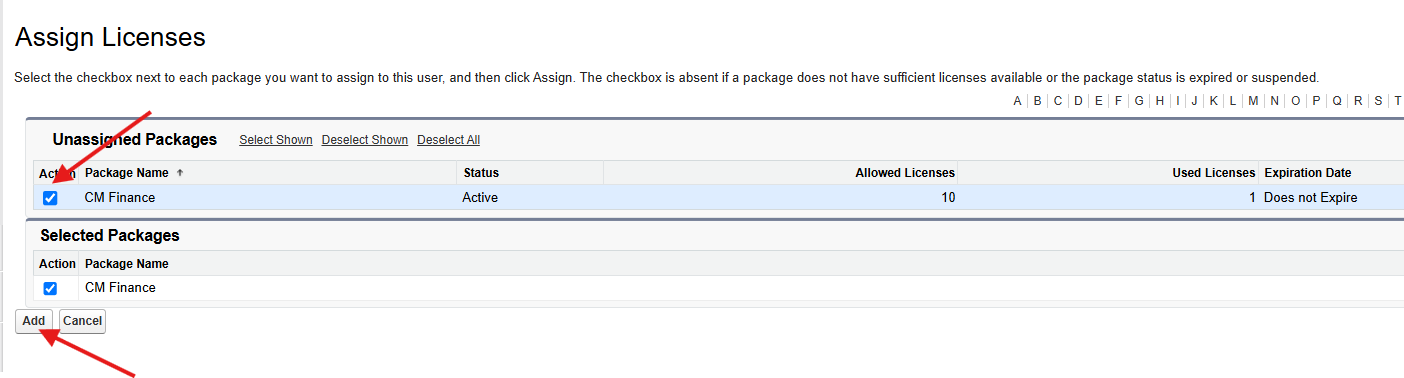
Scroll down the user detail page to locate the "Managed Packages" related list.
-
Click the "Assign Licenses" button associated with the "Managed Packages" section.
-
Click the "Add" button to assign the selected "CM Finance" license to the user.
5.1.5 Grant Required Access to the Site Guest User
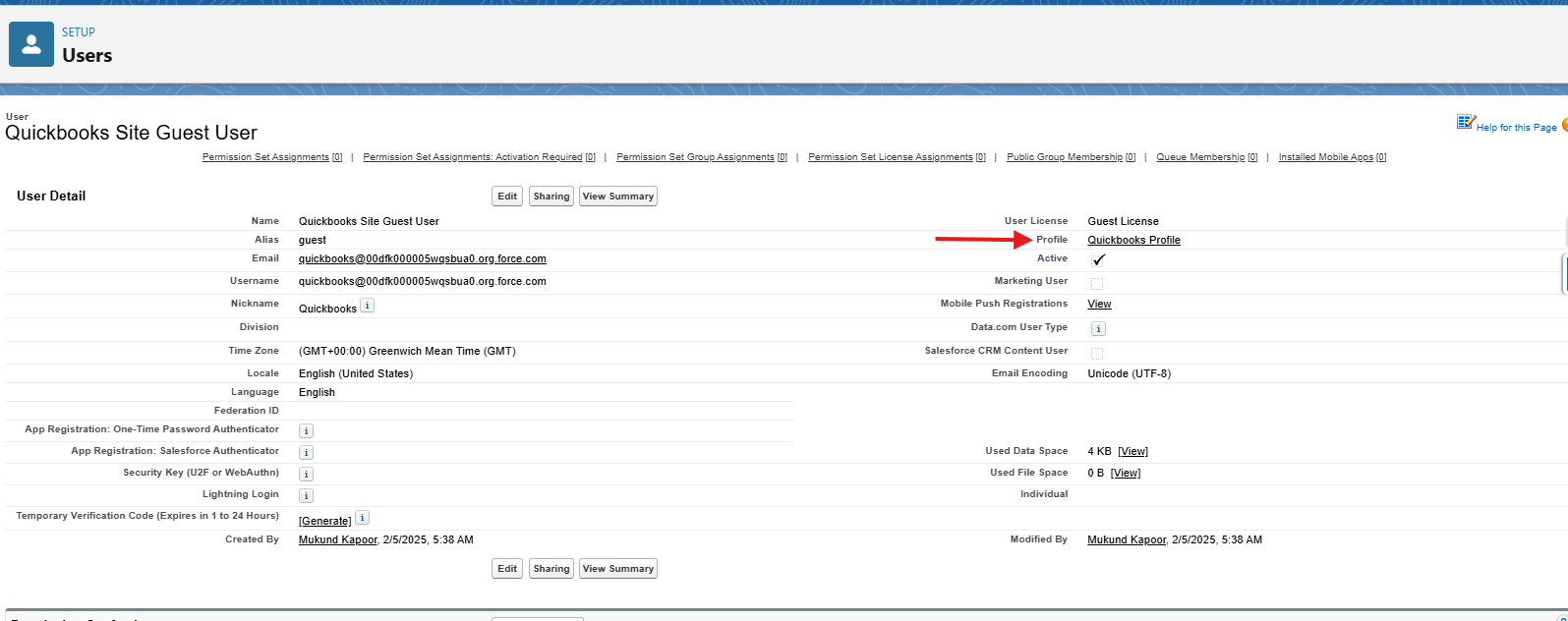
Navigate to Site Guest User Profile.
5.1.6 Provide access to the following Apex Classes
-
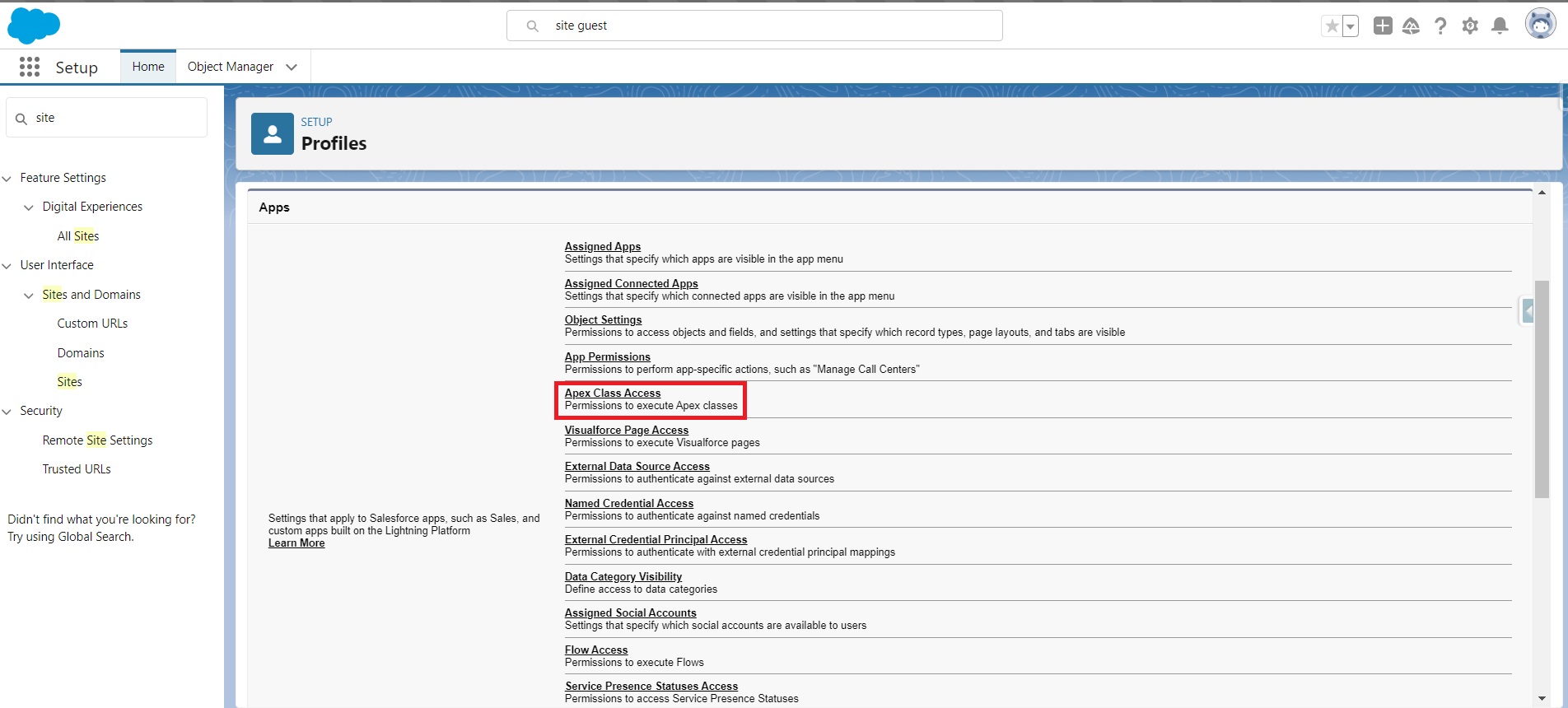
Open the Profile of the Site Guest User.
-
Assign access to the following Apex Classes:
-
cm_finance.PaymentConsoleController -
cm_finance.Webhook_ActumReturnHandler
-
5.1.7 Grant Access to Required Visualforce Pages
-
Stay in the Site Guest User Profile.
-
Provide access to the following Visualforce pages:
-
cm_finance.externalPaymentProcessVFPage
-
5.1.8 Set Remote Site Settings For Your Gateway
-
Go to Setup in Salesforce.
-
In the Quick Find box, search for Remote Site Settings.
-
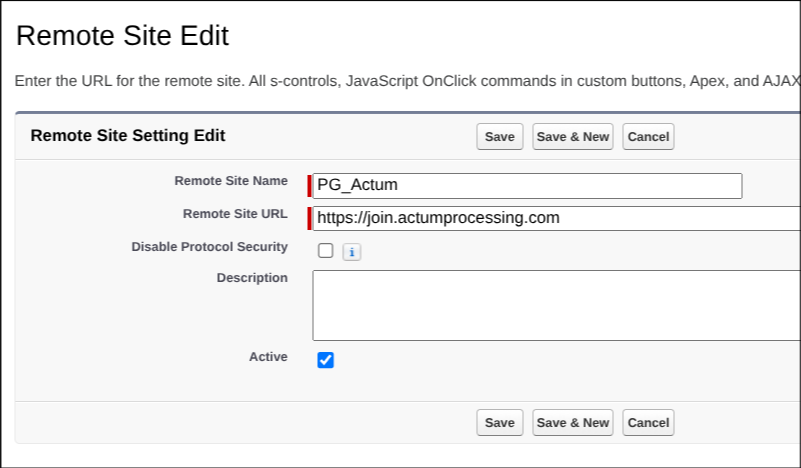
Click New Remote Site.
-
Provide the name in the format PG_{Payment Gateway Name} (e.g., PG_Actum).
-
Add the Remote Site URL (the domain of the endpoint of payment gateway credentials).
-
Check the Active checkbox.
-
Click Save.
5.1.9 Configure Payment Gateway
-
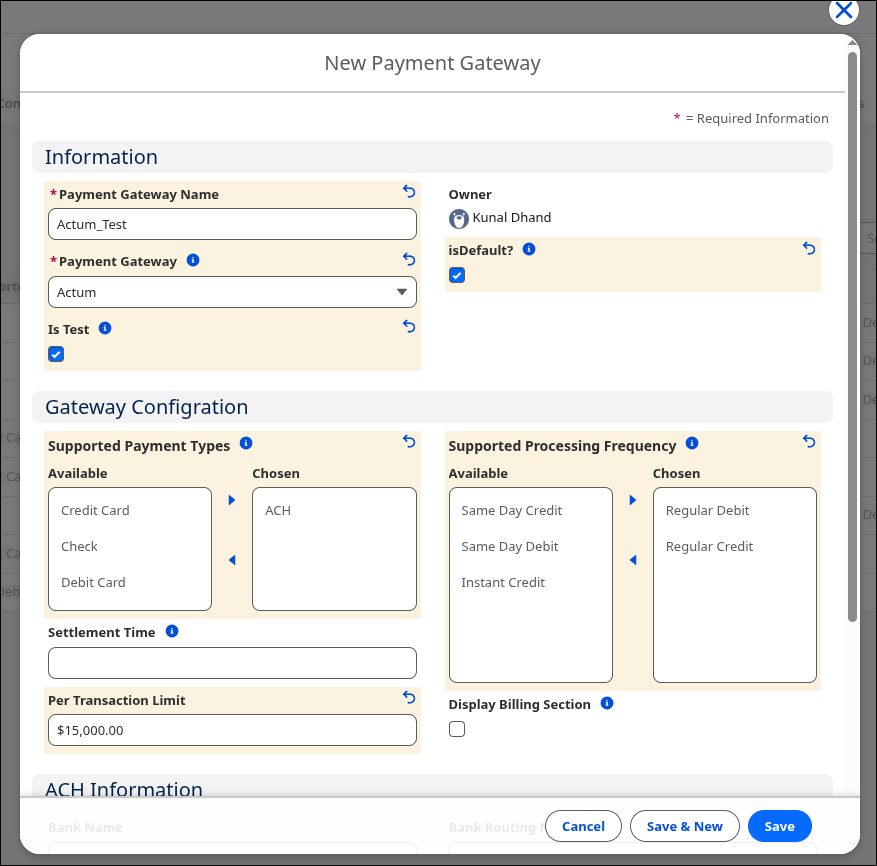
Go to the Payment Gateway tab in Payment Connect.
-
Click New to create a new payment gateway.
-
Provide a Payment Gateway Name.
-
Select your payment gateway from the Payment Gateway picklist.
-
Choose the required Payment Methods (e.g., Card, Pay by Bank) supported by the selected gateway.
-
Check the Display Billing Section checkbox if you want to display the billing address during payment.
-
Set the Estimate Settlement time of that gateway.
-
In Supported Processing Frequency supported debit frequency.
-
Enter the number of days between start and end date supported by that gateway’s return API.
-
Mark the gateway as Active.
-
Optionally, select Make Default Gateway if this gateway should be the default for all transactions.
-
Click Save.
Refer to Gateway Documentation for the supported values. Supported Gateways
5.1.10 Configure Gateway Credentials
-
Select the newly created gateway.
-
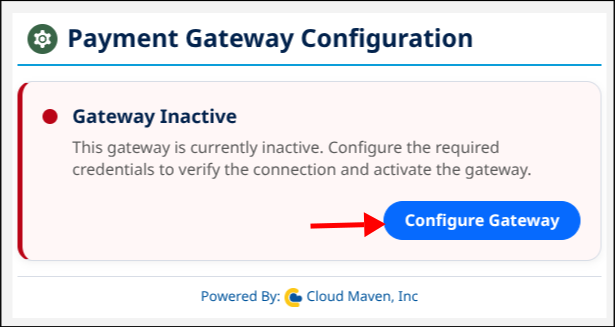
Go to Payment Gateway Configuration.
-
Click on Configure Gateway.
-
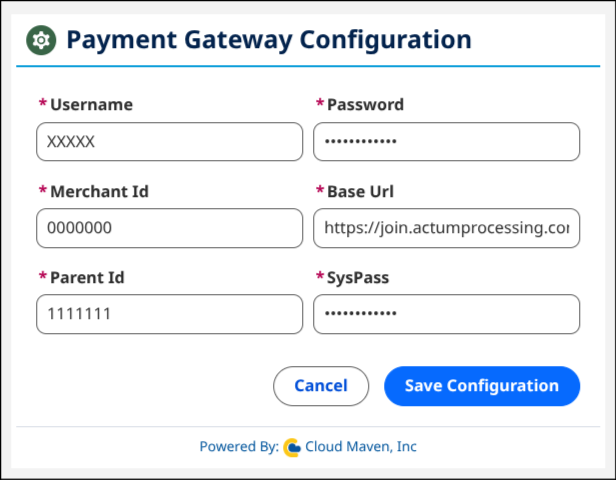
Enter all required credentials (e.g., Username, Password, Gateway URL, Merchant Id, Payment Type Id).
-
Click Save Configuration.
-
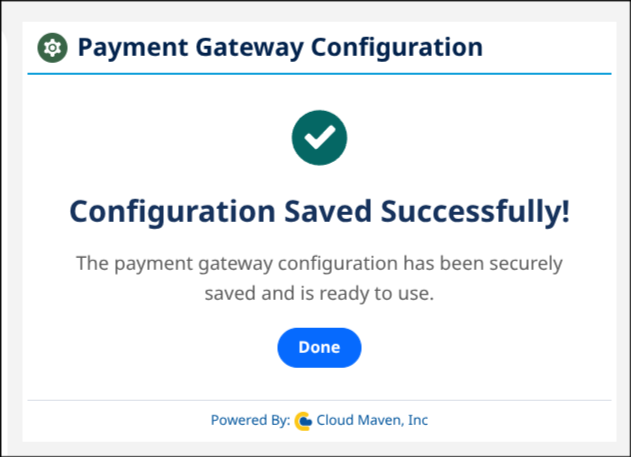
Then Click Done.
-
After the page refresh verify that the payment gateway is now active.
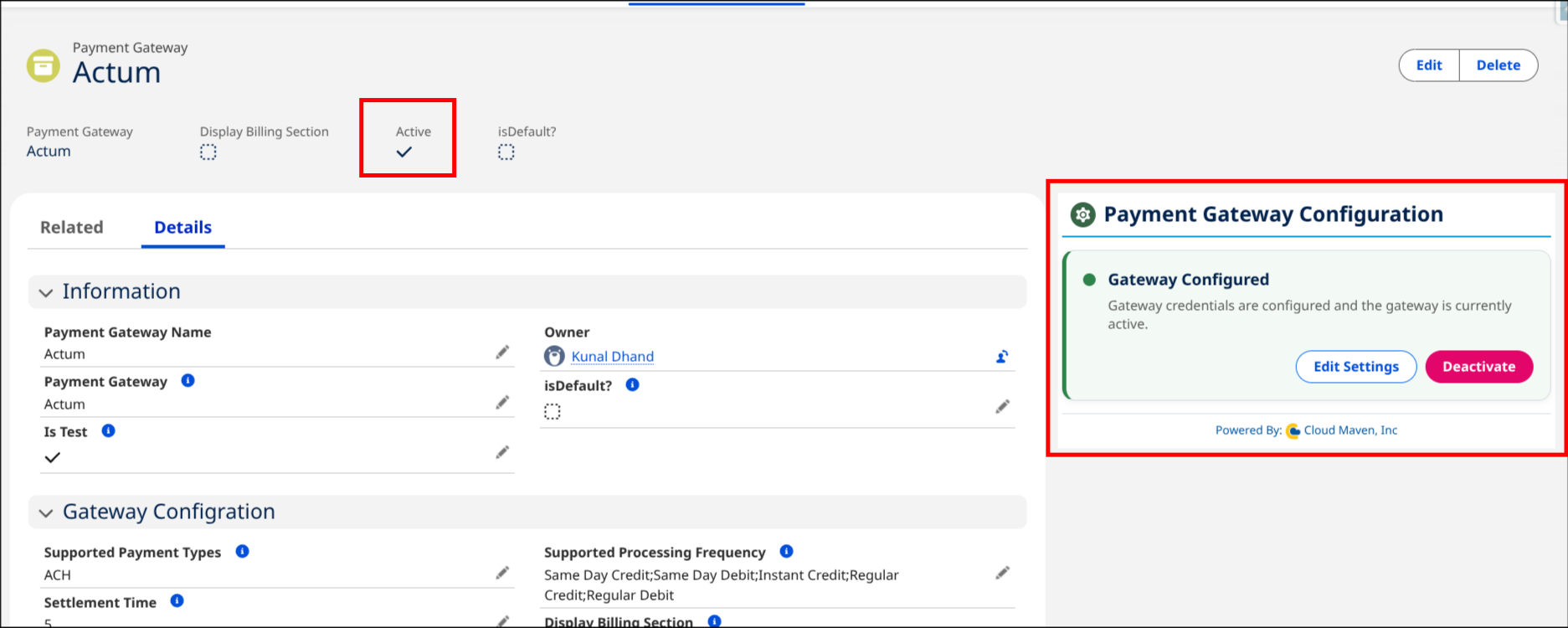
Please contact the setup@cloudmaveninc.com team to get your gateway credentials.
5.1.11 Add the Payment Console LWC on the Record Page
-
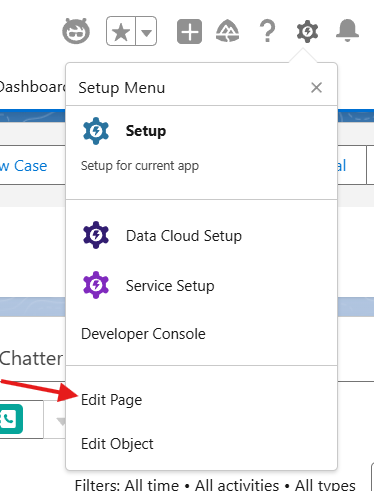
Navigate to the record page → Click the ⚙️ Gear icon → Select Edit Page.
-
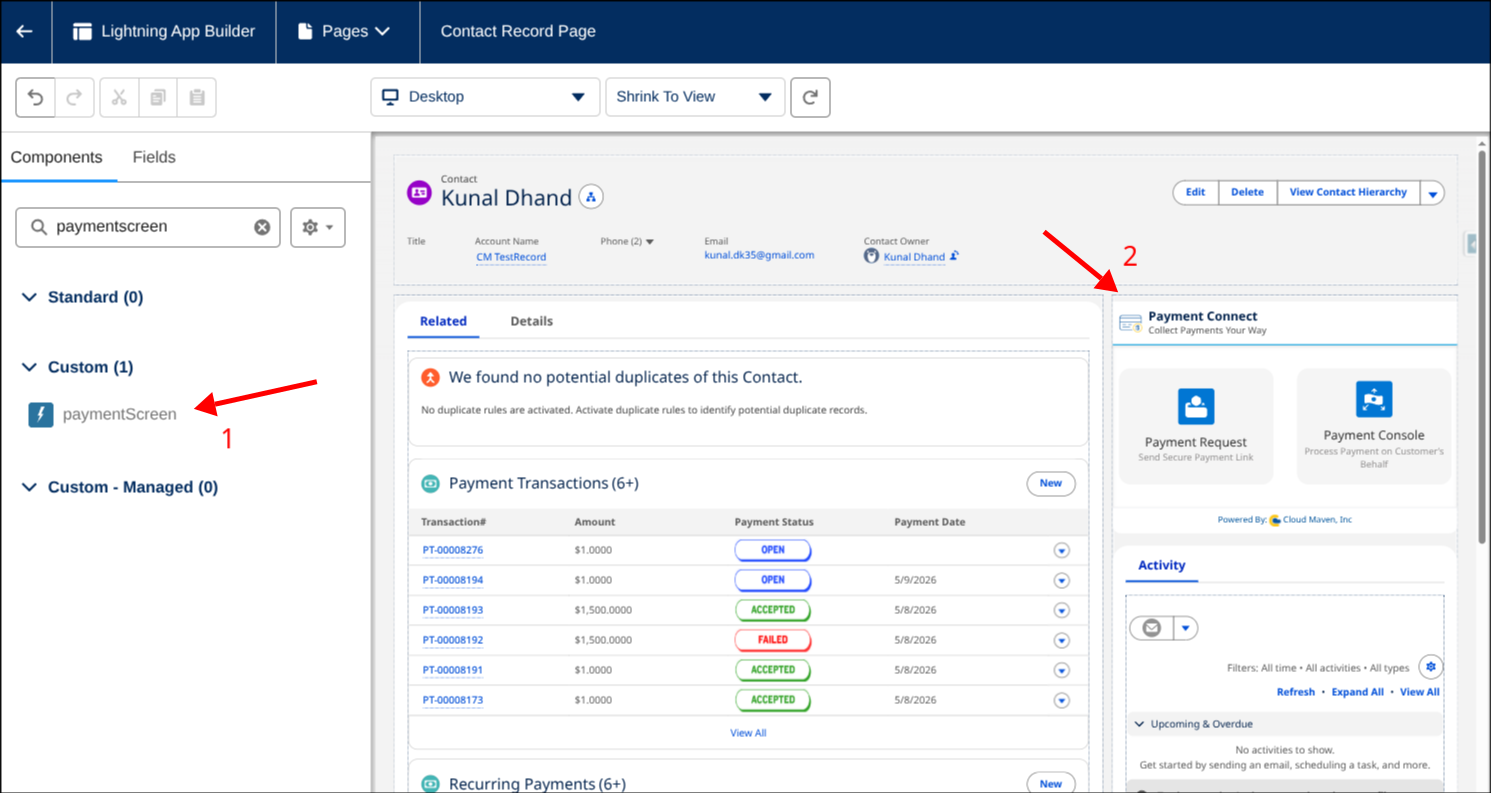
In the Component Search box, search for
paymentScreen. -
Then, drag and drop the
paymentScreenLightning Web Component (LWC) to your desired location on the page layout. -
Click Save in the top right corner. If this is a new layout or not yet activated, click Activate.
5.1.12 Add a payment request classic email template
-
Go the setup and search classic email template.
-
Create a new email template using following Payment Transactions fields-:
-
{!cm_finance__Payment_Transaction__c.cm_finance__Billing_Name__c} -
{!cm_finance__Payment_Transaction__c.cm_finance__Amount__c} -
{!cm_finance__Payment_Transaction__c.cm_finance__Payment_Request_Link__c}
-
-
Save the email template with any name.
Payment Request Email Template
<!DOCTYPE html
PUBLIC "-//W3C//DTD XHTML 1.0 Transitional//EN" "http://www.w3.org/TR/xhtml1/DTD/xhtml1-transitional.dtd">
<!-- saved from url=(0046)file:///Users/leo/Desktop/Sample_Template.html -->
<html xmlns="http://www.w3.org/1999/xhtml" xmlns:v="urn:schemas-microsoft-com:vml"
xmlns:o="urn:schemas-microsoft-com:office:office" lang="EN">
<head>
<meta http-equiv="Content-Type" content="text/html; charset=UTF-8">
<!--[if gte mso 15]>
<xml>
<o:OfficeDocumentSettings>
<o:AllowPNG/>
<o:PixelsPerInch>96</o:PixelsPerInch>
</o:OfficeDocumentSettings>
</xml>
<style type="text/css"> body,table tr,table td,a, span,table.MsoNormalTable { font-family:'Open Sans', Helvetica, sans-serif !important; }</style>
<![endif]-->
<title> </title>
<meta name="x-apple-disable-message-reformatting">
<meta http-equiv="X-UA-Compatible" content="IE=edge">
<meta name="viewport" content="width=device-width, initial-scale=1.0 ">
<link href="./Sample_Template_files/css" rel="stylesheet">
<meta name="format-detection" content="telephone=no">
<style type="text/css">
.ReadMsgBody {
width: 100%;
background-color: #ffffff;
}
.ExternalClass {
width: 100%;
background-color: #ffffff;
}
.ExternalClass,
.ExternalClass p,
.ExternalClass span,
.ExternalClass font,
.ExternalClass td,
.ExternalClass div {
line-height: 100%;
}
html {
width: 100%;
}
table {
border-spacing: 0;
border-collapse: collapse;
mso-table-lspace: 0px;
mso-table-rspace: 0px;
margin: 0 auto;
}
table table table {
table-layout: auto;
}
img {
display: block !important;
over-flow: hidden !important;
border: 0 !important;
outline: none !important;
}
body {
-ms-text-size-adjust: none;
margin: 0 auto !important;
padding: 0 !important;
-webkit-text-size-adjust: 100% !important;
-ms-text-size-adjust: 100% !important;
-webkit-font-smoothing: antialiased !important;
}
#MessageViewBody,
#MessageWebViewDiv {
width: 100% !important;
min-width: 100vw;
margin: 0 !important;
zoom: 1 !important;
}
p {
margin: 0px !important;
padding: 0px !important;
}
td,
a,
span {
border-collapse: collapse;
mso-line-height-rule: exactly;
}
.ExternalClass * {
line-height: 100%;
}
@media only screen and (max-width:600px) {
.em_main_table {
width: 100% !important;
}
.em_wrapper {
width: 100% !important;
max-width: 100% !important;
}
.em_hide {
display: none !important;
}
.em_align_center {
text-align: center !important;
}
.em_pad_top {
padding-top: 20px !important;
}
.em_side_space {
padding-left: 20px !important;
padding-right: 20px !important;
}
.em_bg_center {
background-position: center !important;
}
.em_full_width {
width: 100% !important;
height: auto !important;
max-width: 100% !important;
}
.em_pad_btm {
padding-bottom: 28px !important;
}
u+.em_body .em_full_wrap {
width: 100% !important;
width: 100vw !important;
}
}
</style>
</head>
<body class="em_body" style="min-width: 100%; background-color:#fbfbfb;margin:0 auto !important;padding:0;">
<!--Full width table start-->
<table class="em_full_wrap" width="100%" border="0" cellspacing="0" cellpadding="0" align="center"
style="background-color:#fbfbfb;">
<tbody>
<tr>
<td align="center" valign="top" style="padding:10px;">
<table align="center" class="em_main_table" width="600" border="0" cellspacing="0" cellpadding="0"
style="table-layout:fixed;">
<tbody>
<tr>
<td class="em_hide" style="line-height:1px;min-width:600px;" bgcolor="#ffffff"><img
src="./Sample_Template_files/spacer.gif" height="1" width="600"
style="max-height:1px; min-height:1px; display:block; width:600px; min-width:600px;"
border="0"></td>
</tr>
<!-- ===== PRE-HEADER SECTION ===== -->
<tr>
<td>
<table bgcolor="#fbfbfb" width="100%" border="0" cellspacing="0" cellpadding="0">
<tbody>
<tr>
<td width="30" class="em_hide"> </td>
<td valign="top" class="em_side_space">
<table width="100%" border="0" cellspacing="0" cellpadding="0">
<tbody>
<tr>
<td height="15" style="line-height:1px;font-size:1px;">
</td>
</tr>
<tr>
<td height="15" style="line-height:1px;font-size:1px;">
</td>
</tr>
</tbody>
</table>
</td>
<td width="30" class="em_hide"> </td>
</tr>
</tbody>
</table>
</td>
</tr>
<tr>
<td bgcolor="#ffffff"
style="background-color:#ffffff;border-radius:5px;box-shadow:1px 1px 10px 1px #dddddd;">
<table width="100%" border="0" cellspacing="0" cellpadding="0">
<tbody>
<tr>
<td>
<table width="100%" border="0" cellspacing="0" cellpadding="0">
<tbody>
<tr>
<td height="25" style="line-height:10px;"> </td>
</tr>
<tr>
<td>
<table width="300" border="0" cellspacing="0" cellpadding="0"
align="center">
<tbody>
<tr>
<td><a target="_blank"
style="color:#80BB01;text-decoration:none;"
href="https://cloudmaveninc.com/"><img alt="logo"
src="https://res.cloudinary.com/dl8une8n0/image/upload/v1767871154/CloudMavenInc_logo_CMYK_kop8rh.png"
width="300" height="60"
style="max-width:300px;"></a>
</td>
</tr>
</tbody>
</table>
</td>
</tr>
<tr>
<td height="20" style="line-height:10px;"> </td>
</tr>
</tbody>
</table>
</td>
</tr>
<tr>
<td>
<table width="100%" border="0" cellspacing="0" cellpadding="0">
<tbody>
<tr>
<td background="https://bankconnectpackaging-dev-ed--c.documentforce.com/sfc/dist/version/renditionDownload?rendition=ORIGINAL_Jpg&versionId=0683j000008Eaph&operationContext=DELIVERY&contentId=05T3j00000TnBPu&page=0&d=/a/3j000000M0QY/0b4qYZuV3dl7kAUs4fCe2vQd0z.aLPhzEl81tOuxRZc&oid=00D3j000000i85o&dpt=null&viewId="
align="center" valign="top"
style="background:url('https://i.imgur.com/MZL8kQO.jpg');background-color: #004F95;-webkit-background-size: cover; -moz-background-size: cover; -o-background-size: cover; background-size: cover;background-position: top center;"
class="em_bg_center">
<!--[if gte mso 9]>
<v:rect xmlns:v="urn:schemas-microsoft-com:vml" fill="true" stroke="false" style="width:600px;height:200px;">
<v:fill type="tile" src="https://i.imgur.com/MZL8kQO.jpg" color="#ffffff" />
<v:textbox inset="0,0,0,0">
<![endif]-->
<table width="90%" align="center" border="0" cellspacing="0"
cellpadding="0">
<tbody>
<tr>
<td height="50" style="line-height:1px;font-size:1px;">
</td>
</tr>
<tr>
<td class="em_dark_grey_txt"
style="font-family:'Open Sans', Arial, sans-serif;font-size:27px;text-align:center;text-transform:none;color:#ffffff;letter-spacing:0px;font-weight:300;">
Payment Request
</td>
</tr>
<tr>
<td height="10" style="line-height:1px;font-size:1px;">
</td>
</tr>
<!--<tr>
<td class="em_grey_txt"
style="font-family:'Open Sans', Arial, sans-serif;font-size:14px;text-align:center;padding-left:0px;padding-right:0px;color:#ffffff;line-height:24px;font-weight:400;letter-spacing: 2px;">
{!bankconnect__Bank_Verification__c.CreatedDate}
</td>
</tr>-->
<tr>
<td height="50" style="line-height:1px;font-size:1px;">
</td>
</tr>
</tbody>
</table>
<!--[if gte mso 9]>
</v:textbox>
</v:rect>
<![endif]-->
</td>
</tr>
</tbody>
</table>
</td>
</tr>
<tr>
<td>
<table width="100%" border="0" cellspacing="0" cellpadding="0">
<tbody>
<tr>
<td width="40" class="em_hide"> </td>
<td valign="top" class="em_side_space">
<table width="100%" border="0" cellspacing="0" cellpadding="0">
<tbody>
<tr>
<td height="40" style="line-height:1px;font-size:1px;">
</td>
</tr>
<tr>
<td class="em_grey_txt"
style="font-family:'Open Sans', Arial, sans-serif;font-size:16px;text-align:left;padding-left:0px;padding-right:0px;color:#333333;line-height:24px;font-weight:300;">
Hello
{!cm_finance__Payment_Transaction__c.cm_finance__Billing_Name__c},
<br><br>
<!--<p
style="font-family:'Open Sans', Arial, sans-serif;font-size:18px;text-align:center;padding-left:0px;padding-right:0px;color:#0e6b0e;line-height:24px;font-weight:700;">
We hope that you are doing well</p><br />-->
We hope you are doing well.
Please Click on the Below Link to
make the payment of
{!cm_finance__Payment_Transaction__c.cm_finance__Amount__c}
from your Card/Bank
securely.<br> <br>
</td>
</tr>
<tr>
<td height="30" style="line-height:1px;font-size:1px;">
</td>
</tr>
<tr>
<td>
<table width="160" border="0" cellspacing="0"
cellpadding="0" align="center">
<tbody>
<tr>
<td valign="middle" bgcolor="#119100"
height="45"
style="padding-left: 10px;padding-right: 10px;font-family:'Open Sans', Arial, sans-serif;font-size:14px;text-align:center;border-radius:5px;color:#ffffff;letter-spacing:1px;text-transform:uppercase;font-weight:300;">
<a href={!cm_finance__Payment_Transaction__c.cm_finance__Payment_Request_Link__c}
target="_blank"
style="text-decoration:none;color:#ffffff;display:block;line-height:45px;">
Pay
</a>
</td>
</tr>
</tbody>
</table>
</td>
</tr>
<tr>
<td height="30" style="line-height:1px;font-size:1px;">
</td>
</tr>
<tr>
<td class="em_grey_txt"
style="font-style:italic;font-family:'Open Sans', Arial, sans-serif;font-size:16px;text-align:left;padding-left:0px;padding-right:0px;color:#333333;line-height:24px;font-weight:300;">
</td>
</tr>
<tr>
<td height="50" style="line-height:1px;font-size:1px;">
</td>
</tr>
</tbody>
</table>
</td>
<td width="40" class="em_hide"> </td>
</tr>
</tbody>
</table>
</td>
</tr>
<tr>
<td bgcolor="#003791"
style="background-color:#003791;border-radius:0px 0px 5px 5px; ">
<table width="100%" border="0" cellspacing="0" cellpadding="0">
<tbody>
<tr>
<td height="30" style="line-height:1px;font-size:1px;">
</td>
</tr>
<tr>
<td>
<table width="100%" border="0" cellspacing="0" cellpadding="0">
<tbody>
<tr>
<td width="30" class="em_hide">
</td>
<td>
<table width="100%" border="0" cellspacing="0"
cellpadding="0">
<tbody>
<tr>
<td>
<table width="290" border="0" cellspacing="0"
cellpadding="0" align="left"
class="em_wrapper">
<tbody>
<tr>
<td>
<table width="290" border="0"
cellspacing="0"
cellpadding="0" align="center"
class="em_wrapper">
<tbody>
<tr>
<td class="em_align_center"
style="font-family:'Open Sans', Arial, sans-serif;font-size:14px;text-align:left;padding-left:0px;padding-right:0px;color:#ffffff;line-height:24px;font-weight:300;">
<span
style="font-weight:700;">CONTACT
US</span>
</td>
</tr>
<tr>
<td height="5"
style="line-height:1px;font-size:1px;">
</td>
</tr>
<tr>
<td>
<table border="0"
cellspacing="0"
cellpadding="0"
align="left"
class="em_wrapper">
<tbody>
<tr>
</tr>
<tr>
<td>
<table
border="0"
cellspacing="0"
cellpadding="0"
align="center">
<tbody>
<tr>
<td width="12"
style="padding-right:2px; ">
<img
src="https://i.imgur.com/Peq78CV.png"
alt="ico"
width="11"
height="9"
style="display:block;border:none; max-width:11px;"
border="0">
</td>
<td
style="padding-left:3px;font-family:'Open Sans', Arial, sans-serif;font-size:12px;text-align:left;color:#ffffff;line-height:20px;font-weight:300;">
<a target="_blank"
style="color:#ffffff;text-decoration:none;"
href="tel:++1(646) 604-9857">+16466049857</a>
</td>
</tr>
</tbody>
</table>
</td>
</tr>
</tbody>
</table>
</td>
</tr>
<tr>
<td
style="padding-top:1px;">
<table border="0"
cellspacing="0"
cellpadding="0"
align="left"
class="em_wrapper">
<tbody>
<tr>
<td>
<table
border="0"
cellspacing="0"
cellpadding="0"
align="center">
<tbody>
<tr>
<td width="12"
style="padding-right:2px; ">
<img
src="https://i.imgur.com/YjQOOJz.png"
alt="ico"
width="11"
height="9"
style="display:block;border:none; max-width:11px;"
border="0">
</td>
<td
style="padding-left:3px;font-family:'Open Sans', Arial, sans-serif;font-size:12px;text-align:left;color:#ffffff;line-height:20px;font-weight:300;">
<a target="_blank"
style="color:#ffffff;text-decoration:none;"
href="mailto:solutions@cloudmaveninc.com">
solutions@cloudmaveninc.com</a>
</td>
</tr>
</tbody>
</table>
</td>
</tr>
</tbody>
</table>
</td>
</tr>
<tr>
<td
style="padding-top:1px;">
<table border="0"
cellspacing="0"
cellpadding="0"
align="left"
class="em_wrapper">
<tbody>
<tr>
<td>
<table
border="0"
cellspacing="0"
cellpadding="0"
align="center">
<tbody>
<tr>
<td valign="top"
width="12"
style="padding-top:3px; ">
<img
src="https://i.imgur.com/iwiWHTB.png"
alt="ico"
width="12"
height="14"
style="display:block;border:none; max-width:12px;"
border="0">
</td>
<td valign="top"
style="padding-left:3px;font-family:'Open Sans', Arial, sans-serif;font-size:12px;text-align:left;color:#ffffff;line-height:20px;font-weight:300;">
747
Third
Avenue,
2nd
Floor
New
York,
NY
10017
</td>
</tr>
</tbody>
</table>
</td>
</tr>
</tbody>
</table>
</td>
</tr>
</tbody>
</table>
</td>
</tr>
</tbody>
</table>
<table width="250" border="0" cellspacing="0"
cellpadding="0" align="right"
class="em_wrapper">
<tbody>
<tr>
<td class="em_pad_top">
<table width="250" border="0"
cellspacing="0"
cellpadding="0"
align="center">
<tbody>
<tr>
<td height="5"
style="line-height:1px;font-size:1px;">
</td>
</tr>
<tr>
<td>
<table width="160"
class="em_wrapper"
align="right"
border="0"
cellspacing="0"
cellpadding="0">
<tbody>
<tr>
<td>
<table
align="center"
width="160"
border="0"
cellpadding="0"
cellspacing="0">
<tbody>
<tr>
<td width="40"
height="40">
<a href="https://www.linkedin.com/company/cloud-maven-inc/"
class="modimg"
style="color:#7B9C4D;"><img
src="https://i.imgur.com/8LKkMZe.png"
width="40"
height="40"
style="max-width:40px;display:block; border: none;"
border="0"
alt="fb"></a>
</td>
<td
width="20">
</td>
<td width="40"
height="40">
<a href="https://twitter.com/CloudMavenInc"
class="modimg"
style="color:#7B9C4D;"><img
src="https://i.imgur.com/rOepp46.png"
width="40"
height="40"
style="max-width:40px;display:block; border: none;"
border="0"
alt="tw"></a>
</td>
<td
width="20">
</td>
<td width="40"
height="40">
<a href="https://www.youtube.com/channel/UCoVpK_sfgozJln5JHPV4f7Q"
class="modimg"
style="color:#7B9C4D;"><img
src="https://i.imgur.com/x4afOGN.png"
width="40"
height="40"
style="max-width:40px;display:block; border: none;"
border="0"
alt="g+"></a>
</td>
</tr>
</tbody>
</table>
</td>
</tr>
</tbody>
</table>
</td>
</tr>
<tr>
<td height="22"
style="line-height:1px;font-size:1px;">
</td>
</tr>
<tr>
<td class="em_align_center"
style="font-family:'Open Sans', Arial, sans-serif;font-size:12px;text-align:right;padding-left:0px;padding-right:0px;color:#ffffff;line-height:24px;font-weight:300;">
Copyright
©
2020.
Cloud
Maven,
Inc.
</td>
</tr>
</tbody>
</table>
</td>
</tr>
</tbody>
</table>
</td>
</tr>
<tr>
<td height="30"
style="line-height:1px;font-size:1px;">
</td>
</tr>
</tbody>
</table>
</td>
<td width="30" class="em_hide">
</td>
</tr>
</tbody>
</table>
</td>
</tr>
</tbody>
</table>
</td>
</tr>
</tbody>
</table>
</td>
</tr>
<tr>
<td height="20" style="line-height:1px;font-size:1px;"> </td>
</tr>
</tbody>
</table>
</td>
</tr>
</tbody>
</table>
<!--Full width table End-->
<div style="display:none; white-space:nowrap; font:20px courier; color:#ffffff; background-color:#ffffff;">- - - - -
- - - - - - - - - - - - - - - - - -
</div>
</body>
</html>
5.1.13 Add Payment confirmation email template
-
Similar to section 5.12 add another email template for Payment confirmation
-
Add the following filed in the email
-
Amount:
{!cm_finance__Payment_Transaction__c.cm_finance__Amount_Captured__c} -
Date:
{!cm_finance__Payment_Transaction__c.cm_finance__Payment_Date__c} -
Reference ID:
{!cm_finance__Payment_Transaction__c.cm_finance__Transaction_Id__c}
-
Payment Confirmation Template
<!DOCTYPE html
PUBLIC "-//W3C//DTD XHTML 1.0 Transitional//EN" "http://www.w3.org/TR/xhtml1/DTD/xhtml1-transitional.dtd">
<!-- saved from url=(0046)file:///Users/leo/Desktop/Sample_Template.html -->
<html xmlns="http://www.w3.org/1999/xhtml" xmlns:v="urn:schemas-microsoft-com:vml"
xmlns:o="urn:schemas-microsoft-com:office:office" lang="EN">
<head>
<meta http-equiv="Content-Type" content="text/html; charset=UTF-8">
<!--[if gte mso 15]>
<xml>
<o:OfficeDocumentSettings>
<o:AllowPNG/>
<o:PixelsPerInch>96</o:PixelsPerInch>
</o:OfficeDocumentSettings>
</xml>
<style type="text/css"> body,table tr,table td,a, span,table.MsoNormalTable { font-family:'Open Sans', Helvetica, sans-serif !important; }</style>
<![endif]-->
<title> </title>
<meta name="x-apple-disable-message-reformatting">
<meta http-equiv="X-UA-Compatible" content="IE=edge">
<meta name="viewport" content="width=device-width, initial-scale=1.0 ">
<link href="./Sample_Template_files/css" rel="stylesheet">
<meta name="format-detection" content="telephone=no">
<style type="text/css">
.ReadMsgBody {
width: 100%;
background-color: #ffffff;
}
.ExternalClass {
width: 100%;
background-color: #ffffff;
}
.ExternalClass,
.ExternalClass p,
.ExternalClass span,
.ExternalClass font,
.ExternalClass td,
.ExternalClass div {
line-height: 100%;
}
html {
width: 100%;
}
table {
border-spacing: 0;
border-collapse: collapse;
mso-table-lspace: 0px;
mso-table-rspace: 0px;
margin: 0 auto;
}
table table table {
table-layout: auto;
}
img {
display: block !important;
over-flow: hidden !important;
border: 0 !important;
outline: none !important;
}
body {
-ms-text-size-adjust: none;
margin: 0 auto !important;
padding: 0 !important;
-webkit-text-size-adjust: 100% !important;
-ms-text-size-adjust: 100% !important;
-webkit-font-smoothing: antialiased !important;
}
#MessageViewBody,
#MessageWebViewDiv {
width: 100% !important;
min-width: 100vw;
margin: 0 !important;
zoom: 1 !important;
}
p {
margin: 0px !important;
padding: 0px !important;
}
td,
a,
span {
border-collapse: collapse;
mso-line-height-rule: exactly;
}
.ExternalClass * {
line-height: 100%;
}
.payment-details {
background-color: #ffffff;
padding: 15px;
border-radius: 5px;
border: 1px solid #e0e0e0;
}
.payment-details p {
margin: 8px 0;
}
@media only screen and (max-width:600px) {
.em_main_table {
width: 100% !important;
}
.em_wrapper {
width: 100% !important;
max-width: 100% !important;
}
.em_hide {
display: none !important;
}
.em_align_center {
text-align: center !important;
}
.em_pad_top {
padding-top: 20px !important;
}
.em_side_space {
padding-left: 20px !important;
padding-right: 20px !important;
}
.em_bg_center {
background-position: center !important;
}
.em_full_width {
width: 100% !important;
height: auto !important;
max-width: 100% !important;
}
.em_pad_btm {
padding-bottom: 28px !important;
}
u+.em_body .em_full_wrap {
width: 100% !important;
width: 100vw !important;
}
}
</style>
</head>
<body class="em_body" style="min-width: 100%; background-color:#fbfbfb;margin:0 auto !important;padding:0;">
<!--Full width table start-->
<table class="em_full_wrap" width="100%" border="0" cellspacing="0" cellpadding="0" align="center"
style="background-color:#fbfbfb;">
<tbody>
<tr>
<td align="center" valign="top" style="padding:10px;">
<table align="center" class="em_main_table" width="600" border="0" cellspacing="0" cellpadding="0"
style="table-layout:fixed;">
<tbody>
<tr>
<td class="em_hide" style="line-height:1px;min-width:600px;" bgcolor="#ffffff"><img
src="./Sample_Template_files/spacer.gif" height="1" width="600"
style="max-height:1px; min-height:1px; display:block; width:600px; min-width:600px;"
border="0"></td>
</tr>
<!-- ===== PRE-HEADER SECTION ===== -->
<tr>
<td>
<table bgcolor="#fbfbfb" width="100%" border="0" cellspacing="0" cellpadding="0">
<tbody>
<tr>
<td width="30" class="em_hide"> </td>
<td valign="top" class="em_side_space">
<table width="100%" border="0" cellspacing="0" cellpadding="0">
<tbody>
<tr>
<td height="15" style="line-height:1px;font-size:1px;">
</td>
</tr>
<tr>
<td height="15" style="line-height:1px;font-size:1px;">
</td>
</tr>
</tbody>
</table>
</td>
<td width="30" class="em_hide"> </td>
</tr>
</tbody>
</table>
</td>
</tr>
<tr>
<td bgcolor="#ffffff"
style="background-color:#ffffff;border-radius:5px;box-shadow:1px 1px 10px 1px #dddddd;">
<table width="100%" border="0" cellspacing="0" cellpadding="0">
<tbody>
<tr>
<td>
<table width="100%" border="0" cellspacing="0" cellpadding="0">
<tbody>
<tr>
<td height="25" style="line-height:10px;"> </td>
</tr>
<tr>
<td>
<table width="300" border="0" cellspacing="0"
cellpadding="0" align="center">
<tbody>
<tr>
<td><a target="_blank"
style="color:#80BB01;text-decoration:none;"
href="https://cloudmaveninc.com/"><img
alt="logo"
src="https://res.cloudinary.com/dl8une8n0/image/upload/v1767871154/CloudMavenInc_logo_CMYK_kop8rh.png"
width="300" height="60"
style="max-width:300px;"></a>
</td>
</tr>
</tbody>
</table>
</td>
</tr>
<tr>
<td height="20" style="line-height:10px;"> </td>
</tr>
</tbody>
</table>
</td>
</tr>
<tr>
<td>
<table width="100%" border="0" cellspacing="0" cellpadding="0">
<tbody>
<tr>
<td background="https://bankconnectpackaging-dev-ed--c.documentforce.com/sfc/dist/version/renditionDownload?rendition=ORIGINAL_Jpg&versionId=0683j000008Eaph&operationContext=DELIVERY&contentId=05T3j00000TnBPu&page=0&d=/a/3j000000M0QY/0b4qYZuV3dl7kAUs4fCe2vQd0z.aLPhzEl81tOuxRZc&oid=00D3j000000i85o&dpt=null&viewId="
align="center" valign="top"
style="background:url('https://i.imgur.com/MZL8kQO.jpg');background-color: #004F95;-webkit-background-size: cover; -moz-background-size: cover; -o-background-size: cover; background-size: cover;background-position: top center;"
class="em_bg_center">
<!--[if gte mso 9]>
<v:rect xmlns:v="urn:schemas-microsoft-com:vml" fill="true" stroke="false" style="width:600px;height:200px;">
<v:fill type="tile" src="https://i.imgur.com/MZL8kQO.jpg" color="#ffffff" />
<v:textbox inset="0,0,0,0">
<![endif]-->
<table width="90%" align="center" border="0"
cellspacing="0" cellpadding="0">
<tbody>
<tr>
<td height="50"
style="line-height:1px;font-size:1px;">
</td>
</tr>
<tr>
<td class="em_dark_grey_txt"
style="font-family:'Open Sans', Arial, sans-serif;font-size:27px;text-align:center;text-transform:none;color:#ffffff;letter-spacing:0px;font-weight:300;">
Payment Confirmation
</td>
</tr>
<tr>
<td height="10"
style="line-height:1px;font-size:1px;">
</td>
</tr>
<!--<tr>
<td class="em_grey_txt"
style="font-family:'Open Sans', Arial, sans-serif;font-size:14px;text-align:center;padding-left:0px;padding-right:0px;color:#ffffff;line-height:24px;font-weight:400;letter-spacing: 2px;">
{!bankconnect__Bank_Verification__c.CreatedDate}
</td>
</tr>-->
<tr>
<td height="50"
style="line-height:1px;font-size:1px;">
</td>
</tr>
</tbody>
</table>
<!--[if gte mso 9]>
</v:textbox>
</v:rect>
<![endif]-->
</td>
</tr>
</tbody>
</table>
</td>
</tr>
<tr>
<td>
<table width="100%" border="0" cellspacing="0" cellpadding="0">
<tbody>
<tr>
<td width="40" class="em_hide"> </td>
<td valign="top" class="em_side_space">
<table width="100%" border="0" cellspacing="0"
cellpadding="0">
<tbody>
<tr>
<td height="40"
style="line-height:1px;font-size:1px;">
</td>
</tr>
<tr>
<td class="em_grey_txt"
style="font-family:'Open Sans', Arial, sans-serif;font-size:16px;text-align:left;padding-left:0px;padding-right:0px;color:#333333;line-height:24px;font-weight:300;">
Hello
{!cm_finance__Payment_Transaction__c.cm_finance__Billing_Name__c},
<br><br>
<p>We have received your payment.
Please find the details of the
transaction below. The payment
will be processed within 3–5
business days.</p><br> <br>
<div class="payment-details">
<p><strong>Amount:</strong>
{!cm_finance__Payment_Transaction__c.cm_finance__Amount_Captured__c}
</p>
<p><strong>Date:</strong>
{!cm_finance__Payment_Transaction__c.cm_finance__Payment_Date__c}
</p>
<p><strong>Reference
ID:</strong>
{!cm_finance__Payment_Transaction__c.cm_finance__Transaction_Id__c}
</p>
</div>
</td>
</tr>
<tr>
<td height="30"
style="line-height:1px;font-size:1px;">
</td>
</tr>
<tr>
<td height="30"
style="line-height:1px;font-size:1px;">
</td>
</tr>
<tr>
<td class="em_grey_txt"
style="font-style:italic;font-family:'Open Sans', Arial, sans-serif;font-size:16px;text-align:left;padding-left:0px;padding-right:0px;color:#333333;line-height:24px;font-weight:300;">
</td>
</tr>
<tr>
<td height="50"
style="line-height:1px;font-size:1px;">
</td>
</tr>
</tbody>
</table>
</td>
<td width="40" class="em_hide"> </td>
</tr>
</tbody>
</table>
</td>
</tr>
<tr>
<td bgcolor="#003791"
style="background-color:#003791;border-radius:0px 0px 5px 5px; ">
<table width="100%" border="0" cellspacing="0" cellpadding="0">
<tbody>
<tr>
<td height="30" style="line-height:1px;font-size:1px;">
</td>
</tr>
<tr>
<td>
<table width="100%" border="0" cellspacing="0"
cellpadding="0">
<tbody>
<tr>
<td width="30" class="em_hide">
</td>
<td>
<table width="100%" border="0"
cellspacing="0" cellpadding="0">
<tbody>
<tr>
<td>
<table width="290"
border="0"
cellspacing="0"
cellpadding="0"
align="left"
class="em_wrapper">
<tbody>
<tr>
<td>
<table
width="290"
border="0"
cellspacing="0"
cellpadding="0"
align="center"
class="em_wrapper">
<tbody>
<tr>
<td class="em_align_center"
style="font-family:'Open Sans', Arial, sans-serif;font-size:14px;text-align:left;padding-left:0px;padding-right:0px;color:#ffffff;line-height:24px;font-weight:300;">
<span
style="font-weight:700;">CONTACT
US</span>
</td>
</tr>
<tr>
<td height="5"
style="line-height:1px;font-size:1px;">
</td>
</tr>
<tr>
<td>
<table
border="0"
cellspacing="0"
cellpadding="0"
align="left"
class="em_wrapper">
<tbody>
<tr>
</tr>
<tr>
<td>
<table
border="0"
cellspacing="0"
cellpadding="0"
align="center">
<tbody>
<tr>
<td width="12"
style="padding-right:2px; ">
<img src="https://i.imgur.com/Peq78CV.png"
alt="ico"
width="11"
height="9"
style="display:block;border:none; max-width:11px;"
border="0">
</td>
<td
style="padding-left:3px;font-family:'Open Sans', Arial, sans-serif;font-size:12px;text-align:left;color:#ffffff;line-height:20px;font-weight:300;">
<a target="_blank"
style="color:#ffffff;text-decoration:none;"
href="tel:++1(646) 604-9857">+16466049857</a>
</td>
</tr>
</tbody>
</table>
</td>
</tr>
</tbody>
</table>
</td>
</tr>
<tr>
<td
style="padding-top:1px;">
<table
border="0"
cellspacing="0"
cellpadding="0"
align="left"
class="em_wrapper">
<tbody>
<tr>
<td>
<table
border="0"
cellspacing="0"
cellpadding="0"
align="center">
<tbody>
<tr>
<td width="12"
style="padding-right:2px; ">
<img src="https://i.imgur.com/YjQOOJz.png"
alt="ico"
width="11"
height="9"
style="display:block;border:none; max-width:11px;"
border="0">
</td>
<td
style="padding-left:3px;font-family:'Open Sans', Arial, sans-serif;font-size:12px;text-align:left;color:#ffffff;line-height:20px;font-weight:300;">
<a target="_blank"
style="color:#ffffff;text-decoration:none;"
href="mailto:solutions@cloudmaveninc.com">
solutions@cloudmaveninc.com</a>
</td>
</tr>
</tbody>
</table>
</td>
</tr>
</tbody>
</table>
</td>
</tr>
<tr>
<td
style="padding-top:1px;">
<table
border="0"
cellspacing="0"
cellpadding="0"
align="left"
class="em_wrapper">
<tbody>
<tr>
<td>
<table
border="0"
cellspacing="0"
cellpadding="0"
align="center">
<tbody>
<tr>
<td valign="top"
width="12"
style="padding-top:3px; ">
<img src="https://i.imgur.com/iwiWHTB.png"
alt="ico"
width="12"
height="14"
style="display:block;border:none; max-width:12px;"
border="0">
</td>
<td valign="top"
style="padding-left:3px;font-family:'Open Sans', Arial, sans-serif;font-size:12px;text-align:left;color:#ffffff;line-height:20px;font-weight:300;">
747
Third
Avenue,
2nd
Floor
New
York,
NY
10017
</td>
</tr>
</tbody>
</table>
</td>
</tr>
</tbody>
</table>
</td>
</tr>
</tbody>
</table>
</td>
</tr>
</tbody>
</table>
<table width="250"
border="0"
cellspacing="0"
cellpadding="0"
align="right"
class="em_wrapper">
<tbody>
<tr>
<td
class="em_pad_top">
<table
width="250"
border="0"
cellspacing="0"
cellpadding="0"
align="center">
<tbody>
<tr>
<td height="5"
style="line-height:1px;font-size:1px;">
</td>
</tr>
<tr>
<td>
<table
width="160"
class="em_wrapper"
align="right"
border="0"
cellspacing="0"
cellpadding="0">
<tbody>
<tr>
<td>
<table
align="center"
width="160"
border="0"
cellpadding="0"
cellspacing="0">
<tbody>
<tr>
<td width="40"
height="40">
<a href="https://www.linkedin.com/company/cloud-maven-inc/"
class="modimg"
style="color:#7B9C4D;"><img
src="https://i.imgur.com/8LKkMZe.png"
width="40"
height="40"
style="max-width:40px;display:block; border: none;"
border="0"
alt="fb"></a>
</td>
<td
width="20">
</td>
<td width="40"
height="40">
<a href="https://twitter.com/CloudMavenInc"
class="modimg"
style="color:#7B9C4D;"><img
src="https://i.imgur.com/rOepp46.png"
width="40"
height="40"
style="max-width:40px;display:block; border: none;"
border="0"
alt="tw"></a>
</td>
<td
width="20">
</td>
<td width="40"
height="40">
<a href="https://www.youtube.com/channel/UCoVpK_sfgozJln5JHPV4f7Q"
class="modimg"
style="color:#7B9C4D;"><img
src="https://i.imgur.com/x4afOGN.png"
width="40"
height="40"
style="max-width:40px;display:block; border: none;"
border="0"
alt="g+"></a>
</td>
</tr>
</tbody>
</table>
</td>
</tr>
</tbody>
</table>
</td>
</tr>
<tr>
<td height="22"
style="line-height:1px;font-size:1px;">
</td>
</tr>
<tr>
<td class="em_align_center"
style="font-family:'Open Sans', Arial, sans-serif;font-size:12px;text-align:right;padding-left:0px;padding-right:0px;color:#ffffff;line-height:24px;font-weight:300;">
Copyright
©
2020.
Cloud
Maven,
Inc.
</td>
</tr>
</tbody>
</table>
</td>
</tr>
</tbody>
</table>
</td>
</tr>
<tr>
<td height="30"
style="line-height:1px;font-size:1px;">
</td>
</tr>
</tbody>
</table>
</td>
<td width="30" class="em_hide">
</td>
</tr>
</tbody>
</table>
</td>
</tr>
</tbody>
</table>
</td>
</tr>
</tbody>
</table>
</td>
</tr>
<tr>
<td height="20" style="line-height:1px;font-size:1px;"> </td>
</tr>
</tbody>
</table>
</td>
</tr>
</tbody>
</table>
<!--Full width table End-->
<div style="display:none; white-space:nowrap; font:20px courier; color:#ffffff; background-color:#ffffff;">- - - - -
- - - - - - - - - - - - - - - - - -
</div>
</body>
</html>
White Label the above template according to client’s needs.
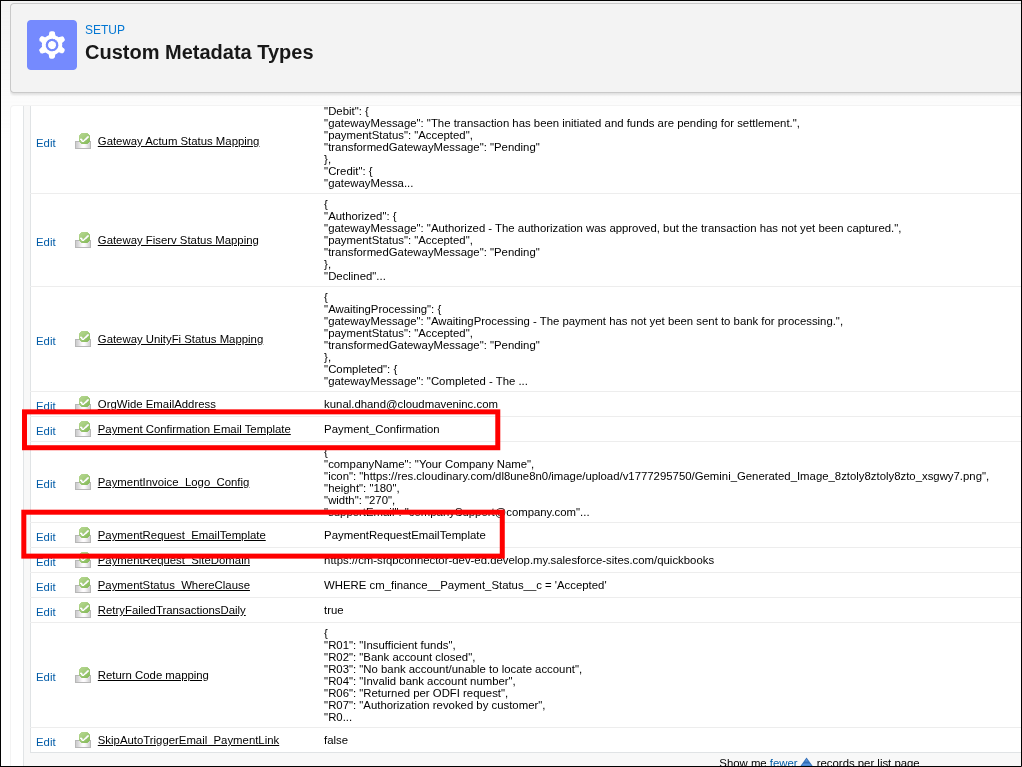
5.1.14 Add email template name in metadata
-
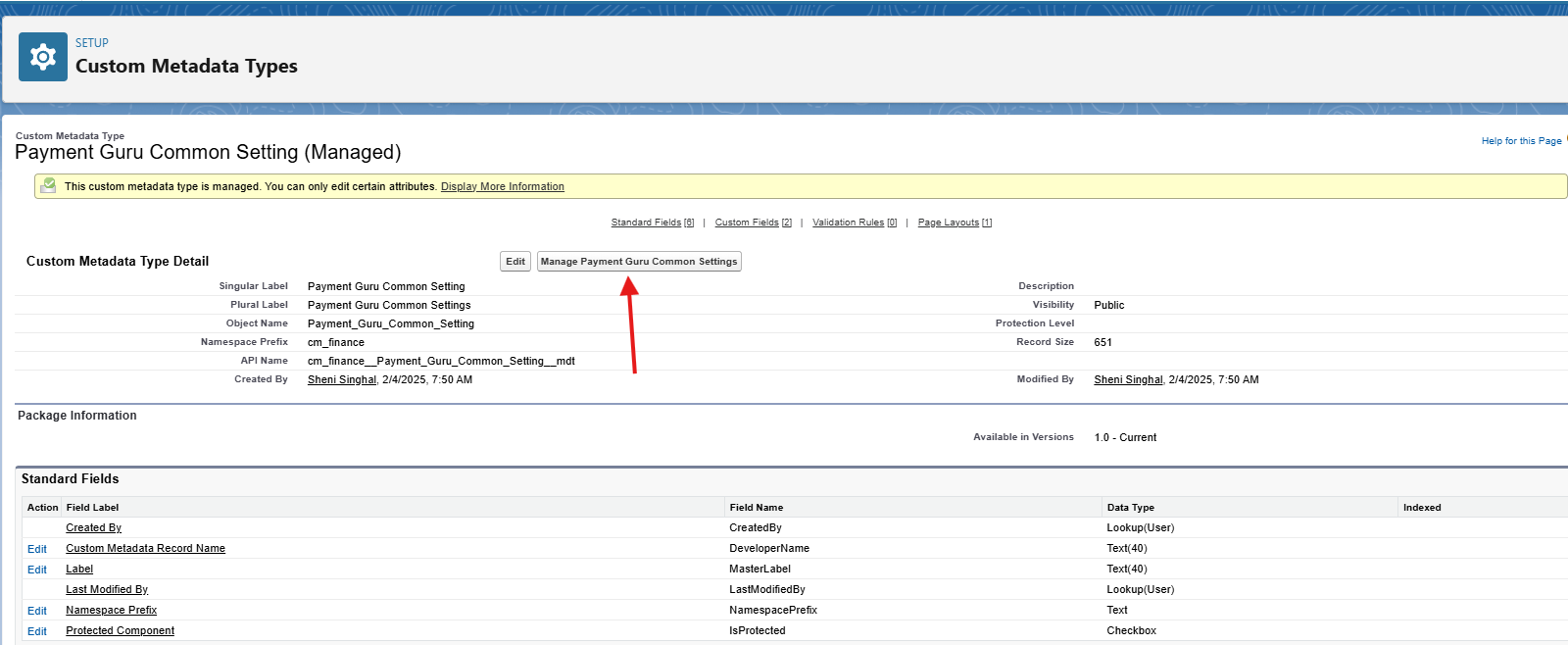
Go to setup and search Custom Metadata Types
-
Click on Payment Connect Common Setting.
-
Edit
PaymentRequest_EmailTemplateand set the payment request template unique name. -
Also, Add the payment confirmation email template unique name in
Payment_Confirmation_Email_Template
5.1.15 Configure logo in payment request link
-
Go to Payment Connect Common Setting in custom metadata.
-
Edit the
PaymentInvoice_Logo_Configin JSON format as per the requirement
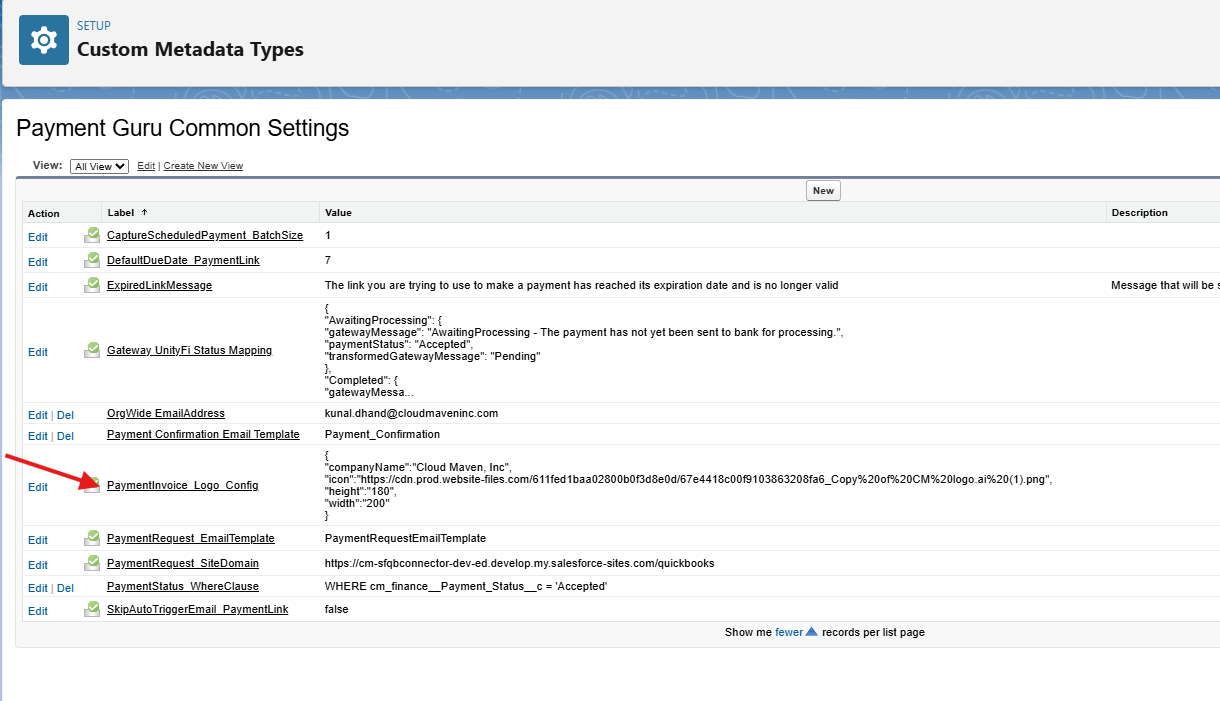
Use the following JSON template and change according to the client’s need
{
  "companyName": "[Your Company Name]",
  "icon": "[Logo of the company],
  "height": "180",
  "width": "270",
  "supportEmail": "[companySupport@company.com]",
  "paymentNote": "Thank you for doing business with [Company Name]. We appreciate the opportunity to serve you and value the trust you place in our services. Please review the payment details carefully before proceeding to ensure everything is accurate.",
"backgroundColor":"#f4f5f8"
}
Change All the values which are between []. Rest of the values can be changed as per the needs
5.1.16 Add org wide email address
-
Go to setup → Organization-Wide Addresses → Copy the email address from which the payment link will be sent
-
Now go to custom metadata → Payment Connect Common Setting →
OrgWide_EmailAddress -
Paste the org wide email address in the vlaue and click sav
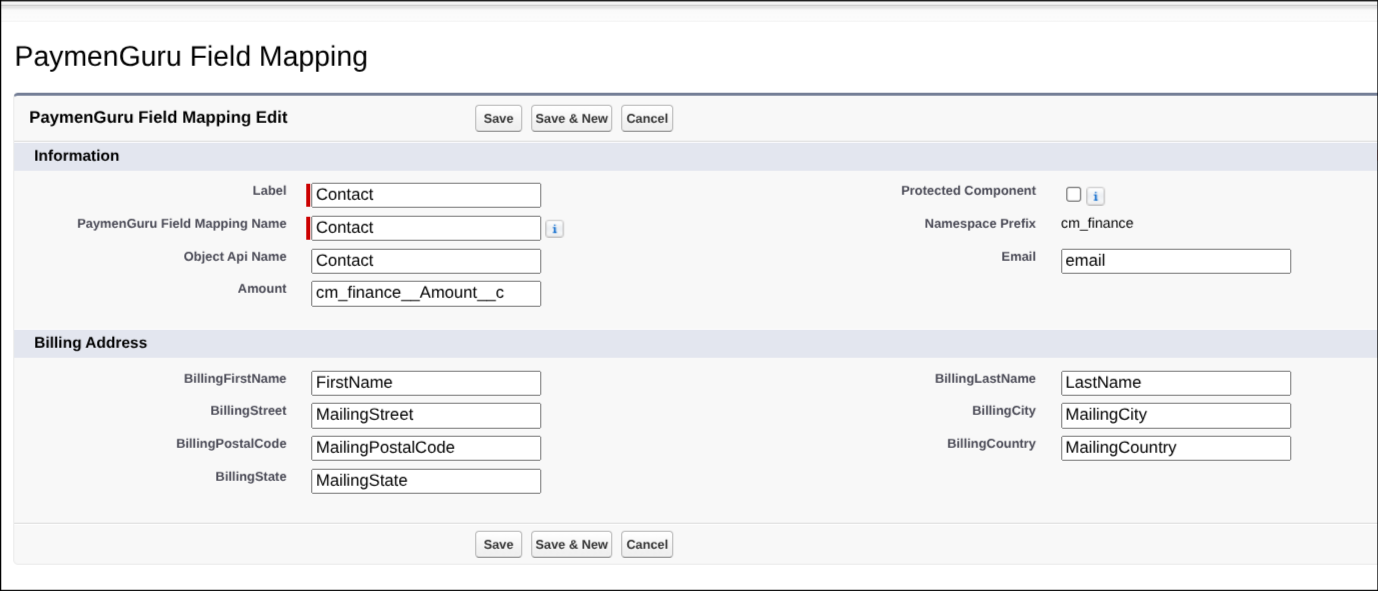
5.1.17 Add Parent record Field mapping
-
Go to Custom Metadata Types.
-
Click manage records for PaymenGuru Field Mapping.
-
Then Add a new record mapping by clicking New.
-
Add all the field from the parent record which you want to map with.
5.1.18 Add Parent Lookup Field Mapping
If setup needs to be done on any object other than Account or Contact, add a lookup relationship and populate it accordingly.
Create a Lookup Field on Payment Transaction
-
Go to Setup → Object Manager → Payment Transaction.
-
From the left panel, navigate to Fields & Relationships.
-
Click New to create a new field.
-
In Data Type, select Lookup Relationship.
-
Select the object for which you are configuring the setup (for example, Opportunity).
-
Enter a meaningful field label and name.
-
Click Save.
-
Copy the API name of the newly created lookup field.
Configure Parent Field Mapping
-
Go to Setup → Custom Metadata Types → Parent Field Mapping (under the
cm_financenamespace). -
Click Manage Records, then click New.
-
Enter a meaningful label and name for the record.
-
In Parent Object, select the object for which the lookup relationship was created on Payment Transaction.
-
In Relationship Field, paste the API name of the lookup field copied earlier.
-
Click Save.
5.1.19 Add Payment Transaction Related List to the Record Page
Note: If the object uses Page Layouts instead of Lightning Record Pages, add the Payment Transactions related list directly to the Page Layout.
-
Go to Setup → Object Manager.
-
Select the object on which the setup was performed (for example, Opportunity).
-
From the left panel, click Lightning Record Pages.
-
Open the active Lightning Record Page used for the object.
-
Click Edit to open the Lightning App Builder.
-
Drag the Related Lists or Related List – Single component onto the page.
-
Configure the component to display the Payment Transactions related list.
-
Adjust the columns and visibility settings as needed.
-
Click Save, then Activate if required.
5.1.20 Set up Batch Processes as required
Refer to the following documentation for different batch setups.
Set up Payment Batches5.1.21 Submit Actum Webhook URL to the Actum Support Team
If the selected payment gateway is Actum, you must generate the webhook URL and share it with the Actum support team along with the Production Merchant ID.
Generate the Webhook URL
-
Go to the Salesforce Site that was created or configured for the integration.
-
Copy the Site URL.
-
Append the following path to the Site URL:
/services/apexrest/cm_finance/actum/return
-
The final webhook URL should be in the following format:
<Site URL>/services/apexrest/cm_finance/actum/return
Share the Details with Actum Support
-
Retrieve the Production Merchant ID from the payment gateway credentials.
-
Send an email to the Actum support team containing:
-
The webhook URL
-
The Production Merchant ID
-
-
Request the Actum team to configure the webhook URL for your merchant account.
🎉 Congratulations! Your application setup is now complete.
5.2 Payout Setup
Addition Steps to enable Payout feature
5.2.1 Payment Gateway Configration
-
Go to your payment gateway record page.
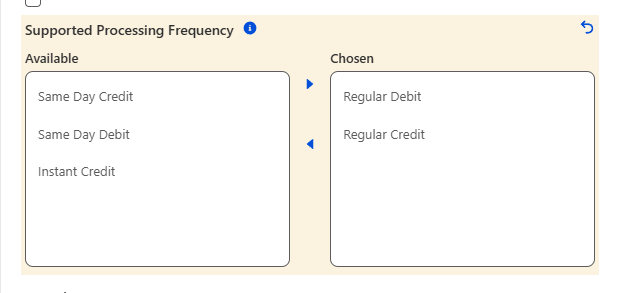
-
Edit Supported Processing Frequency Field and add credit frequency that are required.
To know supported frequency of your payment gateway refer to your gateway documentation
-
Click on Save.
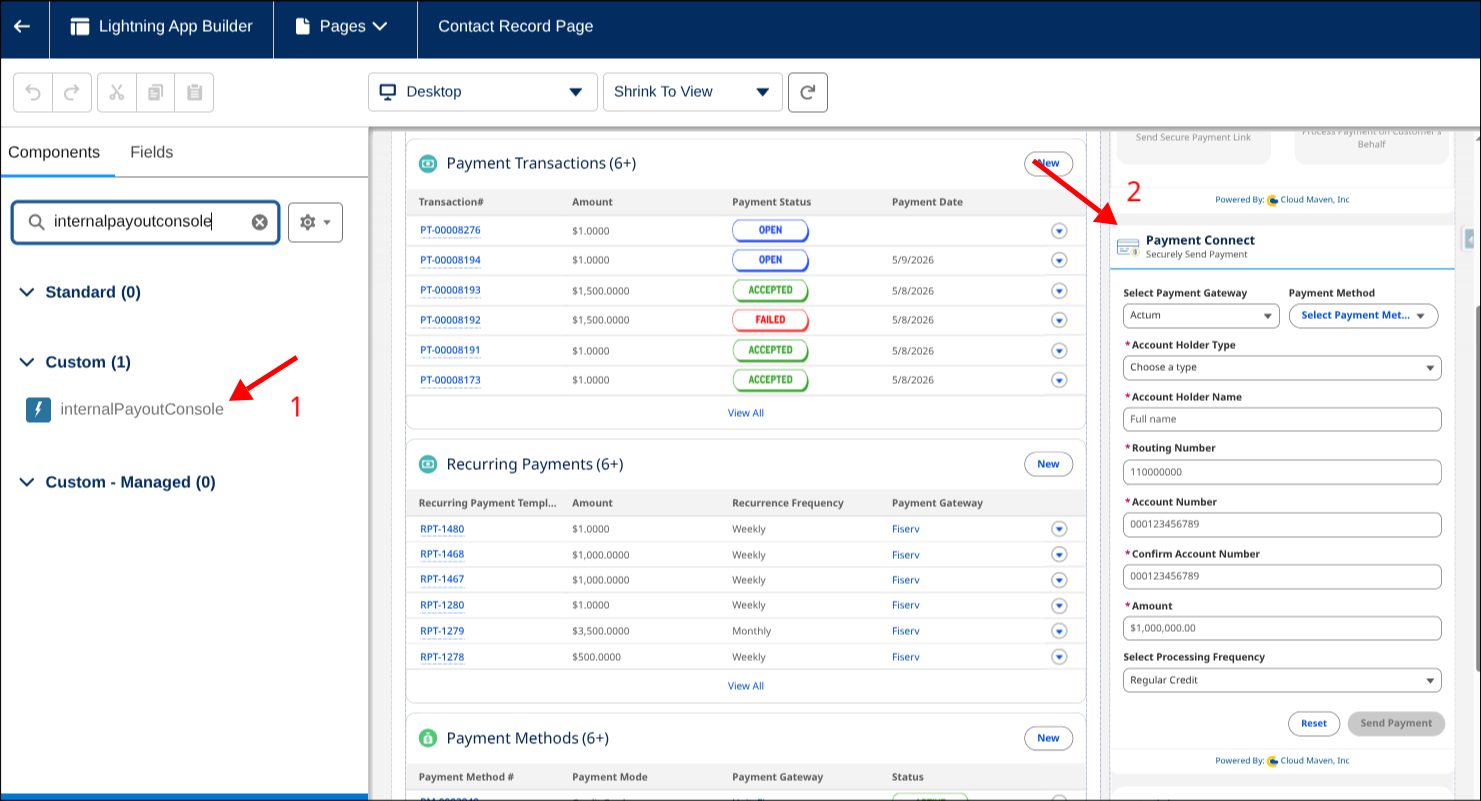
5.2.2 Add Payout Component
-
Navigate to the record page → Click the ⚙️ Gear icon → Select Edit Page.
-
In the Component Search box, search for
internalpayoutConsole. -
Then, drag and drop the
internalpayoutConsoleLightning Web Component (LWC) to your desired location on the page layout. -
Click Save in the top right corner. If this is a new layout or not yet activated, click Activate.
🎉 Congratulations! You have setup Payout in paymentGuru.