
1. Log In to Salesforce
➡ Access your Salesforce org with the appropriate credentials.
2. Navigate to the Source Record
Open existing record or create a new one
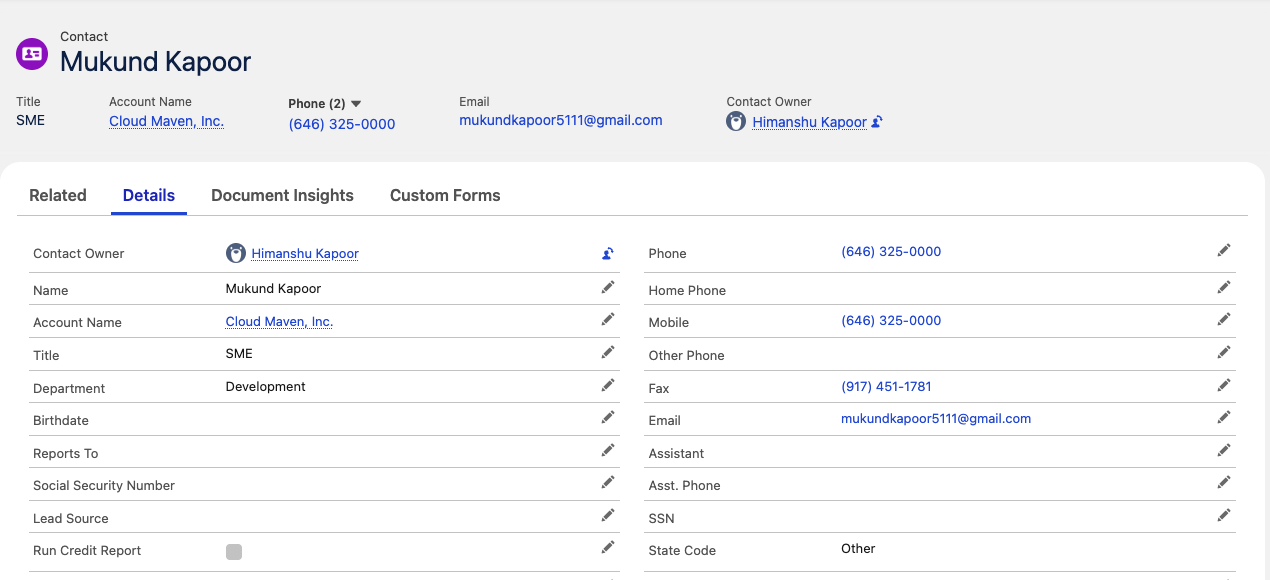
3. Click on Custom Forms Tab
Open Custom Forms Tab
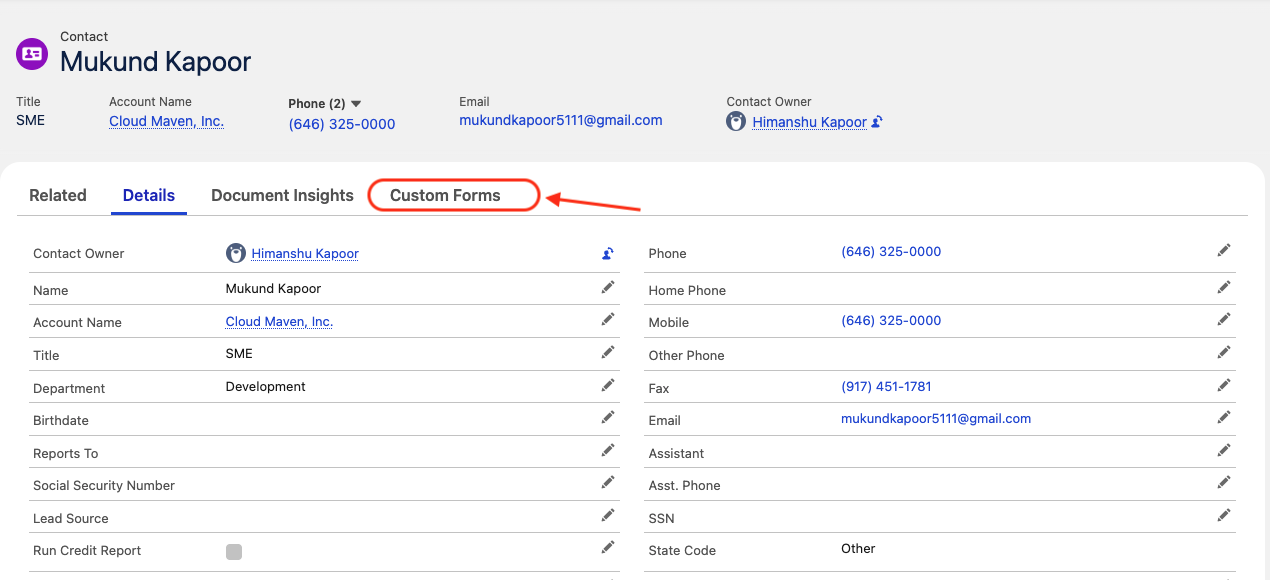
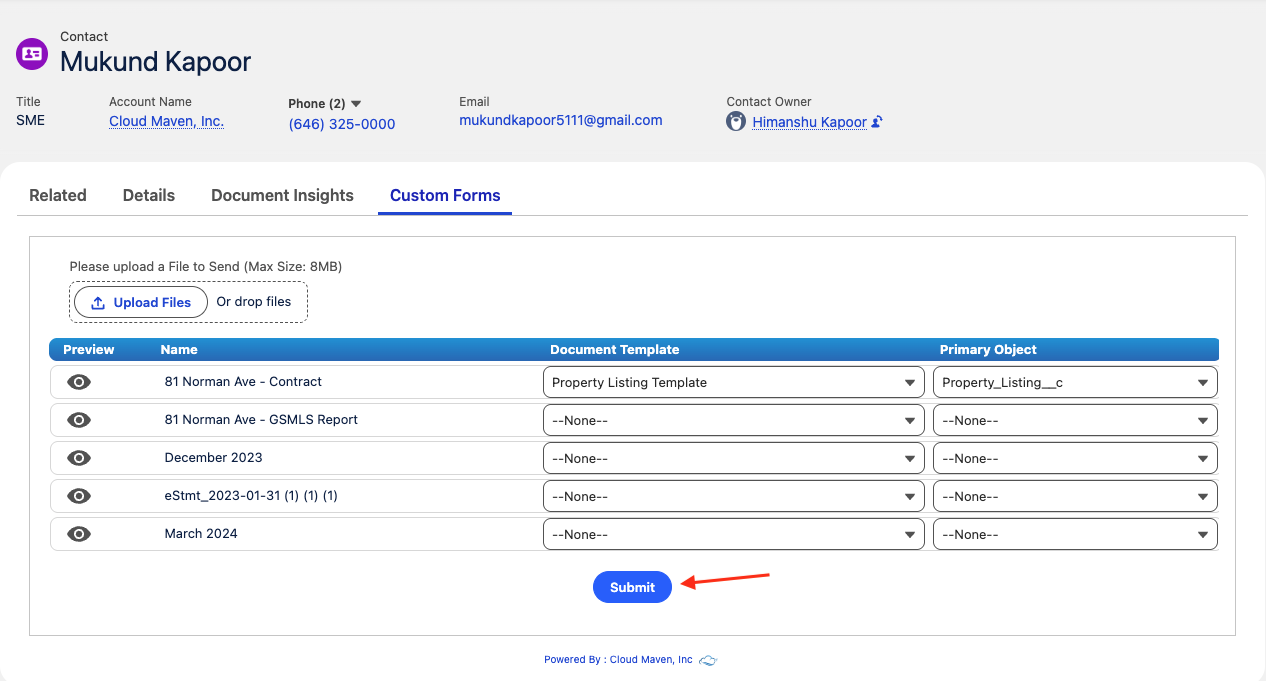
The corresponding screen will display all the related files for the Source Record. User can also upload a file by clicking on the Upload button.
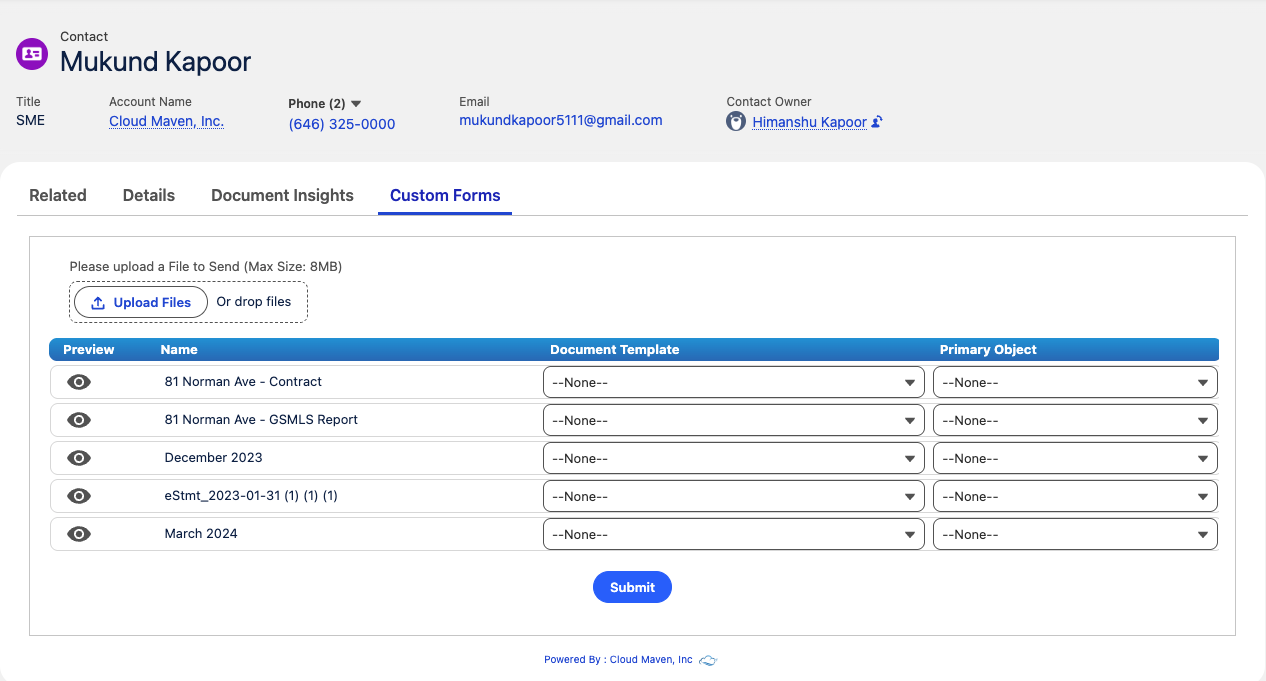
Once the file is uploaded, you need to select the Document Template along with the Primary Object.
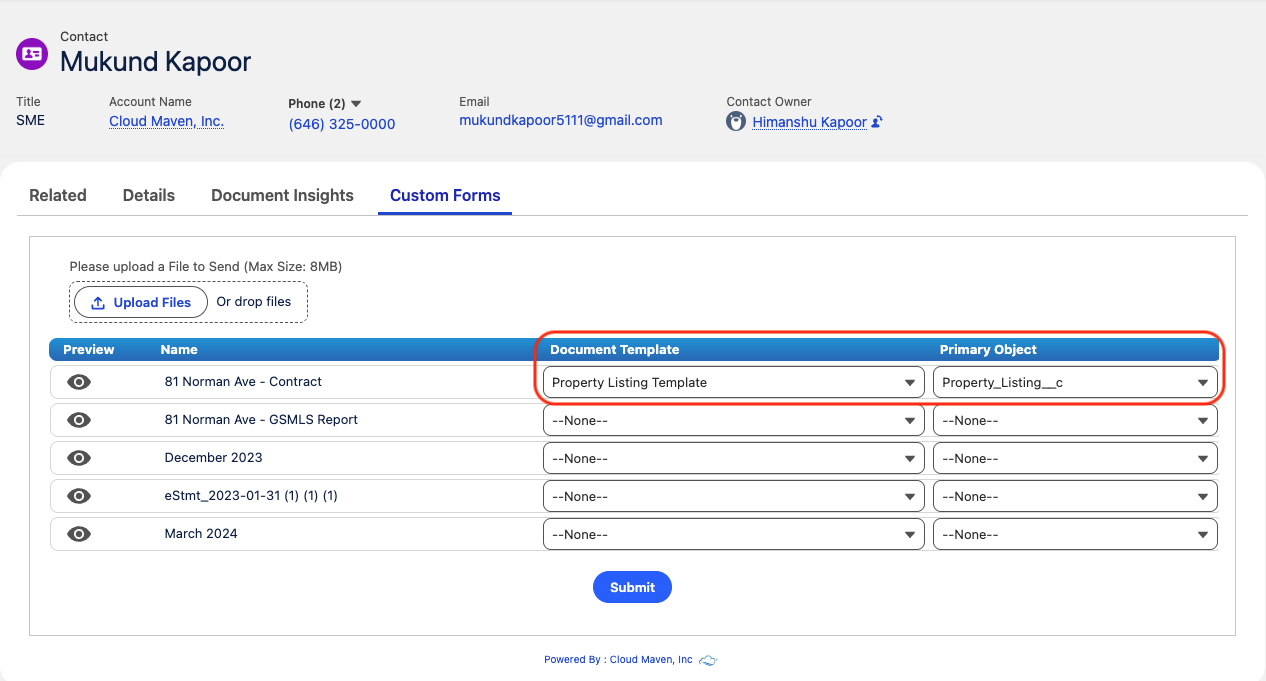
Once populated, click on Submit Document button for initiating the Document Insights workflow.
4. Viewing the Results
To view the results for the OCR processing
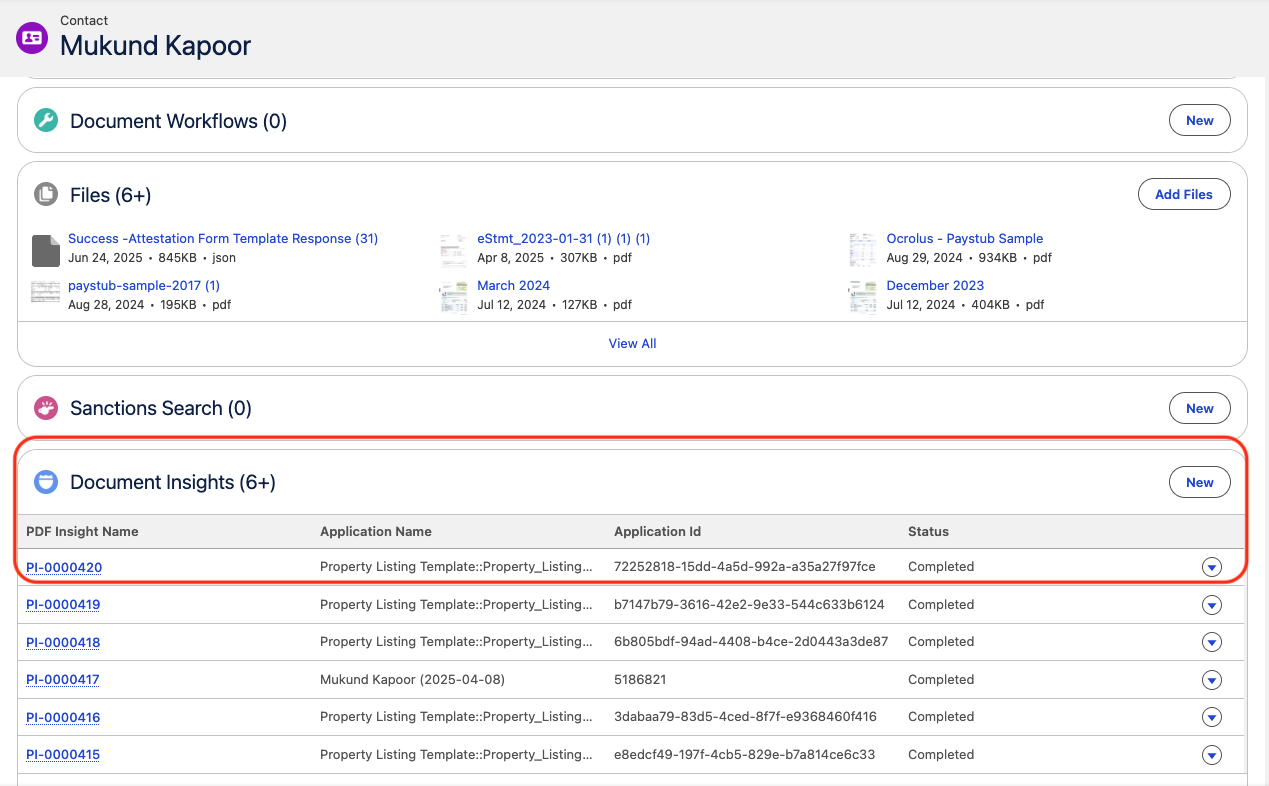
Go to the Related section of the Source Record, and Go to the newly created Document Insights record.
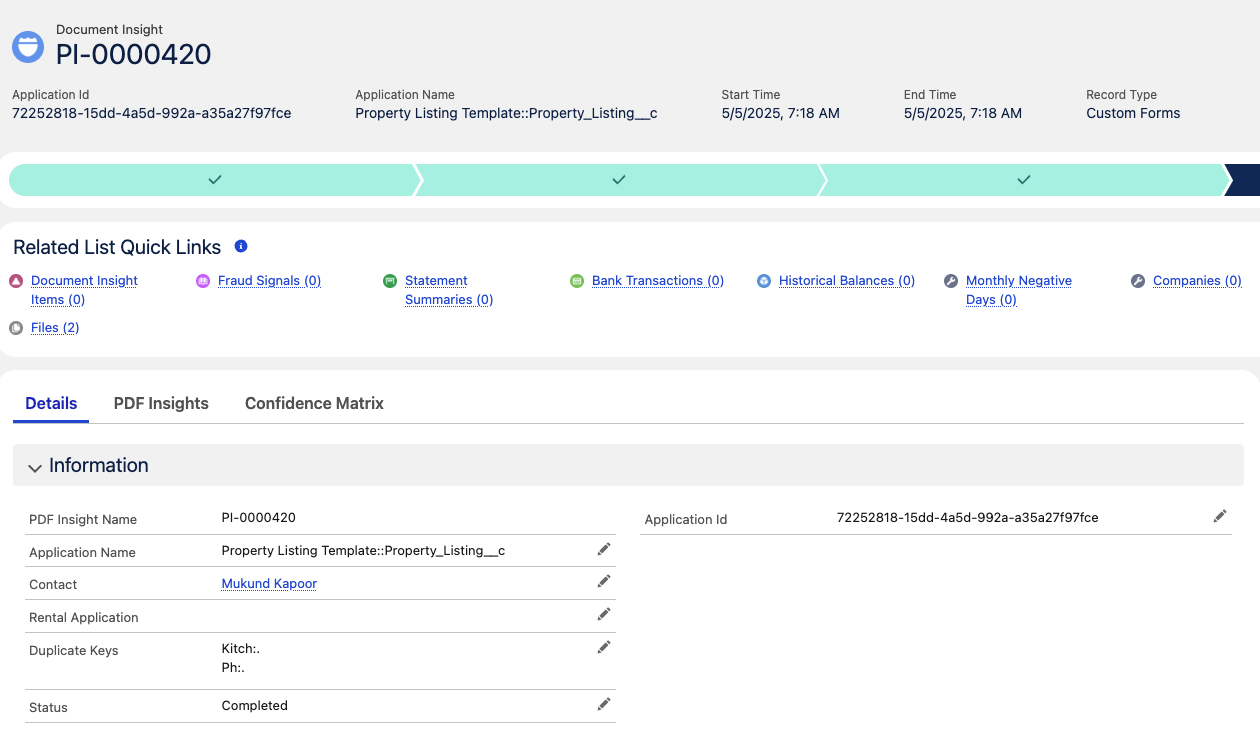
To view the status of the OCR and the Confidence Matrix, open the newly created Document Insights record. It will also display the Duplicate Keys found during the OCR processing of the custom form.
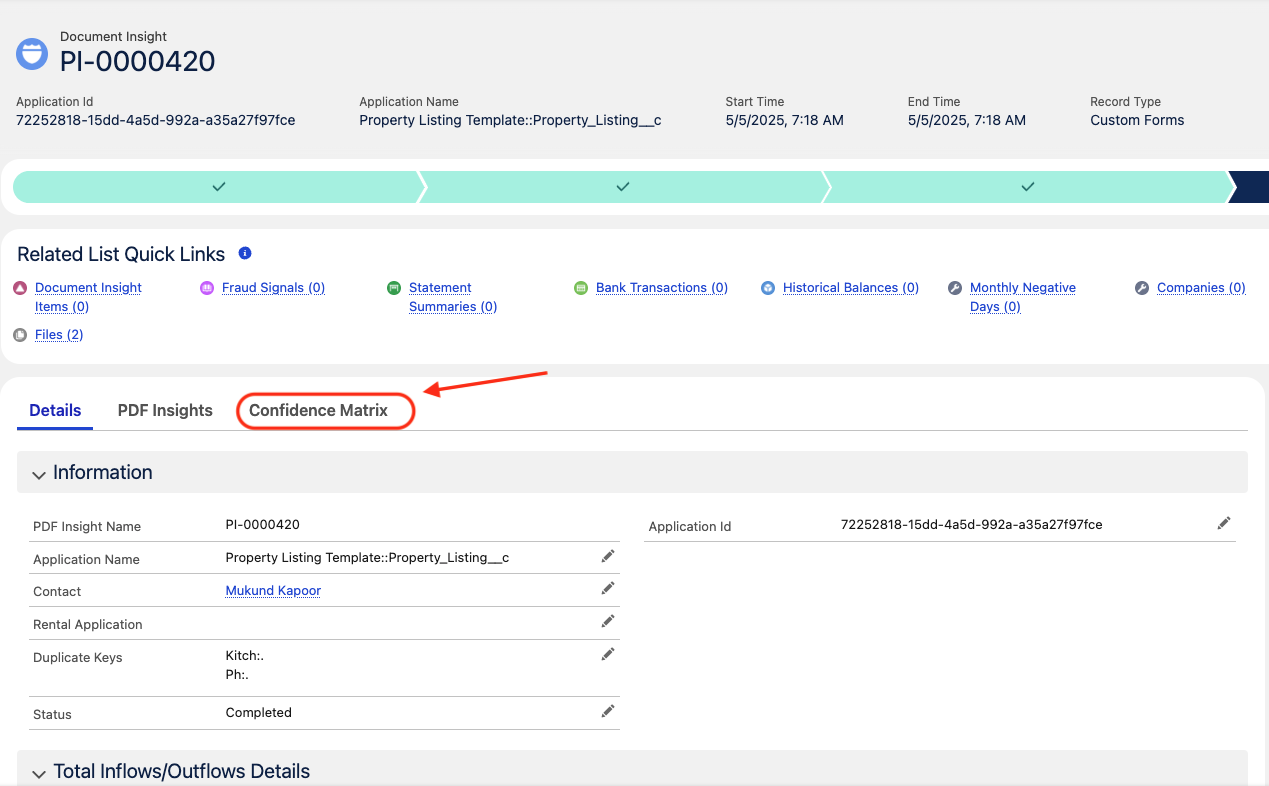
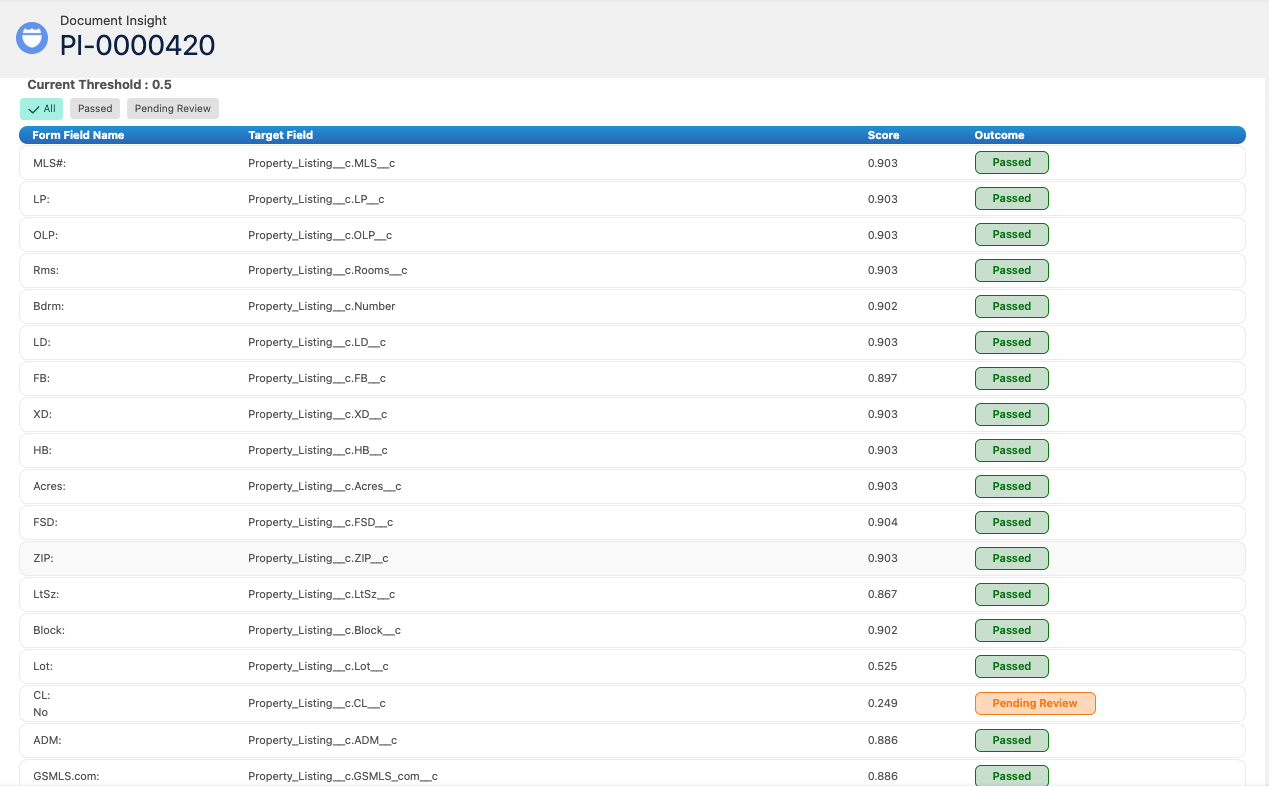
To view the Confidence Matrix containing details for the OCR processing and how each field got parsed vs the Threshold value stored in the backend configuration, click on the Confidence Matrix Tab.
The Confidence Matrix Table will display all the fields parsed vs not parsed, along with the confidence score comparison with the Threshold value.
4. Viewing the newly created Record
To view the newly created record configured in the Document Insight Template
Go to the Related section of the Source Record, and find the Related List for that Object.
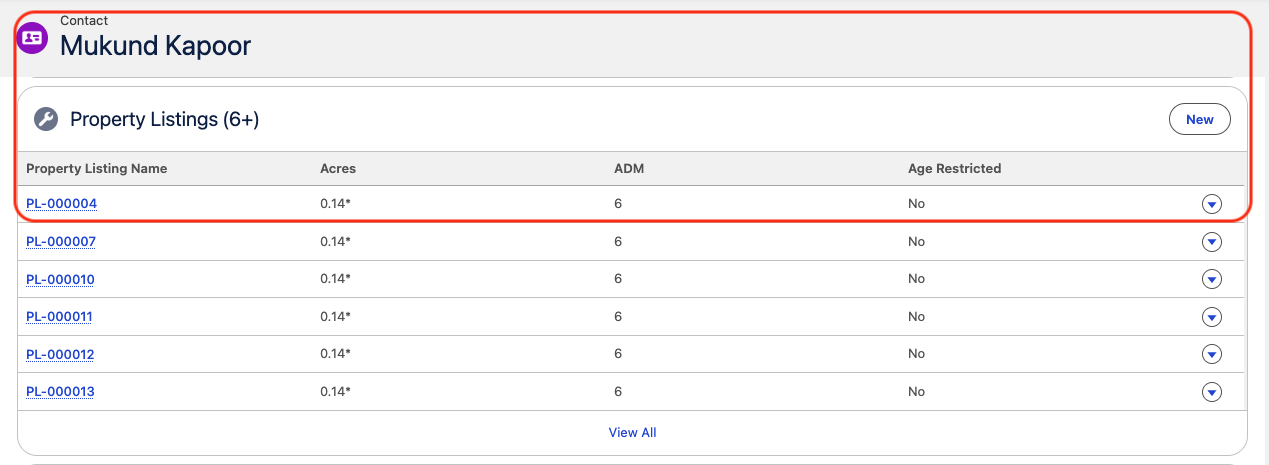
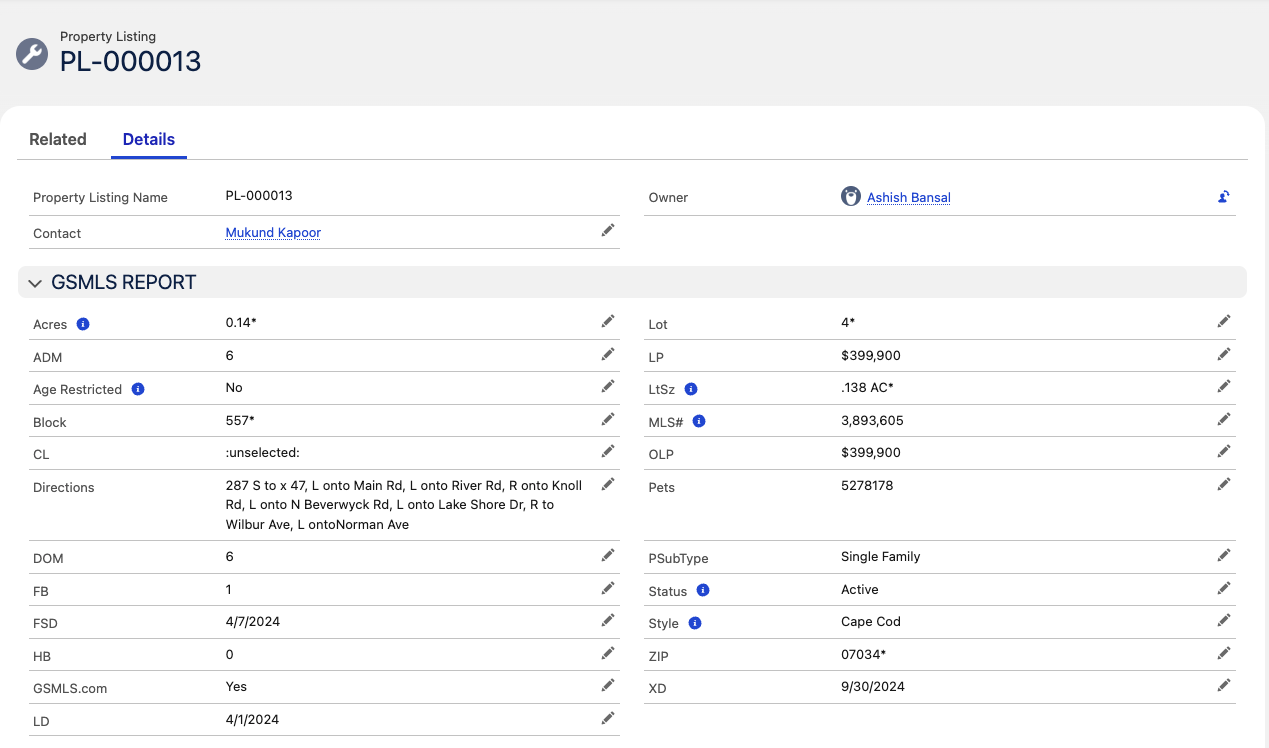
Click on the latest record created to view the record created as per the field mapping stored inside Document Insight Template.
📩 Need Help?
For any questions or support, don't hesitate to get in touch with us at: