
1. Log In to Salesforce
➡ Access your Salesforce org with the appropriate credentials.
2. Navigate to the Source Record
Open existing record or create a new one
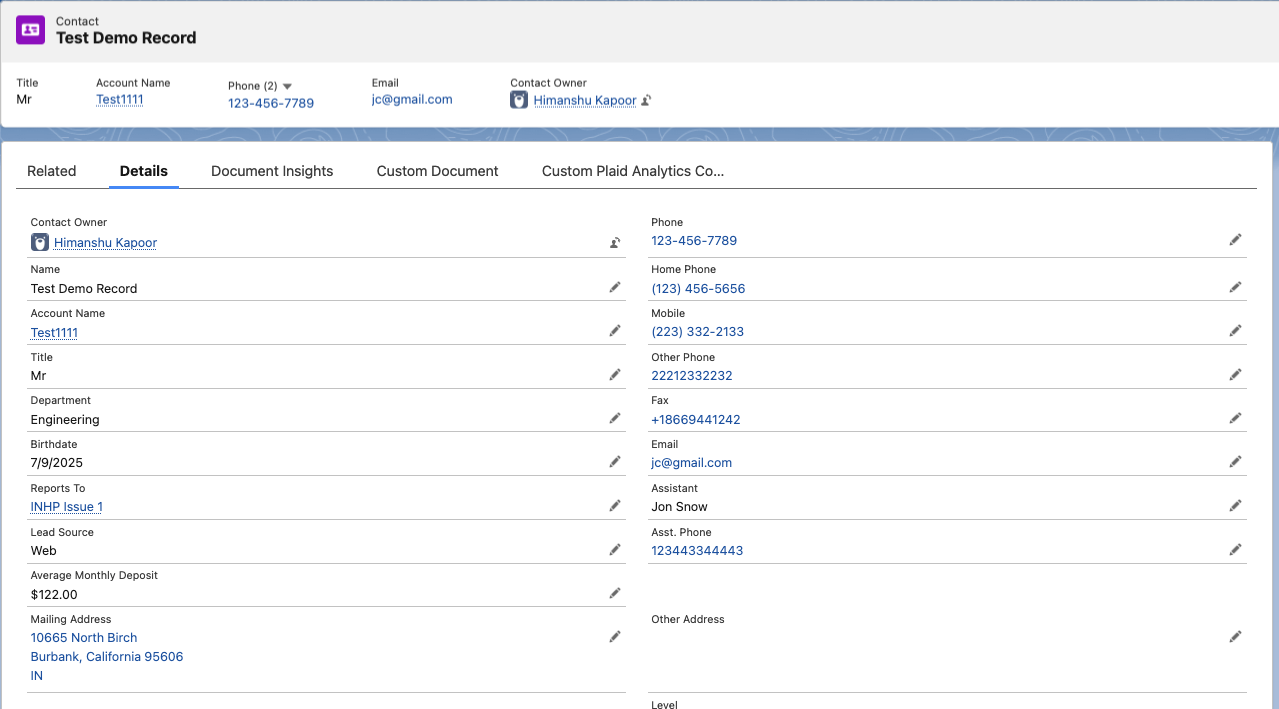
3. Click on Document Insights Tab
Open Document Insights Tab
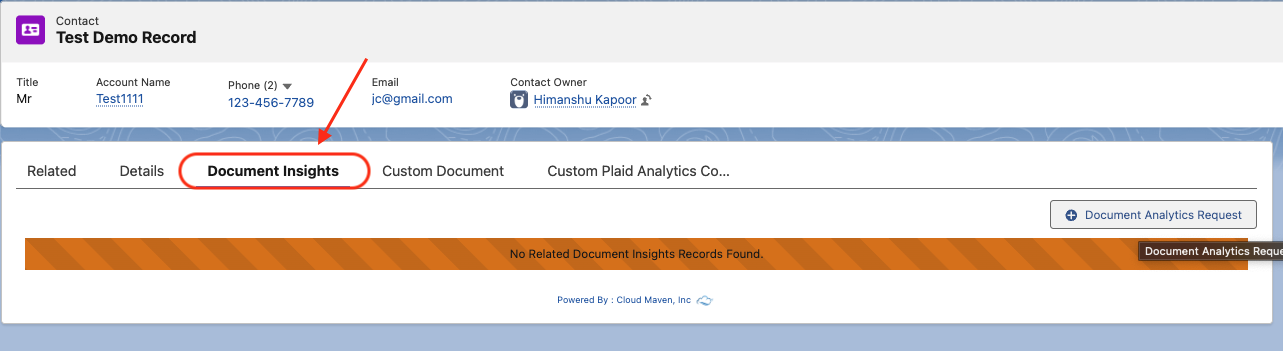
The screen currently shows that there is no existing Document Insights record for this Source Contact.
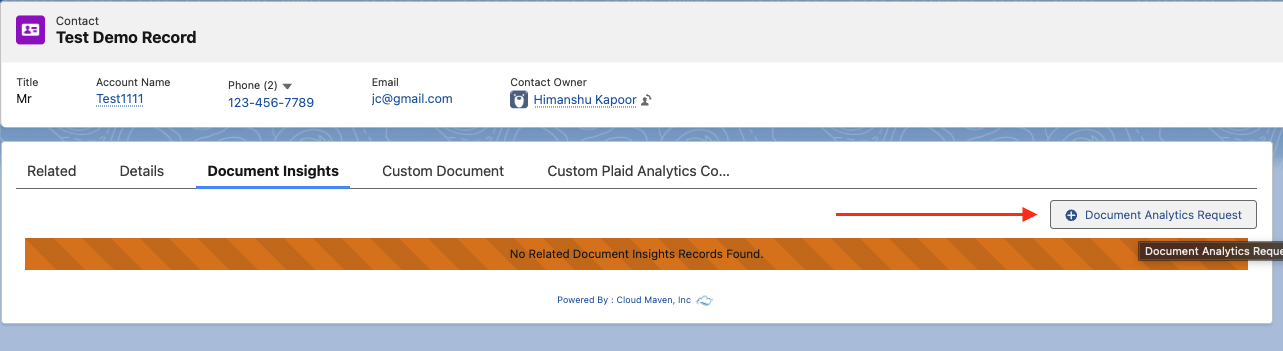
To run the Document Insights workflow, click on “Document Analytics Request” button.
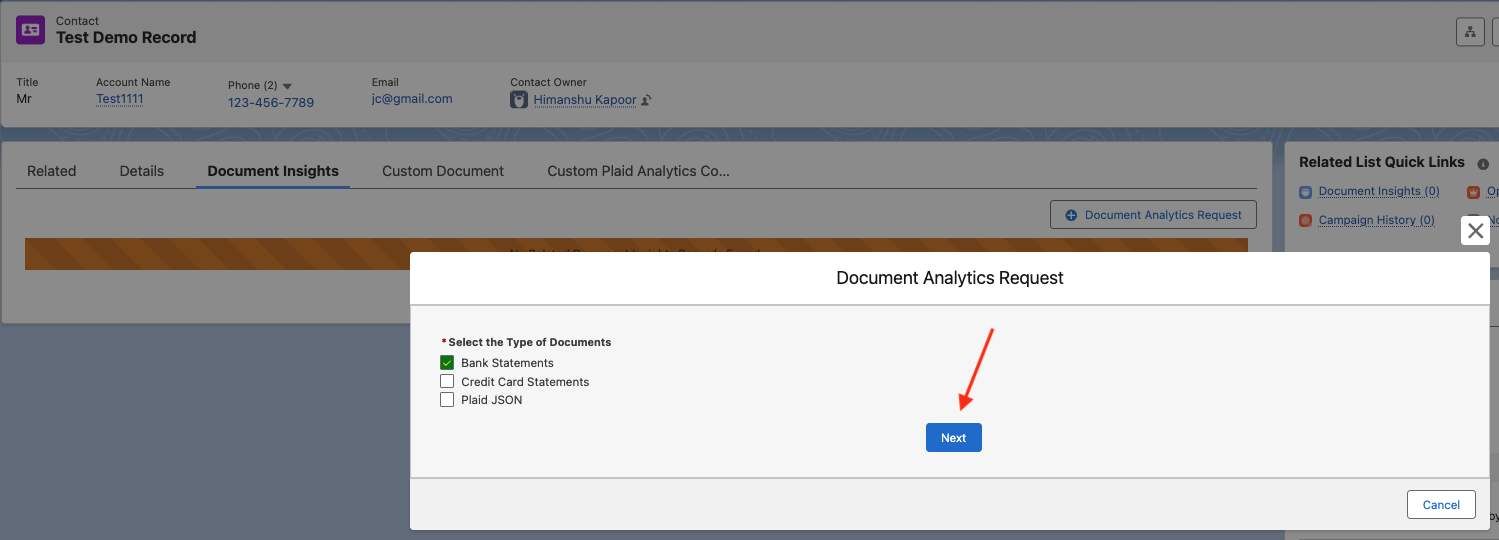
A pop-up modal will open with all the Valid Categories. Select the Category of the Document you want to run the Document Insights for, and click on Next button.
The corresponding screen will display all the related files for the Source Record. User can also upload a file by clicking on the Upload button.
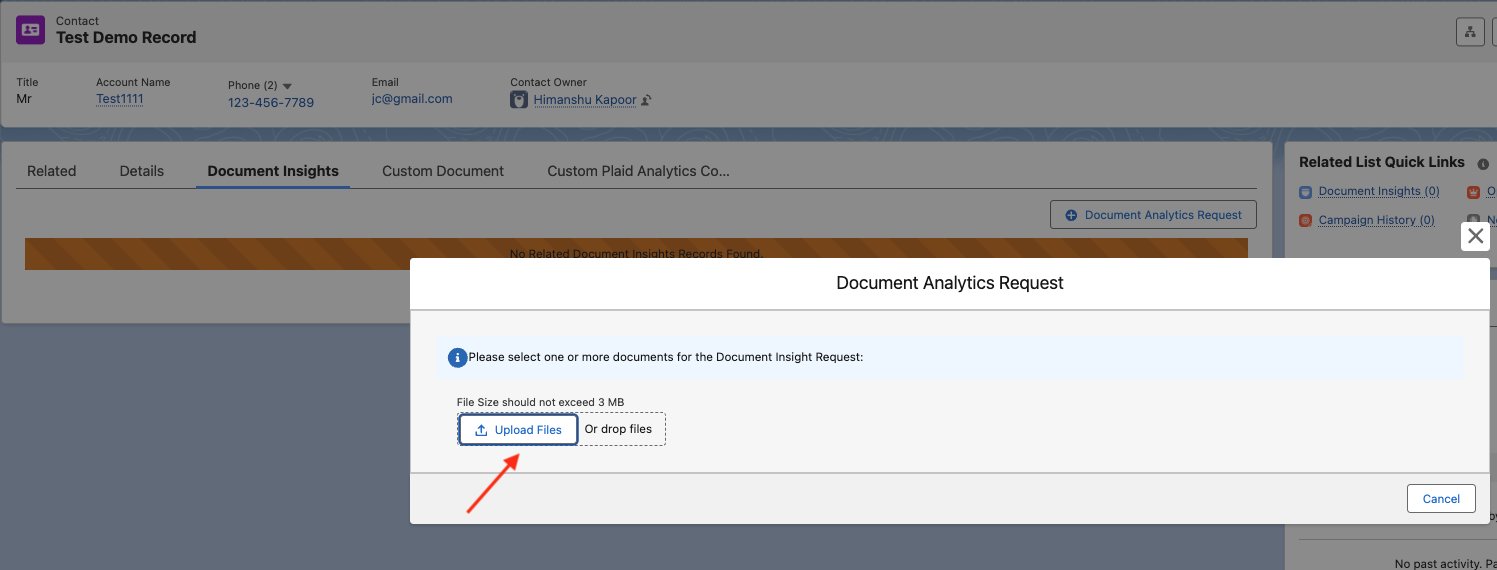
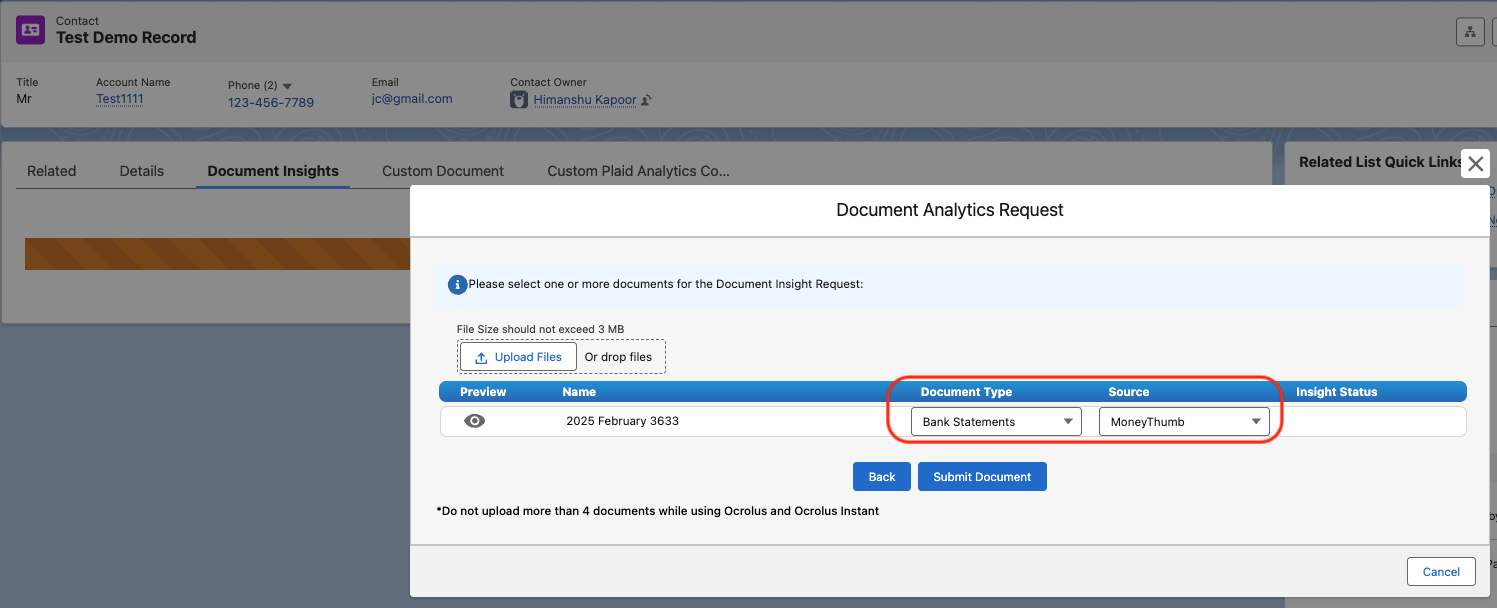
Once the file is uploaded, you need to select the Document Type along with the Source.
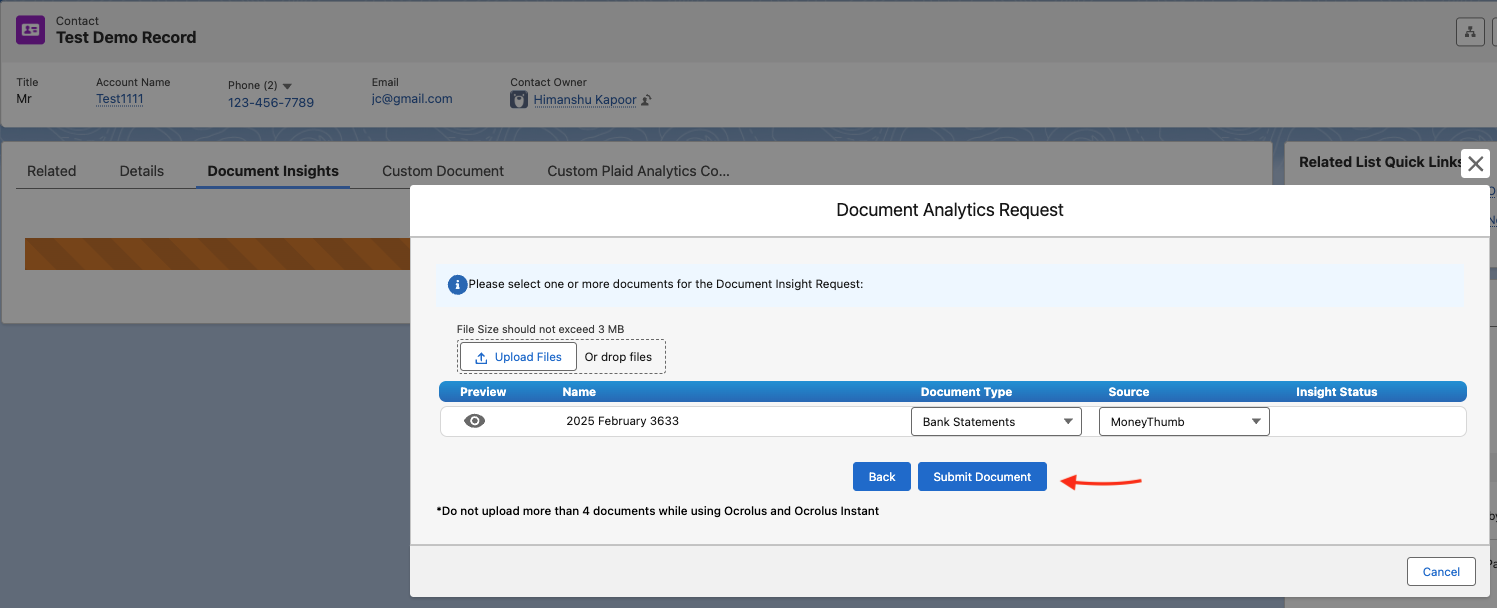
Once populated, click on Submit Document button for initiating the Document Insights workflow.
4. Viewing the Results
To view the results for the OCR processing
-
Once a document is submitted for processing, Document Insights will analyze the file and generate insights within a few minutes. Processing time may vary depending on the size and complexity of the document.
-
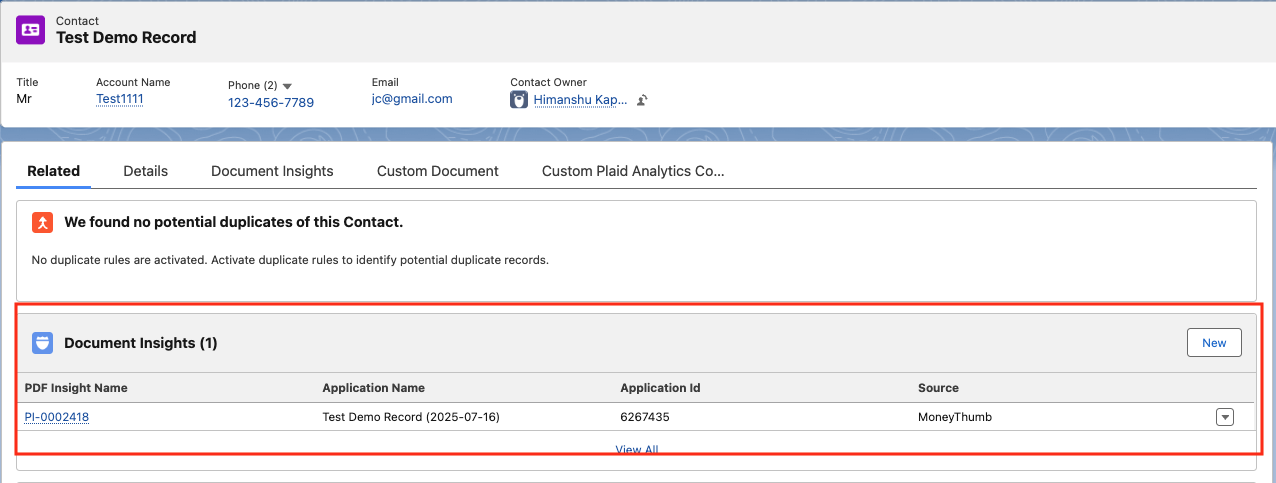
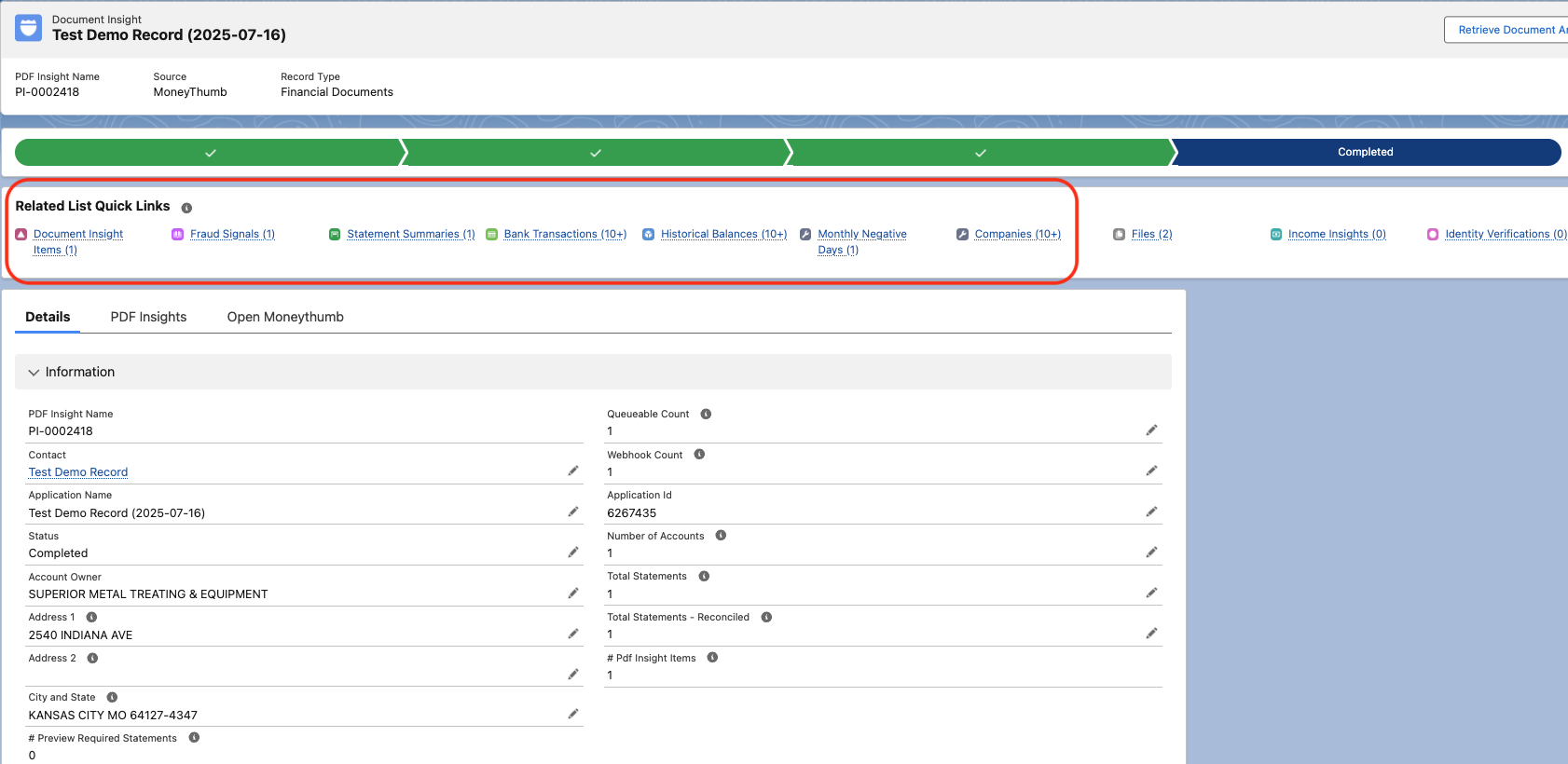
After processing is complete, a new Document Insights record will be automatically created and linked to the source record. To access the full set of extracted data and analytics, scroll to the Related section of the source record and locate the Document Insights related list.
-
Click the newly created Document Insights record to open a detailed view of all extracted information, calculated metrics, and analysis results.
-
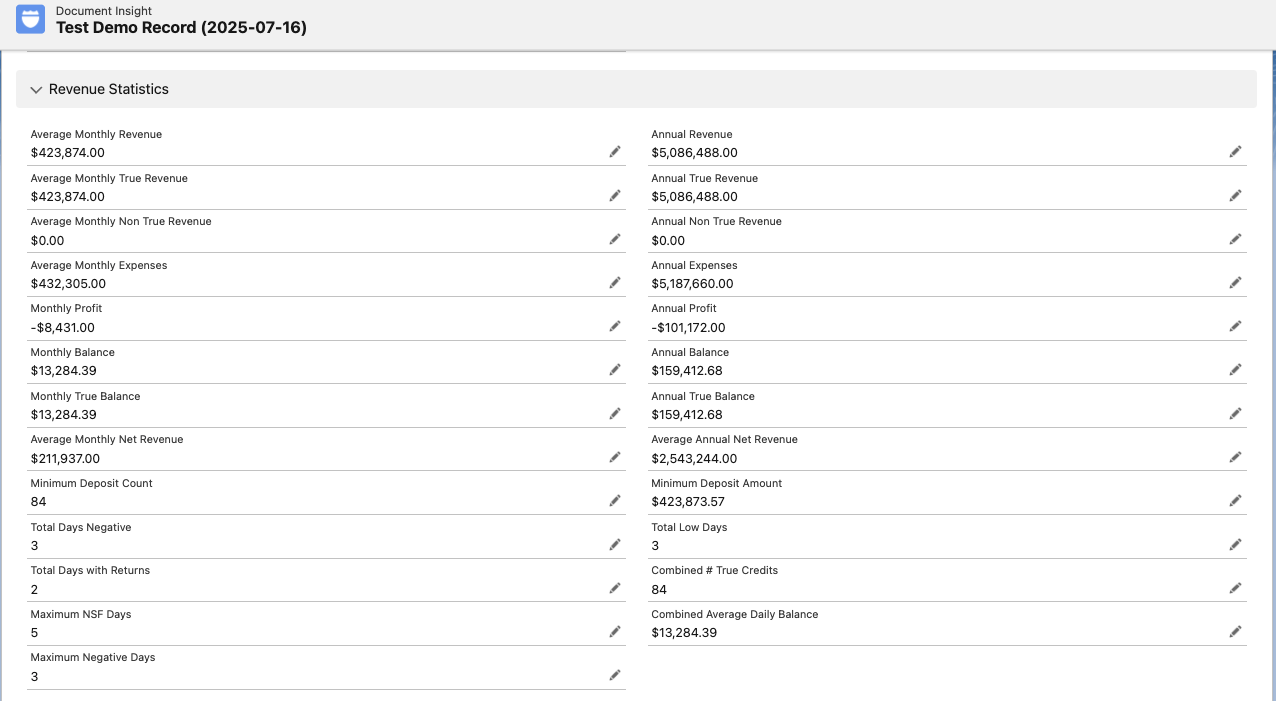
Within the Document Insights record, you can also review Revenue Statistics and other financial analytics. Scroll down the page to view these additional insights and summary metrics.
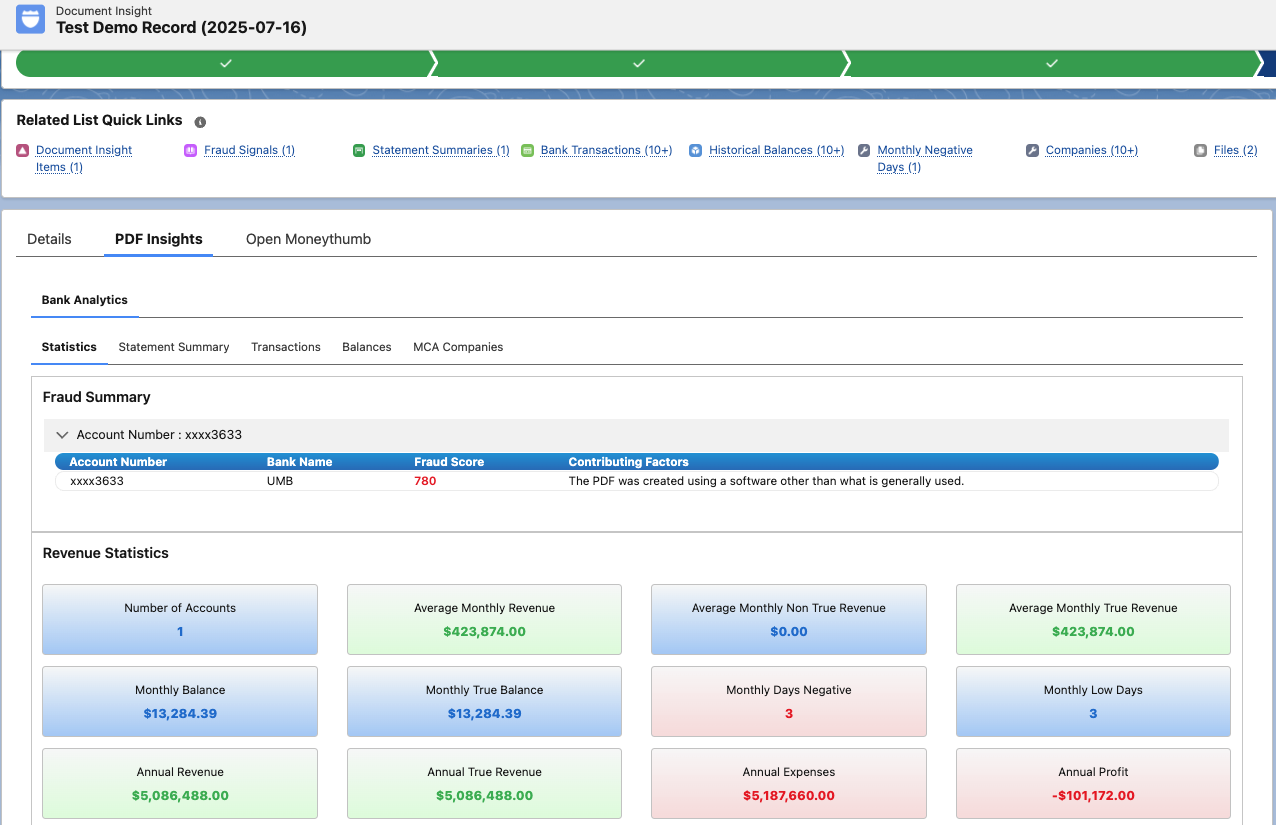
For a visual representation of the extracted data and analytics, navigate to the PDF Insights tab within the Document Insights record. This dashboard provides an interactive view of key metrics, trends, and document analysis results, making it easier to review and interpret the processed information.
The dashboard is organized into multiple tabs, allowing users to explore different aspects of the analyzed data:
-
Statement Summaries – View high-level summaries and key metrics extracted from the processed bank statements.
-
Transactions – Review all transactions identified in the document, along with their automatically assigned categories and classifications.
-
Historical Balances – Analyze daily account balances over time, helping identify cash flow patterns, balance trends, and periods of financial stress.
-
MCA (Merchant Cash Advance) Companies – Review MCA-related insights, including detected MCA providers, advances, payments, and other lending-related activity identified within the transaction data.
These dashboard views provide both summary-level and detailed insights, enabling users to quickly assess financial activity and drill down into specific areas of interest.
📩 Need Help?
For any questions or support, don't hesitate to get in touch with us at: