
1. Log In to Salesforce
➡ Access your Salesforce org with the appropriate credentials.
2. Navigate to the Source Record
Open existing record or create a new one
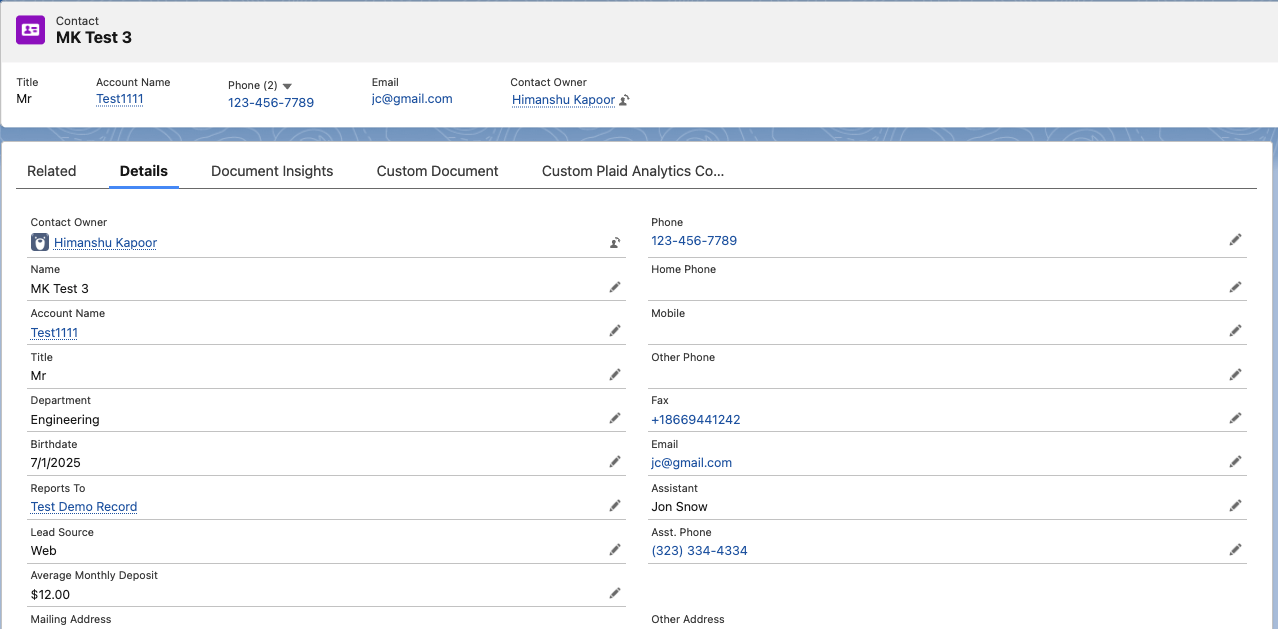
3. Click on Document Insights Tab
Open Document Insights Tab
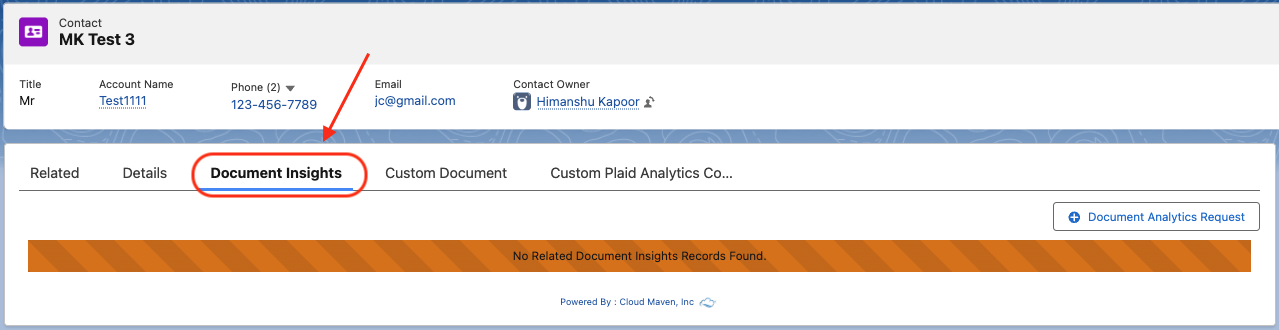
The screen currently shows that there is no existing Document Insights record for this Source Contact.
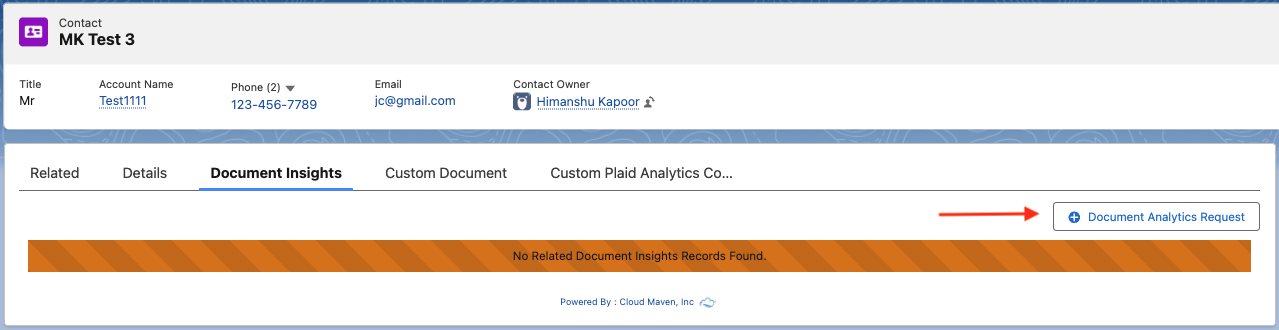
To run the Document Insights workflow, click on “Document Analytics Request” button.
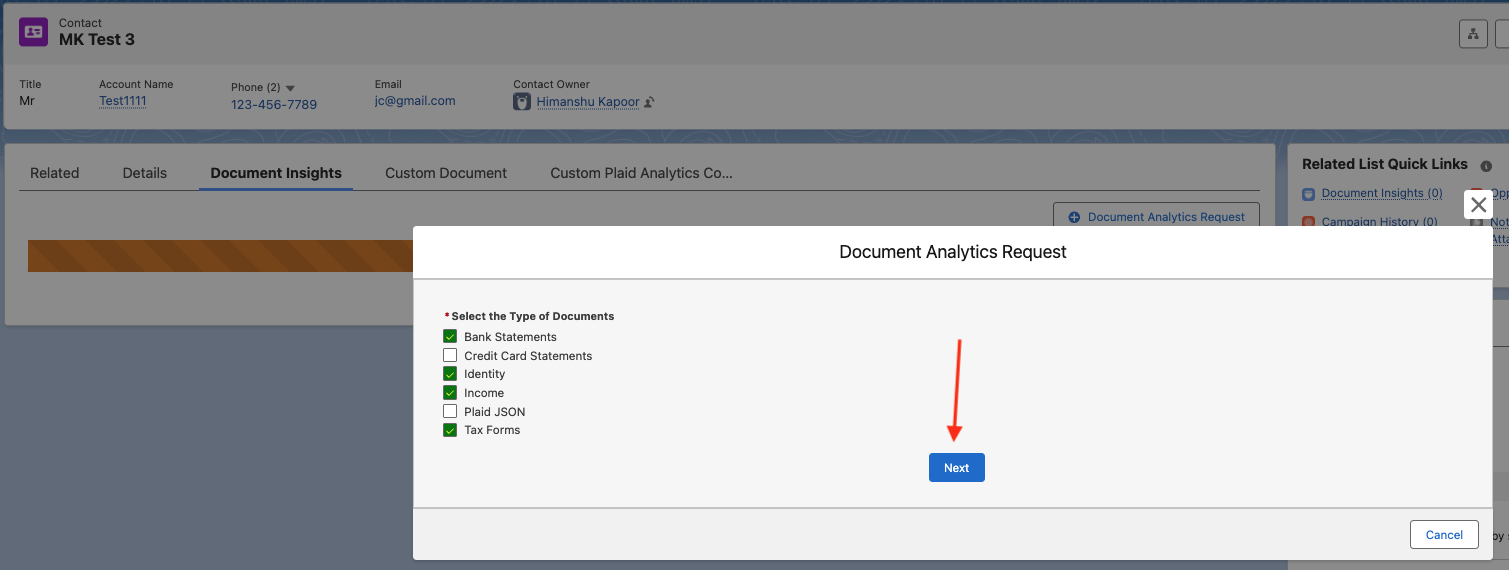
A pop-up modal will open with all the Valid Categories. Select the Category of the Document you want to run the Document Insights for, and click on Next button.
The corresponding screen will display all the related files for the Source Record. User can also upload a file by clicking on the Upload button.
Once the file is uploaded, you need to select the Document Type along with the Source.
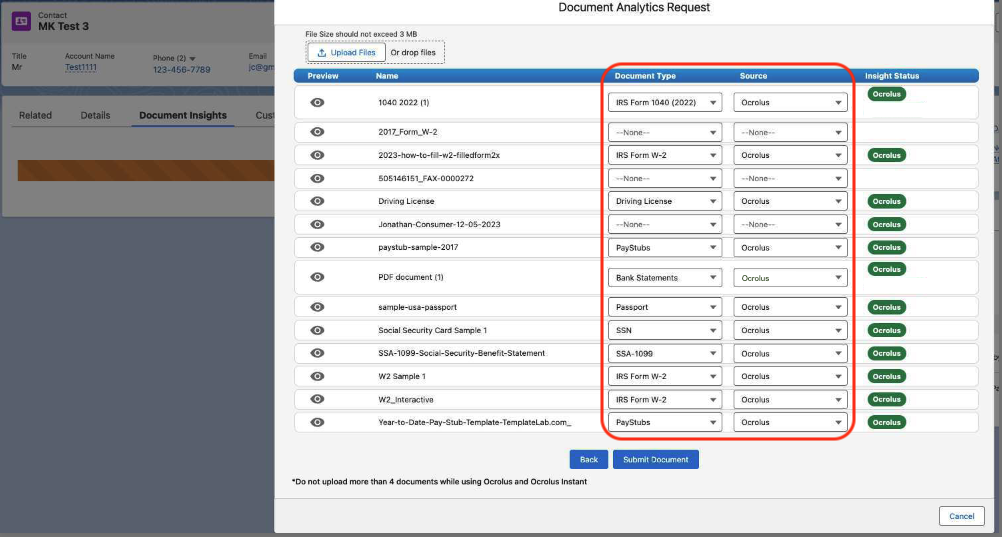
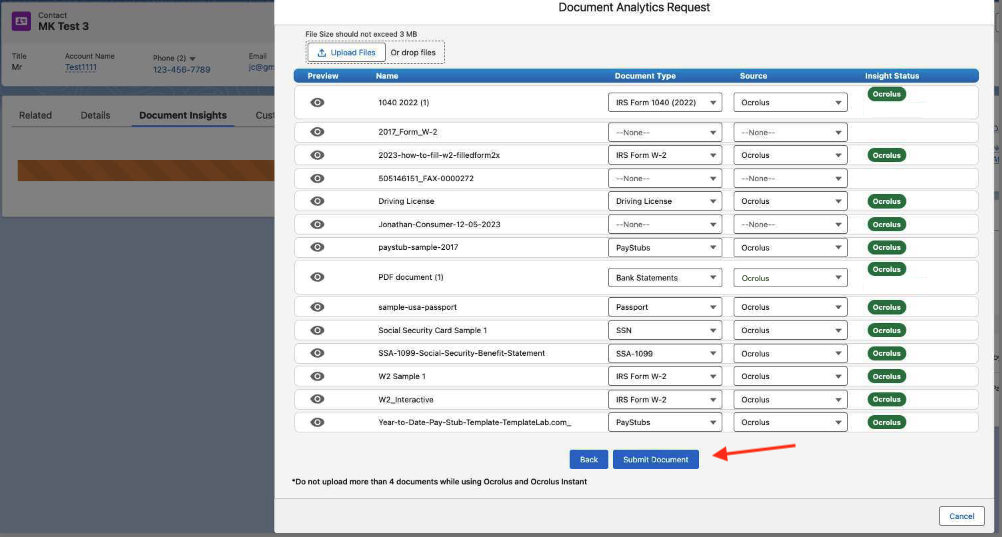
Once populated, click on Submit Document button for initiating the Document Insights workflow.
4. Viewing the Results
To view the results for the OCR processing
-
Once the document has been successfully submitted to Ocrolus or Ocrolus Instant, the Document Insights engine will automatically process the extracted data and generate insights. Processing time may vary depending on the size and complexity of the document.
-
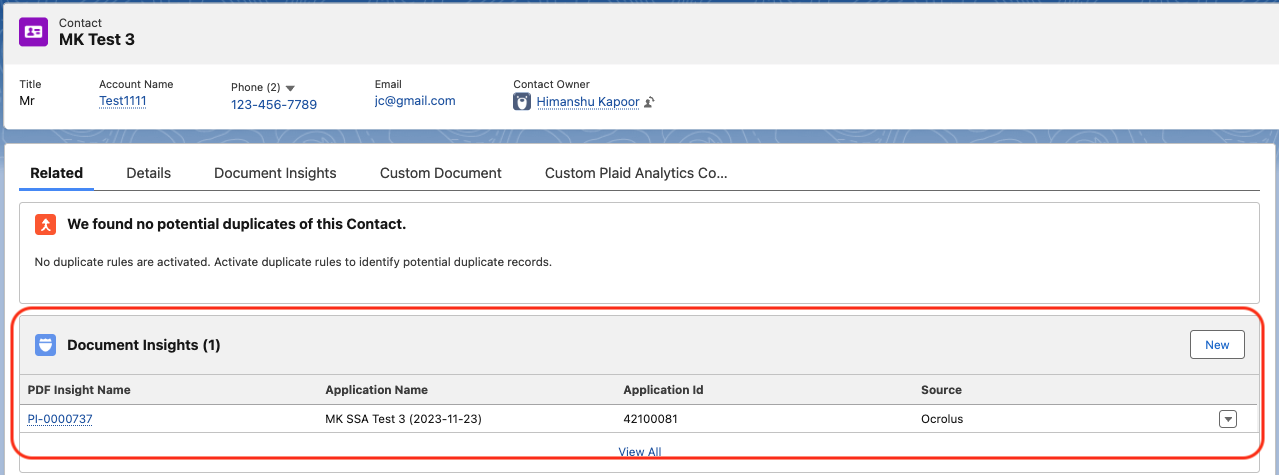
After processing is complete, a new Document Insights record will be automatically created and linked to the source record. To view the complete set of extracted data and analytics within Salesforce, open the source record and navigate to the Related tab. Under the Document Insights related list, you will find the newly generated Document Insights record.
-
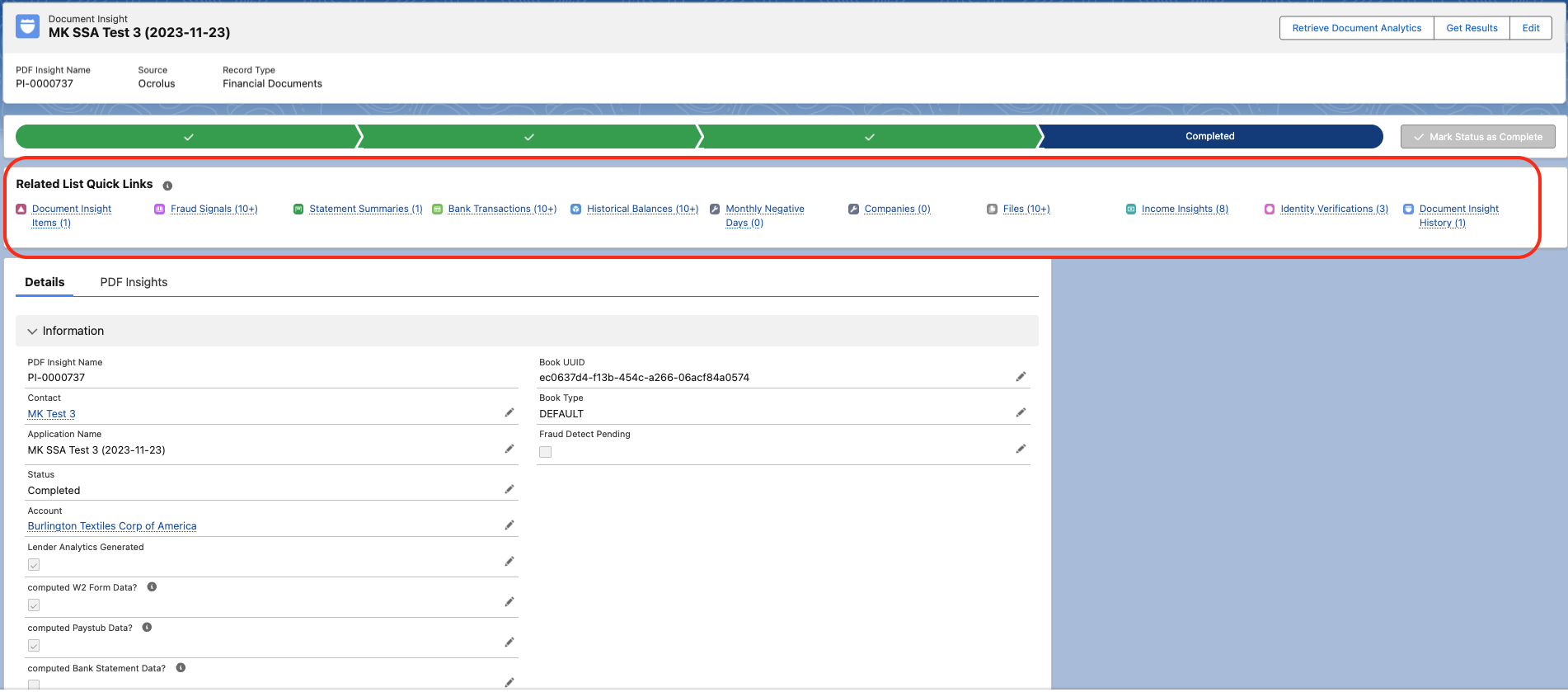
Click the Document Insights record to view all extracted information, analytics, and calculated metrics associated with the processed document.
-
As you scroll through the Document Insights record, you will also find the Ocrolus Attributes tab. This section provides a consolidated overview of key metrics, account information, transaction statistics, and other important data extracted from the submitted documents.
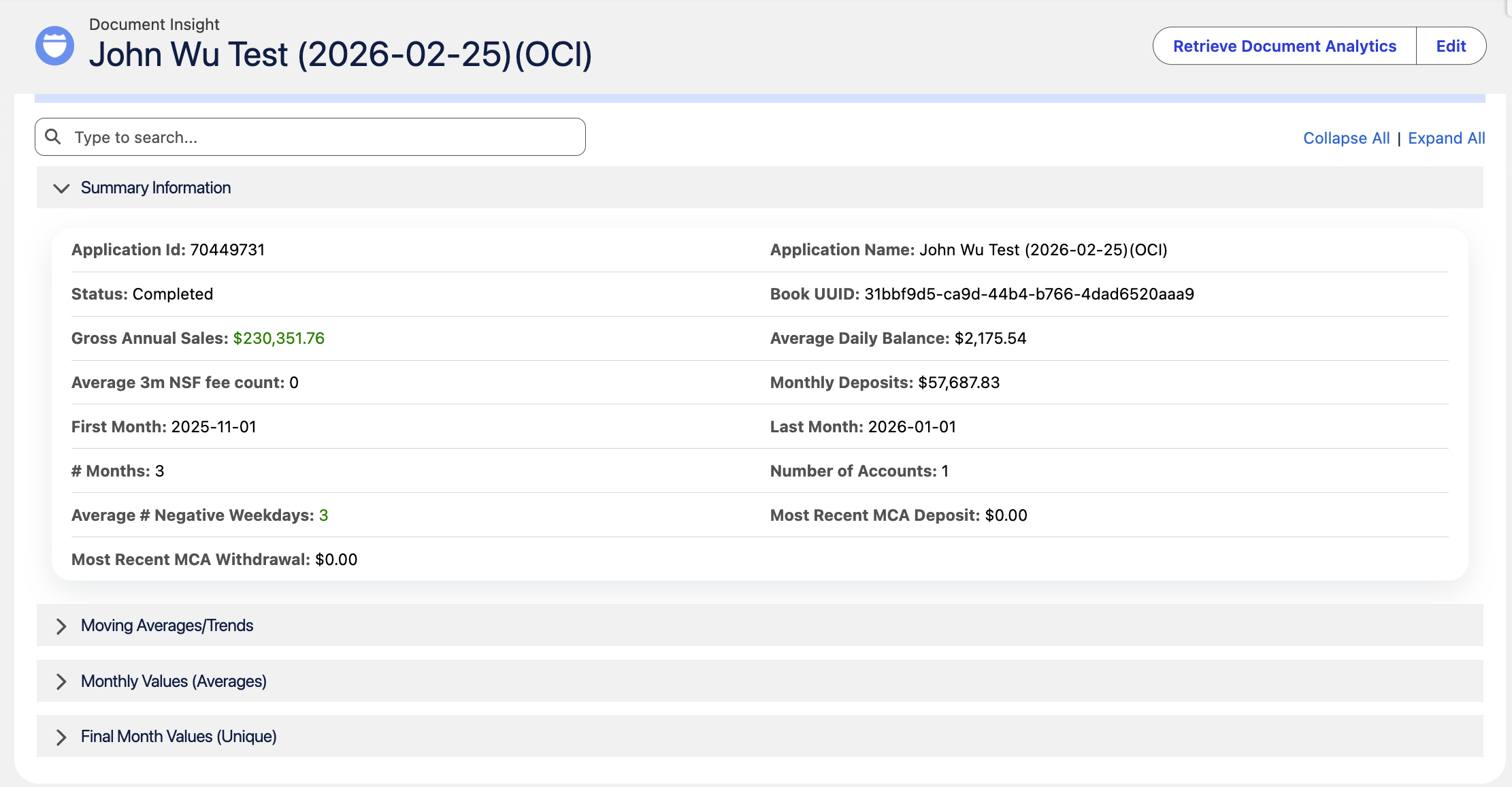
Depending on the type of document analyzed, the dashboard may include one or more of the following sections:
-
Statement Summaries – Review key metrics and summary information extracted from bank statements.
-
Transactions – View all detected transactions along with their categorized transaction types and classifications.
-
Historical Balances – Analyze daily account balances and balance trends over the analyzed period.
-
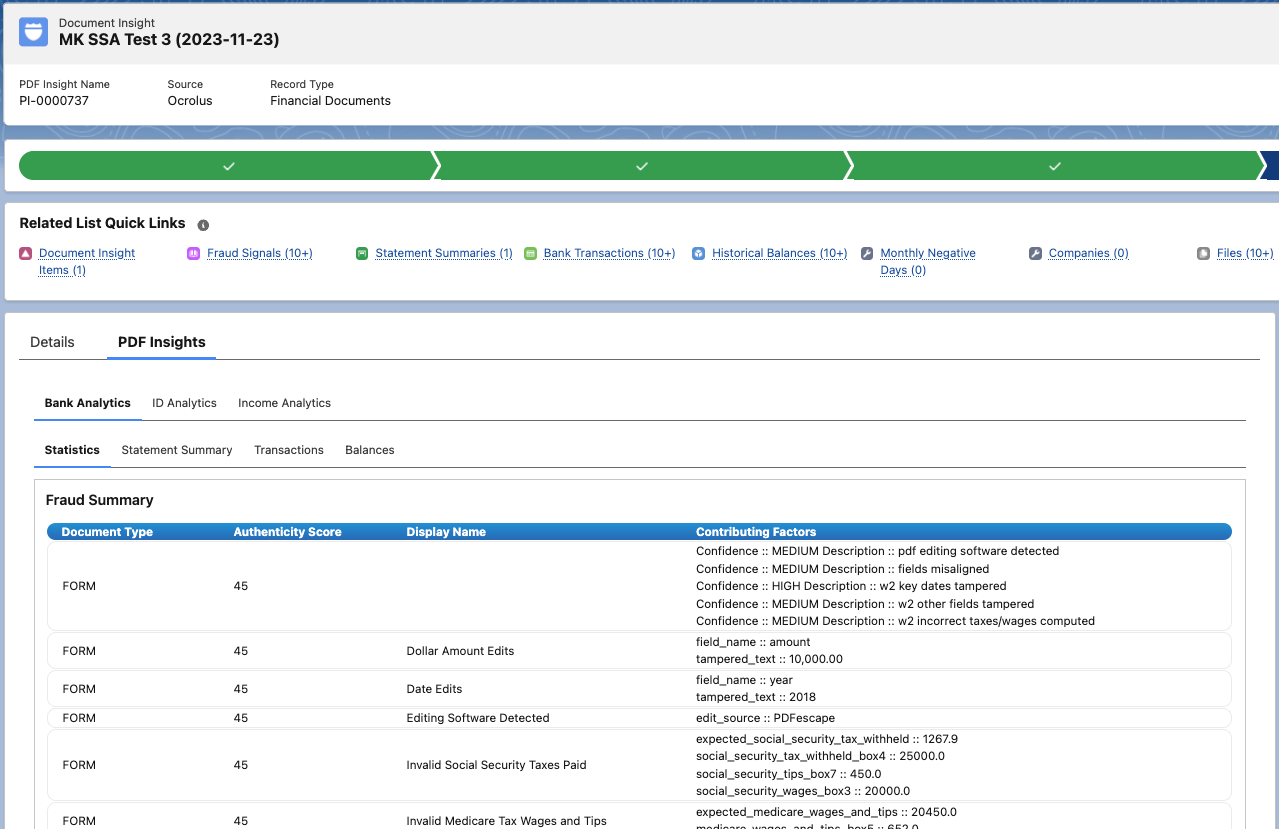
Statistics -
-
Income Analytics – Available for income-related documents such as pay stubs SSA - 1099 and other income documents. This section provides insights into income patterns, earnings, and supporting financial metrics.
-
ID Analytics – Available for identity verification documents such as driver's licenses, passports, and SSN documents. This section provides identity verification details and extracted identity information.
The available dashboard tabs and analytics will vary based on the document type processed by Ocrolus. This allows users to review document-specific insights through a single, centralized interface within Salesforce.
📩 Need Help?
For any questions or support, don't hesitate to get in touch with us at: