
This document provides comprehensive guidance on creating JSON field mappings to enable seamless two-way synchronization of data between QuickBooks and Salesforce. It outlines the process of configuring field mappings, ensuring accurate data exchange, and maintaining consistency between both platforms. By leveraging this integration, businesses can automate data flow, minimize manual intervention, and enhance operational efficiency.
Overview
To create custom field mapping records, use the structure outlined below. This guide explains the process for mapping fields between Salesforce and QuickBooks, ensuring accurate data synchronization between the two platforms.
1. Custom Field Mapping Object - Fields Definition
1.1 Source
The Source determines whether the data originates from QuickBooks or Salesforce.
-
QuickBooks: Used when transferring data from Salesforce to QuickBooks.
-
Salesforce: Used when transferring data from QuickBooks to Salesforce.
1.2 sObject API Name
The sObject API Name represents the name of the source object being mapped.
-
Salesforce to QuickBooks Mapping: Use the API name of the Salesforce object.
-
QuickBooks to Salesforce Mapping: Use the name of the corresponding QuickBooks object:
-
cm_finance__Quickbooks_Customer__c -
cm_finance__Quickbooks_Product__c -
cm_finance__Quickbooks_Vendor__c -
cm_finance__Quickbooks_Invoice__c -
cm_finance__Quickbooks_Sales_Receipt__c -
cm_finance__Quickbooks_Bill__c
-
1.3 Mapping Type
The Mapping Type defines the destination object for the data.
-
Salesforce to QuickBooks Mapping: Choose one of the following based on the mapping type:
-
Customer -
Vendor -
Product -
Invoice -
Sales Receipt -
Bill
-
-
QuickBooks to Salesforce Mapping: Use the API name of the Salesforce object.
1.4 Field Mapping
-
Stores JSON configurations for defining field mappings between QuickBooks and Salesforce.
-
Facilitates the creation of request bodies for various mapping types.
-
Ensures accurate data synchronization by aligning QuickBooks fields with corresponding Salesforce fields.
-
Enhances flexibility by allowing customization of data mappings based on business requirements.
-
Simplifies integration management by maintaining structured field mapping records.
1.5 QB Custom Field Mapping
-
Stores JSON configurations for mapping custom fields in QuickBooks invoices and Sales Receipts.
-
Enables seamless synchronization of custom invoice and Sales Receipt fields between QuickBooks and Salesforce.
-
Ensures accurate data transfer by aligning QuickBooks custom fields with Salesforce.
-
Supports up to three custom fields via API for enhanced flexibility.
1.6 Enable Record Prefill
-
Automatically pre-fills the transaction from the source record and related products.
1.7 LineItem Pre-Population Mapping
-
JSON mapping used to retrieve and map product/line item data for Invoice and Sales Receipt creation.
1.8 Source Customer Lookup Field
-
It stores the API name of the field from the source record, which has the Quickbooks Customer linked to it, or which should be used to create the Quickbooks Customer in case it is not present.
This functionality is used to retrieve the corresponding QuickBooks Customer for invoice generation, applicable to both manual and automated workflows. If a QuickBooks Customer is not already associated with the record, the system will automatically create a new QuickBooks Customer using the available data from the source record.
Example:
If Opportunity is used as the source record for invoice creation, and Account is configured as the source object for the QuickBooks Customer, with the AccountId specified in the Source Invoice Customer Lookup Field, the system will attempt to fetch the QuickBooks Customer linked to that Account.
If no QuickBooks Customer is associated with the referenced Account, a new QuickBooks Customer record will be created using the data available on the Account linked via the AccountId field.
1.9 Source Bill Vendor Lookup Field
-
It stores the API name of the field from the source record which has the QuickBooks Vendor linked to it, or which should be used to create the QuickBooks Vendor in case it is not present.
For Bill mapping records, this uses the same underlying field as the Source Invoice Customer Lookup Field (cm_finance__Source_Invoice_Customer_Lookup_field__c), but stores the Vendor lookup instead of the Customer lookup. This functionality is used to retrieve the corresponding QuickBooks Vendor when a user launches the Bill Creator screen on the source record. If no QuickBooks Vendor is associated with the record, the user is prompted to create one in QuickBooks before continuing.
Example:
If a custom Expense__c object is used as the source record for Bill creation, and Account is configured as the source object for the QuickBooks Vendor, with Vendor__c specified as the Source Bill Vendor Lookup Field, the system will attempt to fetch the QuickBooks Vendor linked to that Account.
2. Custom Field Mapping Templates
2.1 Salesforce to QuickBooks Mapping
Below are the field mappings required for data transfer from Salesforce to QuickBooks. Some fields are optional, but required fields are marked with an asterisk (*).
2.1.1 Customer Mapping
|
QuickBooks Field |
Description |
||||||||||||||||||||||||||||||||
|---|---|---|---|---|---|---|---|---|---|---|---|---|---|---|---|---|---|---|---|---|---|---|---|---|---|---|---|---|---|---|---|---|---|
|
displayName* |
The name of the person or organization as displayed. If not supplied, the system generates DisplayName by concatenating customer name components supplied in the request from the following list: Title, GivenName, MiddleName, FamilyName, and Suffix. |
||||||||||||||||||||||||||||||||
|
email* |
Primary email address. The address format must follow the RFC 822 standard. |
||||||||||||||||||||||||||||||||
|
suffix |
Suffix of the name. For example, Jr. The DisplayName attribute or at least one of Title, GivenName, MiddleName, FamilyName, or Suffix attributes is required. |
||||||||||||||||||||||||||||||||
|
title |
Title of the person. This tag supports i18n, all locales. The DisplayName attribute or at least one of Title, GivenName, MiddleName, FamilyName, or Suffix attributes is required. |
||||||||||||||||||||||||||||||||
|
firstName* |
Given name or first name of a person. The DisplayName attribute or at least one of Title, GivenName, MiddleName, FamilyName, or Suffix attributes is required. |
||||||||||||||||||||||||||||||||
|
middleName |
Middle name of the person. The person can have zero or more middle names. The DisplayName attribute or at least one of Title, GivenName, MiddleName, FamilyName, or Suffix attributes is required. |
||||||||||||||||||||||||||||||||
|
lastName* |
Family name or the last name of the person. The DisplayName attribute or at least one of Title, GivenName, MiddleName, FamilyName, or Suffix attributes is required. |
||||||||||||||||||||||||||||||||
|
notes |
Free form text describing the Customer. |
||||||||||||||||||||||||||||||||
|
phone |
Primary Phone Number |
||||||||||||||||||||||||||||||||
|
companyName |
The name of the company associated with the person or organization. |
||||||||||||||||||||||||||||||||
|
billingAddress.city* |
Default billing address - city |
||||||||||||||||||||||||||||||||
|
billingAddress.state* |
Default billing address - state |
||||||||||||||||||||||||||||||||
|
billingAddress.country* |
Default billing address - country |
||||||||||||||||||||||||||||||||
|
billingAddress.addressLine1* |
Default billing address - street |
||||||||||||||||||||||||||||||||
|
billingAddress.postalCode* |
Default billing address - postalCode |
||||||||||||||||||||||||||||||||
|
shippingAddress.city |
Default shipping address - city |
||||||||||||||||||||||||||||||||
|
shippingAddress.state |
Default shipping address - state |
||||||||||||||||||||||||||||||||
|
shippingAddress.country |
Default shipping address - country |
||||||||||||||||||||||||||||||||
|
shippingAddress.addressLine1 |
Default shipping address - street |
||||||||||||||||||||||||||||||||
|
shippingAddress.postalCode |
Default shipping address - postalCode |
||||||||||||||||||||||||||||||||
|
balance |
Specifies the open balance amount or the amount unpaid by the customer. For the create operation, this represents the opening balance for the customer. |
||||||||||||||||||||||||||||||||
|
preferredDeliveryMethod |
Preferred delivery method. Values are Print, Email, or None. |
||||||||||||||||||||||||||||||||
|
printOnCheckName |
Name of the person or organization as printed on a check. If not provided, this is populated from DisplayName. |
||||||||||||||||||||||||||||||||
|
taxable |
If true, transactions for this customer are taxable. Default behavior: true, if DefaultTaxCodeRef is defined or false if TaxExemptionReasonId is set. |
||||||||||||||||||||||||||||||||
|
taxExemptionId |
The tax exemption reason associated with this customer object. Applicable if automated sales tax is enabled (Preferences.TaxPrefs.PartnerTaxEnabled is set to true) for the company. Set TaxExemptionReasonId: to one of the following:
|
||||||||||||||||||||||||||||||||
|
job_cust |
If true, this is a Job or sub-customer. If false or null, this is a top level customer, not a Job or sub-customer. |
Sample Field Mapping for Customer (Salesforce Account Mapping)
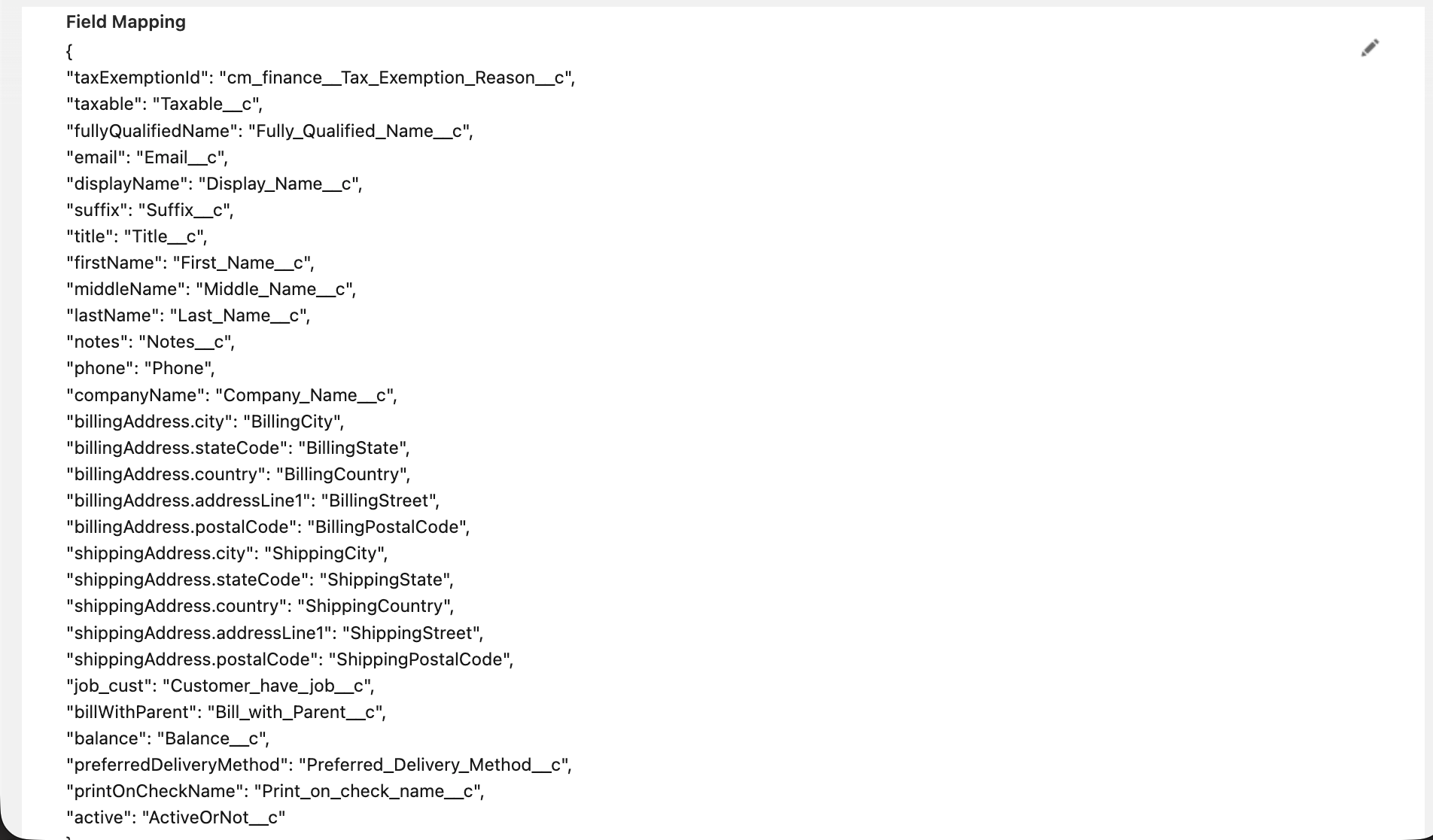
{
"taxExemptionId": "cm_finance__Tax_Exemption_Reason__c",
"taxable": "Taxable__c",
"fullyQualifiedName": "Fully_Qualified_Name__c",
"email": "Email__c",
"displayName": "Display_Name__c",
"suffix": "Suffix__c",
"title": "Title__c",
"firstName": "First_Name__c",
"middleName": "Middle_Name__c",
"lastName": "Last_Name__c",
"notes": "Notes__c",
"phone": "Phone",
"companyName": "Company_Name__c",
"billingAddress.city": "BillingCity",
"billingAddress.stateCode": "BillingState",
"billingAddress.country": "BillingCountry",
"billingAddress.addressLine1": "BillingStreet",
"billingAddress.postalCode": "BillingPostalCode",
"shippingAddress.city": "ShippingCity",
"shippingAddress.stateCode": "ShippingState",
"shippingAddress.country": "ShippingCountry",
"shippingAddress.addressLine1": "ShippingStreet",
"shippingAddress.postalCode": "ShippingPostalCode",
"job_cust": "Customer_have_job__c",
"billWithParent": "Bill_with_Parent__c",
"balance": "Balance__c",
"preferredDeliveryMethod": "Preferred_Delivery_Method__c",
"printOnCheckName": "Print_on_check_name__c"
}
2.1.2 Product Mapping
|
QuickBooks Field |
Description |
|---|---|
|
name* |
Name of the item. This value is unique. |
|
fullyQualifiedName* |
Fully qualified name of the entity. The fully qualified name prepends the topmost parent, followed by each sub element separated by colons. |
|
typeOfProduct* |
|
|
unitPrice |
Corresponds to the Price/Rate column on the QuickBooks Online UI to specify either unit price, a discount, or a tax rate for item. If used for unit price, the monetary value of the service or product, as expressed in the home currency. If used for a discount or tax rate, express the percentage as a fraction. For example, specify 0.4 for 40% tax. |
|
purchaseCost |
Amount paid when buying or ordering the item, as expressed in the home currency. |
|
trackQty |
True if there is quantity on hand to be tracked. Once this value is true, it cannot be updated to false. Applicable for items of type Inventory. Not applicable for Service or NonInventory item types. |
|
quantityOnHand |
Current quantity of the Inventory items available for sale. Not used for Service or NonInventory type items.Required for Inventory type items. |
|
inventoryStartDate |
Date of opening balance for the inventory transaction. For read operations, the date returned in this field is always the originally provided inventory start date. For update operations, the date supplied is interpreted as the inventory adjust date, is stored as such in the underlying data model, and is reflected in the QuickBooks Online UI for the object. The inventory adjust date is not exposed for read operations through the API. Required for Inventory type items. |
|
taxable |
If true, transactions for this item are taxable. |
Sample Field Mapping for Product (Salesforce Product2 Mapping)
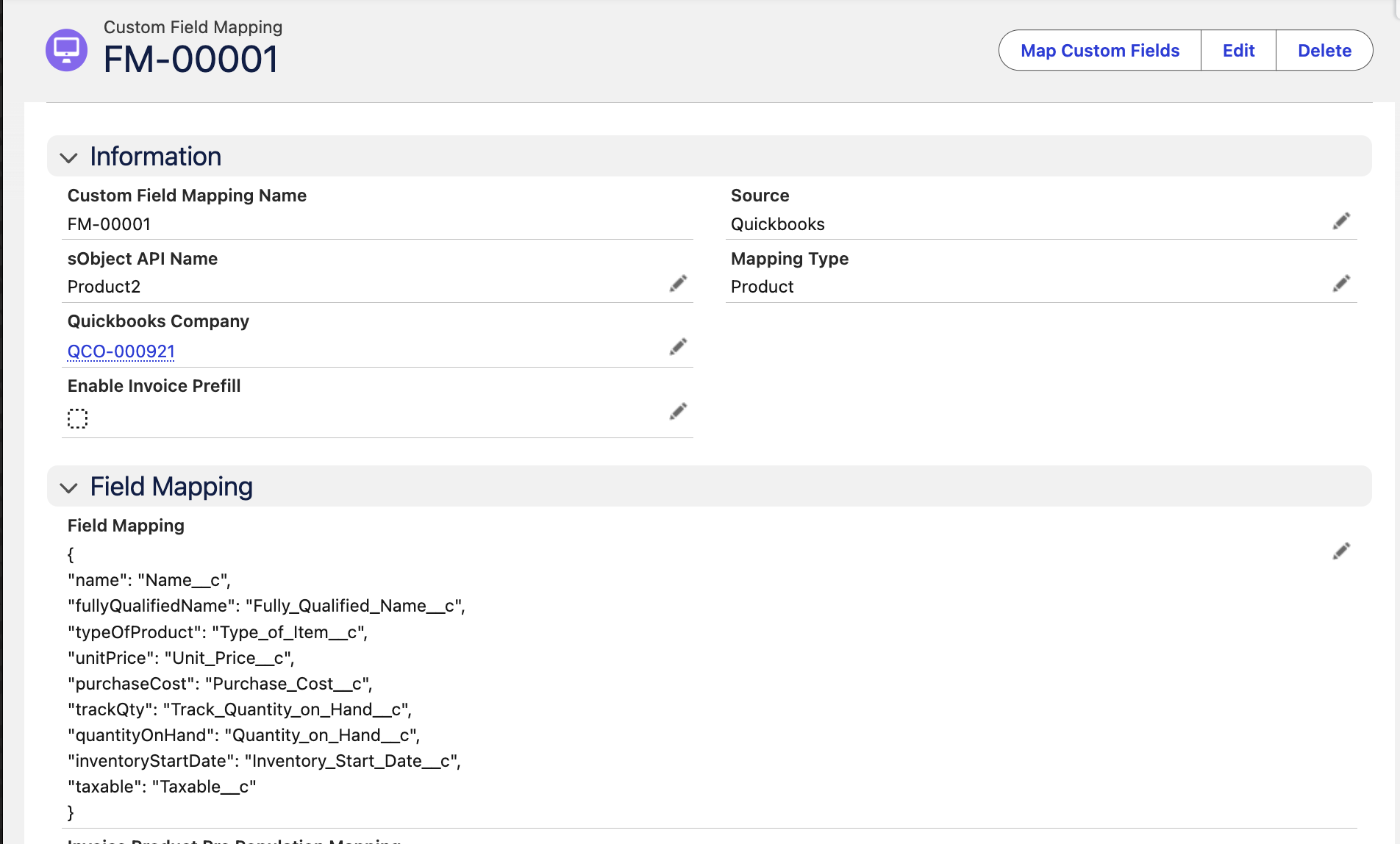
{
"name": "Name__c",
"fullyQualifiedName": "Fully_Qualified_Name__c",
"typeOfProduct": "Type_of_Item__c",
"unitPrice": "Unit_Price__c",
"purchaseCost": "Purchase_Cost__c",
"trackQty": "Track_Quantity_on_Hand__c",
"quantityOnHand": "Quantity_on_Hand__c",
"inventoryStartDate": "Inventory_Start_Date__c",
"taxable": "Taxable__c"
}
2.1.3 Vendor Mapping
|
QuickBooks Field |
Description |
|---|---|
|
displayName* |
The name of the vendor as displayed. Must be unique across all Vendor, Customer, and Employee objects. Cannot be removed with sparse update. If not supplied, the system generates DisplayName by concatenating vendor name components supplied in the request from the following list: Title, GivenName, MiddleName, FamilyName, and Suffix. |
|
email* |
Primary email address. The address format must follow the RFC 822 standard. |
|
suffix |
Suffix of the name. For example, Jr. The DisplayName attribute or at least one of Title, GivenName, MiddleName, FamilyName, or Suffix attributes is required for object create. |
|
title |
Title of the person. This tag supports i18n, all locales. The DisplayName attribute or at least one of Title, GivenName, MiddleName, FamilyName, or Suffix attributes are required during create. |
|
firstName* |
Given name or first name of a person. The DisplayName attribute or at least one of Title, GivenName, MiddleName, FamilyName, or Suffix attributes is required for object create. |
|
middleName |
Middle name of the person. The person can have zero or more middle names. The DisplayName attribute or at least one of Title, GivenName, MiddleName, FamilyName, or Suffix attributes is required for object create. |
|
lastName* |
Family name or the last name of the person. The DisplayName attribute or at least one of Title, GivenName, MiddleName, FamilyName, or Suffix attributes is required for object create. |
|
notes |
Free form text describing the Customer. |
|
phone |
Primary Phone Number |
|
companyName |
The name of the company associated with the person or organization. |
|
vendor1099 |
This vendor is an independent contractor; someone who is given a 1099-MISC form at the end of the year. A 1099 vendor is paid with regular checks, and taxes are not withheld on their behalf. |
|
accNum |
Name or number of the account associated with this vendor. |
|
billingAddress.city* |
Default billing address - city |
|
billingAddress.state* |
Default billing address - state |
|
billingAddress.country* |
Default billing address - country |
|
billingAddress.addressLine1* |
Default billing address - street |
|
billingAddress.postalCode* |
Default billing address - postalCode |
|
printOnCheckName |
Name of the person or organization as printed on a check. If not provided, this is populated from DisplayName. |
Sample Field Mapping for Vendor (Salesforce Account Mapping)
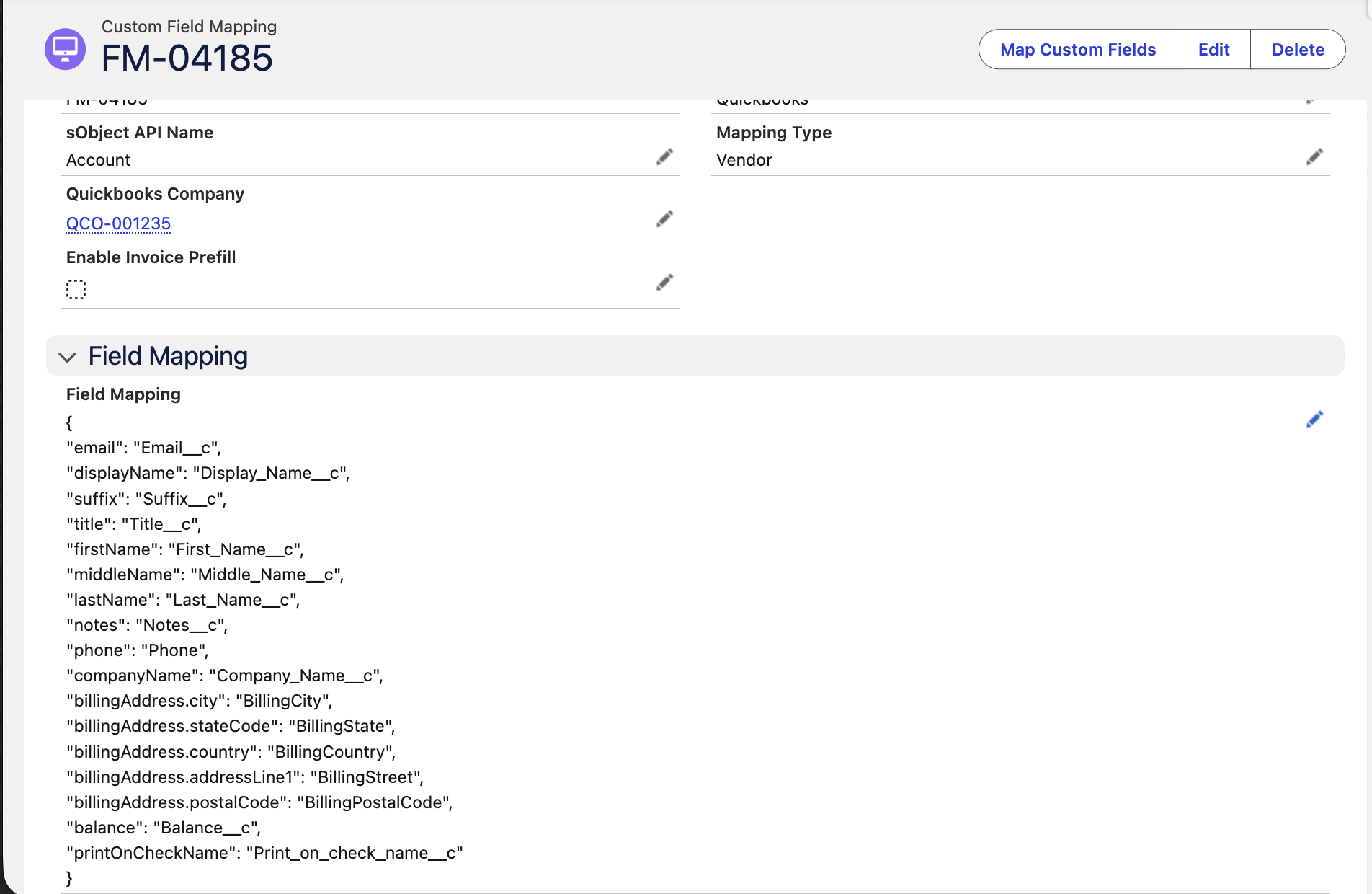
{
  "email": "Email__c",
  "displayName": "Display_Name__c",
  "suffix": "Suffix__c",
  "title": "Title__c",
  "firstName": "First_Name__c",
  "middleName": "Middle_Name__c",
  "lastName": "Last_Name__c",
  "notes": "Notes__c",
  "phone": "Phone",
  "companyName": "Company_Name__c",
  "billingAddress.city": "BillingCity",
  "billingAddress.stateCode": "BillingState",
  "billingAddress.country": "BillingCountry",
  "billingAddress.addressLine1": "BillingStreet",
  "billingAddress.postalCode": "BillingPostalCode",
  "balance": "Balance__c",
  "printOnCheckName": "Print_on_check_name__c"
}
2.1.4 Invoice Mapping
|
QuickBooks Field |
Description |
|---|---|
|
deposit |
The deposit made towards this invoice. |
|
txnDate |
The date entered by the user when this transaction occurred.
|
|
dueDate |
Date when the payment of the transaction is due. If date is not provided, the number of days specified in SalesTermRef added the transaction date will be used. |
|
CustomerMemo |
User-entered message to the customer; this message is visible to end user on their transactions. |
Sample Field Mapping for Invoice (Salesforce Opportunity Mapping)
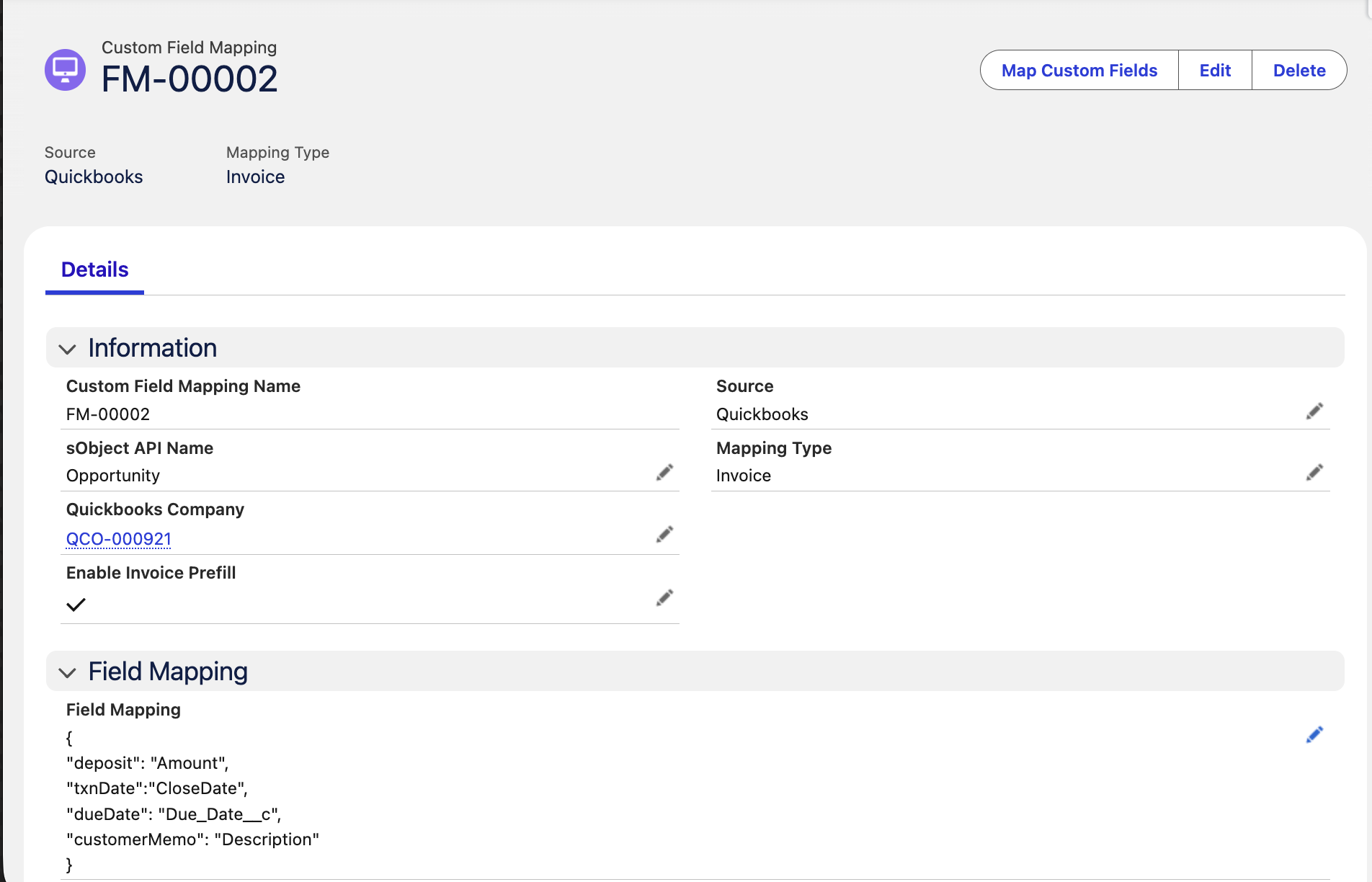
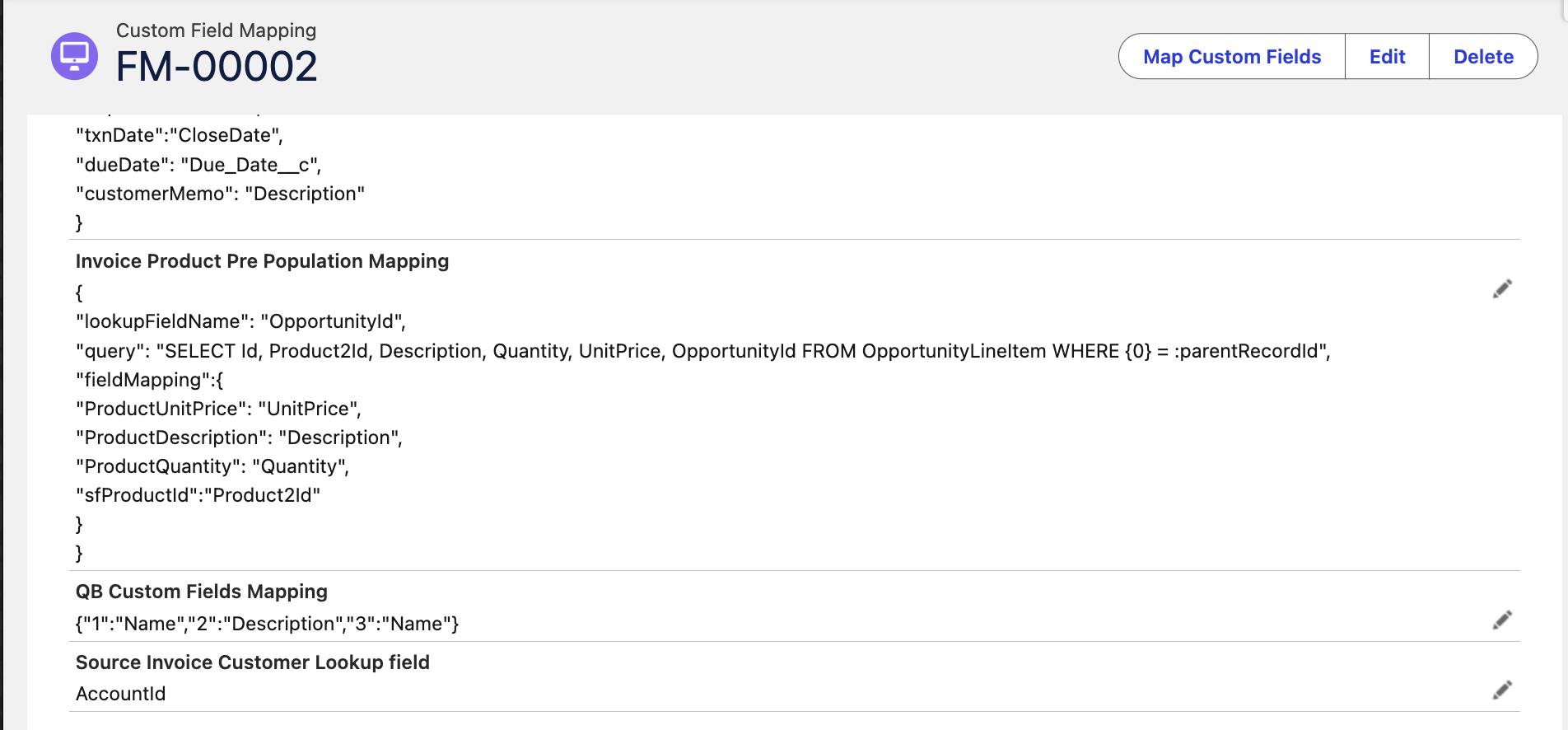
FIELD MAPPING
{
"deposit": "Amount",
"txnDate":"CloseDate",
"dueDate": "CloseDate",
"customerMemo": "Description"
}
Invoice Product Pre Population Mapping
{
"lookupFieldName": "OpportunityId",
"query": "SELECT Id, Product2Id, Description, Quantity, UnitPrice,QB_Class_Id__c, OpportunityId FROM OpportunityLineItem WHERE {0} = :parentRecordId",
"fieldMapping":{
  "ProductUnitPrice": "UnitPrice",
  "ProductDescription": "Description",
  "ProductQuantity": "Quantity",
  "sfProductId":"Product2Id",
  "qbClassId" : "QB_Class_Id__c"
  }
}
Source Invoice Customer Lookup field
AccountId
2.1.5 Sales Receipt Mapping
Use the Sales Receipt mapping to transfer Salesforce record data to QuickBooks Sales Receipts. Required fields depend on your QuickBooks configuration; map the customer, transaction date, payment details, deposit account, and line-item information as applicable.
|
QuickBooks Field |
Description |
|---|---|
|
|
The date this transaction occurred (format: yyyy/MM/dd). Defaults to today if not provided. |
|
|
The reference number for the payment applied to the sales receipt, such as a check number or transaction reference. |
|
|
A message to the customer that appears on the sales receipt. |
|
|
The billing email address associated with the sales receipt customer. If not populated related customer email will be used. |
|
Payment Method Reference field
|
The Salesforce field that references the QuickBooks payment method to apply to the sales receipt. |
|
Quickbooks Account Reference field
|
The Salesforce field that references the QuickBooks deposit account where the sales receipt payment should be deposited. |
|
Customer Lookup Field |
The Salesforce field linking to the related QuickBooks Customer record. E.g., if your sales receipt source is Opportunity, this is typically |
Sample Field Mapping for Sales Receipt (Salesforce Opportunity Mapping)
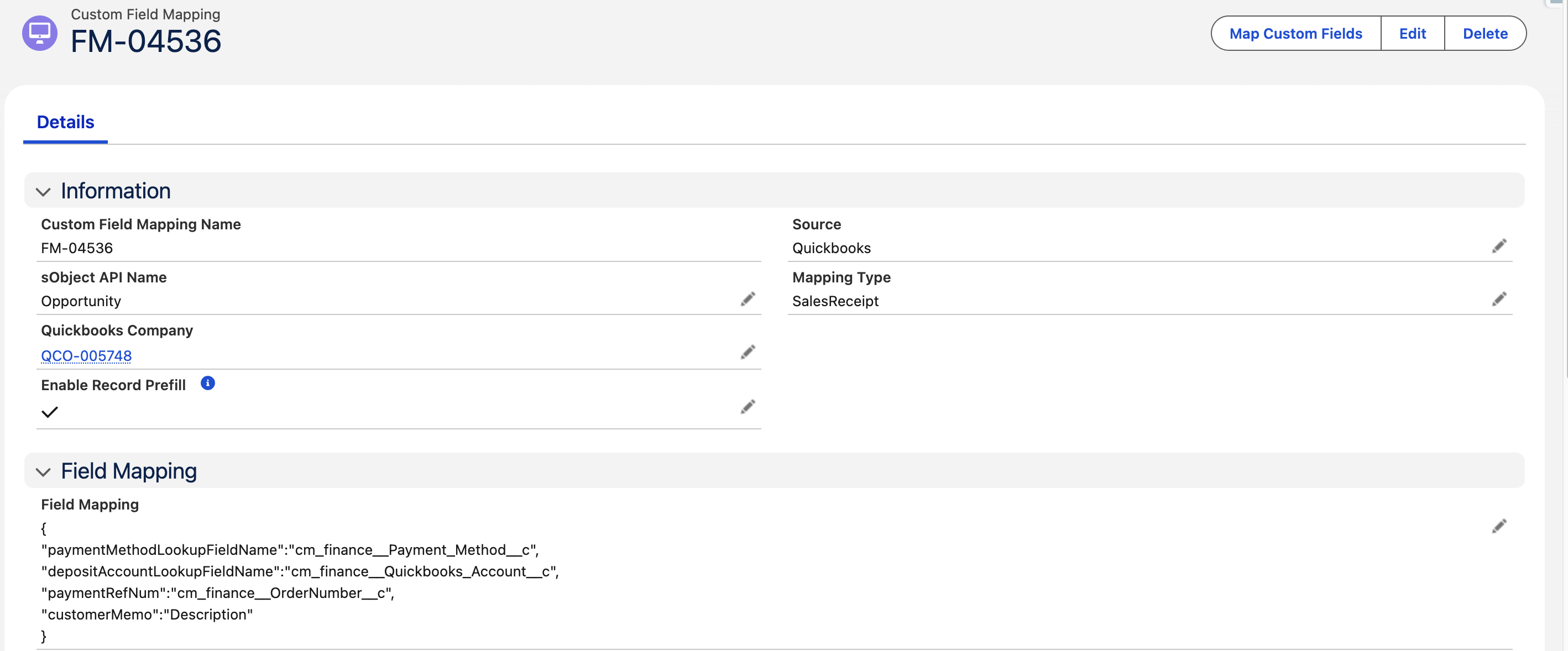
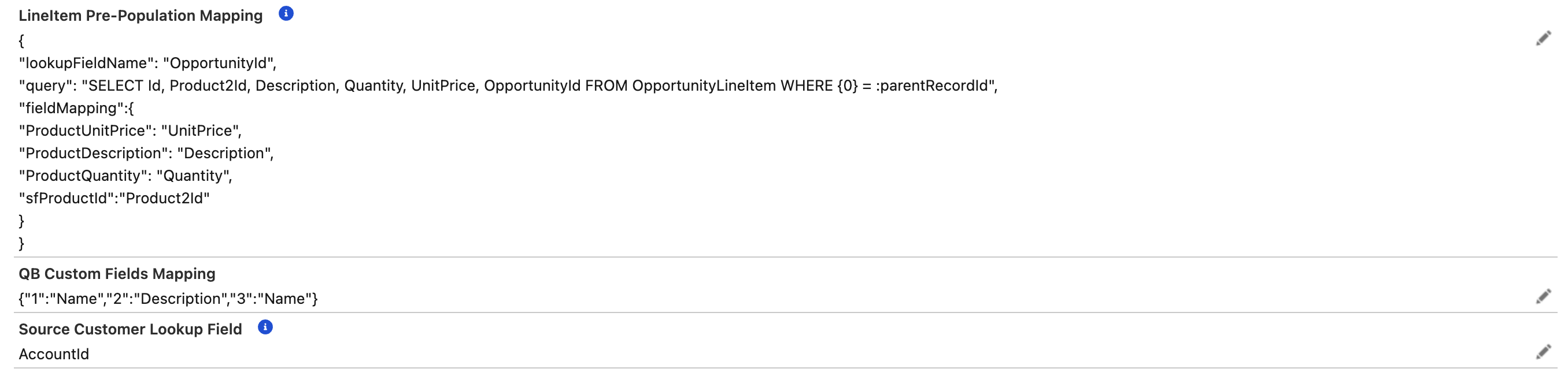
FIELD MAPPING
{
  "txnDate": "CloseDate",
  "depositAccountLookupFieldName": "Quickbooks_Account__c",
  "paymentMethodLookupFieldName": "Payment_Method__c",
  "paymentRefNum": "Payment_Reference__c",
  "customerMemo": "Description"
}
Sales Receipt Product Pre Population Mapping
If there is related object present (like OpportunityLineItem) and have multiple lines items use below mapping:
{
  "lookupFieldName": "OpportunityId",
  "query": "SELECT Id, Product2Id, Description, Quantity, UnitPrice,QB_Class_Id__c, OpportunityId FROM OpportunityLineItem WHERE {0} = :parentRecordId",
  "fieldMapping": {
    "ProductUnitPrice": "UnitPrice",
    "ProductDescription": "Description",
    "ProductQuantity": "Quantity",
    "sfProductId": "Product2Id",
    "qbClassId" : "QB_Class_Id__c"
  }
}
If there is only single item and the data is present on the same object (Opportunity) then use below mapping:
Note: Use only when the fields exist on the same object on which the Sales Receipt is setup.
{
  "fieldMapping": {
    "ProductUnitPrice": "UnitPrice",
    "ProductDescription": "Description",
    "ProductQuantity": "Quantity",
    "sfProductId": "Product2Id",
    "qbClassId" : "QB_Class_Id__c"
  }
}
Source Sales Receipt Customer Lookup Field
AccountId
For Sales Receipts, the payment method and deposit account should be mapped when the transaction is paid at the time of sale. Confirm that the mapped values correspond to valid QuickBooks references before submitting the record.
2.1.6 Bill Mapping
Use the Bill mapping to create QuickBooks vendor Bills from a Salesforce record via the Bill Creator screen. The Vendor and AP Account can be resolved from mapped lookup fields, while remaining bill details and line items are reviewed or entered by the user on that screen.
|
QuickBooks Field |
Description |
|---|---|
|
txnDate |
The date entered by the user when this transaction occurred (format: yyyy/MM/dd). Defaults to today if not provided. |
|
dueDate |
Date when payment of the bill is due. If not provided, calculated from the Terms value and the transaction date. |
|
docNumber |
Reference or bill number from the vendor. |
|
privateNote |
Memo describing the bill; internal only, not visible to the vendor. |
|
terms |
Name of the QuickBooks payment term to apply (e.g., Net 30); also used to auto-calculate dueDate. |
|
QuickbooksVendor |
Salesforce field on the source object that stores the QuickBooks Vendor reference the bill is owed to. |
|
QuickbooksAPAccount |
Salesforce field on the source object that stores the QuickBooks Accounts Payable account reference the bill should post against. |
Sample Field Mapping for Bill (Salesforce Expense__c Mapping)
FIELD MAPPING
{
"txnDate": "Bill_Date__c",
"dueDate": "Due_Date__c",
"docNumber": "Bill_Number__c",
"privateNote": "Memo__c",
"terms": "Payment_Terms__c",
"QuickbooksVendor": "Vendor__c",
"QuickbooksAPAccount": "AP_Account__c"
}
Bill Line Item Pre Population Mapping
{
"lookupFieldName": "Expense__c",
"query": "SELECT Id, Product2Id, Description, Quantity, UnitPrice, GL_Account__c, Billable_Customer__c, Amount__c, QB_Class_Id__c, Expense__c FROM Expense_Line__c WHERE {0} = :parentRecordId",
"fieldMapping": {
  "sfProductId": "Product2Id",
  "sfGLAccountId": "GL_Account__c",
  "BillableCustomerLookup": "Billable_Customer__c",
  "LineDescription": "Description",
  "ProductQuantity": "Quantity",
  "ProductUnitPrice": "UnitPrice",
  "LineAmount": "Amount__c",
  "qbClassId": "QB_Class_Id__c"
  }
}
Line type resolution: when sfProductId resolves to a valid Product/QuickBooks Product record, the line is created as an Item-based expense line; when sfGLAccountId is used instead (no product), the line is created as a Category (Account)-based expense line — matching the "Item (Product)" vs "Category (Account)" line types on the Bill Creator screen.
Source Bill Vendor Lookup field
Vendor__c
2.2 QuickBooks to Salesforce Mapping (Optional)
This section describes Reverse Field Mapping, where the system populates Salesforce objects using data from QuickBooks objects. The left-side fields in the JSON structure represent QuickBooks fields, while the right-side fields represent Salesforce fields.
Sample Reverse Field Mapping
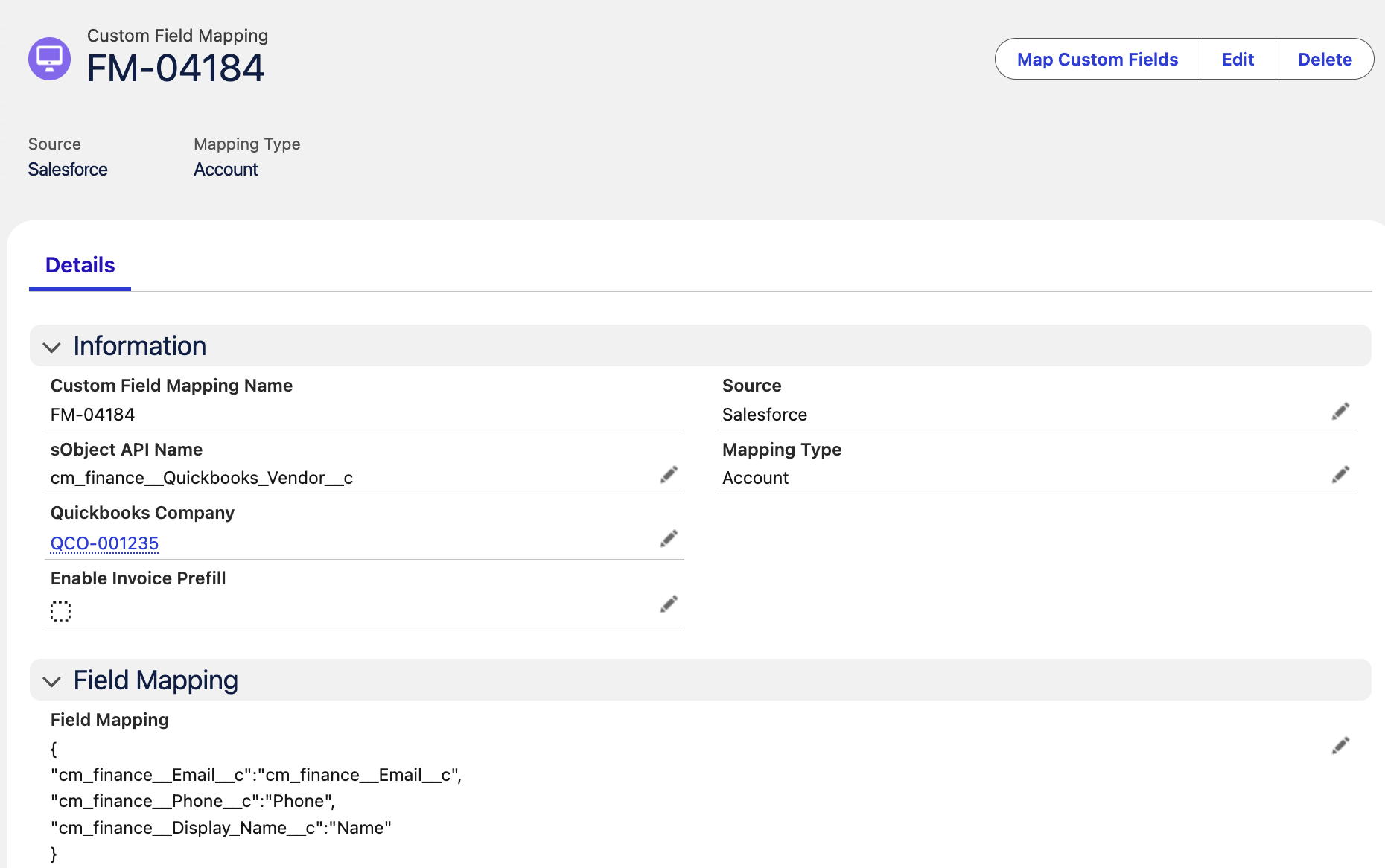
{
"cm_finance__Email__c":"cm_finance__Email__c",
"cm_finance__Phone__c":"Phone",
"cm_finance__Display_Name__c":"Name"
}
3. Quickbooks Custom Fields Mapping
QuickBooks allows the creation of custom fields on the Sales Form object, including Invoices and Sales Receipts, and supports sending up to three fields via API. To facilitate data exchange, the QB_Custom_Field_Mapping__c field must be populated within the cm_finance__Custom_Field_Mapping__c object.
To map custom fields for Sales Receipts, follow the steps below.
-
Once the cm_finance__Quickbooks_Custom_Field__c records are available in your Salesforce org, navigate to the cm_finance__Custom_Field_Mapping__c record with Mapping Type set to Sales Receipt and Source as QuickBooks to map the entries accordingly.
To pull the cm_finance__Quickbooks_Custom_Field__c records -
-
Go to the Admin Setup LWC in CM Quickbooks Connector application
-
Click on the Sync Data From Quickbooks
-
Click on Custom Fields Icon.
-
Click on the button “Map Custom Fields”.
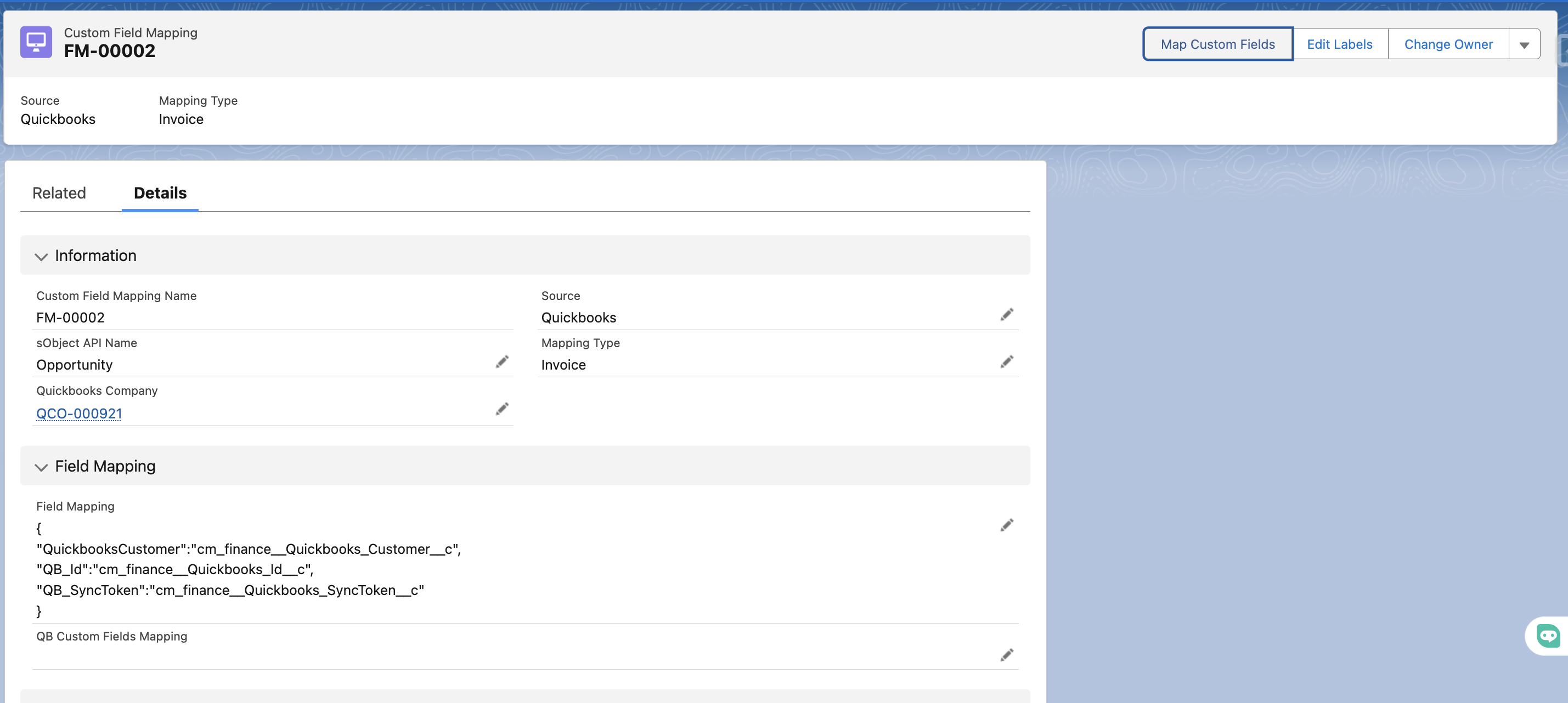
-
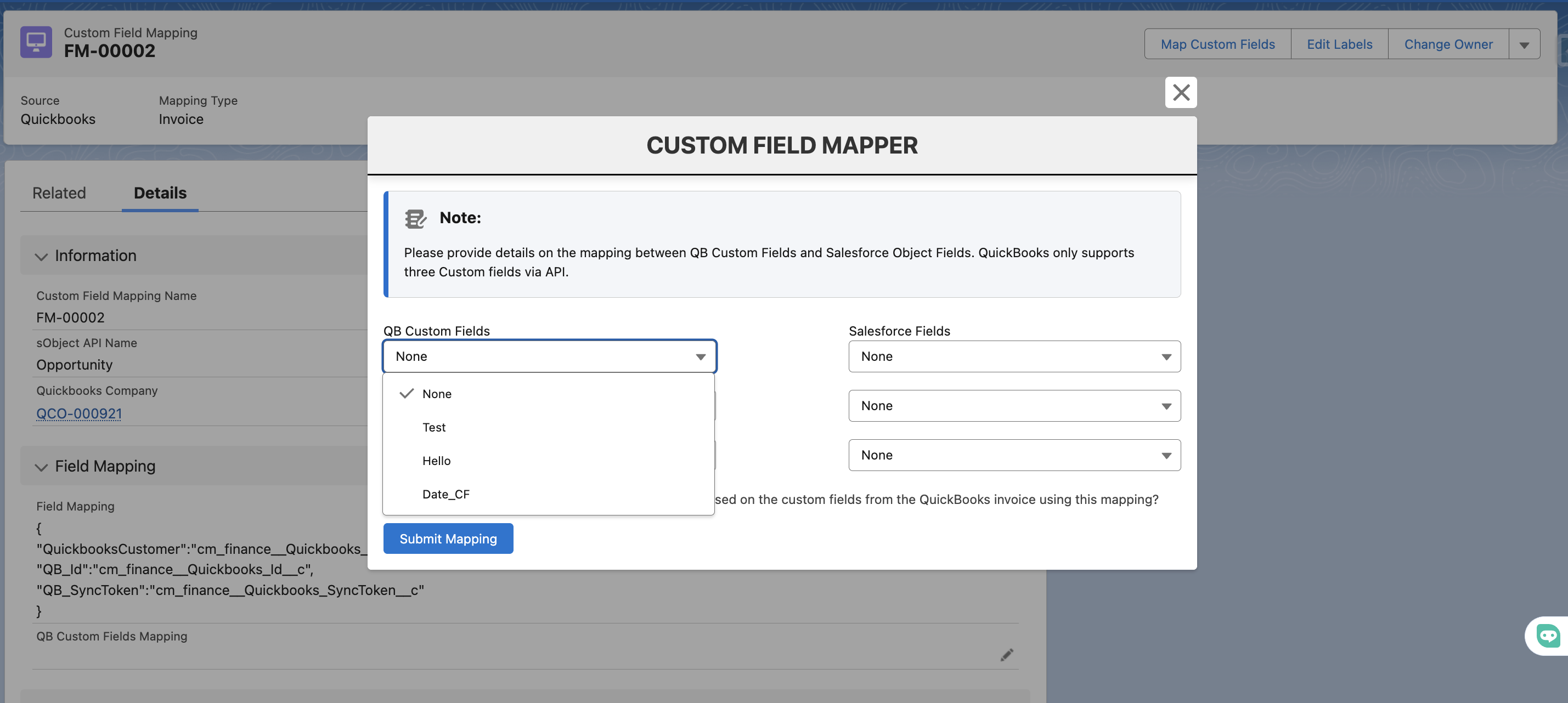
A LWC modal window will pop up like below. On the left side, you’ll see all the QB Custom Field records that are pulled inside your Salesforce org.
-
On the right side, you’ll see all the fields of your Source Object to be mapped to each QB custom field.
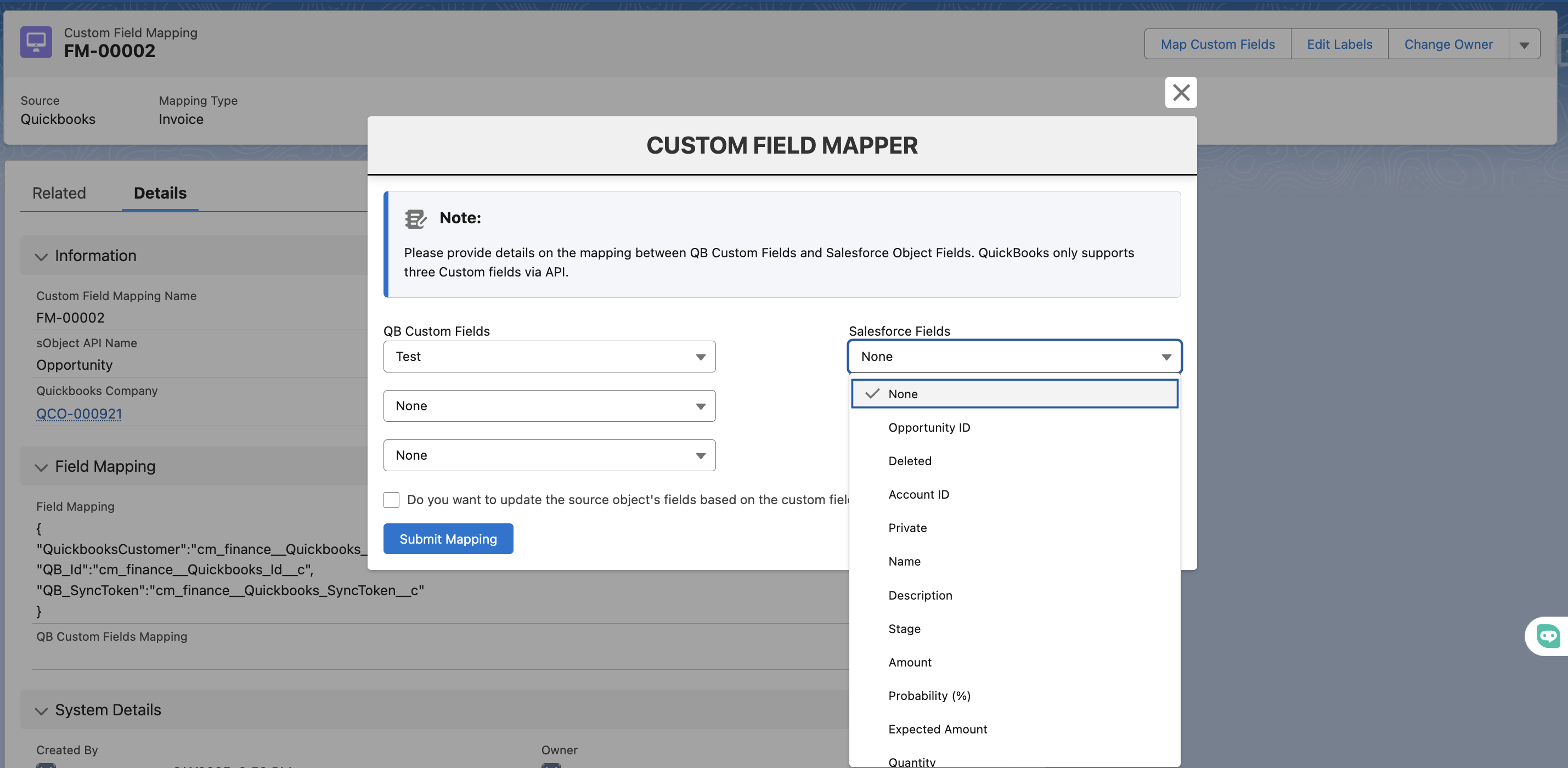
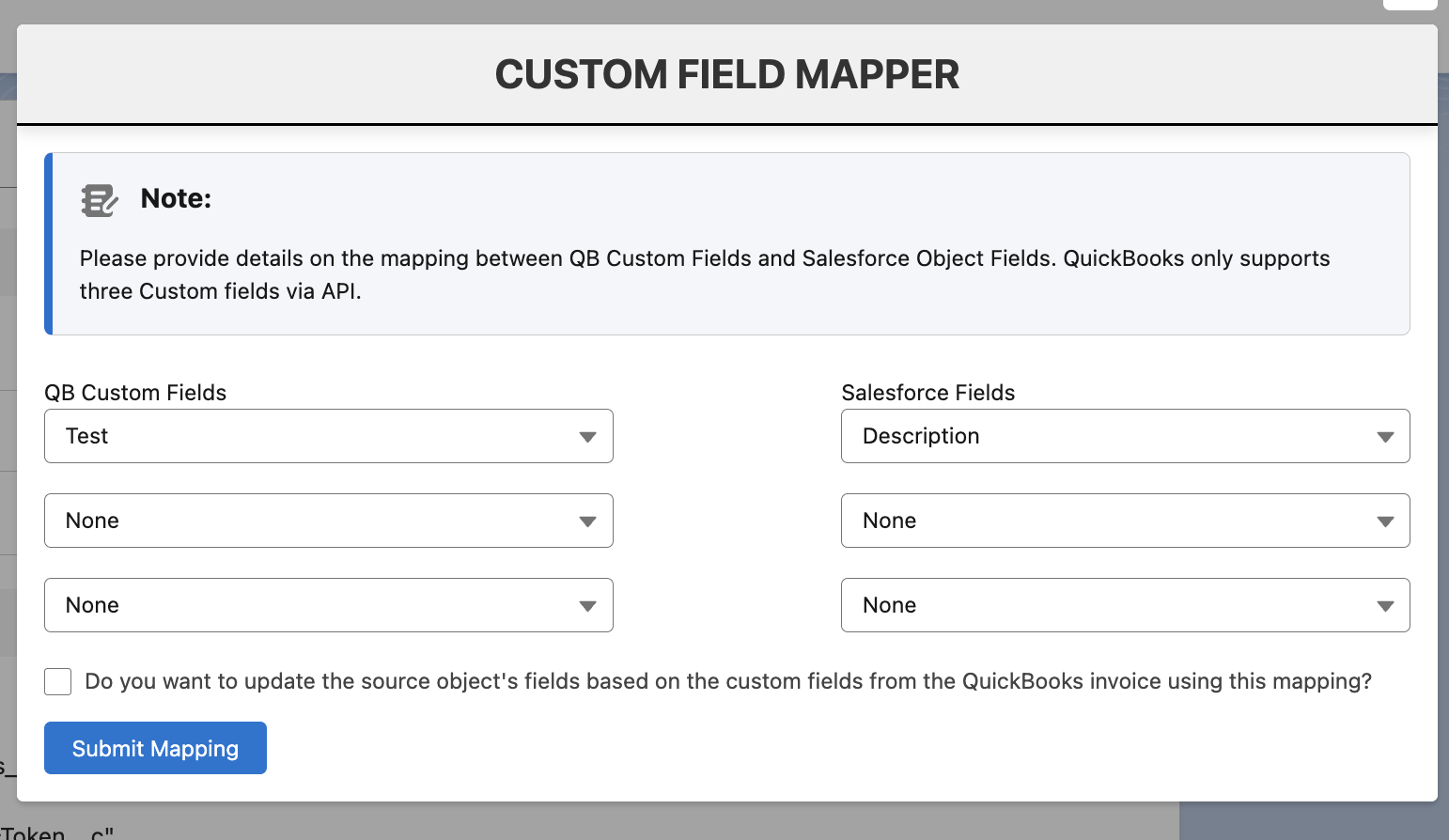
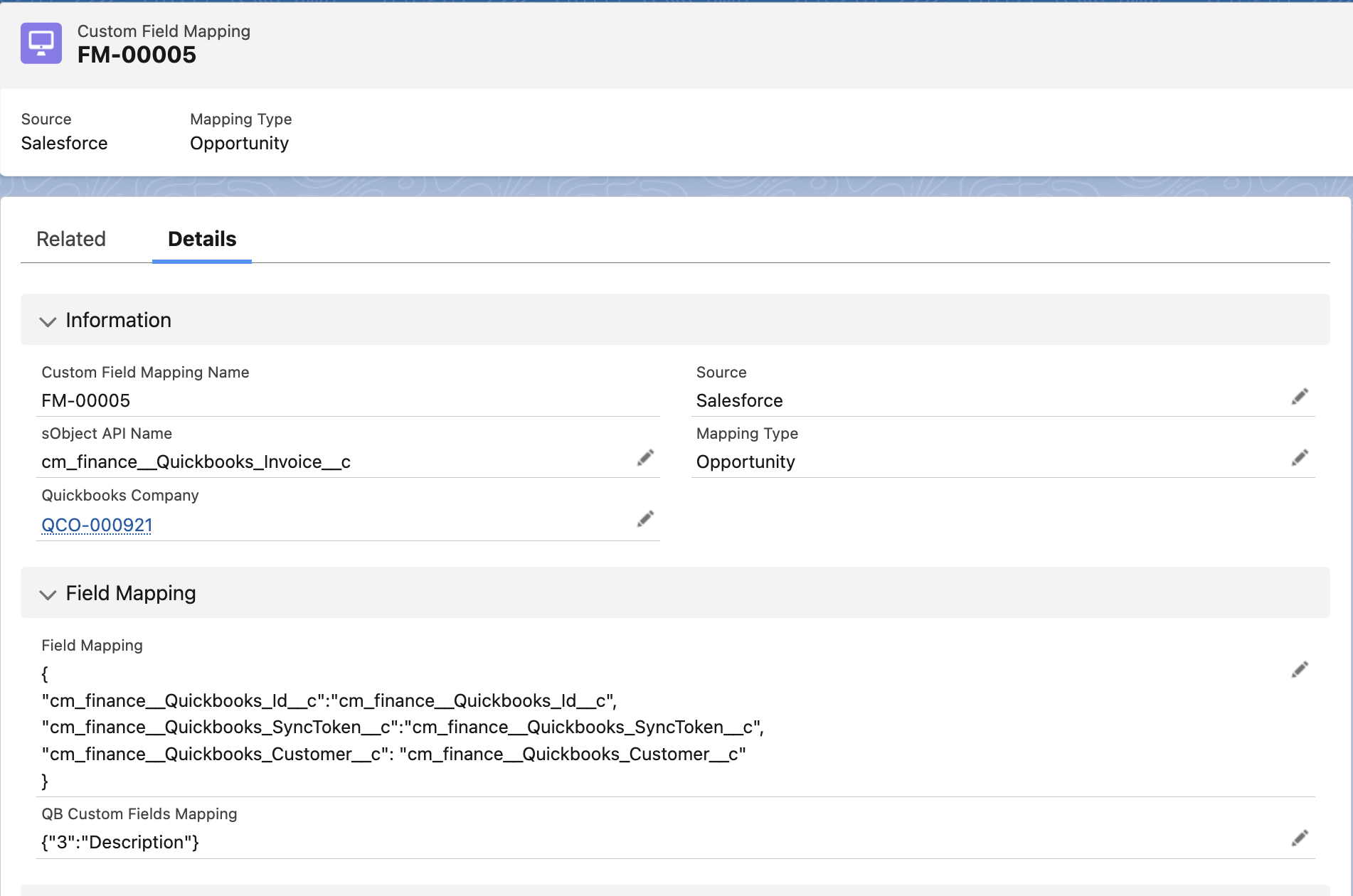
The checkbox is present for users to automatically update the Reverse field Mapping, where the Custom Fields received via the QuickBooks Invoice or Sales Receipt API will populate the parent record's fields.
-
Once the mapping is complete, click on Submit Mapping button.
-
Once the button is clicked, the QB_Custom_Field_Mapping__c field will be populated as below:
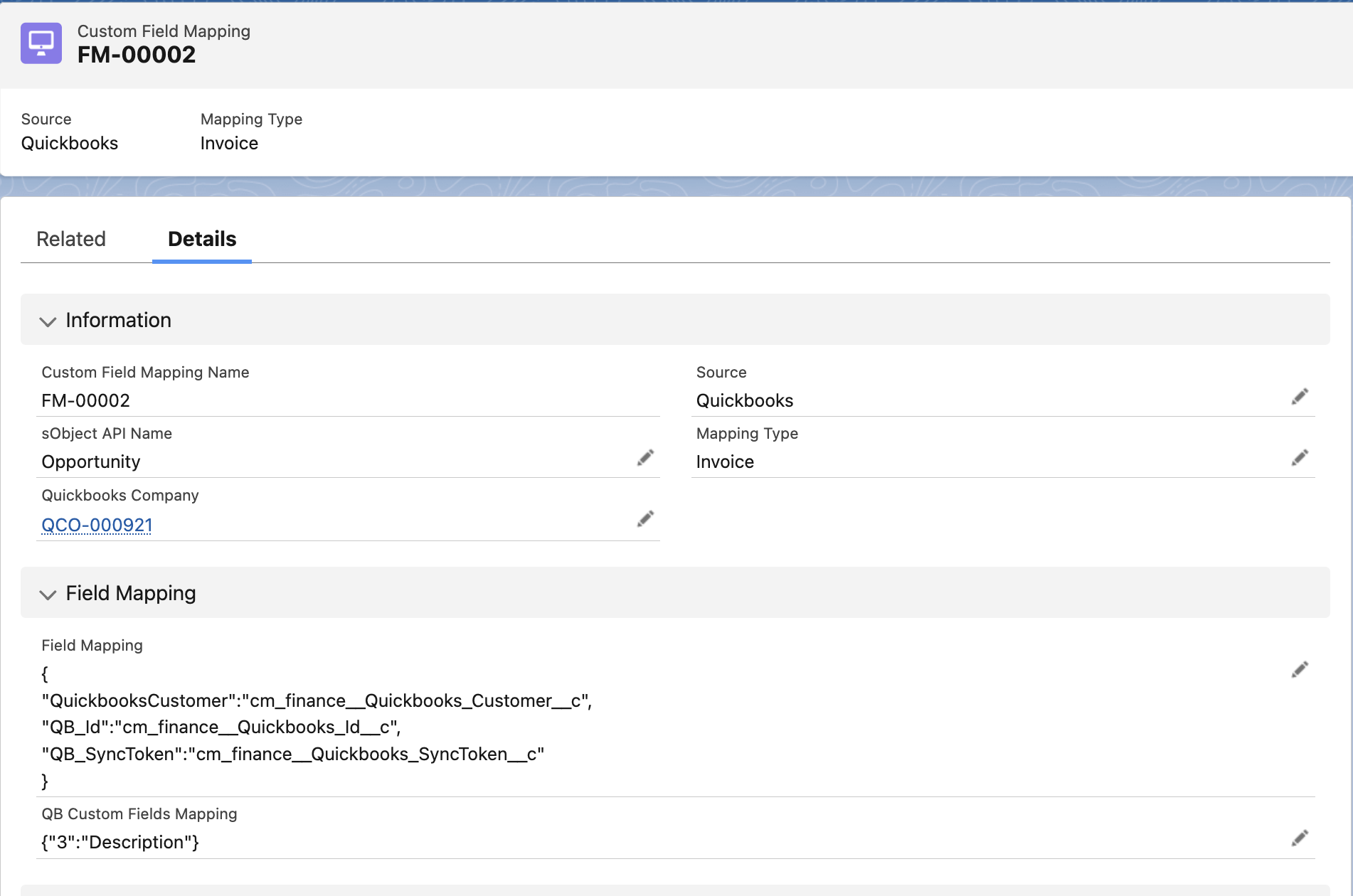
-
If the checkbox was checked, the reverse field mapping for QB Custom Field Mapping for the same Source Object will be populated automatically.
This guide provides a structured approach to creating and managing custom field mappings, ensuring seamless data synchronization between Salesforce and QuickBooks.