
Overview
This guide provides step-by-step instructions for automatically creating document workflows and sending signing links directly from Salesforce. Following these simple steps will streamline your document generation and e-signature processes, eliminate manual tasks, and significantly accelerate your organization's document signing cycles.
Access and Configure Document Template:
-
Log in to Salesforce.
-
Navigate to the Document Template tab.
-
Select the desired Document Template from the list.
-
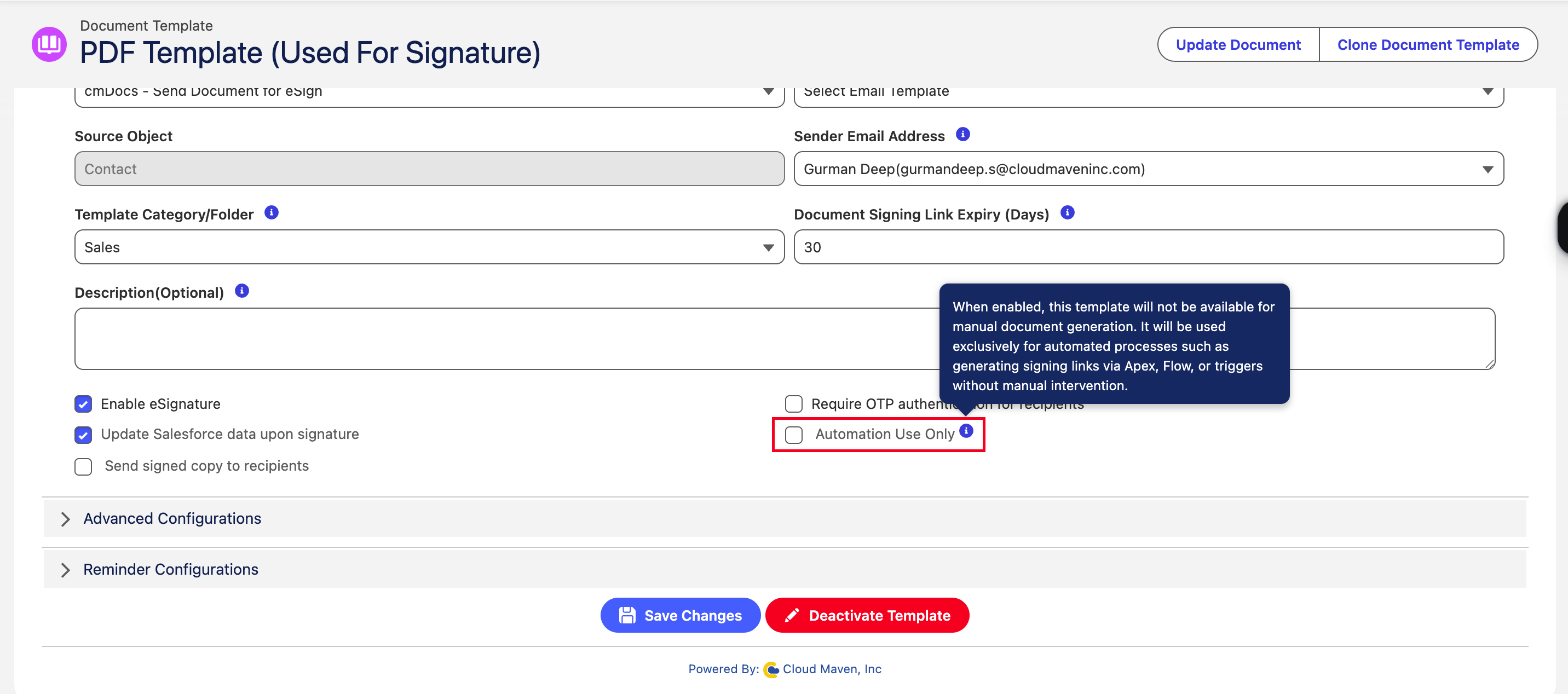
Click the Details tab.
-
Check the box for Auto Populate Template.
-
Click Save Changes.
Set Up Automated Workflow
-
Decide your automation trigger method (e.g., Salesforce Flows, Apex triggers, platform events).
-
Create an Apex class named
DocumenteSignatureAutomation.public class DocumenteSignatureAutomation { //YOU CAN GIVE YOUR OWN NAME. } -
Create a function that triggers the automation by calling a global method from DocGen and eSign Package.
public class DocumenteSignatureAutomation {
/**
 * Triggers the document generation and e-signature workflow for a given record.
 *
 * This method calls the DocGen & eSign service to generate a document using the specified
 * template and associates it with the given Salesforce record. If successful, it retrieves
 * the signing URL and workflow ID.
 *
 * @param recordId          The Salesforce record ID (e.g., Opportunity, Contract) for which
 *                          the document will be generated.
 * @param documentTemplateId The ID of the document template to be used for generating the document.
 *
 * @throws Exception        If there is an error during document generation.
 */
public static void triggerDocumenteSignature(Id recordId, Id documentTemplateId) {
    try {
        String sResponse = docgen_esign.GlobalServices.generateDocument(documentTemplateId, recordId);
        Map<String, Object> outputMap = (Map<String, Object>) JSON.deserializeUntyped(sResponse);
        if (outputMap.containsKey('bSuccess')) {
            if ((Boolean) outputMap.get('bSuccess')) {
                // Document Workflow Created
                System.debug('Document workflow created successfully.');
                // Fetch signing URL and workflow ID
                if (outputMap.containsKey('signingUrl') && outputMap.containsKey('workflowId')) {
                    String signingUrl = (String) outputMap.get('signingUrl');
                    String workflowId = (String) outputMap.get('workflowId');
                    System.debug('Signing URL: ' + signingUrl);
                    System.debug('Workflow ID: ' + workflowId);
                } else {
                    System.debug('Signing URL or Workflow ID not found in response.');
                    // Logic to handle the error
                }
            } else {
                // Get the error message
                String error = outputMap.containsKey('message') ? (String) outputMap.get('message') : 'Something went wrong while generating the document';
                System.debug('Document workflow creation failed: ' + error);
            }
        } else {
            System.debug('Invalid response from document generation service.');
            // Add logic for invalid response handling.
        }
    } catch (Exception e) {
        System.debug('Error triggering automation: ' + e.getMessage());
        // Add logic to handle exception, such as logging or notification.
    }
}
}
Finalize and Send for Signing:
Once triggered, the signer automatically receives an email containing their signing link.
🎉 Congratulations! Your Salesforce document workflow has been successfully automated, enhancing efficiency and accelerating your document signing process.