
Login to your Salesforce org where the package is installed.
Add File Tags
-
From Setup Click on Object Manager.
-
Search for Secure File Templates Object.
-
Click on Fields and Relationships.
-
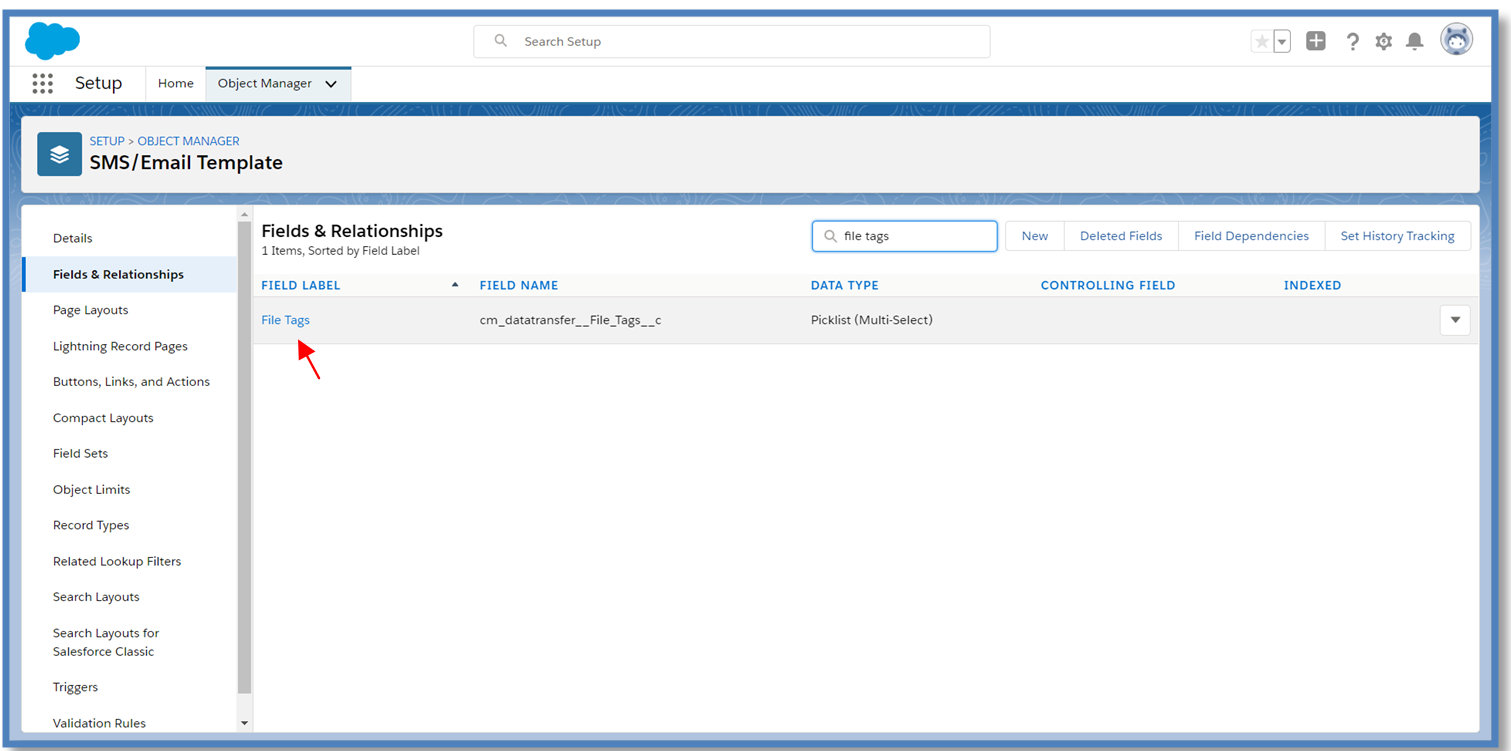
Search for File Tags fields from the Quick Find Box.
-
Click on the File Tags field.
-
In the Values section of the File Tags, picklist field click New to Add new tags.
-
Or Click on Edit on one of the values in which you want to make changes.
-
Click Save.
Add New Request Templates
-
Go to the Secure File Transfer Application.
-
Click on the Text/Email Templates tab.
-
Click New
-
Fill up the fields as below:
-
Template Name - Should be unique
-
Object name - The API Name of the Object on which this template would be available
-
Request Type - Select ‘Media Request’
-
File Tags - Select the FIle Tags from the multi-select picklist which would be requested for this Template
-
Fill in the SMS and Email Message Details.
-
-
Click Save.
Please find the detailed steps at the below Link
https://cloudmaven.atlassian.net/l/c/u4ffAXnw
Update Text/Email Templates
-
Go to the Secure File Transfer Application.
-
Click on the Text/Email Templates tab.
-
Select the Email Template you want to update.
-
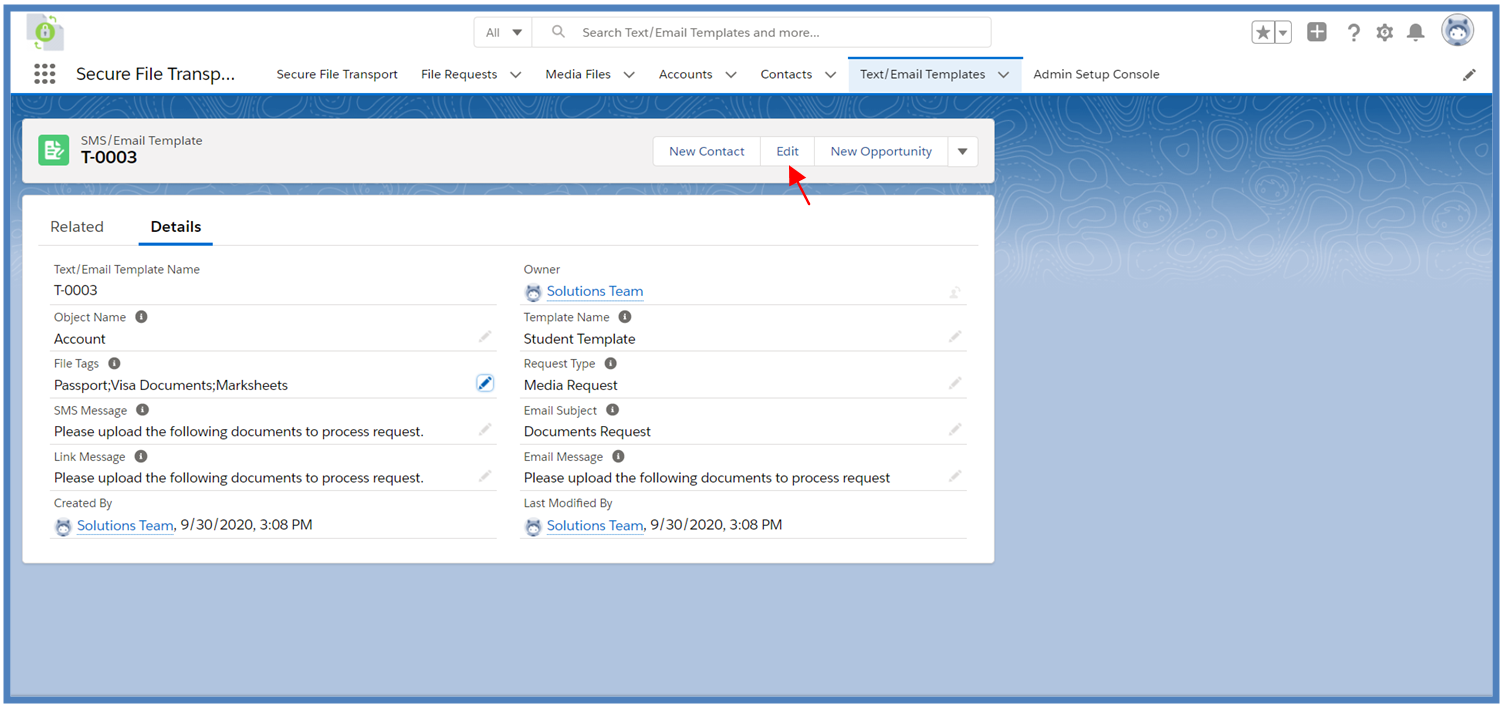
Click on Edit
-
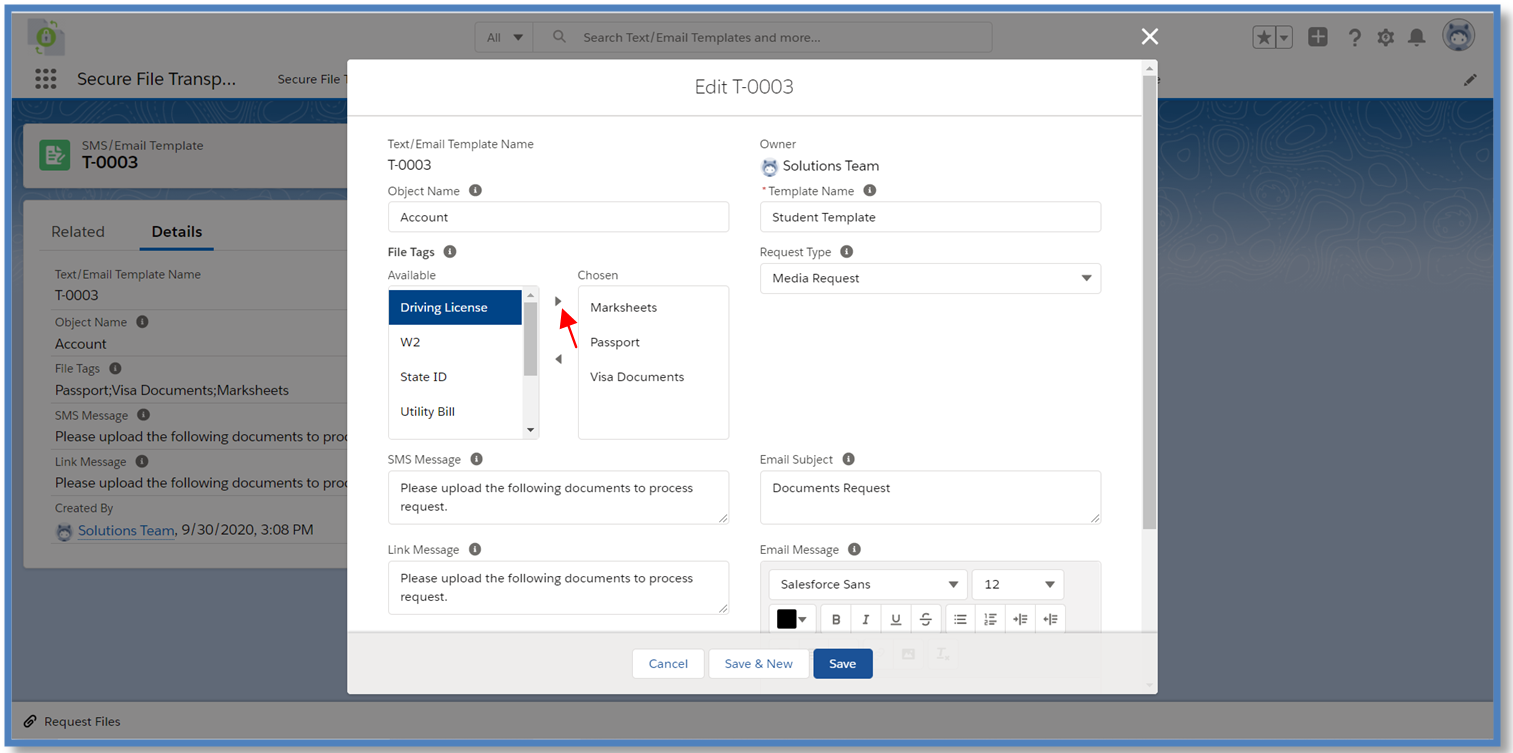
Update the SMS/Email/Message Fields According to Business requirements.
-
Select the file tags according to business requirements.
-
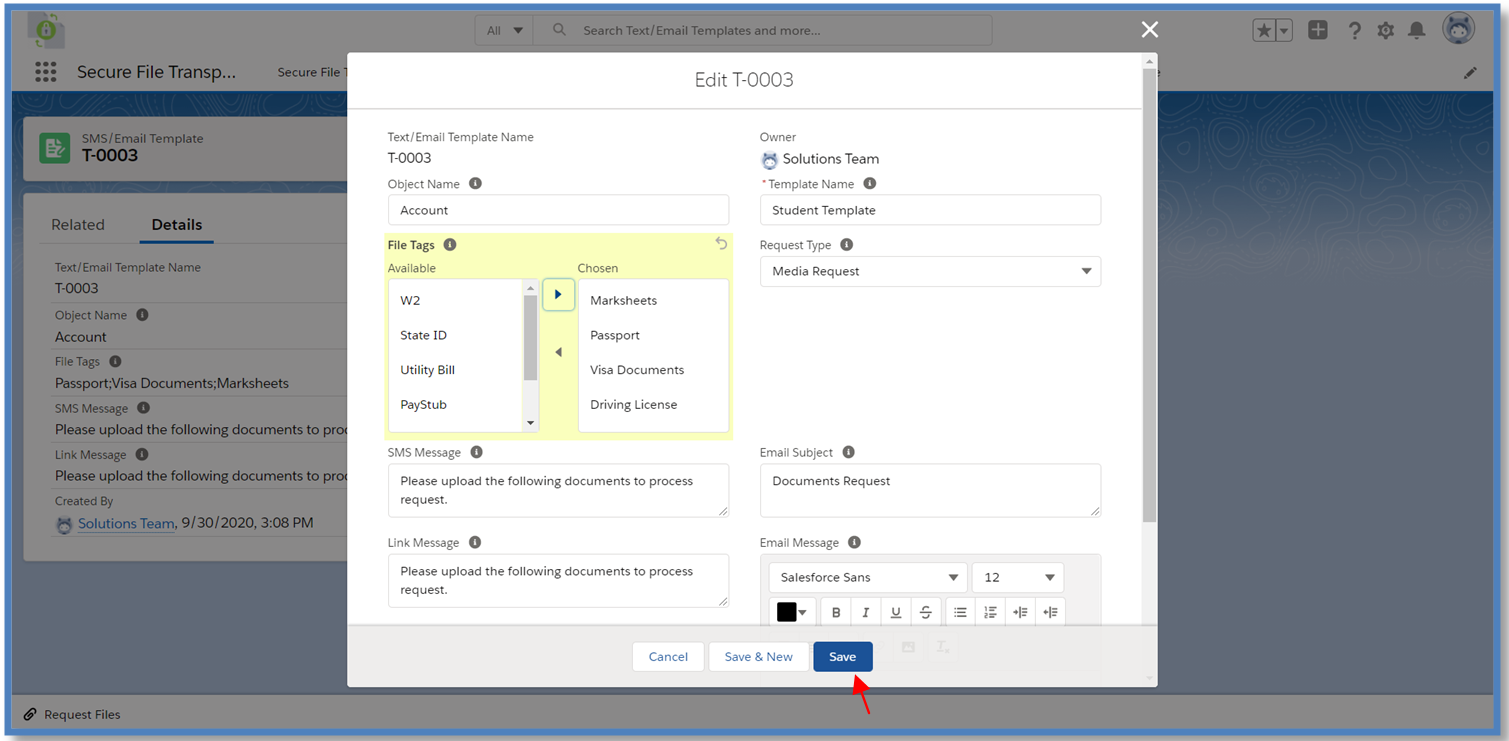
Click Save
How to add Dynamic Template
-
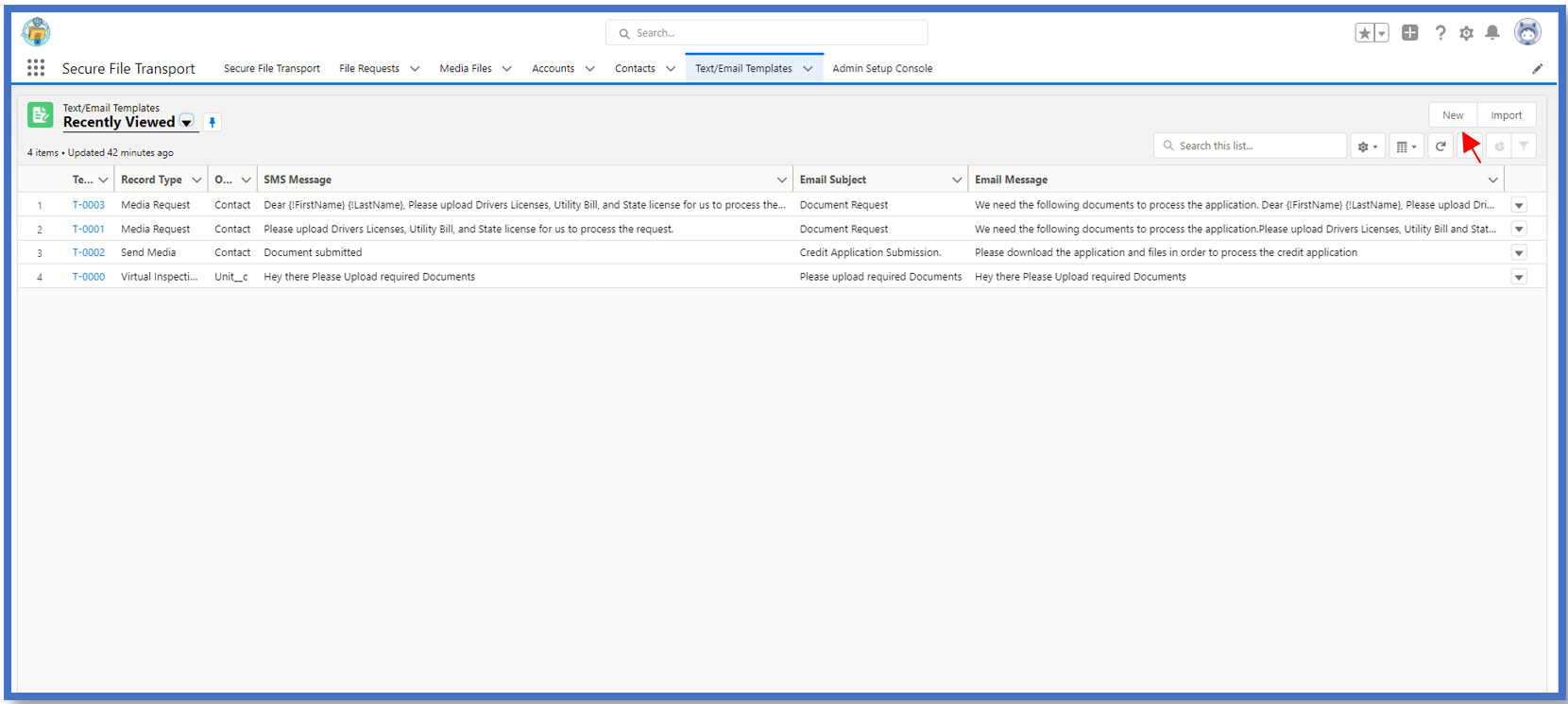
Click on New
-
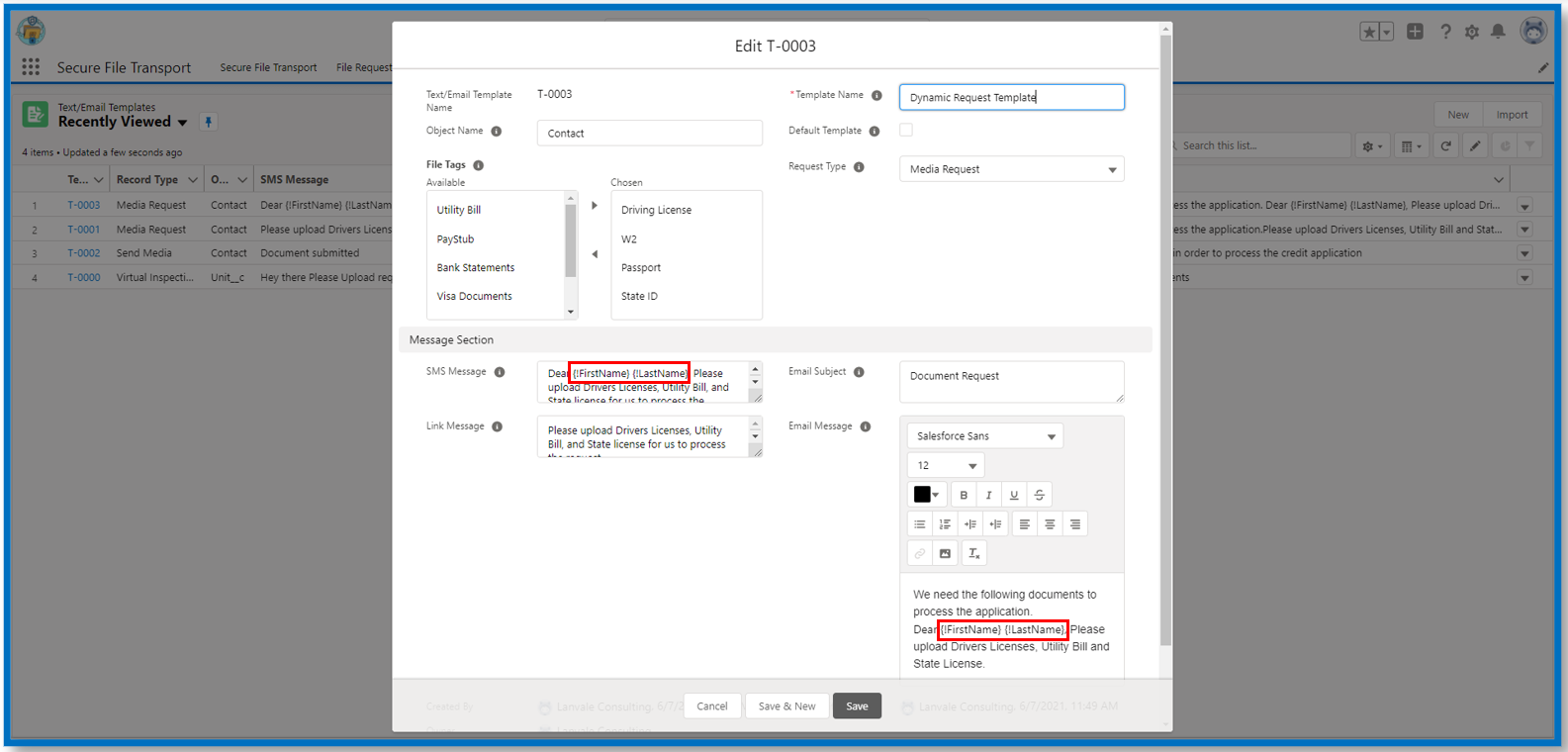
Use merge fields like {!FirstName}, {!LastName} in the template.
-
Click Save.