
Reminder Emails automatically follow up with recipients who have an open File Request (Pull / Media Request) that is still in Sent status and has not been completed.
The package supports up to 3 reminders per File Request. Each reminder can use a different Salesforce Email Template and a different delay (in days).
There is a related flow for P2 Container Items (BatchSendP2FileRequestReminders). This document focuses on standard File Request reminders, with a short P2 note at the end.
How it works
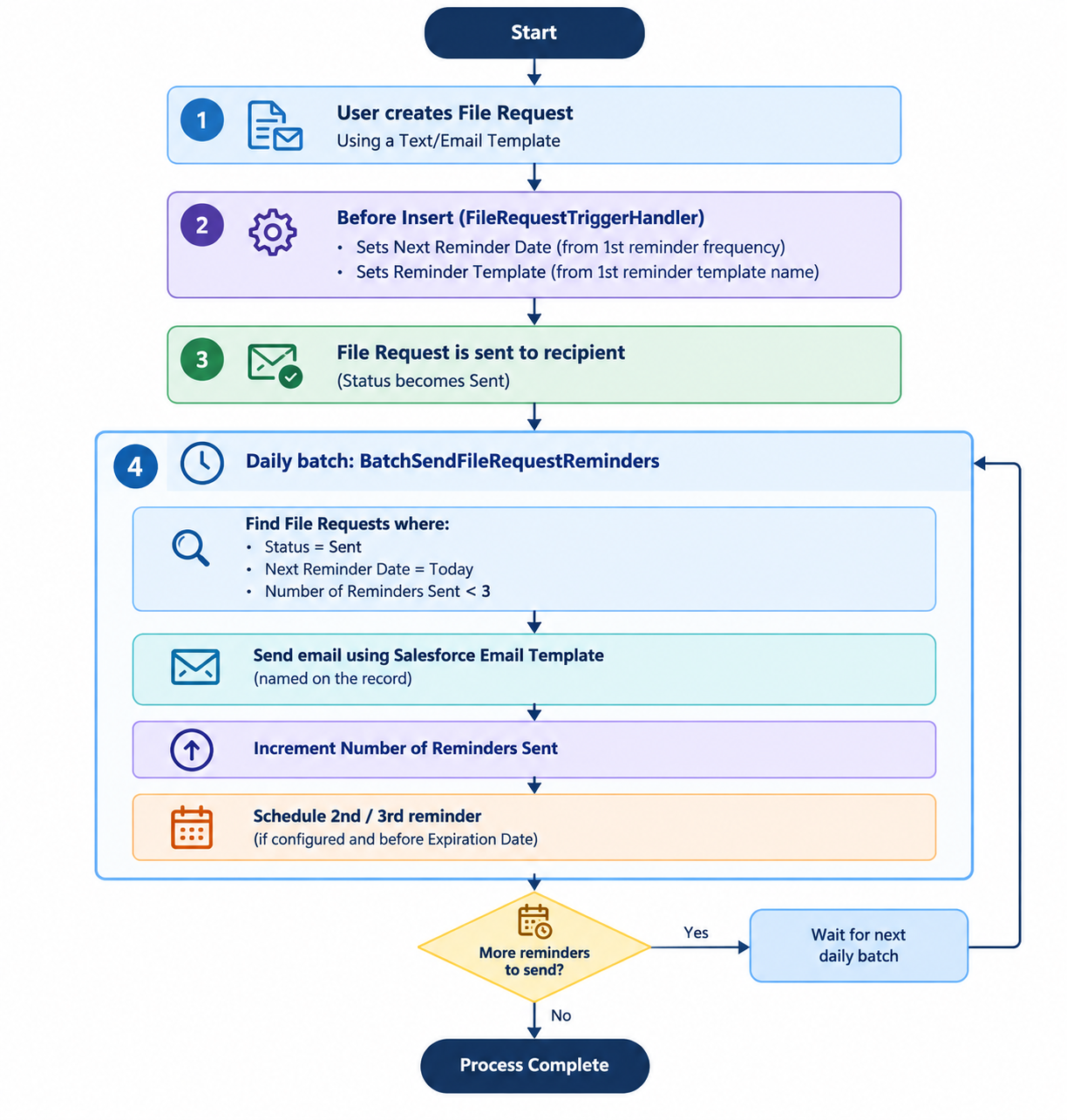
Steps to Setup Reminders
Step 1 — Create Salesforce Email Templates (reminder content)
-
Go to Setup → Email Templates (Classic).
-
Create up to 3 templates used for reminders (Optional, you can use the same template for all reminders as well), e.g.:
-
FR Reminder 1 -
FR Reminder 2 -
FR Reminder 3
-
-
You can use merge fields against File Request.
-
Note the exact Template Name — the package matches by Name, not Id.
Step 2 — Configure the SFT Text/Email Template
Open the Secure File Template (cm_datatransfer__Text_Email_Template__c) used when creating the File Request (the “selected template”).
Set these fields:
|
Field |
Purpose |
|---|---|
|
|
Days until 1st reminder |
|
|
Salesforce Email Template Name for 1st reminder |
|
|
Days after 1st reminder until 2nd |
|
|
Salesforce Email Template Name for 2nd reminder |
|
|
Days after 2nd reminder until 3rd |
|
|
Salesforce Email Template Name for 3rd reminder |
Example
|
Setting |
Value |
|---|---|
|
First Reminder Frequency |
|
|
First Reminder Template |
|
|
Second Reminder Frequency |
|
|
Second Reminder Template |
|
|
Third Reminder Frequency |
|
|
Third Reminder Template |
|
If File Request is created on Mon Jan 1:
-
1st reminder: Wed Jan 3 (calendar days; or business days if enabled)
-
After 1st sent → 2nd: +3 days from current Next Reminder Date
-
After 2nd sent → 3rd: +5 days
-
Stops if next date would be after Expiration Date, or after 3 reminders
Step 3 — Custom Settings (DataTransfer_Settings__c)
|
Setting Name |
Required? |
Purpose |
Typical Value |
|---|---|---|---|
|
|
Recommended |
From address (must match an Org-Wide Email Address) |
|
|
|
Optional |
Batch size (default 1) |
|
|
|
Optional |
Overrides default query filter |
Leave blank unless customizing |
|
|
Optional |
Use business days instead of calendar days |
|
Default batch filter (if WhereClause is blank):
WHERE Request_Status__c = 'Sent'
  AND Next_Reminder_Date__c = TODAY
  AND (Number_of_Reminders_Sent__c = null OR Number_of_Reminders_Sent__c < 3)
Org-Wide Email Address
-
Setup → Organization-Wide Addresses
-
Verify the address
-
Put the exact email in
FRReminderBatch_OrgWideAddress
Step 4 — Schedule the reminder batch
Schedule class: BatchSendFileRequestReminders (implements Schedulable + Batchable).
Example (daily at 8 AM):
System.schedule(
    'File Request Reminder Batch',
    '0 0 8 * * ?',
    new cm_datatransfer.BatchSendFileRequestReminders()
);
Or schedule via Setup → Apex Classes → Schedule Apex.
Step 5 — Deliverability / permissions checklist
-
Email deliverability = All email (or appropriate level) in the org
-
Org-Wide Address verified and matches the setting
-
Salesforce Email Templates exist and Names match exactly
-
Running user (batch) can access File Request + Email Templates
-
Recipients have a valid
Email__con the File Request
How to Test Functionality
Creating a request with reminders
-
Open a Contact / parent record and launch Request Files.
-
Select a Text/Email Template that has reminder fields configured.
-
Complete and send the request.
On create, the system stamps:
-
Next_Reminder_Date__c -
Reminder_Template__c(1st reminder template name)
No extra UI step is needed for reminders.
What users / admins can verify on the File Request
|
Field |
Meaning |
|---|---|
|
|
Date the next reminder will be sent |
|
|
Salesforce Email Template Name for the next send |
|
|
How many reminders already sent (max 3) |
|
|
Must remain Sent for batch inclusion |
|
|
Caps whether further reminders are scheduled |
|
|
Reminder recipient |
Manual / one-time run (admin)
Database.executeBatch(new cm_datatransfer.BatchSendFileRequestReminders(), 1);
Useful for testing with Next_Reminder_Date__c = TODAY.
P2 Reminder Emails (brief)
P2 uses a similar pattern with:
|
Item |
Value |
|---|---|
|
Batch class |
|
|
Target object |
|
|
Default status filter |
|
|
Org-wide setting |
|
|
Where clause setting |
|
|
Recipient |
Container Email ( |
|
Manual reminder UI |
“Send Reminder” on P2 Container Details |
P2 template reminder fields are the same First/Second/Third Reminder Frequency + Template fields on the Text/Email Template.