
Overview
The Multiple Email Template feature allows administrators to configure and use multiple email templates for the Bank Verification Request button. Each email template can have its own:
-
Enabled Plaid products
-
Org-Wide Email Address
-
Application Name (If multiple Credentials enabled, then this would be used to pick up the credentials)
-
Default selection
-
Product-specific configuration (duration, processor token, PDF requirement, etc.)
This enables organizations to send different verification requests based on their business requirements.
Step 1: Enable the Feature
Navigate to:
Setup → Custom Settings → Plaid Common Setting
Edit the record and set the following field:
|
Setting |
Value |
|---|---|
|
EnableMultipleTemplateFeature |
True |
Once enabled, the Bank Verification Request component will use the configured email template mappings.
Step 2: Configure Email Templates
Navigate to:
Setup → Custom Metadata Types → Plaid Configuration
Create a new record or edit the existing record:
VerficationRequest_EmailTemplate
Paste the JSON configuration into the following field:
Mapping JSON (bankconnect__Sequencing_Order__c)
JSON Structure
The configuration consists of an array of email template objects.
Each object represents one email template that can be selected from the Bank Verification Request screen.
Template Properties
|
Property |
Required |
Description |
|---|---|---|
|
emailTemplateName |
Yes |
API Name of the Salesforce Email Template. |
|
emailTemplateLabel |
Yes |
Display label shown to users when selecting a template. |
|
orgWideEmailAddress |
No |
Org-Wide Email Address used when sending the email. |
|
allowedProducts |
Yes |
List of Plaid products available for this email template. |
|
isDefault |
Yes |
If true, this template is selected by default. Only one template should be marked as default. |
|
applicationName |
No |
Application name displayed during the Plaid Link experience. OR If multiple Credentials enabled, then this would be used to pick up the credentials |
Allowed Product Properties
Each item inside allowedProducts represents one Plaid product.
|
Property |
Required |
Description |
|---|---|---|
|
productName |
Yes |
Name of the Plaid product. |
|
duration |
No |
Number of days of historical data to request (where supported). |
|
processorToken |
No |
Set to true to generate a processor token for the Auth product. |
|
pdfRequired |
No |
Set to true when PDF statements are required. |
|
type |
No |
Additional product type when applicable (for example, bank for Income Verification). |
Sample Configuration (Single Template)
[
  {
    "emailTemplateName": "Plaid_Default_Email_Template",
    "emailTemplateLabel": "Default Verification",
    "orgWideEmailAddress": "support@company.com",
    "allowedProducts": [
      {
        "productName": "Auth",
        "processorToken": true
      },
      {
        "productName": "Balance"
      },
      {
        "productName": "Identity_Verification",
        "duration": 30
      }
    ],
    "isDefault": true,
    "applicationName": "Bank Connect"
  }
]
Example Configuration (Multiple Templates)
[
  {
    "emailTemplateName": "Plaid_New_Email_Template",
    "emailTemplateLabel": "Auth, Investments, Balance",
    "orgWideEmailAddress": "sheni@cloudmaveninc.com",
    "allowedProducts": [
      {
        "productName": "Auth",
        "processorToken": false
      },
      {
        "productName": "Investments",
        "duration": 90
      },
      {
        "productName": "Identity_Verification",
        "duration": 20
      },
      {
        "productName": "Balance"
      },
      {
        "productName": "Income_Verification",
        "type": "bank",
        "duration": 25
      }
    ],
    "isDefault": false,
    "applicationName": "Bank Connect App"
  },
  {
    "emailTemplateName": "Plaid_New_Email_Template_Second",
    "emailTemplateLabel": "Transactions, Assets, Statements, Liabilities",
    "orgWideEmailAddress": "kunal.dhand@cloudmaveninc.com",
    "allowedProducts": [
      {
        "productName": "Transactions",
        "duration": 10
      },
      {
        "productName": "Assets",
        "duration": 35,
        "pdfRequired": true
      },
      {
        "productName": "Statements",
        "duration": 40
      },
      {
        "productName": "Liabilities"
      },
      {
        "productName": "Income_Verification",
        "type": "bank",
        "duration": 25
      }
    ],
    "isDefault": true,
    "applicationName": "Bank Connect"
  }
]
How It Works
-
Enable the EnableMultipleTemplateFeature setting.
-
Configure one or more email templates in the VerficationRequest_EmailTemplate custom metadata record.
-
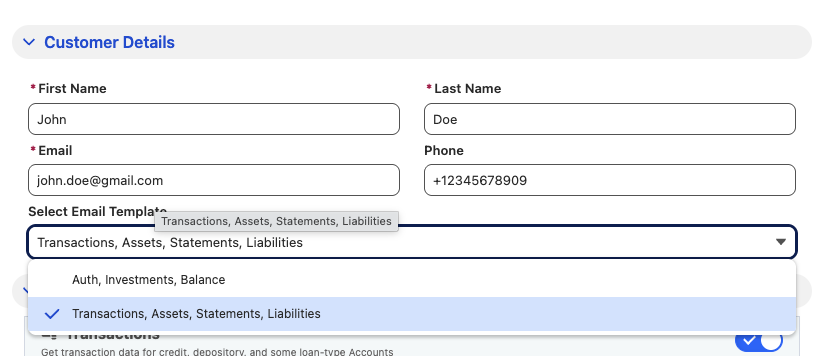
When the Bank Verification Request button is clicked, the configured templates become available for selection.
-
Selecting a template automatically determines:
-
The Salesforce Email Template to use.
-
The Org-Wide Email Address used to send the email.
-
The available Plaid products.
-
Product-specific settings such as duration, processor token generation, and PDF requirement.
-
-
The template marked with isDefault = true is automatically selected when the request page opens.
Notes
-
Only one email template should have isDefault set to true.
-
The value of emailTemplateName must exactly match the API Name of the Salesforce Email Template.
-
The orgWideEmailAddress must exist as a verified Org-Wide Email Address in Salesforce.
-
If optional properties such as duration, processorToken, pdfRequired, or type are omitted, the system uses the default behavior for that Plaid product.