
Users can reply to an existing Secure Email from the Secure Email timeline on a record. Reply opens the standard Send Secure Email compose screen with recipients, subject, and prior message content pre-filled.
Prerequisites
-
Secure Email feature is enabled for the org/user
-
User has license access to Secure Email
-
Email appears in the Secure Email component for the parent record
Option A — Reply from the Secure Email timeline (most common)
Step 1: Open the Secure Email list on the record
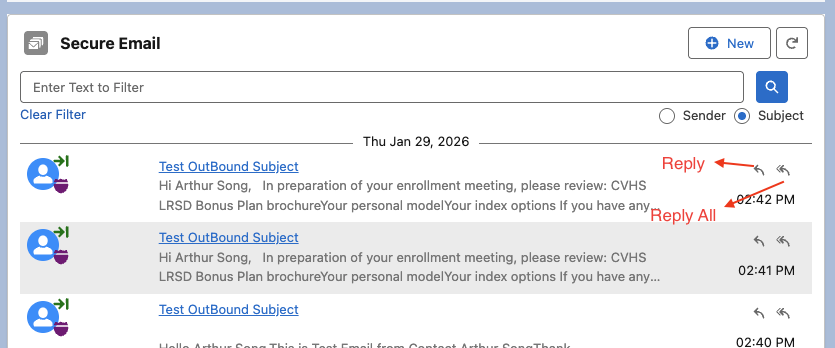
Open the parent record (Contact / custom object) and locate the Secure Email component. Emails show as inbound or outbound with reply actions on the right.
Step 2: Choose Reply or Reply All
On the email row:
|
Action |
Icon |
Behavior |
|---|---|---|
|
Reply |
Reply |
To = original From address. CC is cleared. |
|
Reply All |
Reply All |
To = original From + original To recipients. CC = original CC. Routing / system addresses configured in |
[Screenshot: Reply and Reply All icons on an email row]
Step 3: Compose the reply
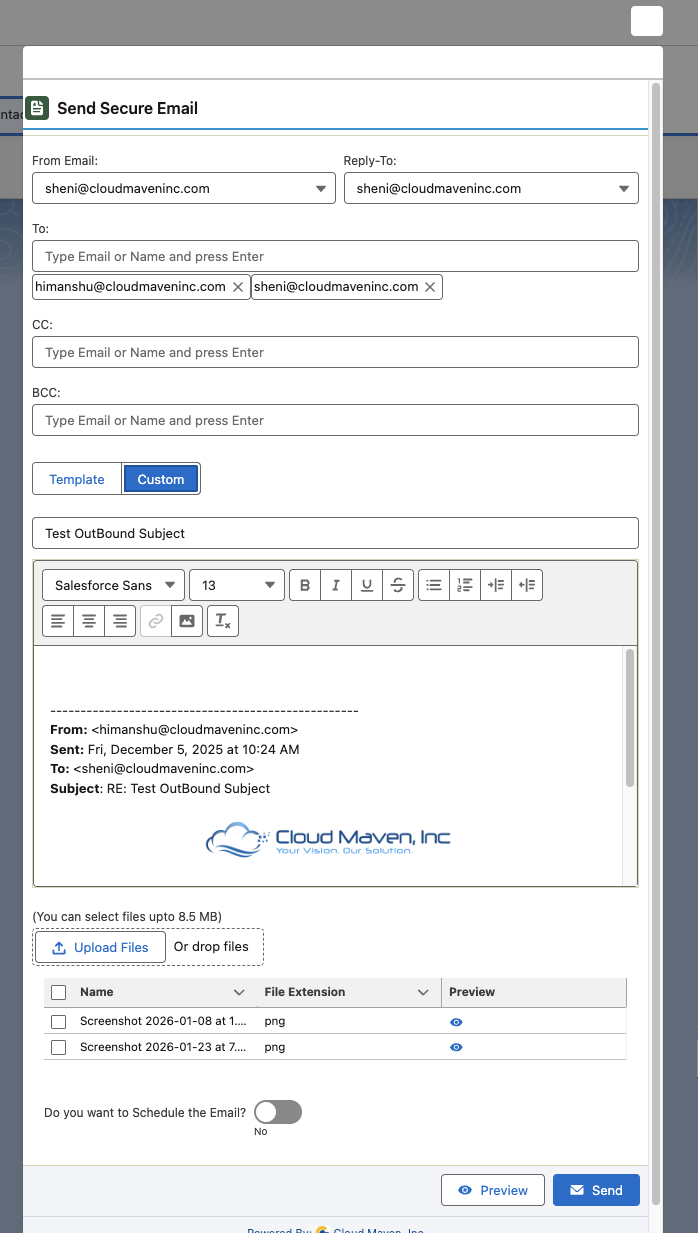
A modal opens with Send Secure Email pre-filled:
-
To / CC — based on Reply vs Reply All
-
Subject — original subject
-
Body — original message quoted below a divider (From, Sent, To, Subject + HTML body)
-
Signature may appear when
SE_ShowSignatureEmailBodyis enabled
Edit recipients, From, Reply-To, subject, body, and optional attachments, then use Preview or Send.
Step 4: Send and close
After a successful send, a success toast appears and the modal closes. The new outbound Secure Email is created and linked to the same parent record.
Option B — Reply from the Secure Email record (quick action)
If the Reply Secure Email action is available on a Secure Email Message record:
-
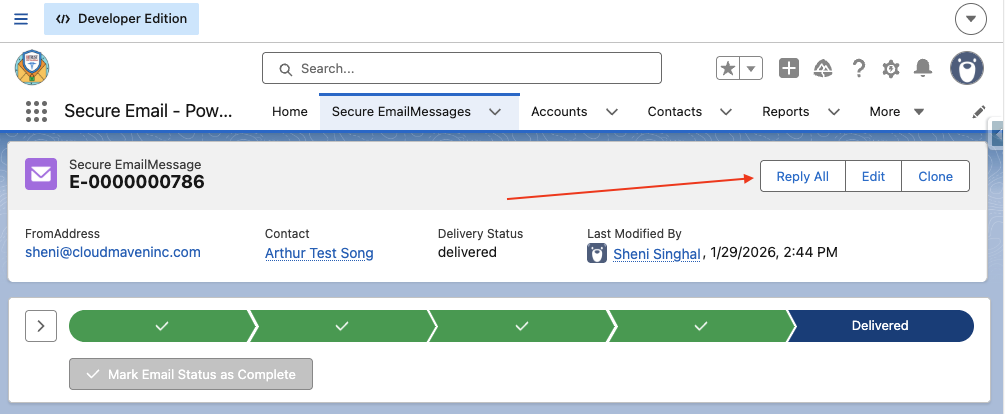
Open the Secure Email Message record.
-
Click the Reply All action.
-
The reply compose screen loads with recipients and quoted content.
Recipient rules from the record action:
|
Original record type |
Pre-filled To |
|---|---|
|
Inbound |
From address + Recipients |
|
Outbound |
Recipients |
Addresses listed in SecureEmail_RoutingAddressToSkip are removed from To. CC uses the original CC recipients.
What gets pre-filled (functionally)
Quoted history in the body looks like:
From: <original from>
Sent: <date/time>
To: <original to>
Subject: RE: <original subject>

<original HTML body>
The new reply is still a full secure send: creates a new Outbound Secure_EmailMessage__c, then sends via the secure email provider.
Option C — Reply from the Secure Email Inbox
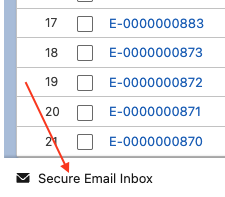
Step 1: Open the Secure Email Inbox from the Utility Bar
-
Use the Toggle switch to view Responded/Unresponded Messages. (Default is set to Not Responded Messages)
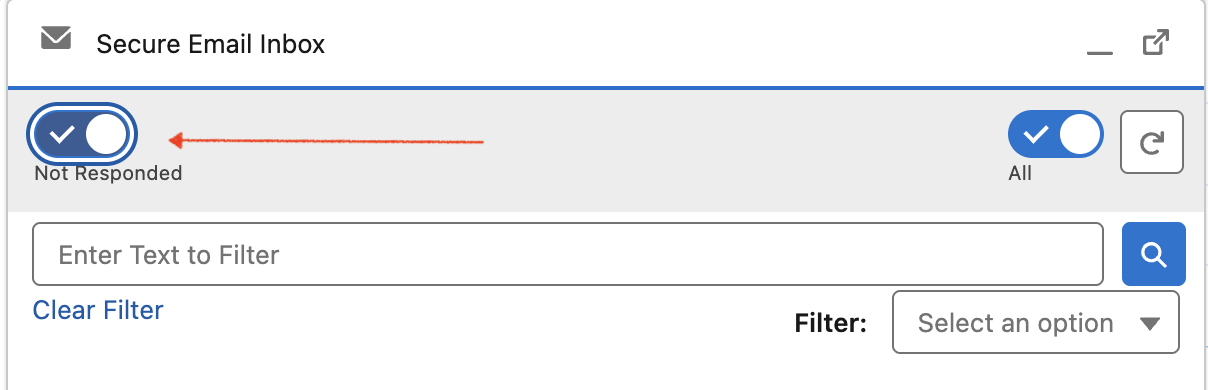
Step 2: Click on Any of the Conversation you wish to reply
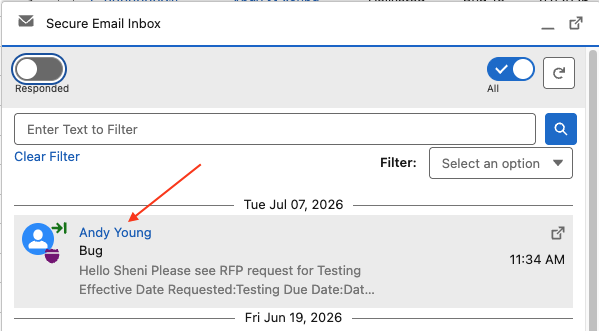
Step 3: Choose Reply or Reply All
On the email row:
|
Action |
Icon |
Behavior |
|---|---|---|
|
Reply |
Reply |
To = original From address. CC is cleared. |
|
Reply All |
Reply All |
To = original From + original To recipients. CC = original CC. Routing / system addresses configured in |
[Screenshot: Reply and Reply All icons on an email row]
Step 4: Compose the reply
A modal opens with Send Secure Email pre-filled:
-
To / CC — based on Reply vs Reply All
-
Subject — original subject
-
Body — original message quoted below a divider (From, Sent, To, Subject + HTML body)
-
Signature may appear when
SE_ShowSignatureEmailBodyis enabled
Edit recipients, From, Reply-To, subject, body, and optional attachments, then use Preview or Send.
Step 5: Send and close
After a successful send, a success toast appears and the modal closes. The new outbound Secure Email is created and linked to the same parent record.
Notes
-
Reply vs Reply All only differ in To/CC population; both use the same compose UI.
-
System/routing addresses can be excluded via Data Transfer Setting
SecureEmail_RoutingAddressToSkip(comma-separated). -
Users can change To/CC/BCC before sending.
-
Scheduling, templates, and attachments behave the same as composing a new secure email.