This document explains the behaviour when the custoemr receives a Secure Email via Paubox POrtal. This happens in two situations:
-
When the client require portal delivery (for highest security with sensitive documents)
-
When customer’s email system doesn't support modern encryption TLS 1.2+ (some older systems need this extra layer)
Here how it works:
Step 1: Customer will Receive a Notification Email
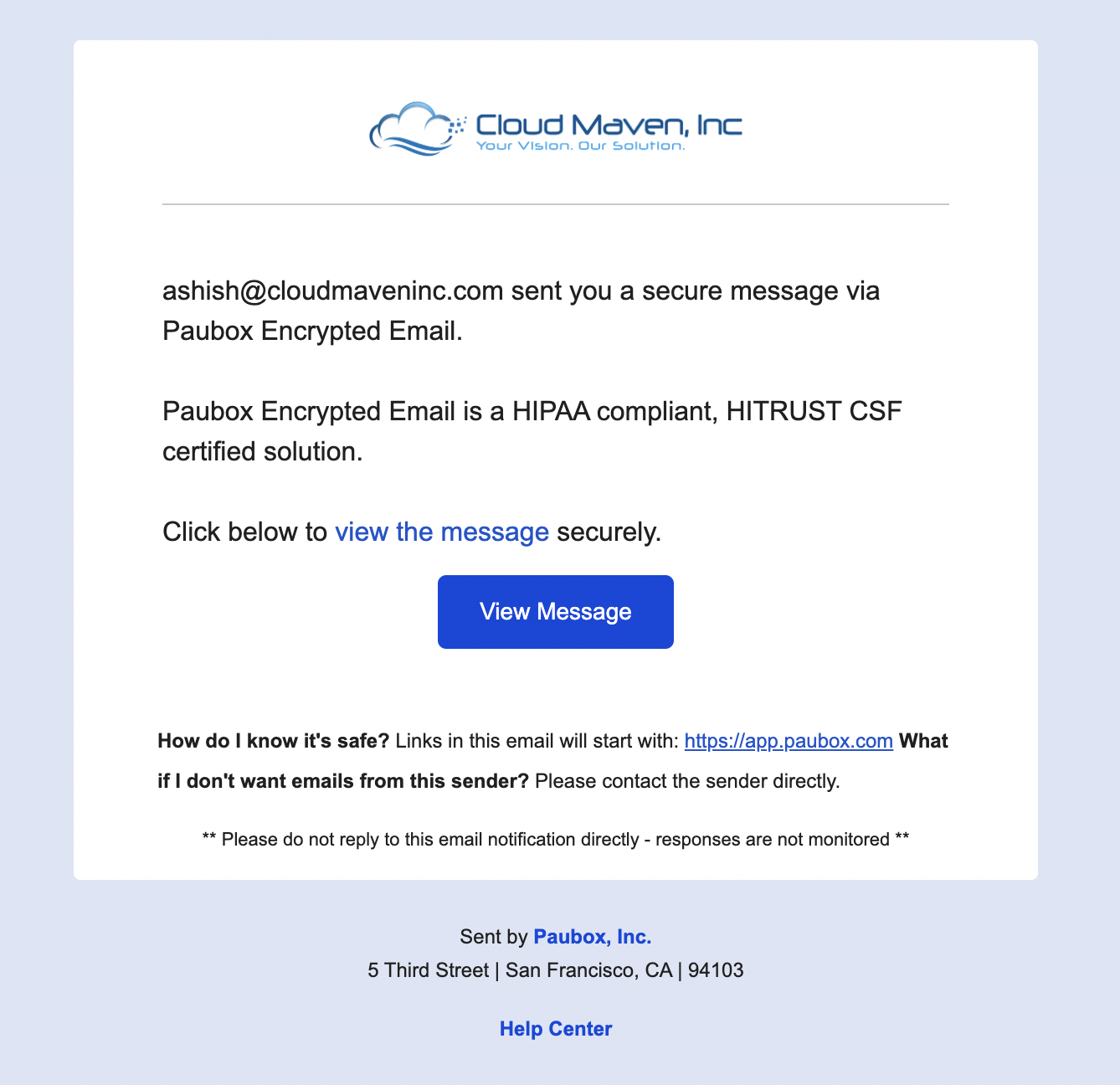
Customer will receive a standard email with a "View Message" link. The actual message content isn't shown in your inbox—it's kept safe in Paubox secure portal. You'll see only a simple link to access it.
Step 2: Verify Your Identity
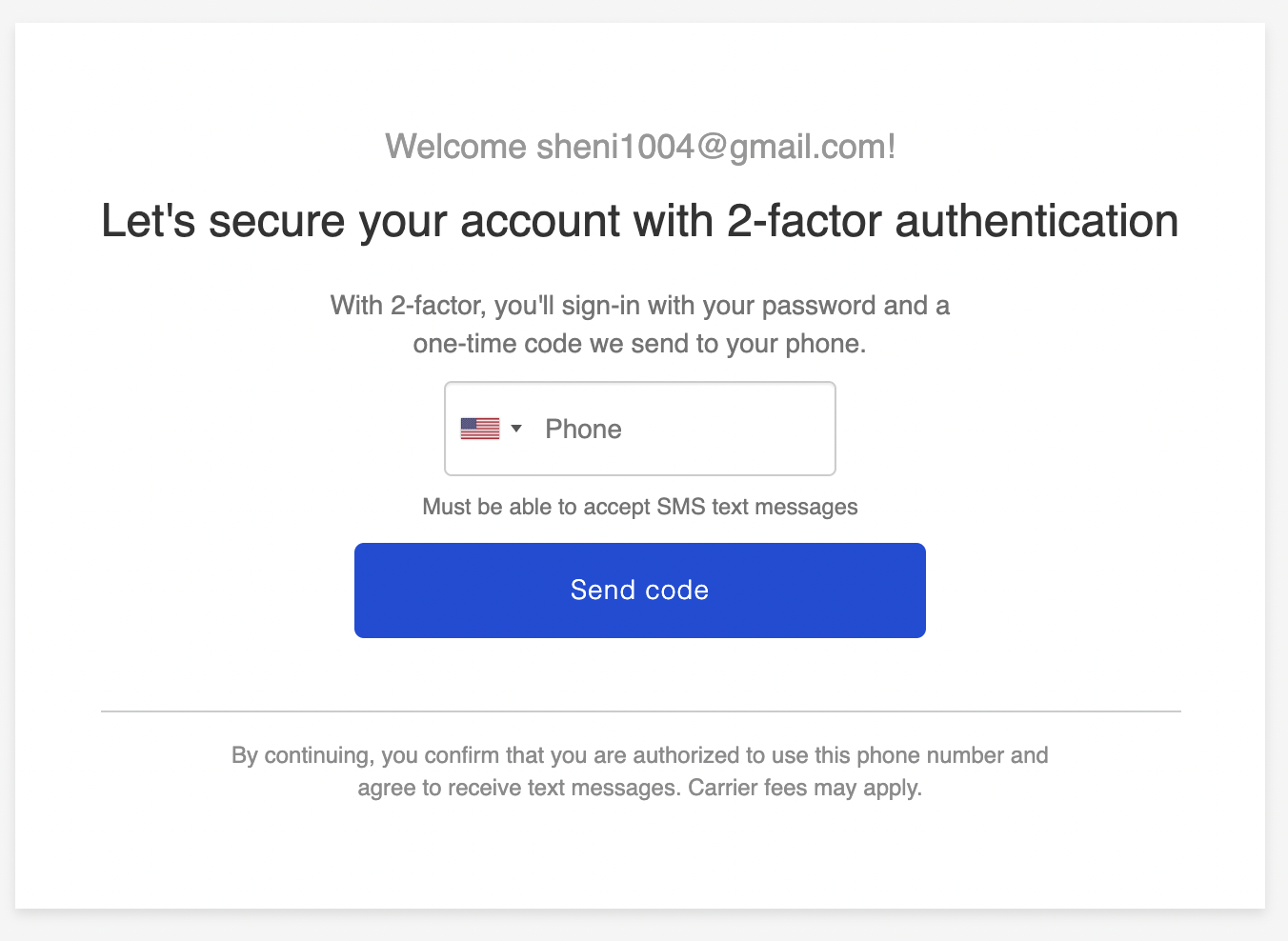
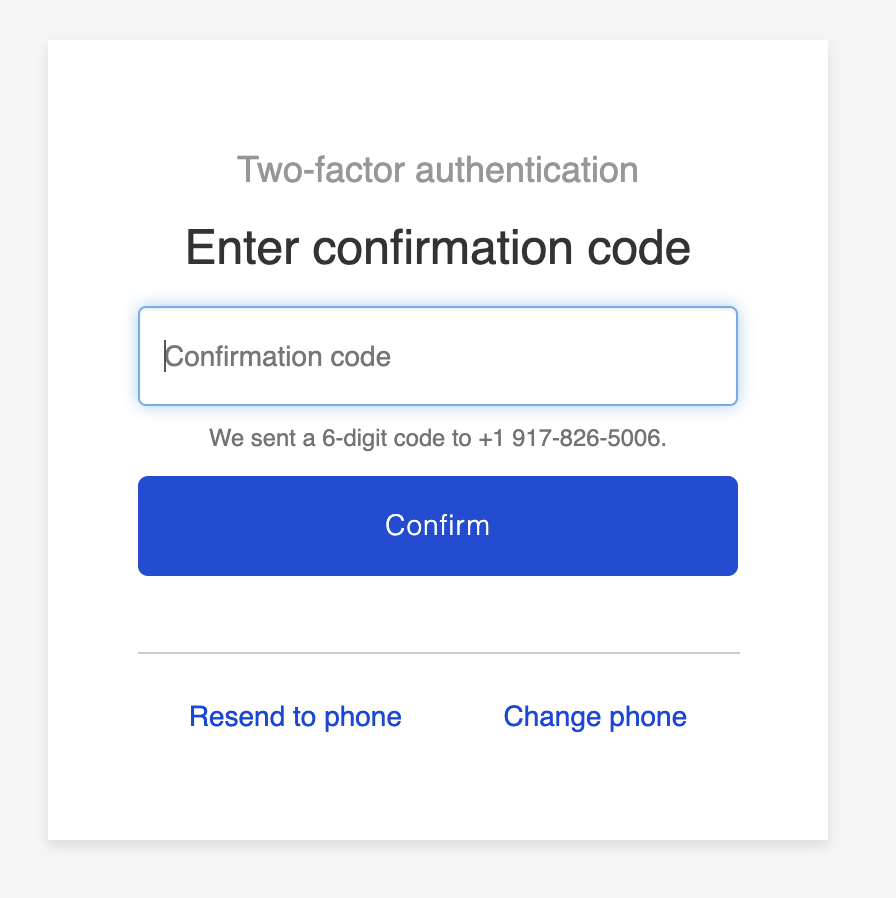
Click "View Message" and customer will be asked to confirm who you are using one of these methods:
-
Text a code to your phone, or
-
Email a code to your address
Choose whichever is easiest for you. This verification happens just once per device—after that, you're all set.
Step 3: Read Your Message
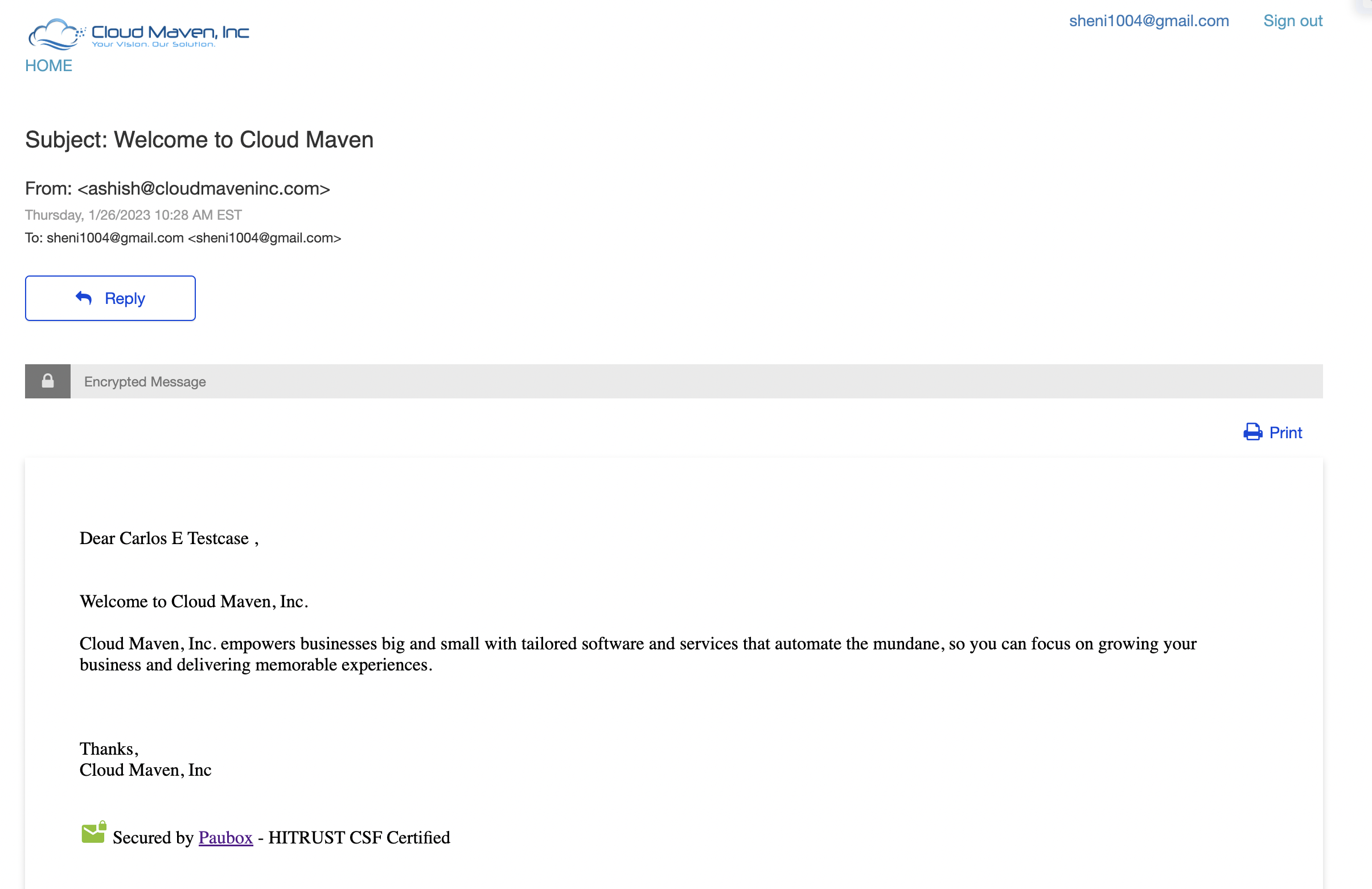
Once verified, customer can view your complete secure message with all attachments. Everything is encrypted and protected while you view it.
-
Email Sample - The user will get below email(the email will be white-labelled). The email doesn’t show the message but a link.
-
How to view Email - User clicks on the View Message, they will get a screen to enter their Phone# or email (depending on the preference) for 2 Factor Authentication. Please note that the authentication will happen only once per device.
-
View email after authentication - Once the code is confirmed, User will be able to view the message in the secure Paubox portal.