
The Bulk Secure Email feature allows Salesforce users to send encrypted emails to multiple Contacts at once directly from the Contact List View. This ensures secure communication while reducing manual effort.
This guide walks you through the full process — from selecting recipients to composing and sending a secure email in bulk.
Log in to Salesforce
Log in to your Salesforce org using your credentials.
Navigate to the Contact List
-
Go to Contacts.
-
Open any List View (e.g., All Contacts, My Contacts).
-
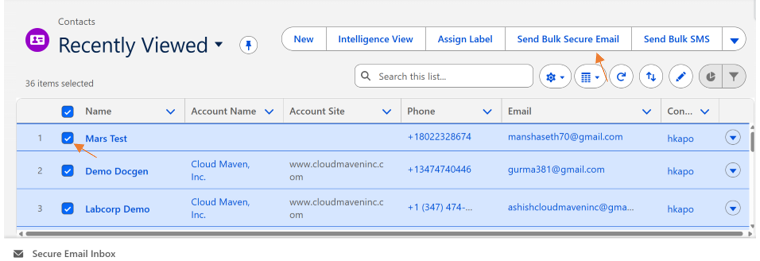
Select the records you want to send a secure email to.
📌 You can select up to 200 records at a time.
Click on “Send Bulk Secure Email” Button
Click on Send Bulk Secure Email Button.
3.1 Review Sender Details
-
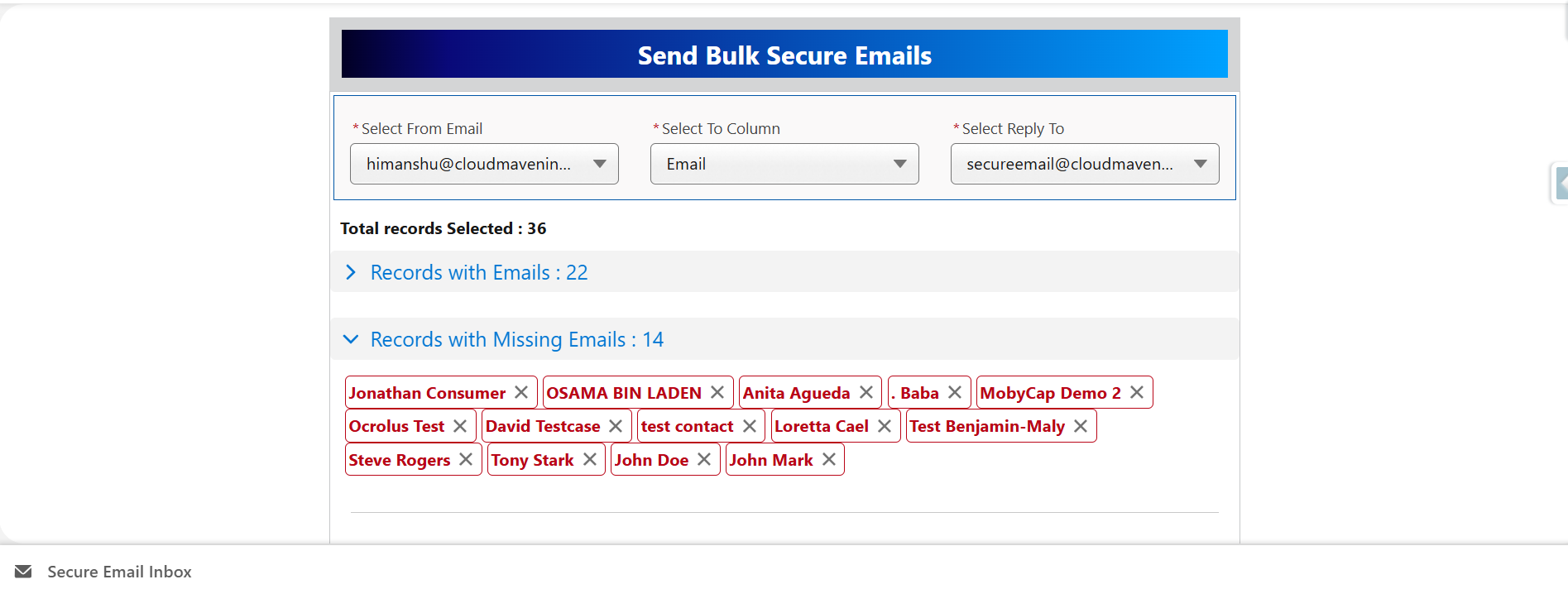
You will now see the Bulk Secure Email Visualforce Page displayed on your screen.
-
From Email Address will be auto-populated based on org configuration.
-
Choose which field to use as the destination email address if multiple Email fields are mapped.
Once selected:
✅ Contacts with a valid email are shown in the Eligible list
⚠️ Contacts without an email are shown under Missing Email Records
Helps you verify missing data before sending.
3.2 Select Email Content
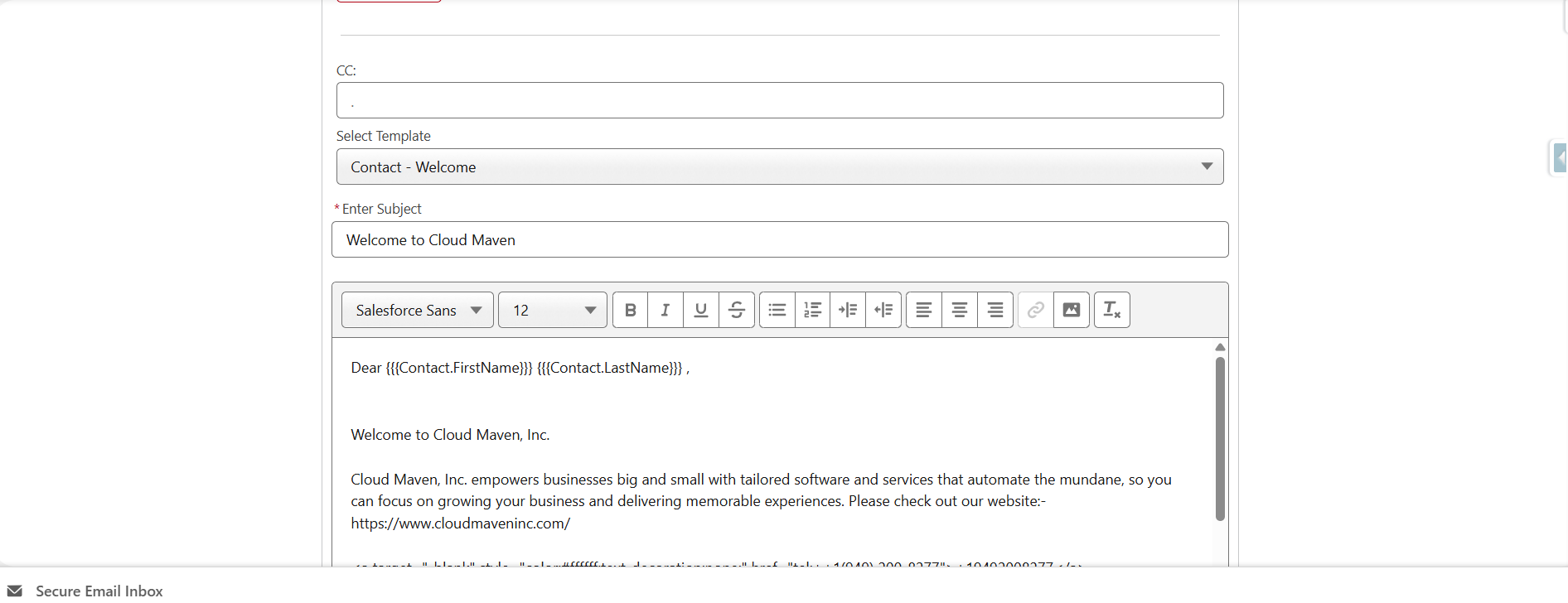
You have two options:
|
Option |
Description |
|---|---|
|
Use Template |
Select a predefined Lightning Email template associated with Contact Object. |
|
Write Manually |
Type your own secure email message in the editor. |
📝 Tip: Templates support merge fields like {!Contact.FirstName}.
3.3 Send the Email
-
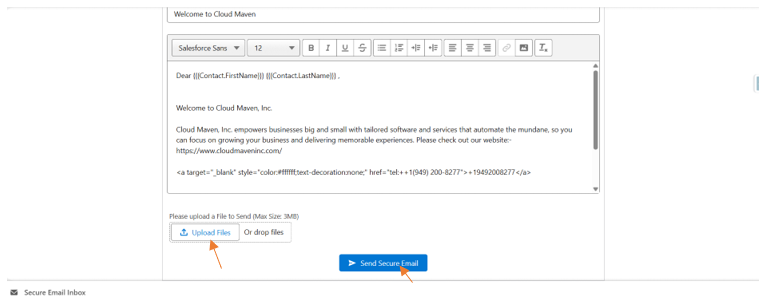
You can also upload files up to 8.5 MB along with the mail.
-
Click on Send Secure Email Button to send the Secure Email in Bulk.
📌 A confirmation popup will appear.
Next Steps
Secure Email Record will be created Inside the Salesforce:
-
Email Status as created and
-
Process via Batch set to true
Batch “BatchSendSecureEmail“ is scheduled which is responsible to make the API call and send out the emails.