
P1 Secure Templates allow you to pre-configure file request workflows in the Secure File Transport application. Templates streamline the process of collecting files from users by establishing reusable configurations with predefined messaging and file tag selections.
Creating a P1 Secure File Template
Follow these steps to create a new P1 Secure File Template:
Initial Setup
-
Navigate to the Secure File Transport Application
-
Click on the Secure File Templates tab
-
Click the New button
-
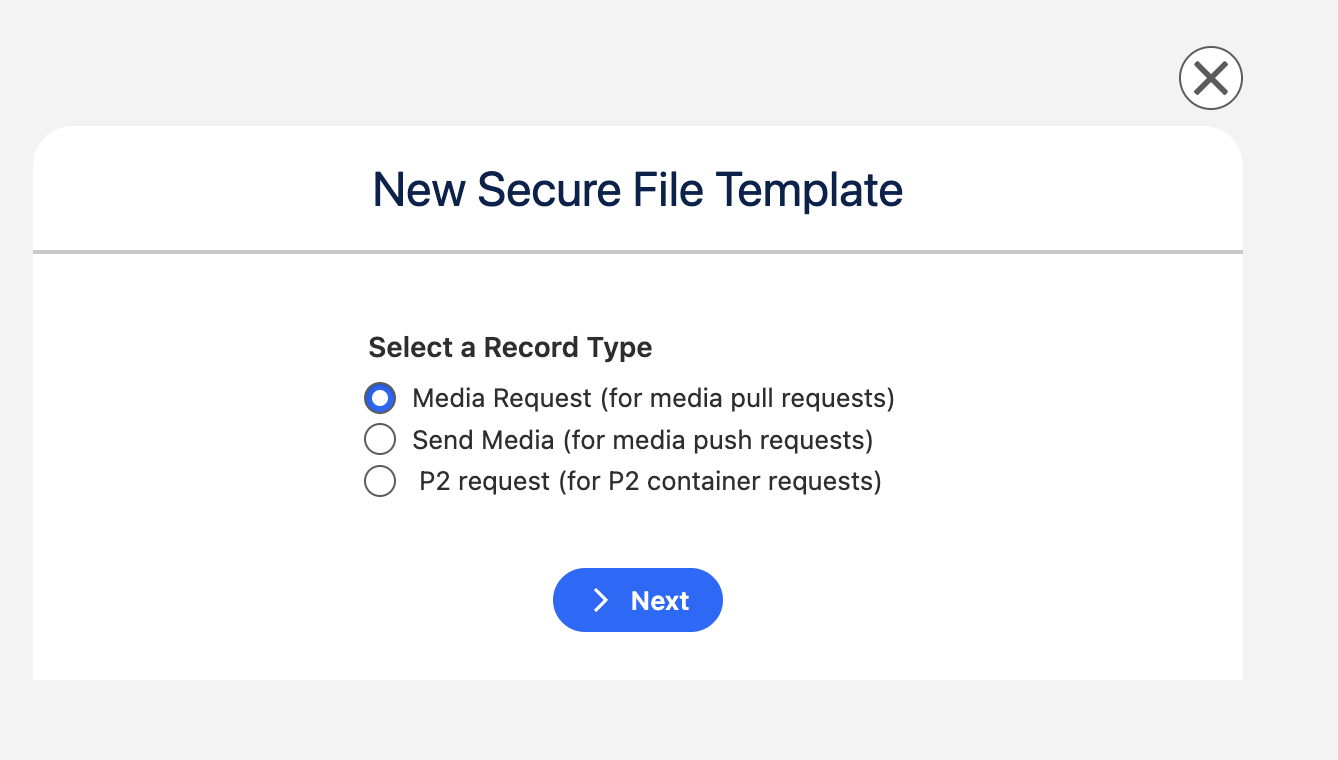
Select the Record type for which you want to create a template
-
Media Request : If you want to request Documents
-
Send Media if you want to Send Files
-
-
Click Next
Template Configuration
-
Enter a Template Name according to your business requirement
-
Select the Object name on which the Secure File Transport application is configured. For example, if the application is configured on the Contact object, select Contact for Object Name.
Using Dynamic Fields
You can use dynamic fields to personalize your template messages with customer information from your database.
-
Select the required fields from the parent object. For example, if you want to personalize with a Contact's First Name, select the First Name field.
-
These dynamic fields can be inserted into your SMS Message, Portal Message, Email Subject, and Email Body for automatic personalization.
Dynamic fields only work with parent object data. Child object records cannot be used in dynamic field references.

Selecting File Tags
-
Click Select File Tags to specify which files should be requested (this option is only available for Media Request templates)
-
Choose the File Tags that apply to your template
-
Click Submit to confirm your selection
Message Configuration
Configure the messages that will be displayed to users when they receive the file request:
-
SMS Message: The text message sent to users requesting files
-
Portal Message: The message displayed within the secure portal when users access the file request
-
Email Subject: The subject line of the email notification
-
Email Body: The main content of the email notification
You can use dynamic fields in any of these messages to automatically populate customer information.
Setting as Default Template
-
Toggle the switch to Enabled if you want this template to be the default template for sending File Requests
-
Only one template can be set as the default at a time
Saving Your Template
-
Click Save
Your P1 Secure File Template has been successfully created and is now available for use. You can edit, duplicate, or delete templates from the Secure File Templates tab at any time.
Summary
Key points to remember when creating P1 Secure File Templates:
-
Templates pre-configure file request workflows for consistency and efficiency
-
Dynamic fields allow personalization using parent object data
-
File Tags restrict which files can be requested in each template
-
Customize SMS, Portal, Email Subject, and Email Body messages per your business needs
-
Set one template as the default for automatic use in file requests