
1. Log In to Salesforce
➡ Access your Salesforce org with the appropriate credentials.
2. Navigate to the Source Record
Open existing record or create a new one
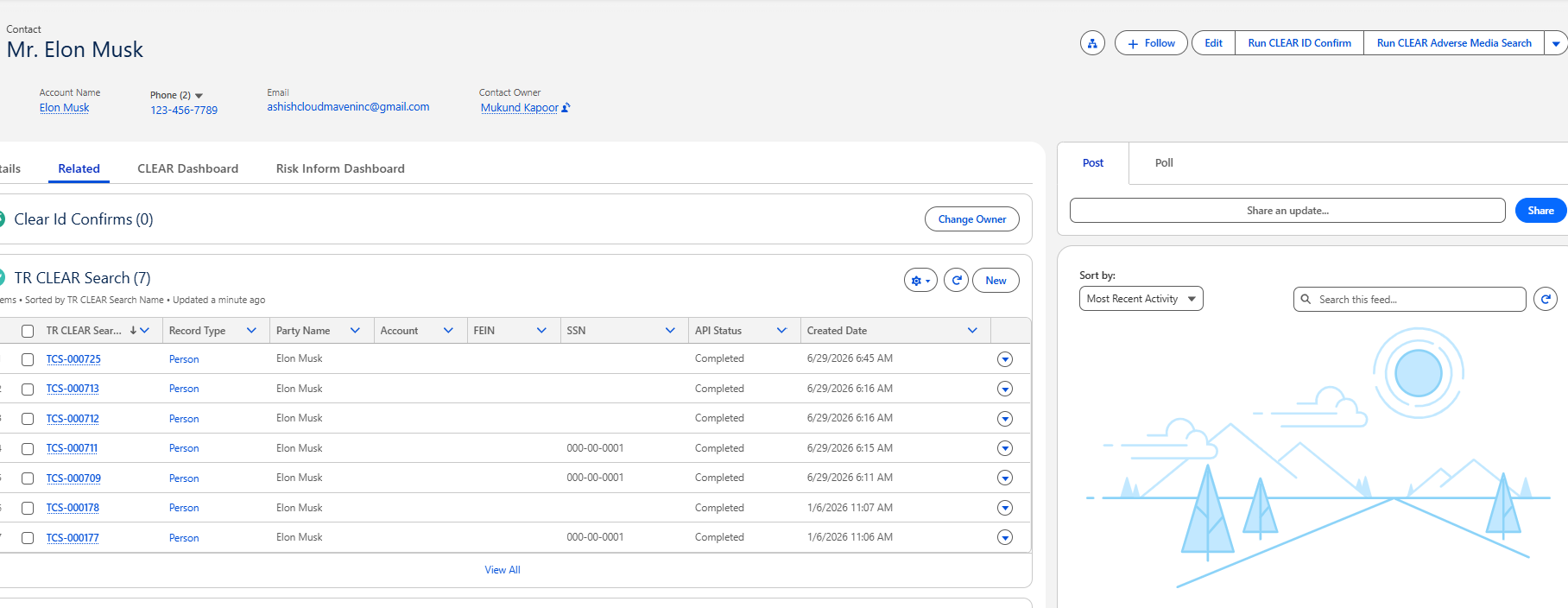
3. Launch the Search Screen
Run Adverse Media Search from button
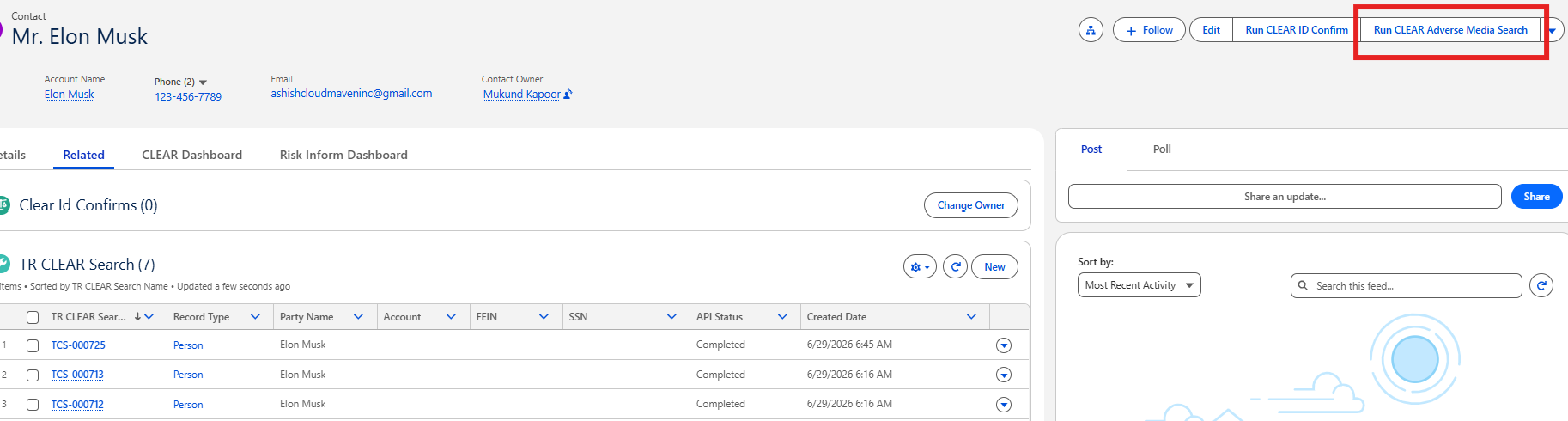
A new screen/component will open, displaying the search form
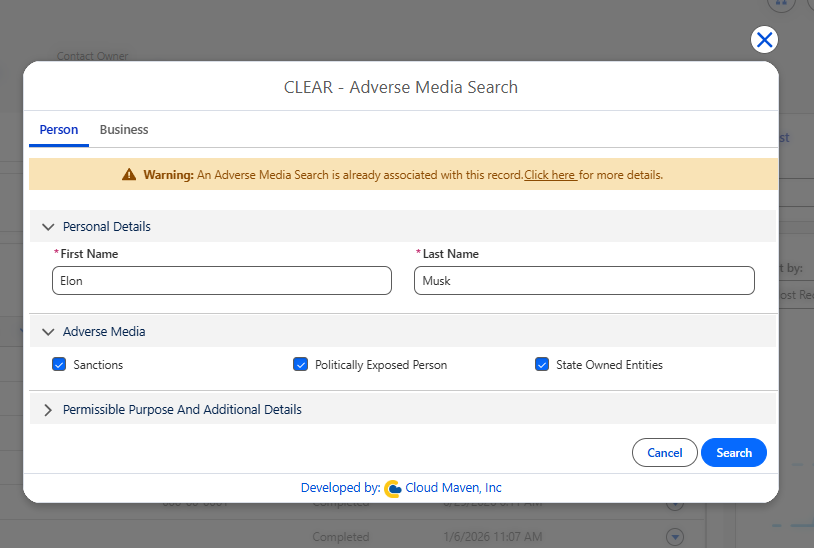
4. Configure the Search
Review data within Adverse Search Component
5.1 Review and update auto-filled fields
-
Fields in the search form will be automatically populated using data from the Source Object.
-
The values are mapped via Custom Metadata.
-
You can edit or override these fields as needed.
-
The screen includes two tabs: Person and Business.
You can switch between these tabs to view and edit the corresponding details for each type.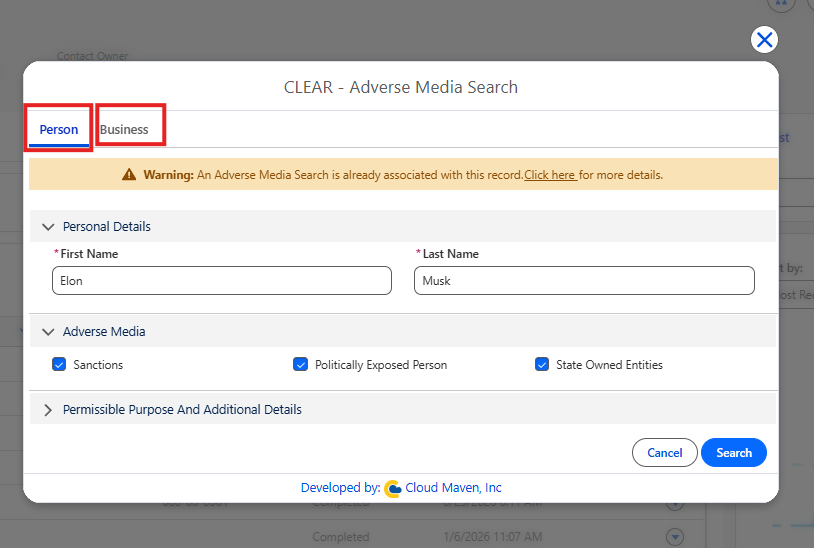
-
Select values for the following picklists:
-
GLB Code
-
DPPA Code
-
Voter Code
-
5.2 Setting up the Search Range
-
Choose the Article Start Date and End Date for the media search.
-
These date fields are also pre-filled by default from Custom Metadata, but can be changed manually.
-
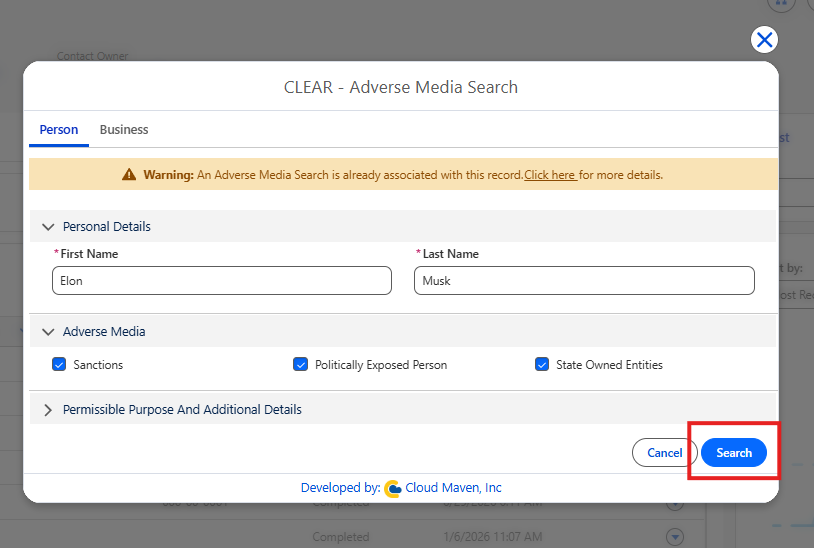
5. Initiate the Search
Initiating the Search for running Adverse Media Search
Once all mandatory fields are filled, click the Search button to initiate the process.
6. Review Results
➡ Please refer to the detailed guide here:
How to Review Adverse Media Search Results
📩 Need Help?
For any questions or support, don't hesitate to get in touch with us at: 📧