
This document serves as a step-by-step user guide for performing Court Search on a record within a Source Object (e.g., Account, Contact, or any configured custom object) in Salesforce using the Thomson Reuters Court Search Integration App.
1. Log In to Salesforce
➡ Access your Salesforce org with the appropriate credentials.
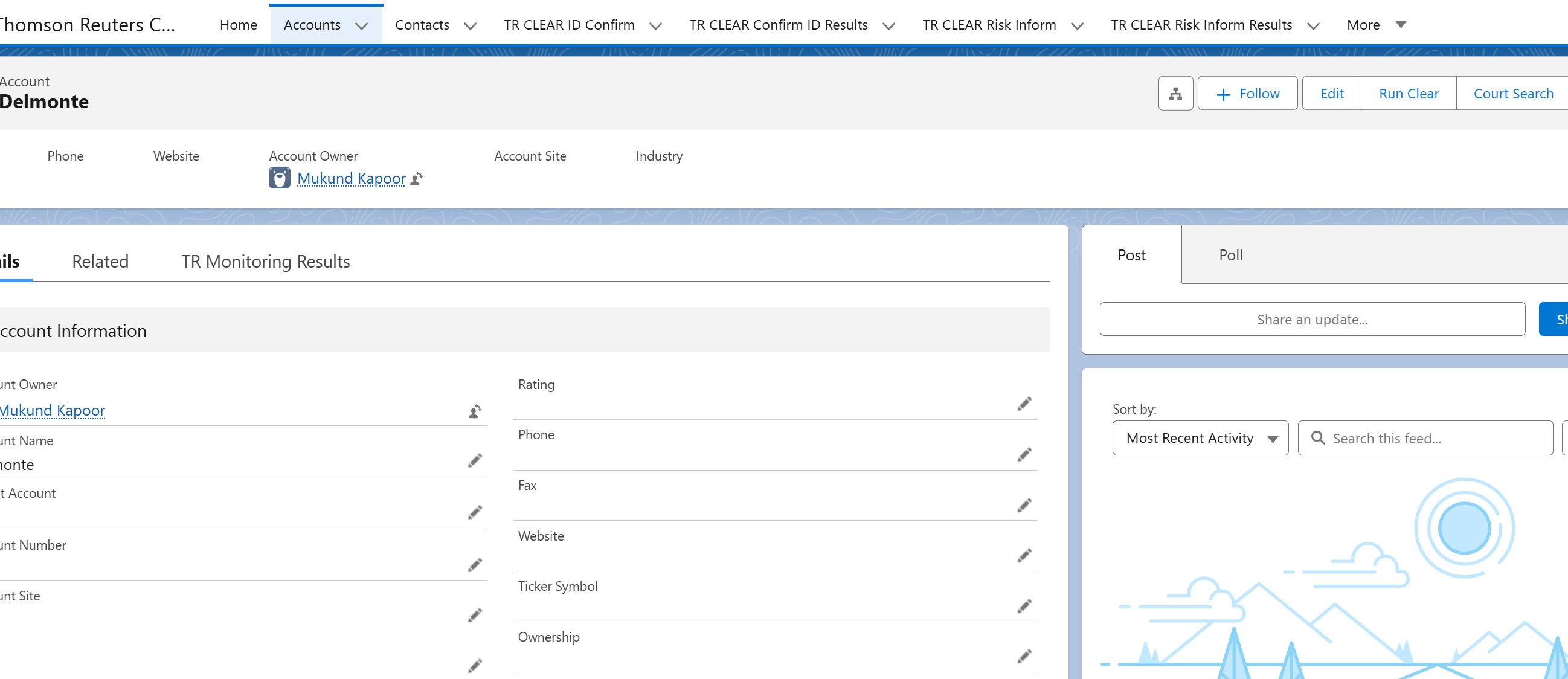
2. Navigate to the Source Record
Open existing record or create a new one
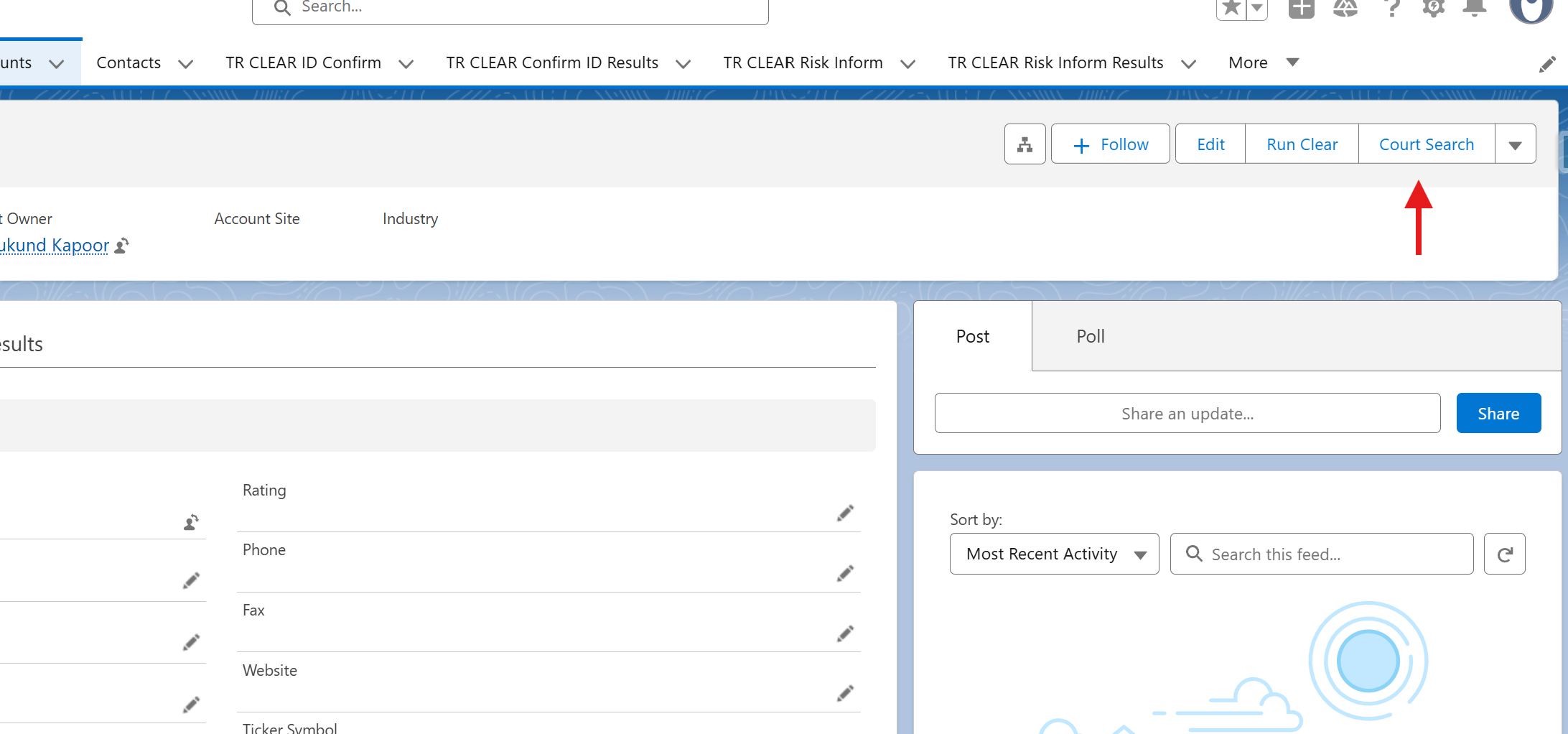
3. Launch the Search Screen
Run Court Search from button
A new screen/component will open, displaying the search form
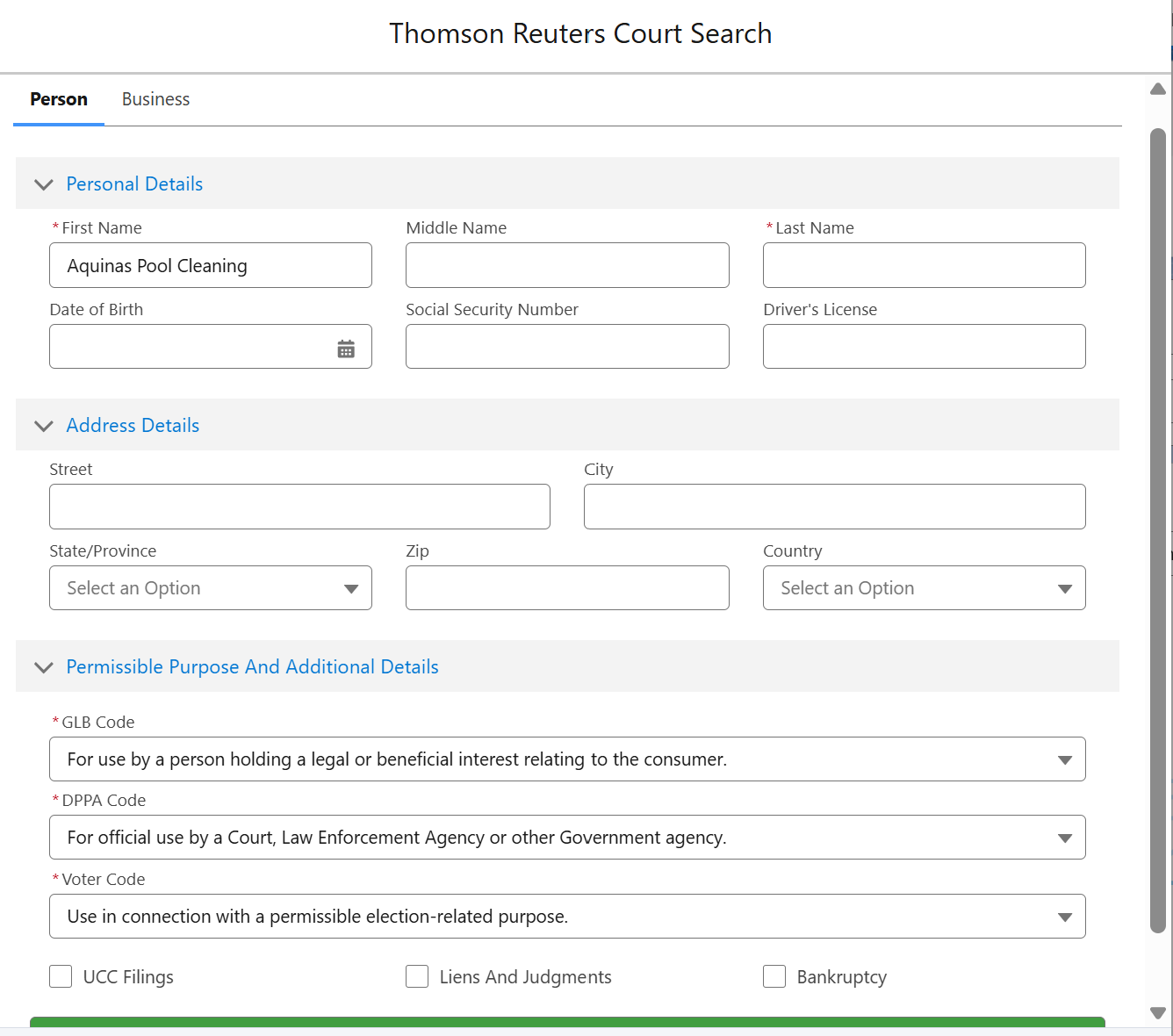
5. Configure the Search
Review data within Court Search Component
5.1 Review and update auto-filled fields
-
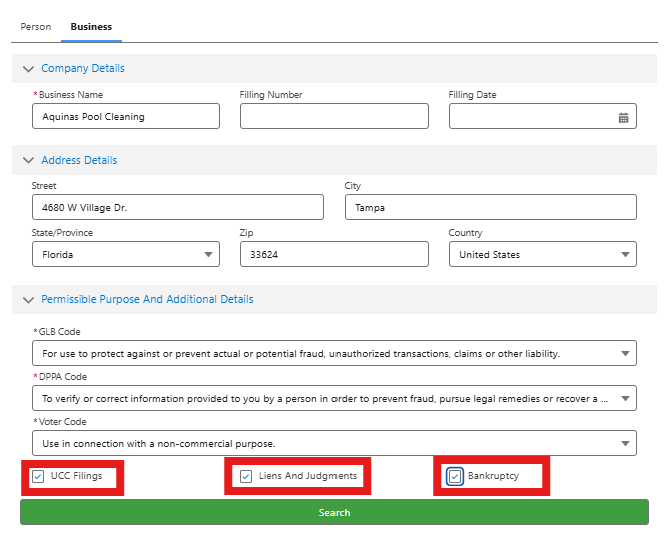
Fields in the search form will be automatically populated using data from the Source Object.
-
The values are mapped via Custom Metadata.
-
You can edit or override these fields as needed.
-
The screen includes two tabs: Person and Business.
You can switch between these tabs to view and edit the corresponding details for each type.
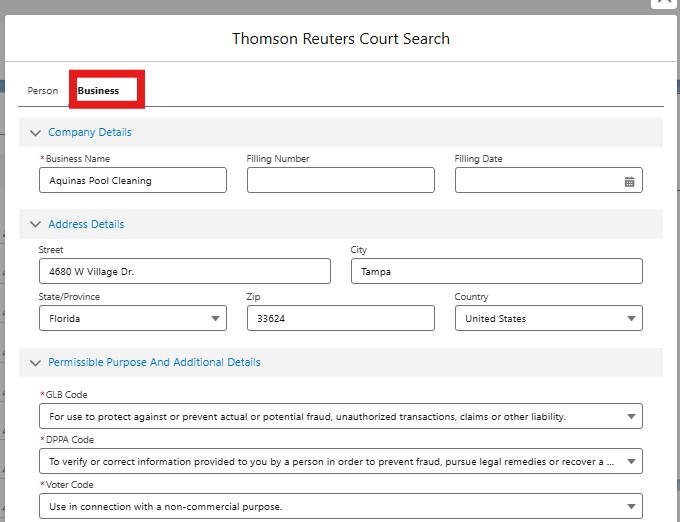
Select values for the following picklists:
-
GLB Code
-
DPPA Code
-
Voter Code
5.2 Setting up the Data Sources
-
Select data sources for Court Search by checking the options: UCC Filings, Bankruptcies, and Liens & Judgments to define the search scope.
6. Initiate the Search
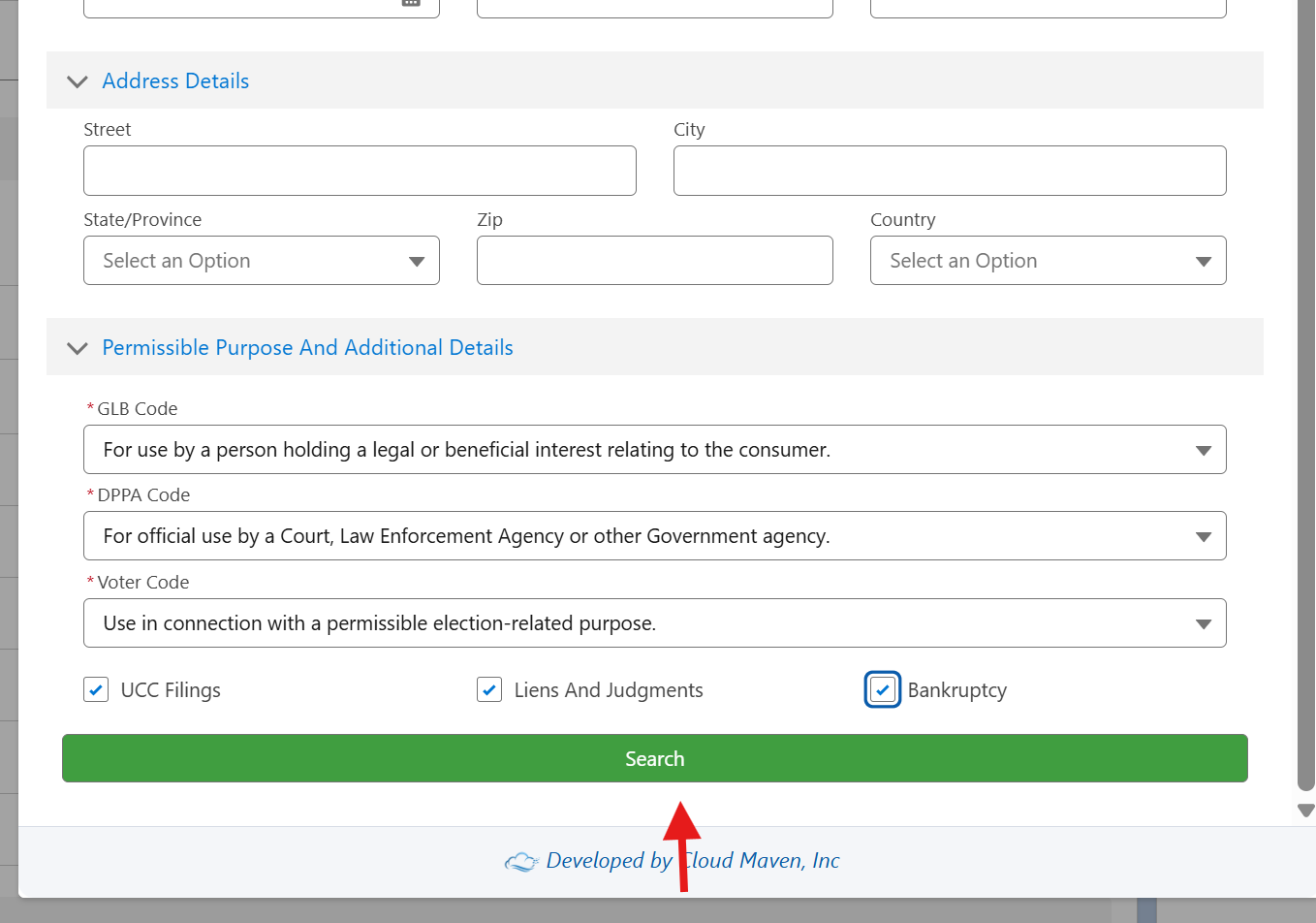
Initiating the Search for running Court Search
Once all mandatory fields are filled, click the Search button to initiate the process.
7. Review Results
➡ Please refer to the detailed guide here:
https://cloudmaven.atlassian.net/wiki/external/NGY4NThkMGVkZTU4NDYxZTk2NTliY2JmOTE2NDMyZjA
📩 Need Help?
For any questions or support, don't hesitate to get in touch with us at: 📧