
Overview
The TR CLEAR Dashboard provides a centralized view of all search results generated through CLEAR ID Confirm and CLEAR Risk Inform. Users can review search outcomes directly from the Parent Record as well as from the corresponding Salesforce records.
The dashboard helps users:
-
Review ID Confirm search results.
-
View Risk Inform reports generated for a selected entity.
-
Access HTML/PDF reports.
-
Review entity details, alerts, and search history.
-
Navigate to related Salesforce records.
Reviewing Results from the Parent Record
Step 1: Open the Parent Record
Navigate to the business process record (Account, Contact, Opportunity or other configured Parent Record).
Step 2: Open the TR CLEAR Dashboard
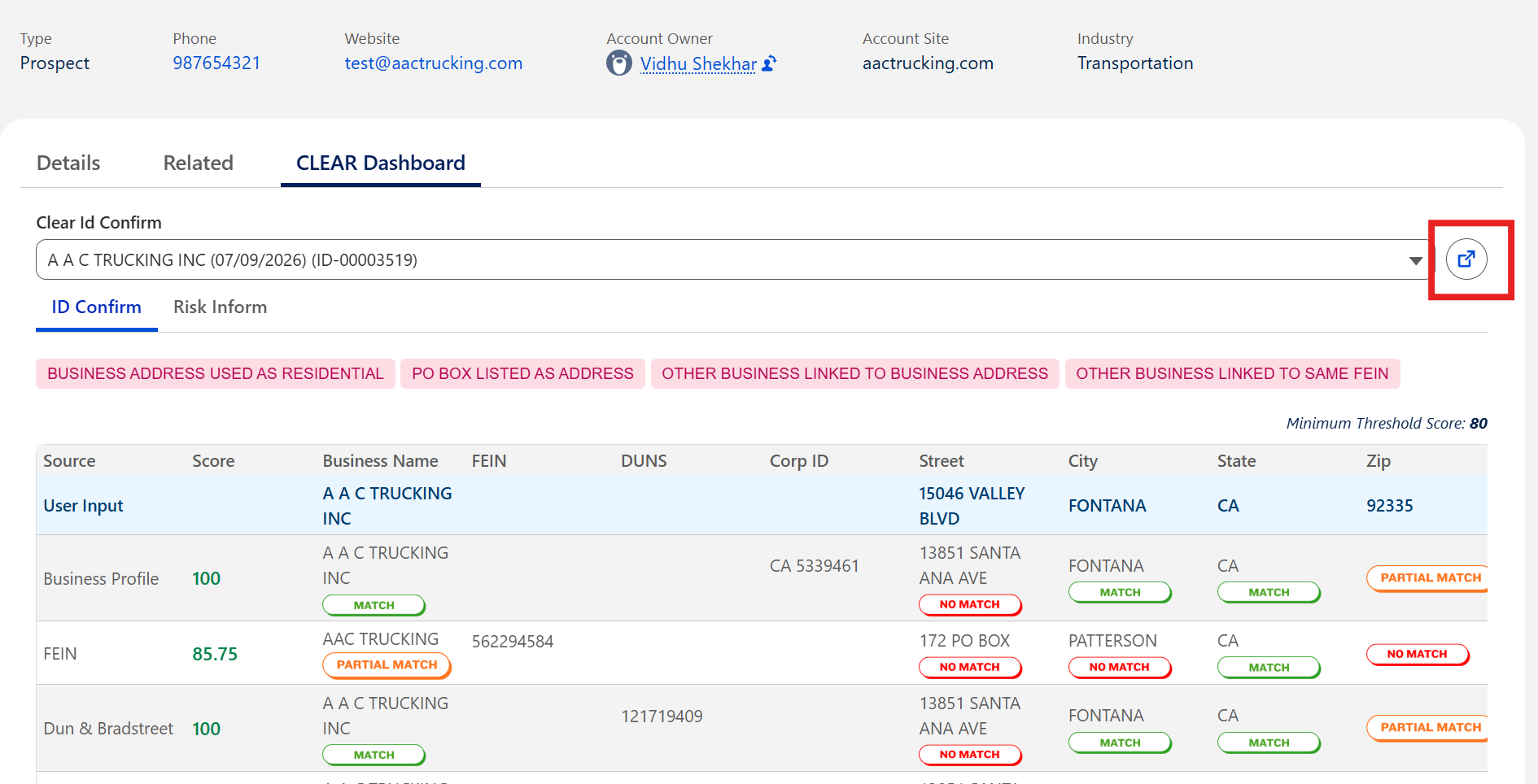
Navigate to the TR CLEAR Dashboard on the Parent Record. The dashboard provides a consolidated view of all ID Confirm and Risk Inform searches associated with the record.
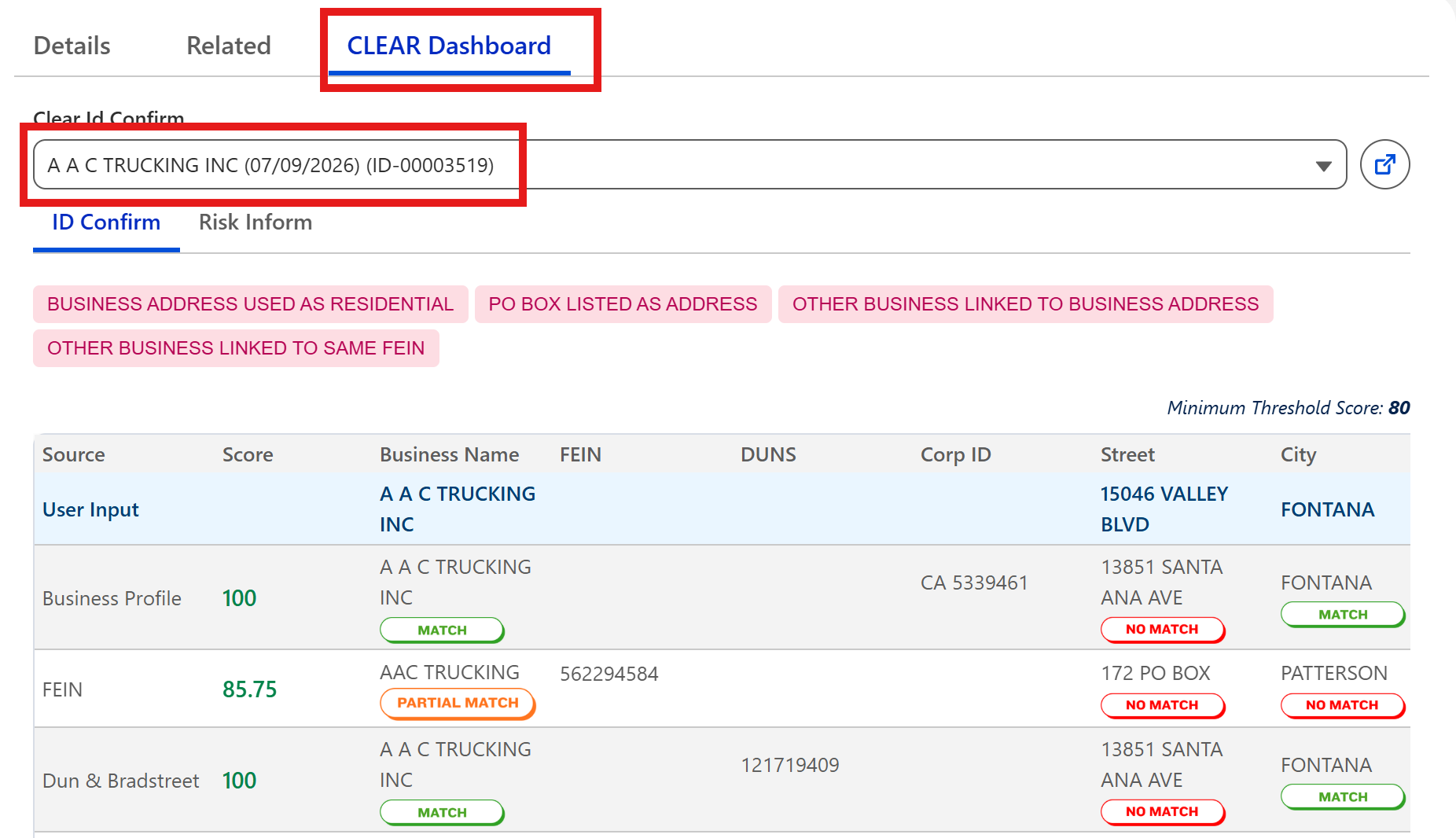
From the dashboard, you can:
-
Select an ID Confirm search from the drop-down list.
-
Switch between the ID Confirm and Risk Inform tabs.
-
Review the ID Confirm match score, data source comparison, and matched entity details.
-
Review the Risk Inform score, risk flags, and supporting risk indicators.
-
Open the generated PDF Report (if available).
-
Click the Open Record icon to navigate directly to the related TR CLEAR ID Confirm Salesforce record for additional details.
Step 3: Review ID Confirm Results
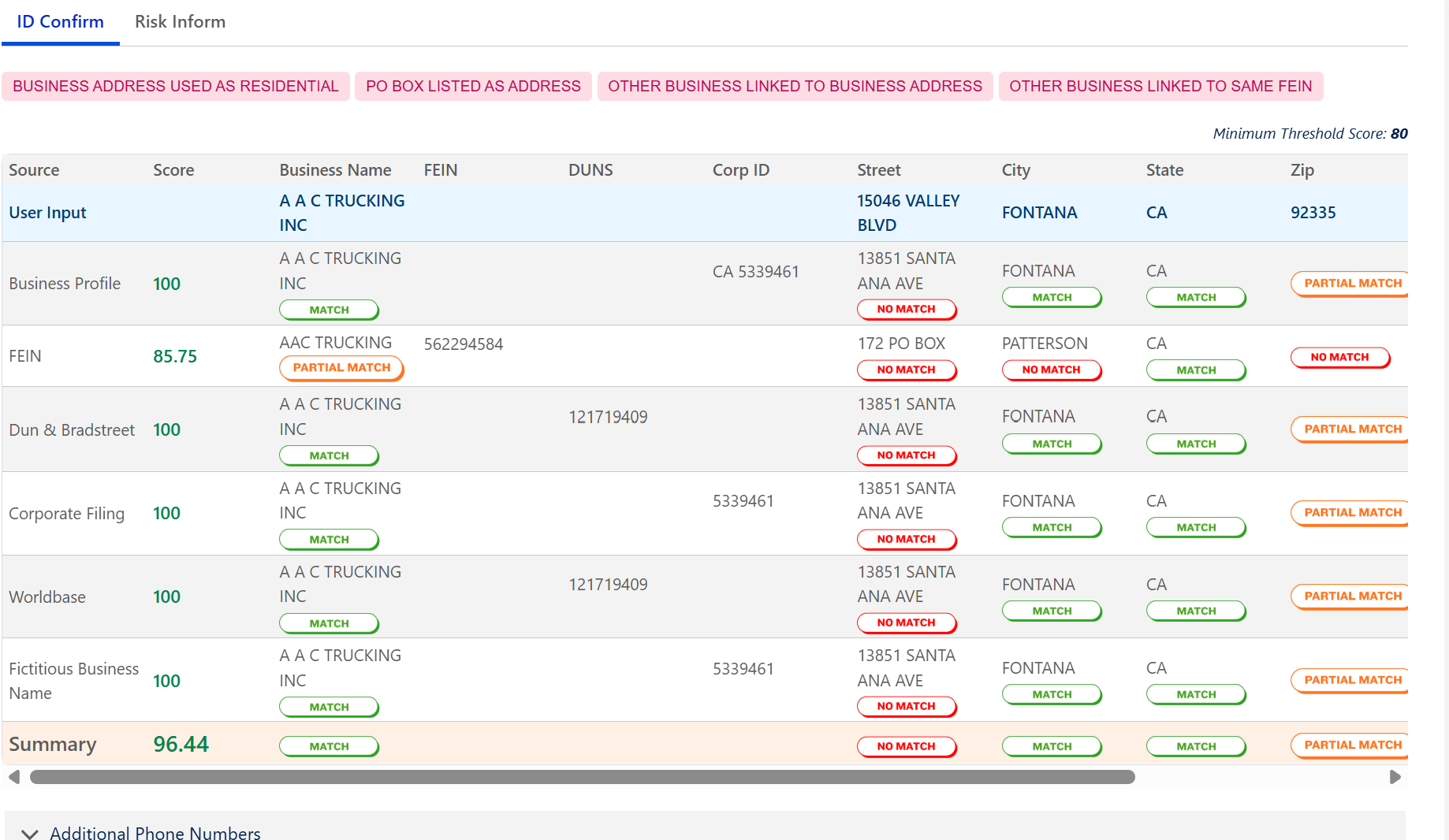
Select the ID Confirm tab to review the search results.
The dashboard displays:
-
Input information submitted for the search.
-
Match scores returned from each data source.
-
Comparison of business or person details.
-
Overall match summary.
-
Match indicators (Match, Partial Match, or No Match).
-
Configured threshold score for the search.
Step 4: Review Risk Inform Results
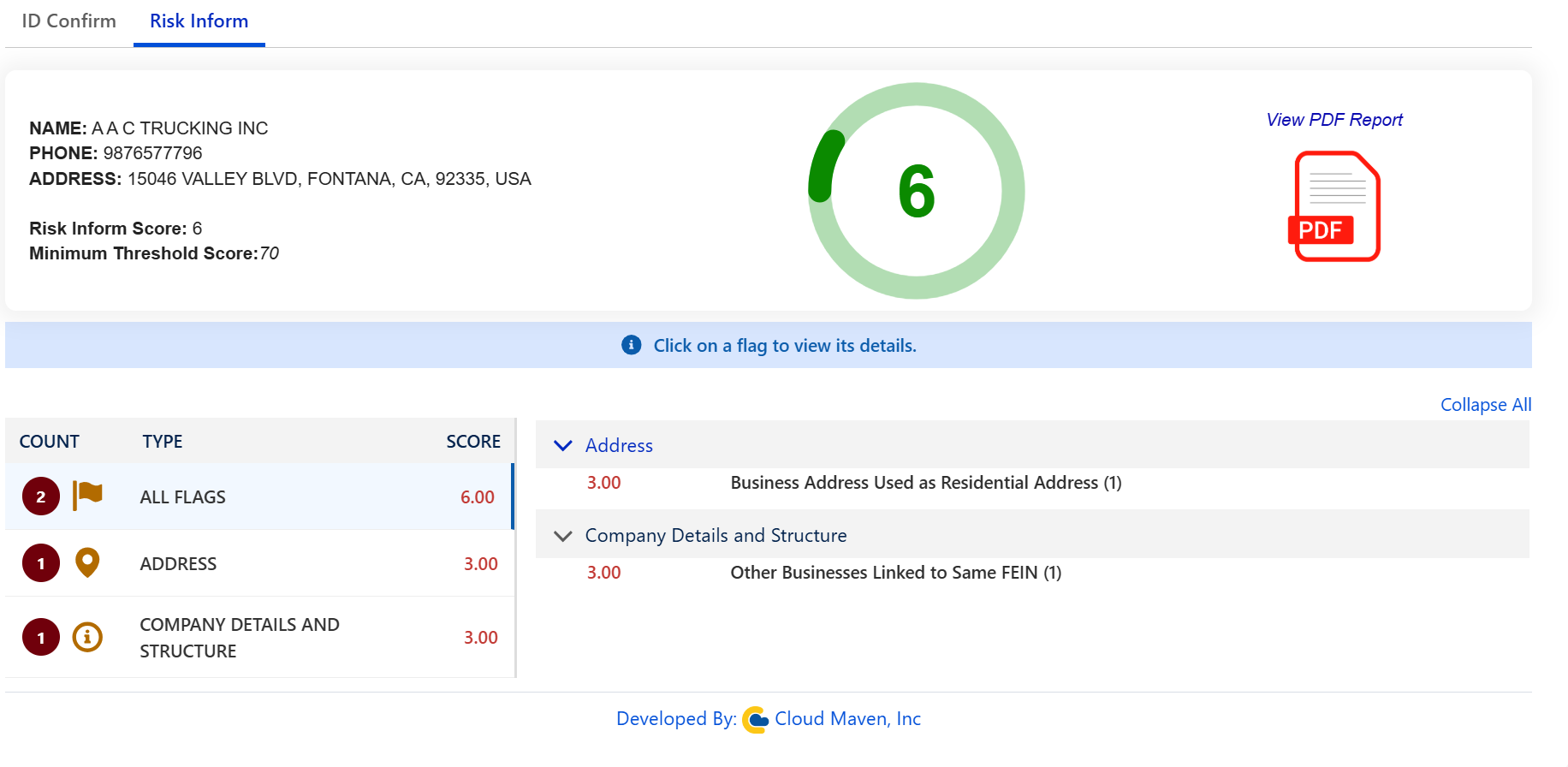
The dashboard displays:
-
Overall Risk Inform Score.
-
Configured minimum threshold score.
-
Risk flags identified during the search.
-
Risk categories and supporting details.
-
Link to the generated PDF report (if available).
Click any Risk Flag to expand and view additional information.
Reviewing Results in Salesforce
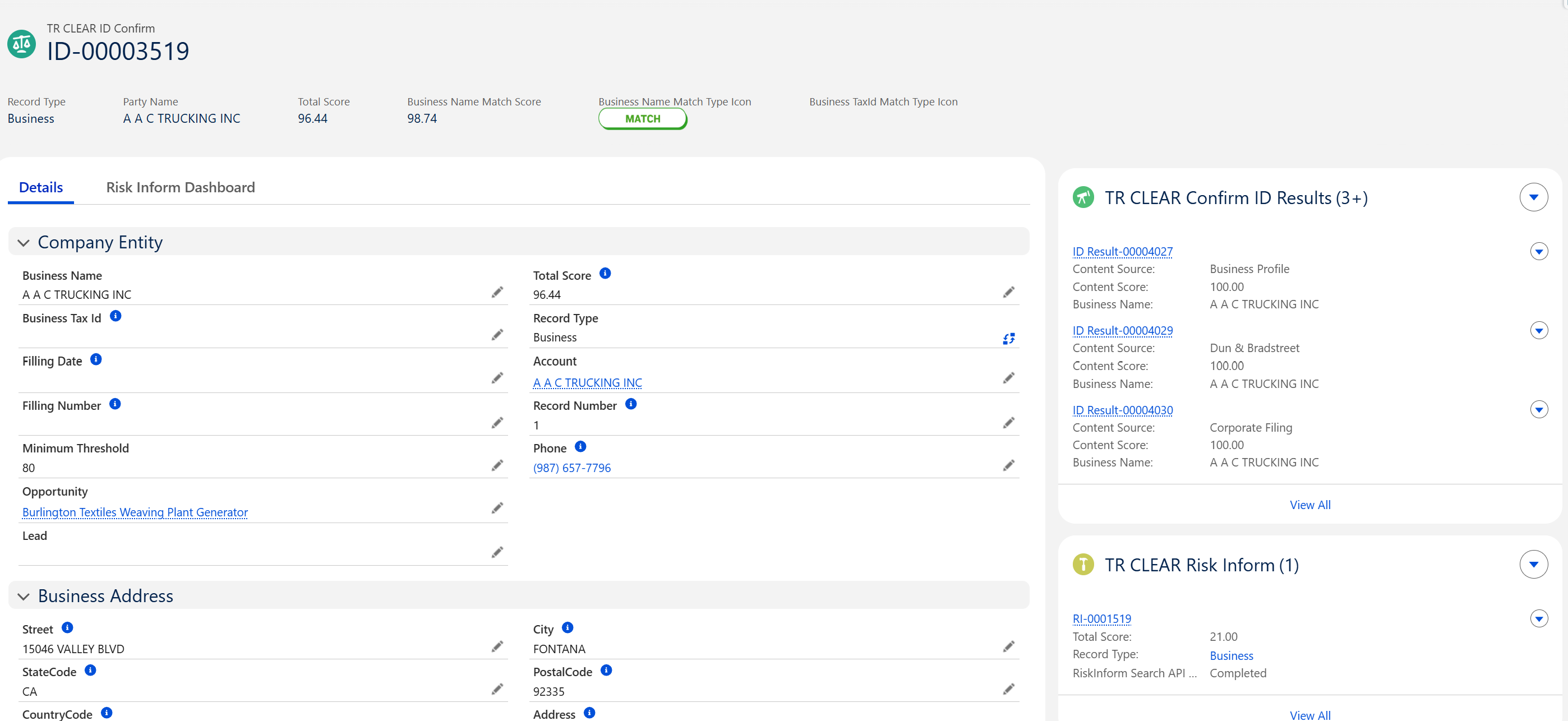
For additional details beyond the dashboard, click the Open Record (↗) icon in the TR CLEAR Dashboard to navigate to the associated TR CLEAR ID Confirm Salesforce record.
Review the TR CLEAR ID Confirm Record
The TR CLEAR ID Confirm record contains the complete details of the ID Confirm search, including:
-
Search request and response information
-
Selected person or business entity
-
Relevance score and match results
-
Search status and execution date
-
Related Parent Record
-
Generated reports (if available)
Access Related Information
Navigate to the Related tab of the TR CLEAR ID Confirm record to:
-
Open the associated TR CLEAR Risk Inform record.
-
View generated reports from the Notes & Attachments related list.
-
Review related records associated with the search.
Review the TR CLEAR Risk Inform Record
Open the associated TR CLEAR Risk Inform record from the Related tab of the TR CLEAR ID Confirm record.
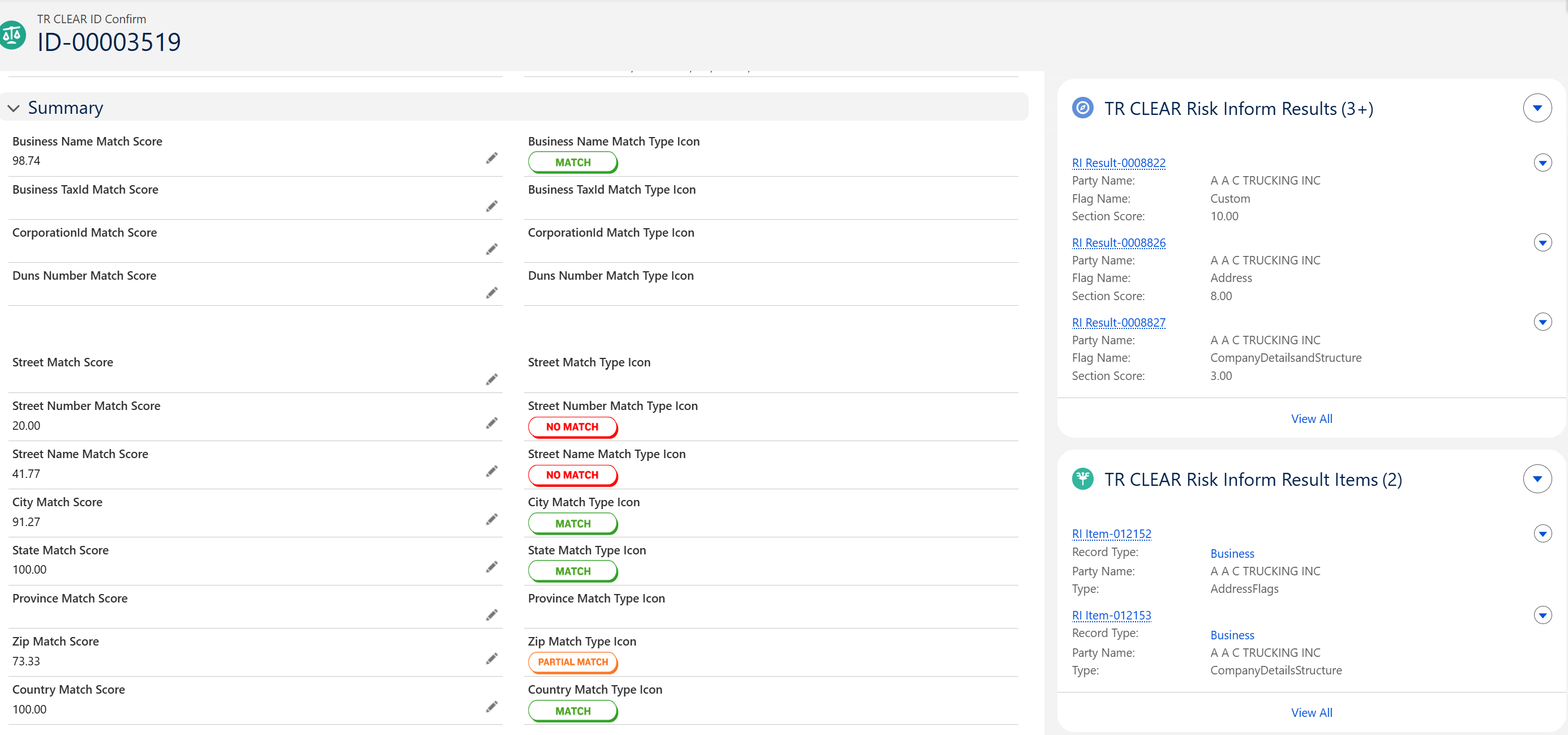
The Risk Inform record provides:
-
Selected entity information
-
Overall Risk Inform score
-
Report status
-
Risk categories and supporting details
-
Report generation date
-
Associated Parent Record
-
Generated PDF report (if available)
Dashboard Navigation
The TR CLEAR Dashboard serves as the primary location for reviewing search results. From the dashboard, users can:
-
Select an ID Confirm search from the drop-down list.
-
Switch between the ID Confirm and Risk Inform tabs.
-
Review ID Confirm match results and Risk Inform findings.
-
Open the generated PDF report (if available).
-
Navigate directly to the corresponding TR CLEAR ID Confirm Salesforce record using the Open Record (↗) icon.
Search Status
|
Status |
Description |
|---|---|
|
In Progress |
The search request has been submitted and is currently being processed. |
|
Completed |
The search completed successfully and results are available for review. |
|
Failed |
The search could not be completed. Review the error details and retry if necessary. |
Best Practices
-
Review all returned ID Confirm matches before selecting an entity.
-
Select the entity that best matches the customer's information before running Risk Inform.
-
Use the TR CLEAR Dashboard as the primary interface for reviewing search results.
-
Use the Open Record icon to access detailed Salesforce records when additional information is required.
-
Access generated reports from the Related tab under Notes & Attachments.
-
Refer to previous searches associated with the Parent Record to avoid creating duplicate searches.
-
Multiple ID Confirm searches may be available for a single Parent Record and can be selected from the dashboard.
-
Risk Inform reports are generated only for the selected ID Confirm entity.
-
All ID Confirm, Risk Inform, and report records remain linked to the Parent Record for future reference.
-
Reports can be accessed either from the TR CLEAR Dashboard or from the Related tab of the corresponding Salesforce records.
📩 Need Help?
For any questions or support, don't hesitate to get in touch with us at: