
TR_Clear_Search_Workflow.pdf
Overview
This guide provides step-by-step instructions for using the CLEAR Person and Business Search (Run CLEAR Search) functionality within Salesforce. These features allow users to perform real-time person and business entity searches directly from Salesforce records, leveraging Thomson Reuters’ authoritative CLEAR data sources to retrieve identity, public record, and risk-related information.
CLEAR Person and Business Search Workflow
1. Log In to Salesforce
➡ Access your Salesforce org with the appropriate credentials.
2. Navigate to the Source Record
Open existing record or create a new one
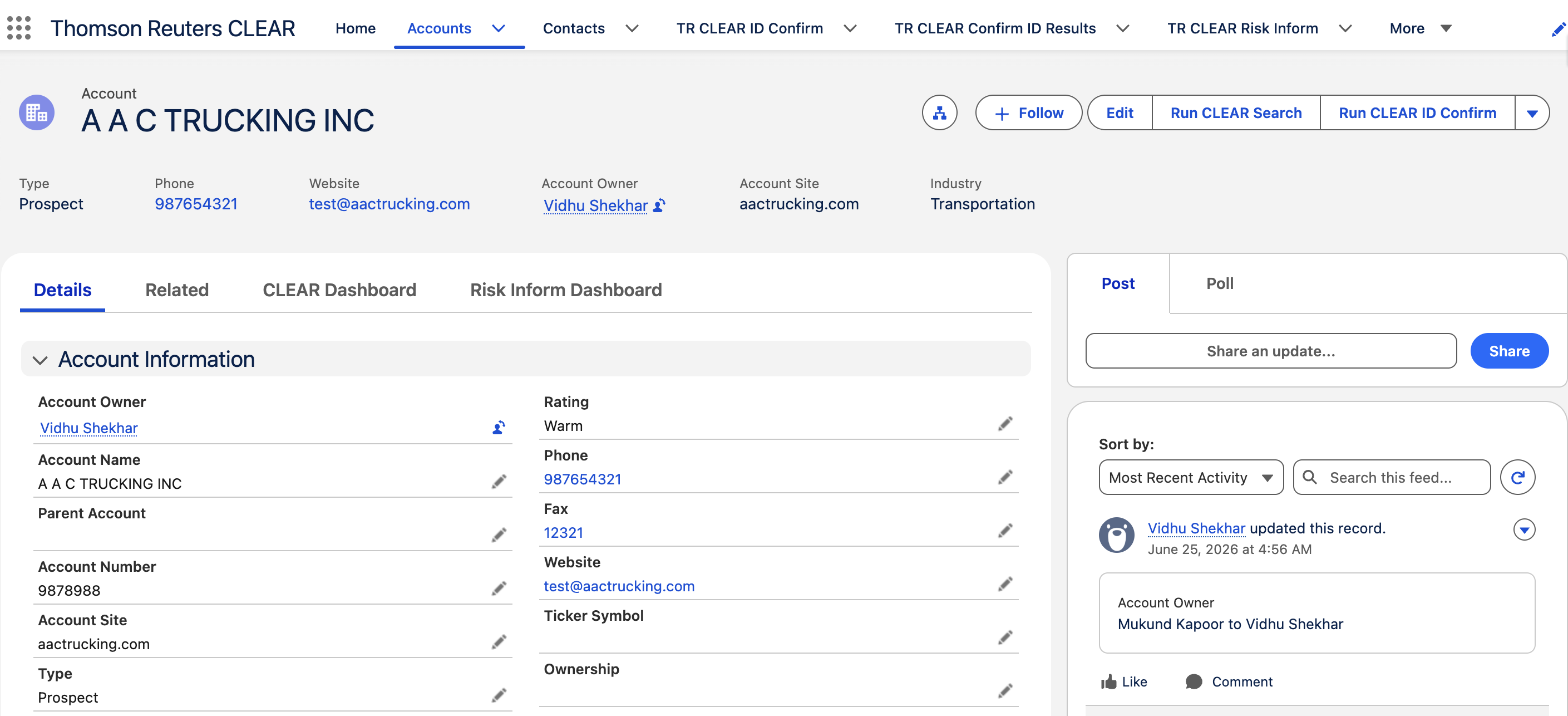
Open the Salesforce record where TR Clear Search has been configured. In the example below, the feature is set up on the Account object for Business searches, but it can be configured on any standard or custom object.
3. Launch Clear Search
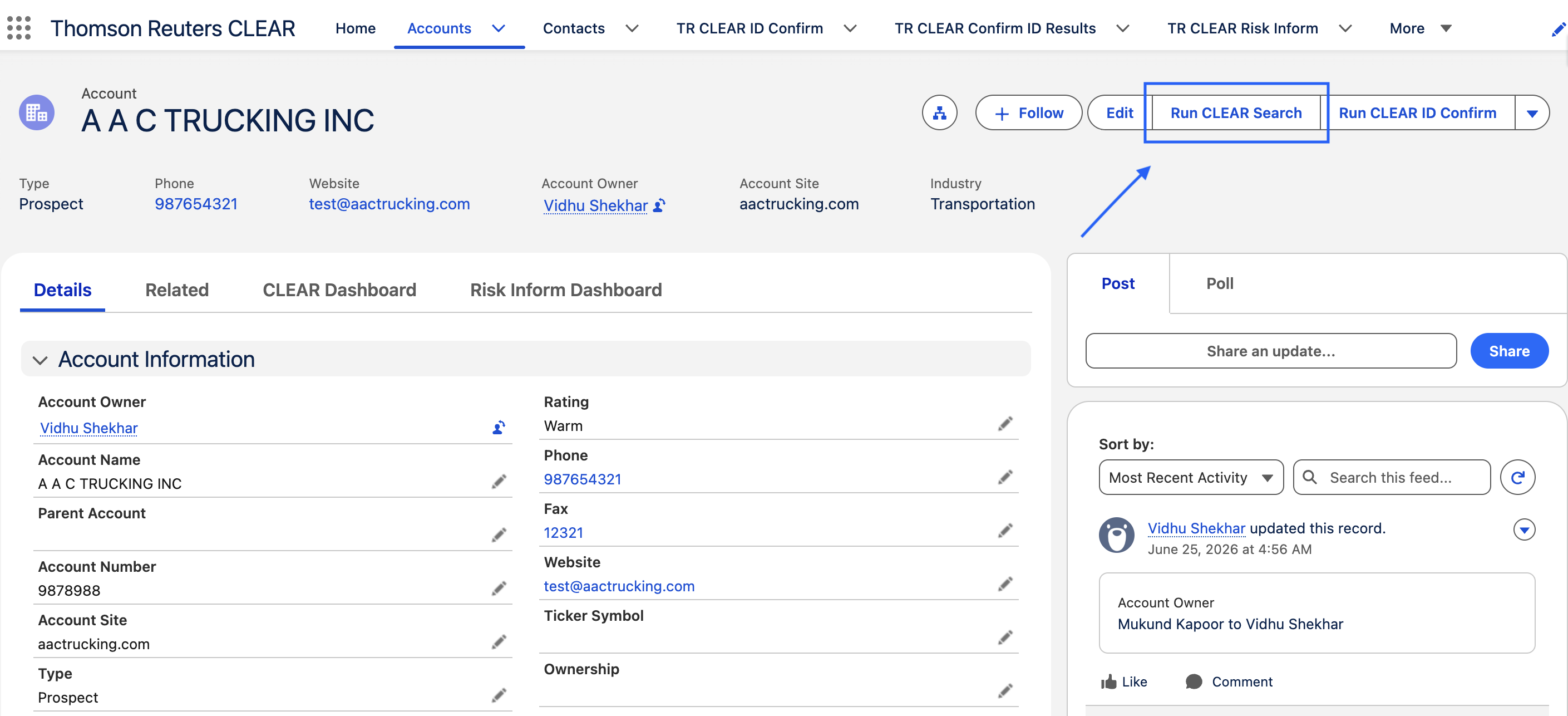
Run Clear from button
Click the Run Clear Search Lightning action button.
-
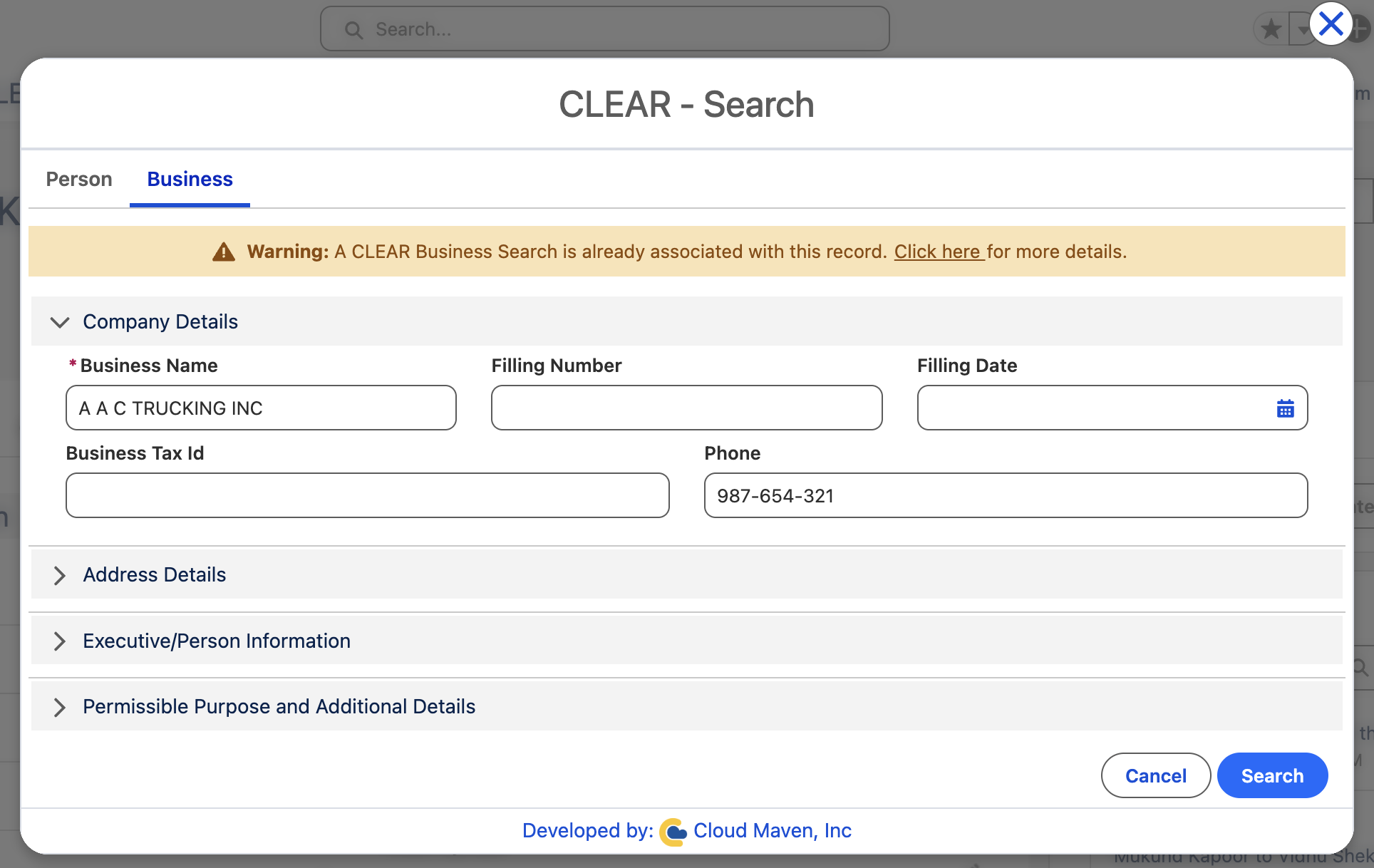
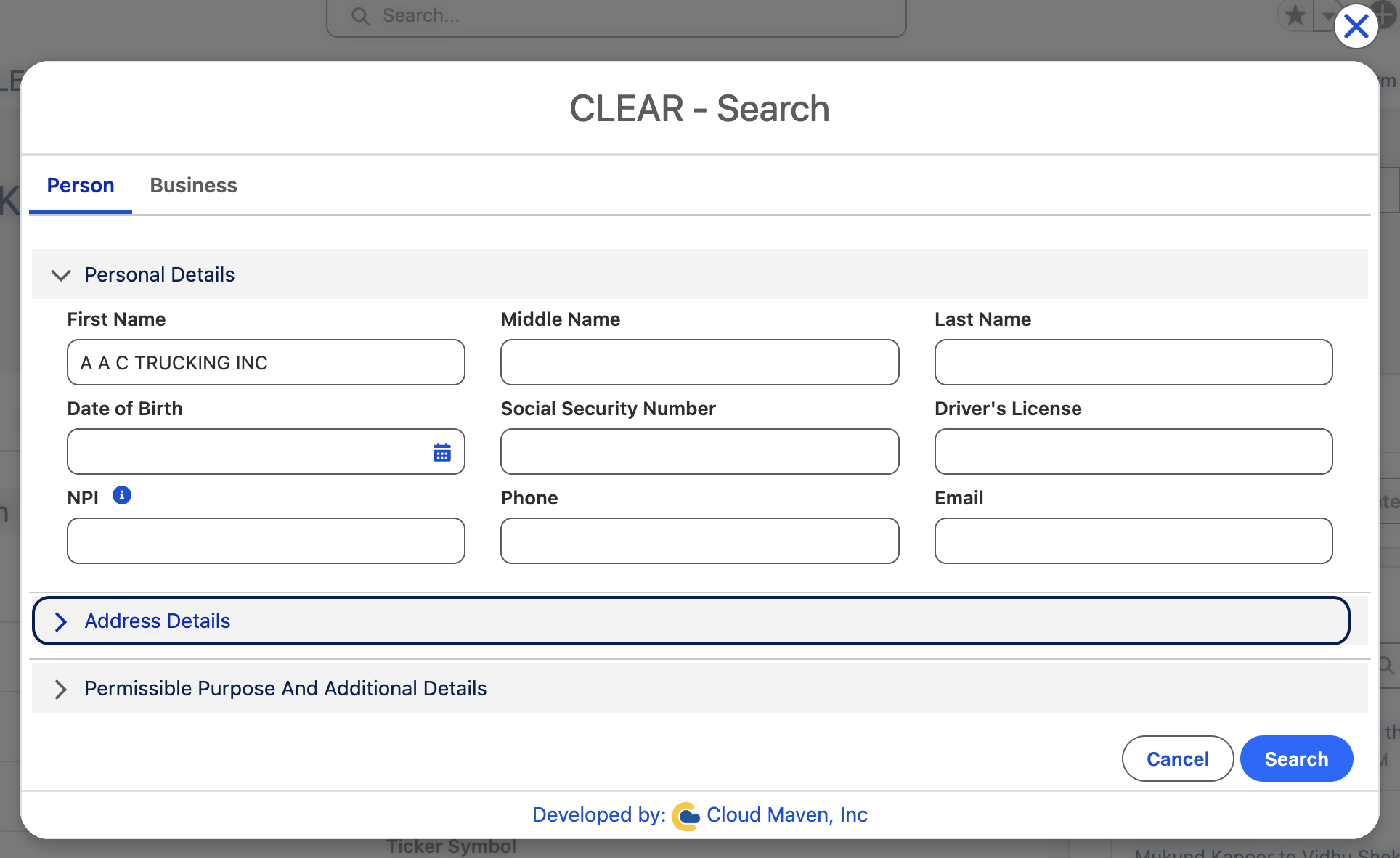
The screen includes two tabs: Person and Business.
You can switch between these tabs to view and edit the corresponding details for each type.
|
Tab |
When to use |
|---|---|
|
Business |
Searching for a company, LLC, or corporate entity |
|
Person |
Searching for an individual |
3.1 Business
3.2 Person
4. Configure the Search
Review data within Clear component
Within the CLEAR component:
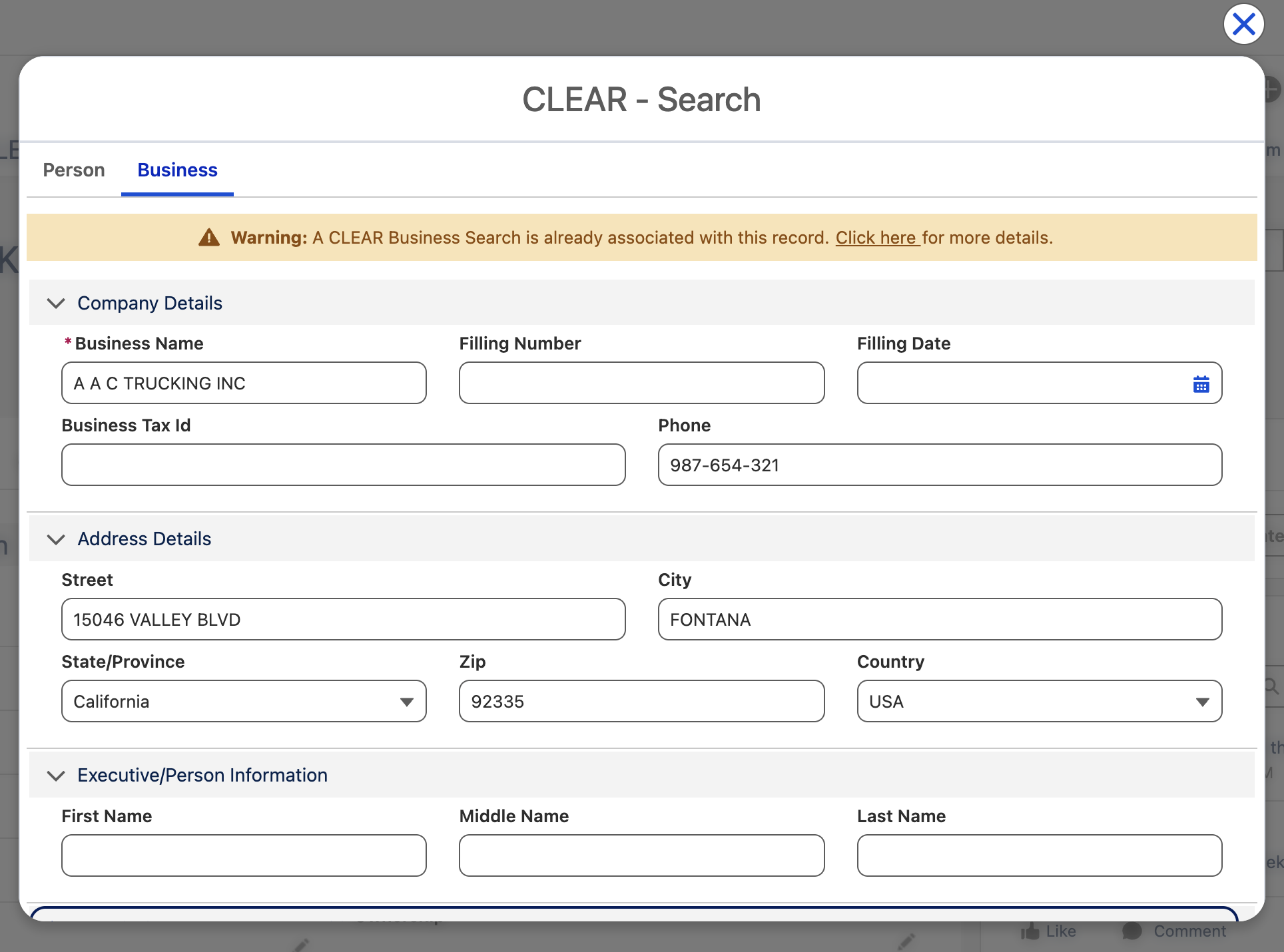
4.1 Review and update auto-filled fields
-
Fields in the search form will be automatically populated using data from the Source Object.
-
You can edit or override these fields as needed.
Note: If you have already run a search on this record, you will see a warning banner at the top:
"You have already run a Clear Search on this record. Click here to view existing results."
Clicking that link will take you directly to your previous results without running a new search.
5. Initiate the Search
Initiating the Search for running TR Clear Search
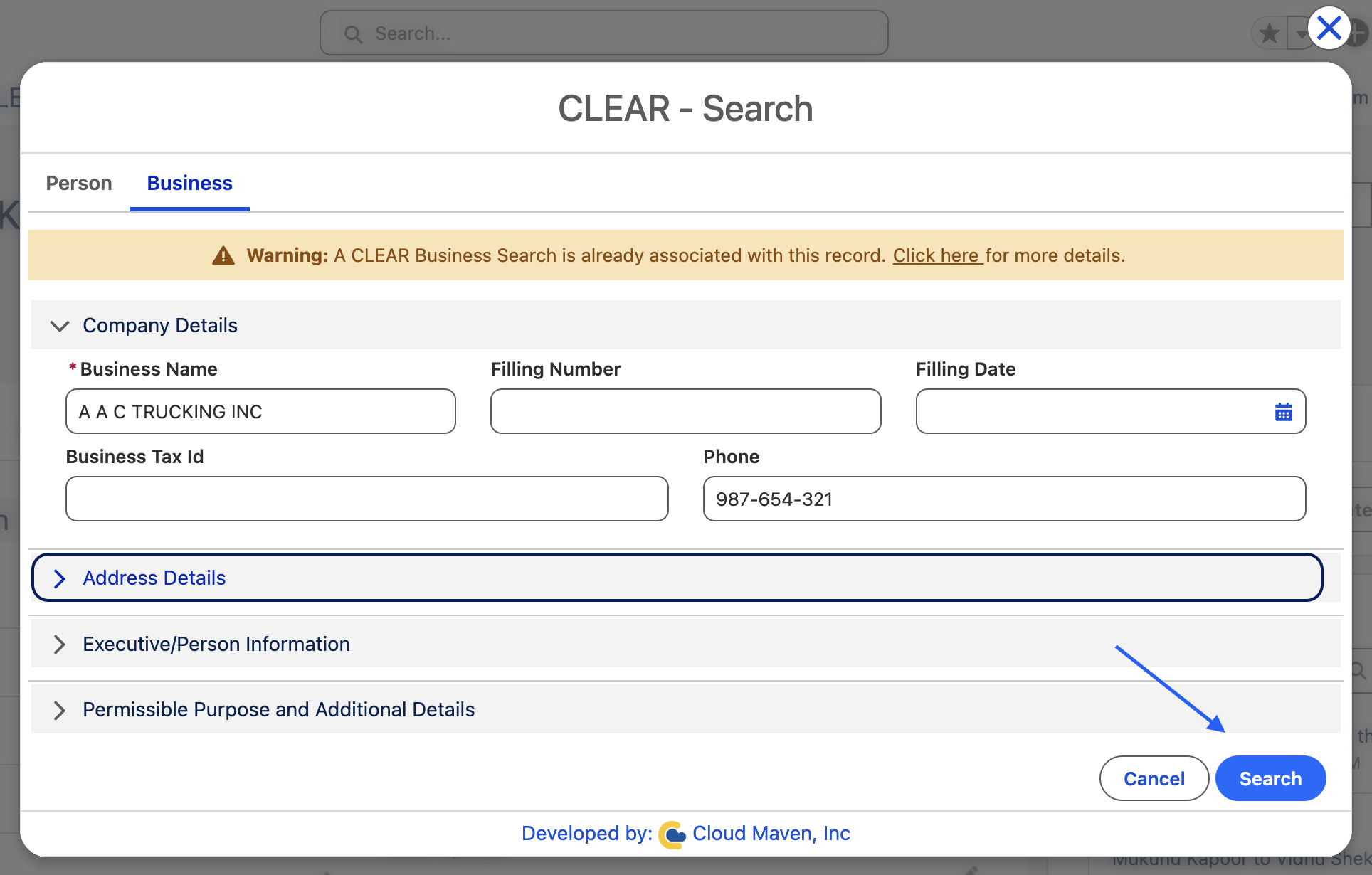
5.1 Click Search to submit the request
5.2 Review Search Results
The Search Results screen displays all matching records returned by Thomson Reuters, sorted in descending order by Relevance Score.
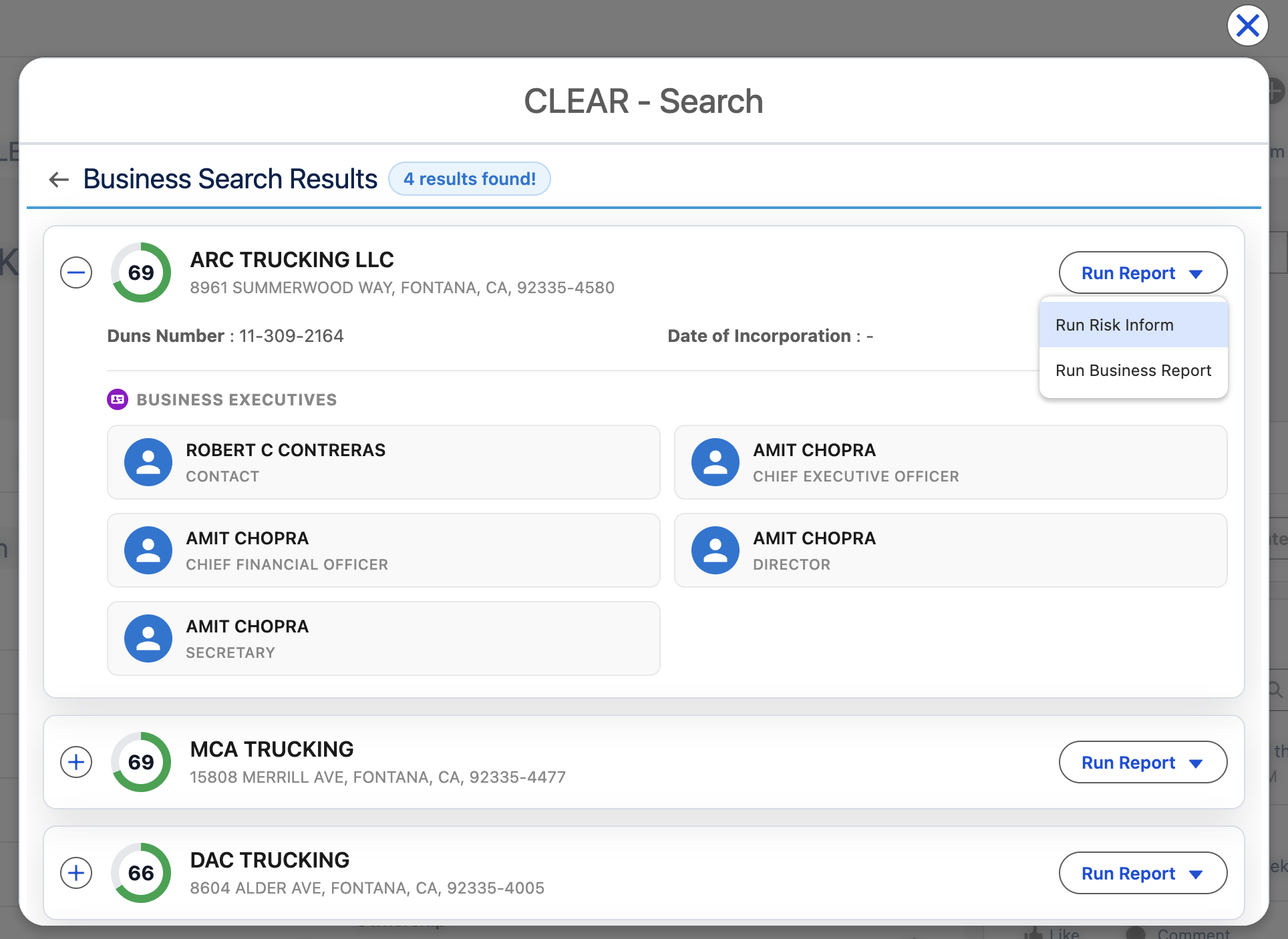
What each element means:
|
Element |
Description |
|---|---|
|
Score circle (e.g. 74) |
Relevance score from Thomson Reuters. Higher = stronger match |
|
Name + Address |
The matched entity's primary name and dominant address |
|
Expanded section |
Click the + icon to expand and view DUNS, incorporation date, and business executives |
|
Run Report button |
Action menu with two options — see Step 6 |
6.Run Report
Initiating the Report
6.1 Option A — Run Risk Inform
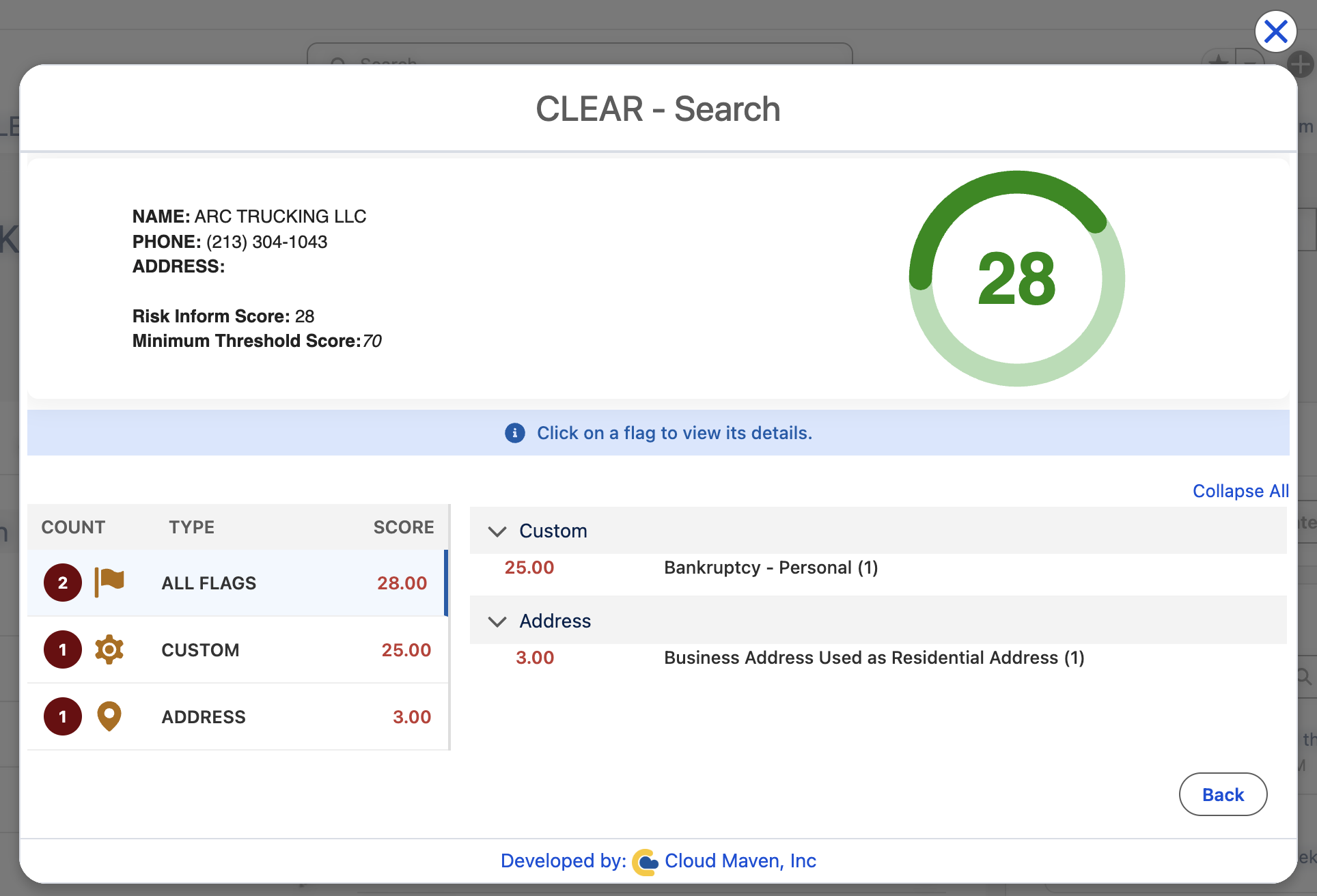
Click Run Risk Inform to generate a Risk Inform report for the selected entity.
Once processing completes (usually within 15 seconds), the screen automatically transitions to the Risk Inform Dashboard, where you can review:
-
Risk score and risk level
-
OFAC and watchlist screening results
-
Identity and address verification details
-
Historical records and associated entities
6.2 Option B — Run Business Report (or Run Person Report)
Click Run Business Report (Business) or Run Person Report (Person) to generate an Enhanced Due Diligence report.
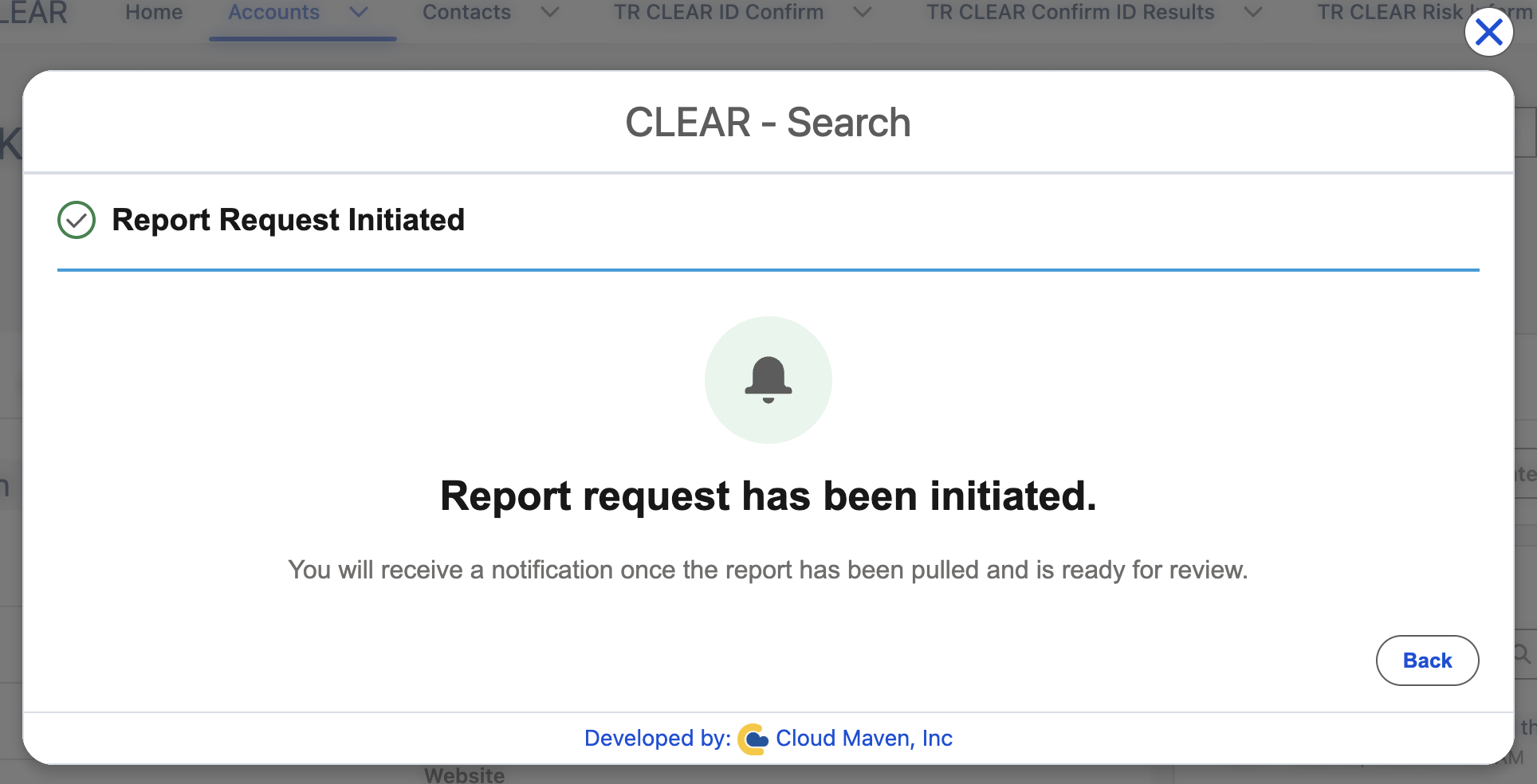
When the user clicks Run Business Report, the system submits a report generation request to Thomson Reuters. A confirmation screen is then displayed informing the user that the report request has been initiated and that they will receive a notification once the report is generated and ready for review.
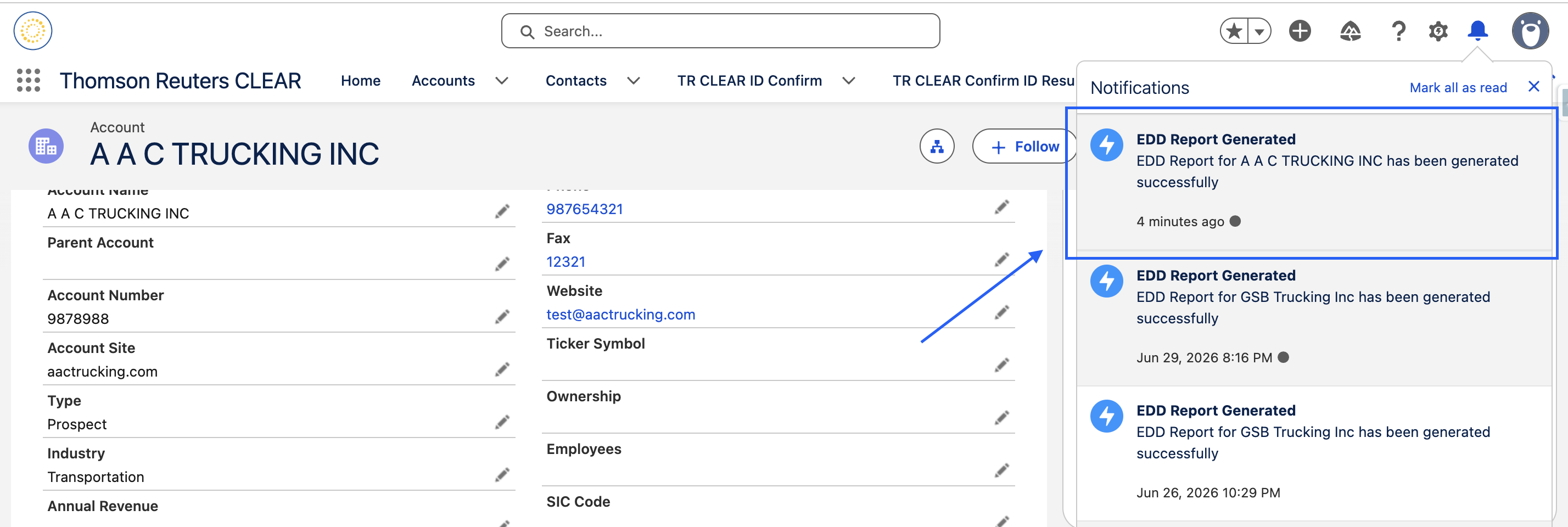
Below is an example of how the notification message will appear to the user.
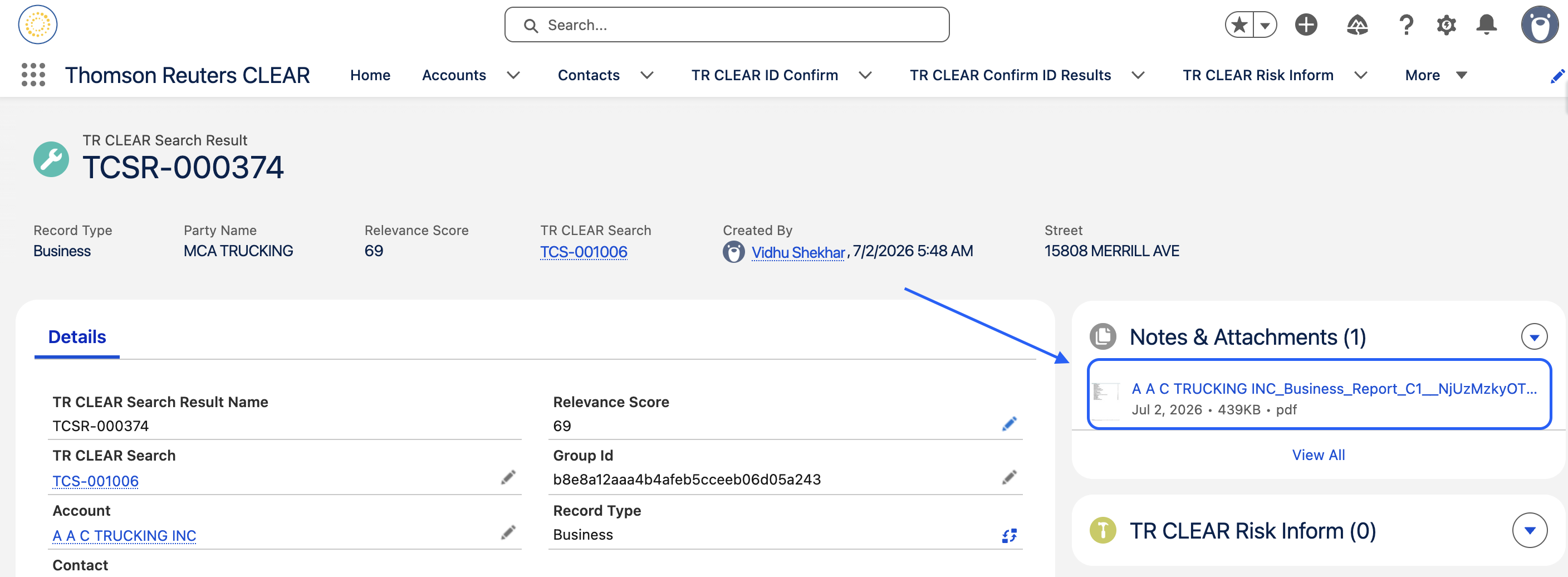
By clicking the notification, the user will be redirected to the TR Clear Search Result record, where the generated report will be available in the Notes & Attachments related list.
7. Review Results
➡ Please refer to the detailed guide here:
How to Review CLEAR Search Results for Person or Business
📩 Need Help?
For any questions or support, don't hesitate to get in touch with us at:
📧 support@cloudmaveninc.com