
This document outlines the process for initiating a Bank Verification workflow. It explains how to:
-
Select the appropriate Plaid products based on business requirements
-
Enter the required customer information accurately
-
Configure product-specific settings to ensure successful verification
By following this process, users can efficiently start the bank verification process, ensure proper data collection, and streamline the verification journey for both the business and the customer.
1. Log In to Salesforce
➡ Access your Salesforce org with the appropriate credentials.
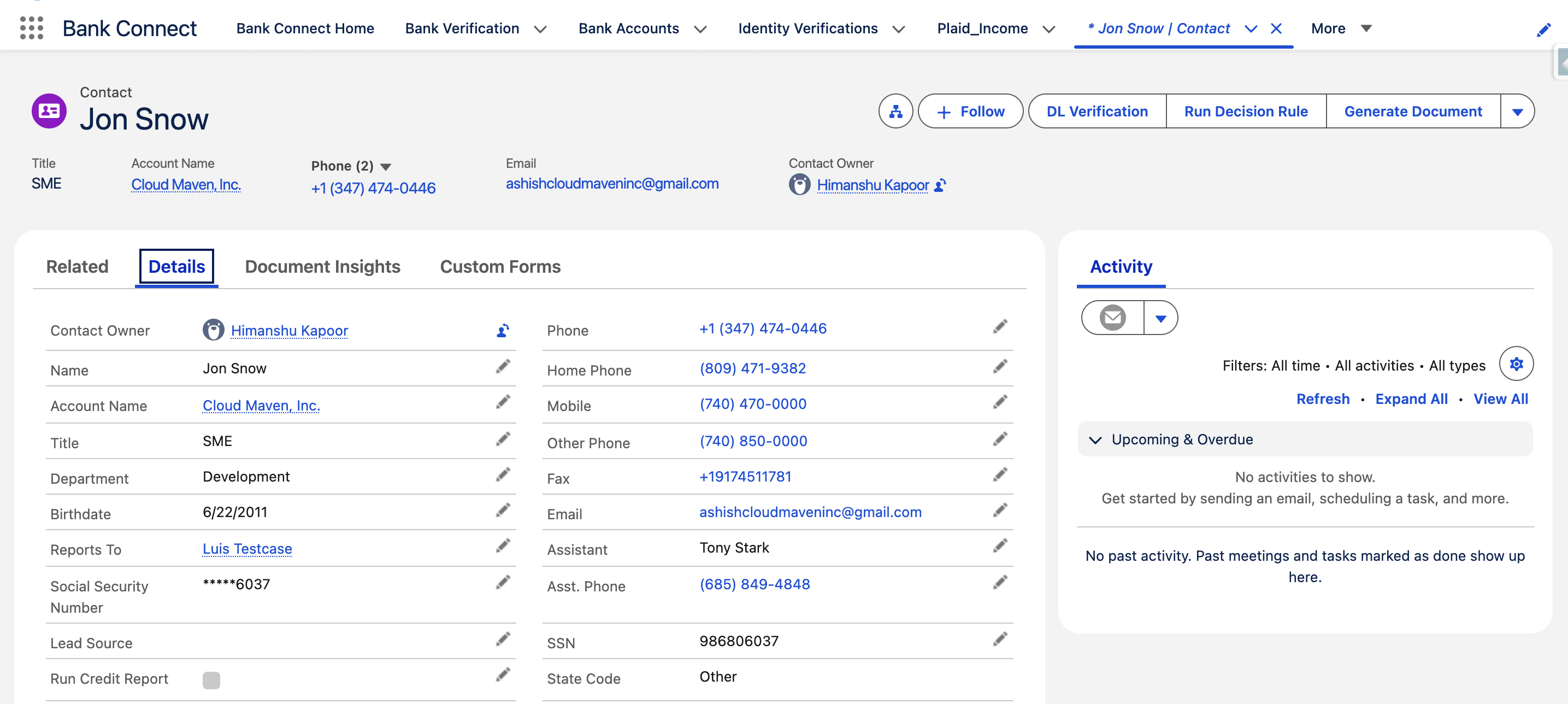
2. Navigate to the Source Record
Open existing record or create a new one
3. Launch the Verification Screen
Run Bank Verification Request from button
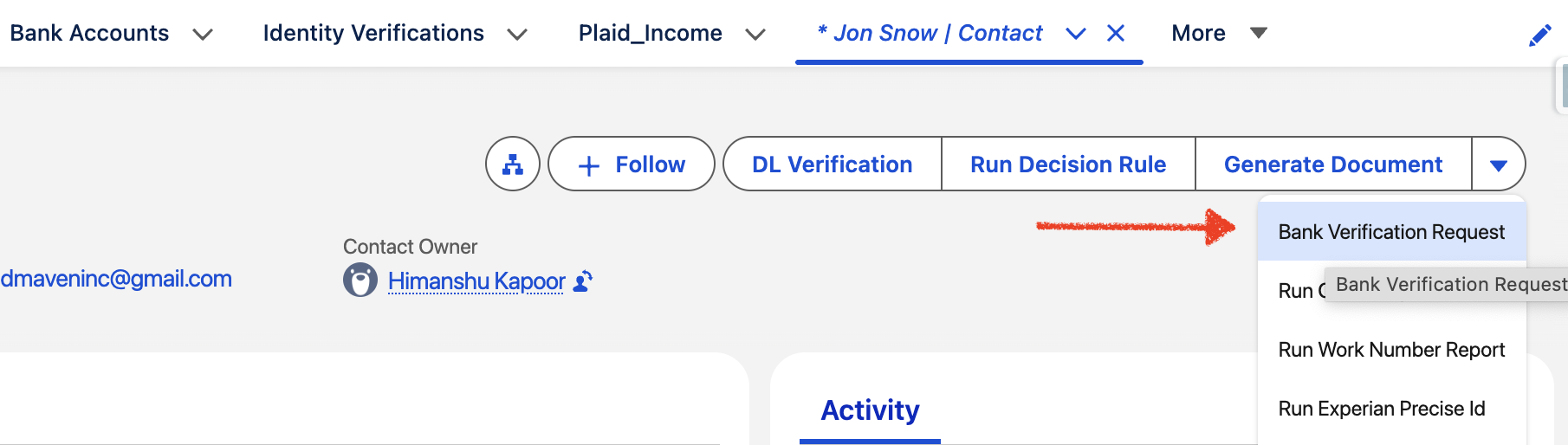
A new screen/component will open, displaying the request form
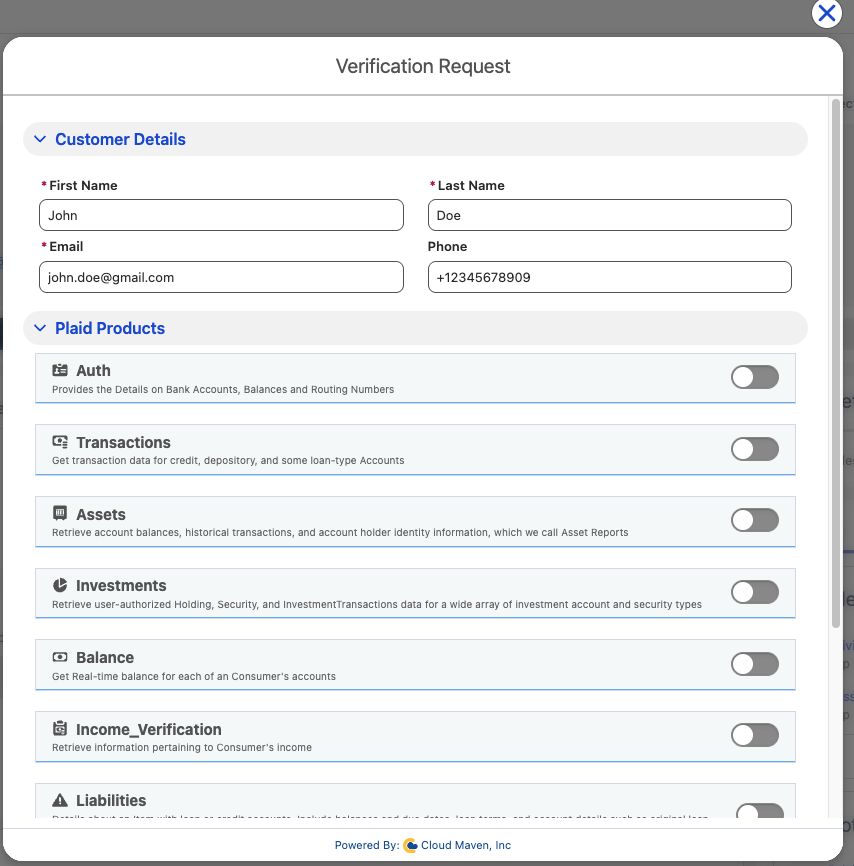
5. Configure the Search
Review data within Bank Verification Request Component
5.1 Review and update auto-filled fields
-
Fields in the search form will be automatically populated using data from the Source Object.
-
The values are mapped via Custom Setting.
-
You can edit or override these fields as needed.
-
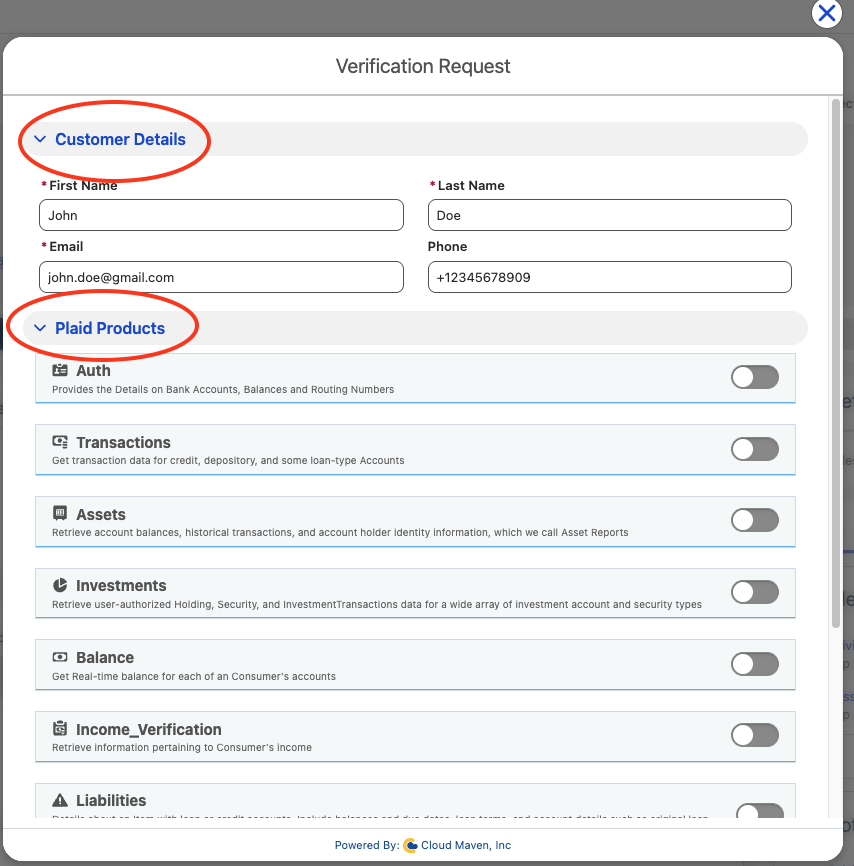
The screen includes two sections: Customer Details and Plaid Products.
You can switch between these tabs to view and edit the corresponding details for each type.
5.2 Customer Details
Please verify the following details:
-
Name
-
Email address
-
Phone number (required if you plan to send an SMS to the customer for the verification request)
Note: Applicable only for the Asset product.
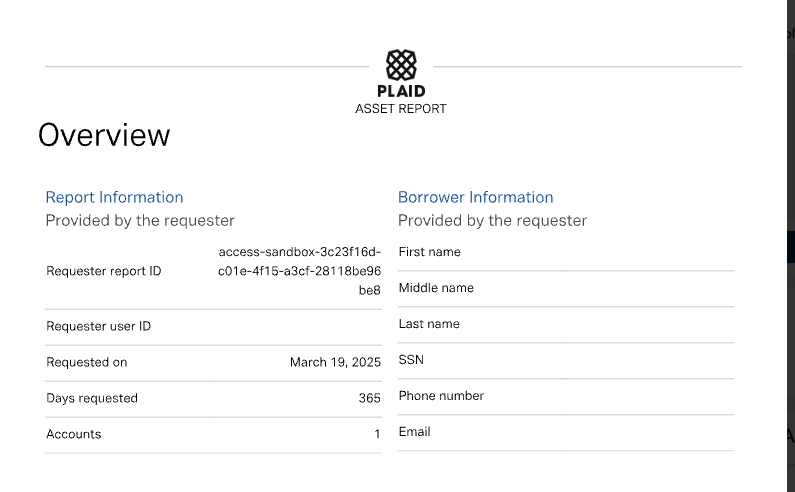
This component can also accept the SSN field, which can be enabled from the backend. By default, this option is turned off.
Purpose of SSN:
The SSN is only required for the Asset Report PDF generated via Plaid. In the PDF, there is a section titled Borrower Information (Provided by Requestor). To populate this section, the SSN must be mapped to the source object.
5.3 Selecting the Products
5.3.1 Auth
-
Auth allows you to request a user's checking, savings, or cash management account and routing number, making it easy for you to initiate credits or debits via ACH, wire transfer, or equivalent international networks.
-
Generate Processor Token - You can also generate a processor token with Plaid partners for example: Dwolla, Stripe etc. This token is used to securely transfer bank account information to a Plaid partner for payment processing without directly handling sensitive data. This feature needs to be enabled from the Custom Settings in order to see this flag on the request screen. ()
5.3.2 Transactions
-
Transactions data can be useful for many different applications, including personal finance management, expense reporting, cash flow modeling, risk analysis, and more. Plaid's Transactions product allows you to access a user's transaction history for
depositorytype accounts such as checking and savings accounts,credittype accounts such as credit cards, and student loan accounts. -
For transaction history from investment accounts, use Plaid's Investments product.
5.3.3 Assets
-
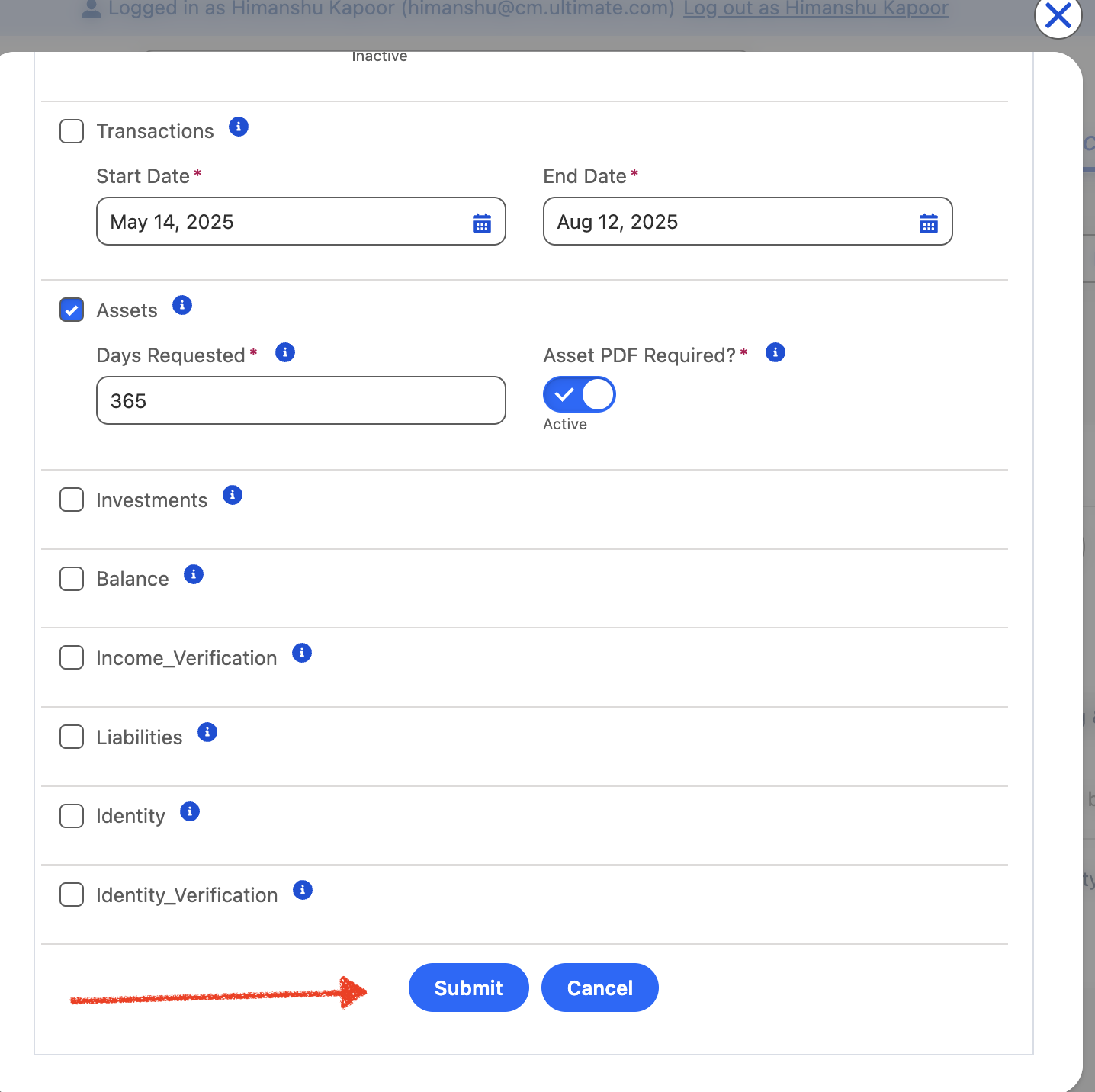
Assets data is used to determine whether a user has enough assets to qualify for a loan. Plaid's Assets product allows you to access a user's Asset Report via the PDF as well. Asset Reports are created on a per-user basis and include a snapshot of information about a user's identity, transaction history, account balances, and more.
-
For a fuller view of a borrower's financial situation, Assets can be used with Bank Income, which provides user-permissioned income streams derived from deposit activity.
If you need exact copies of a user's statements, see Statements.
5.3.4 Balance
-
Balance is Plaid's product for receiving real-time balance information. This data is commonly used to tell if an account has sufficient funds before using it as a funding source for a payment transaction, helping you to avoid ACH returns. Balance is available for use exclusively in combination with other Plaid products, such as Auth for money movement or account funding use cases or Transactions for personal finance use cases.
5.3.5 Identity
-
Plaid's Identity product helps you verify users' identities by accessing information on file with their financial institution. Using Identity, you can access a user's phone number, email address, mailing address, and name. This can be used to fight fraud by verifying that the linked financial institution account is owned by the same user who created an account with you.
5.3.6 Liabilities
-
Plaid's Liabilities product allows you to access information about a user's debts. A common application is personal financial management tools to help customers manage or refinance debt. Liabilities is supported in the US and Canada (Canada coverage is limited).
5.3.7 Investments
-
The Investments product allows you to obtain holding, security, and transactions data for investment-type accounts in financial institutions within the United States and Canada. This data can be used for personal financial management tools and wealth management analysis.
5.3.8 Statements
-
Statements (US only) allows you to retrieve an exact, bank-branded, PDF copy of an end user's bank statement, directly from their bank. The Statements product simplifies the process of collecting documents for loan verification purposes or rental application review purposes, among others.
6. Initiate the Request
Initiating the Request for running Bank Verification
Once all mandatory fields are filled, click the Submit button to initiate the verification request.
Congratulations ! You have successfully created a Bank Verification Request !!!! 🎉
7. Authentication from Customer
-
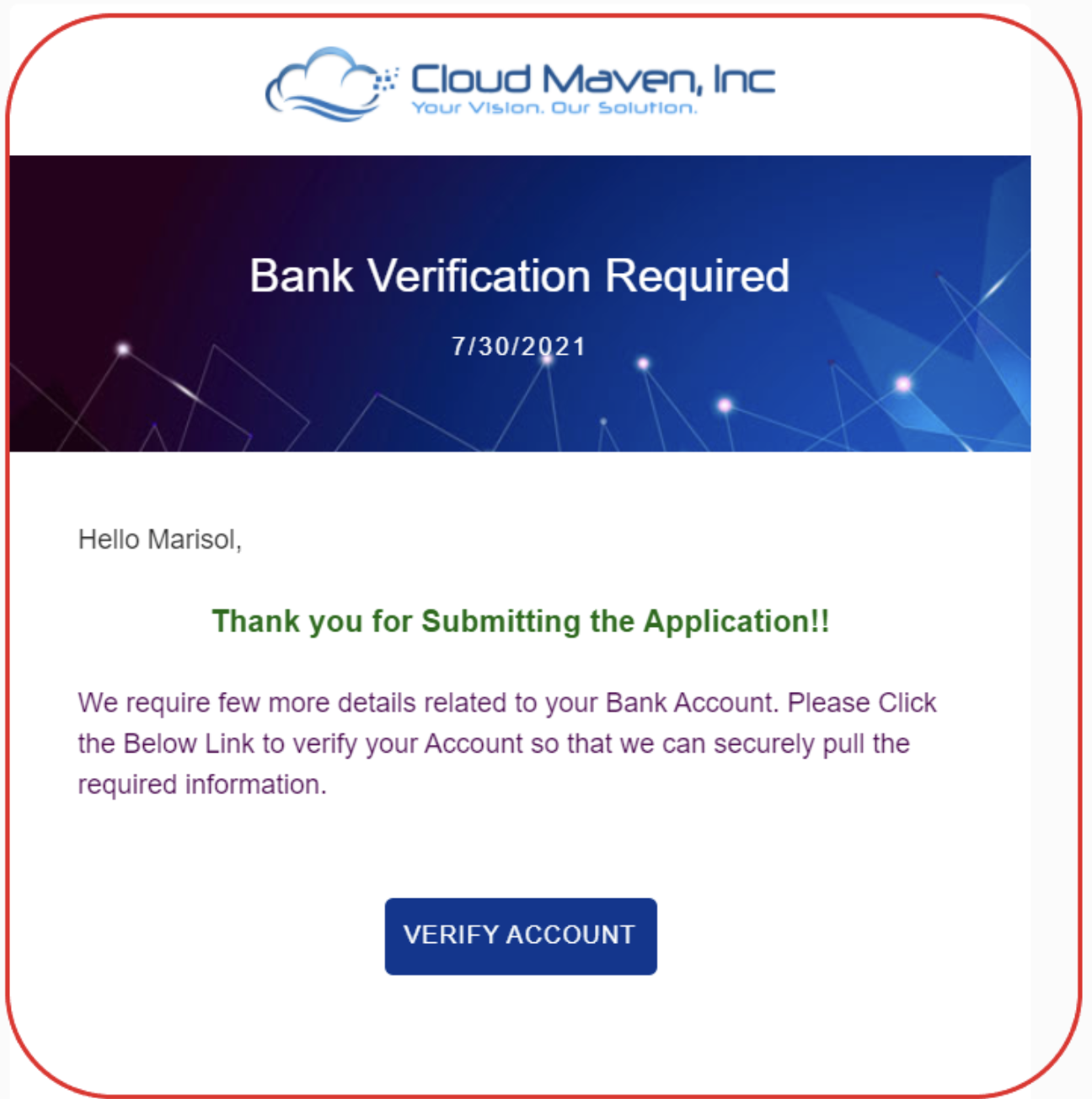
The customer will receive an email, which can be white-labeled and is managed within Salesforce.
-
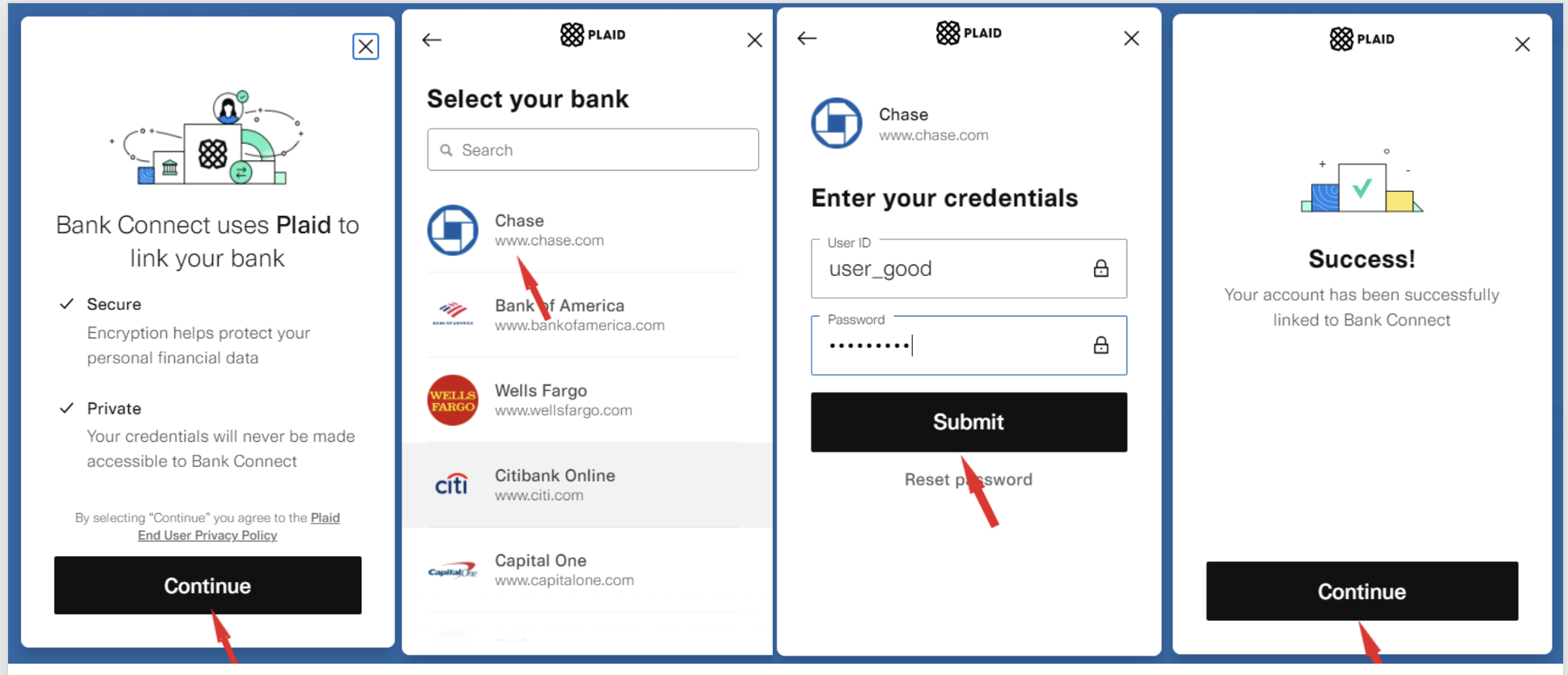
Upon clicking the Verify Account button, the Plaid toolkit will be launched. The customer will then:
-
Select their financial institution.
-
Enter their online banking credentials.
-
Provide consent to retrieve data from their bank.
-
-
For institutions that support OAuth, the toolkit will automatically redirect the customer to the bank’s website to complete the authentication process.
-
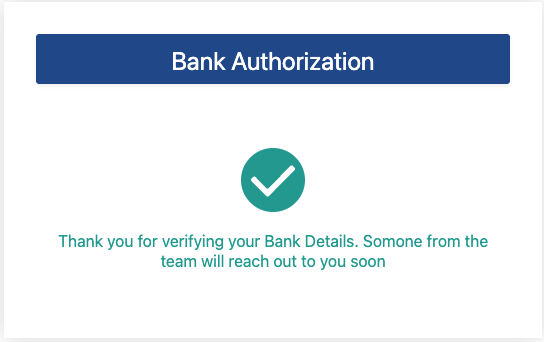
User will see an acknowledgement Message which is configurable.
8. Review Results
➡ Please refer to the detailed guide here:
How to View Verification Results | View Bank Verification Results