
Overview
This guide walks you through the required post-installation steps to set up the Adverse Monitor Search functionality for a specific Monitor List object in your Salesforce org.
Configure Default Date Settings for Pre-Populated Search Range
The component can auto-populate Search Start Date and Search End Date based on a configurable date range. This is managed via Custom Metadata.
Steps to Configure Default Date Logic:
Step 1: In Setup, go to Custom Metadata Types → Clear Common Setting.
Step 2: Find the entry labeled DefaultMonitorResultDateRange.
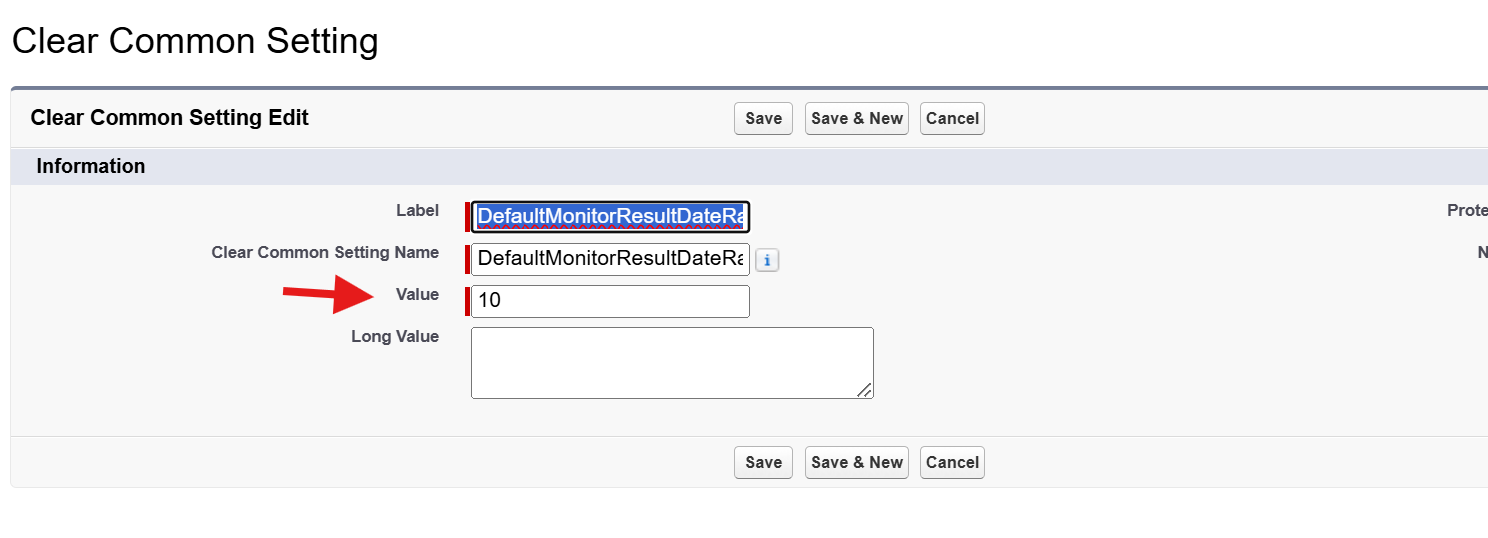
Step 3: In the Value field, enter an integer (e.g., 30). This number defines the number of days before today that the Search Start Date should default to.End Date = TodayStart Date = Today – N days (where N is the value entered)
Example: If the Value = 30, then: End Date = June 4, 2025Start Date = May 5, 2025
Schedule Batch for Adverse Monitor List
Steps to Schedule Batch from Apex Scheduler
Step 1: Navigate to Scheduled Jobs and click on Scheduled Apex.
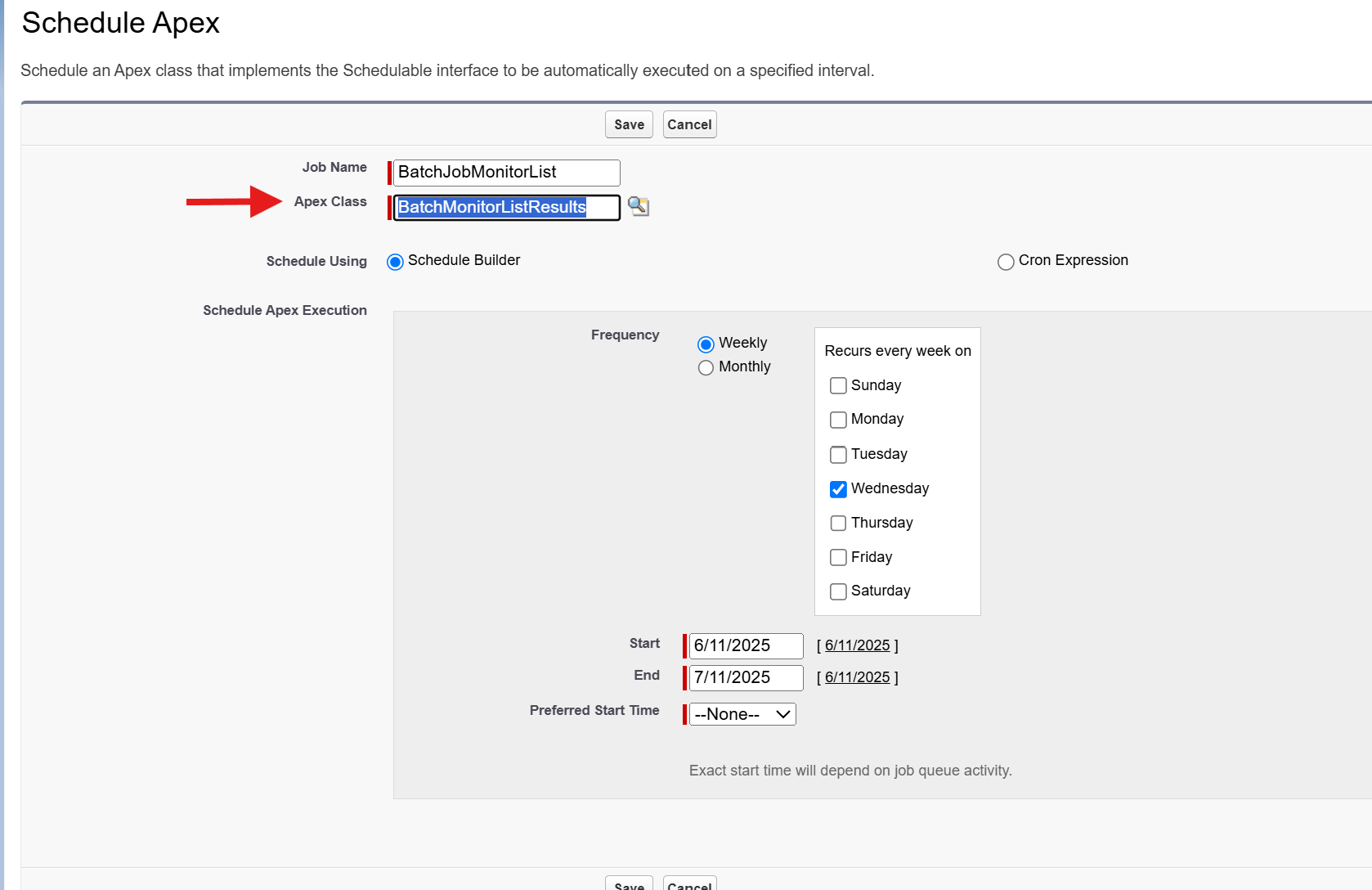
Step 2: Enter the required details, such as the Job Name, and select BatchMonitorListResult as the Apex class to schedule.
Step 3: Configure the frequency, start date, and end date, then click Save to schedule the job.
Configure Custom Settings: Thomson Reuters API (Internal Use Only)
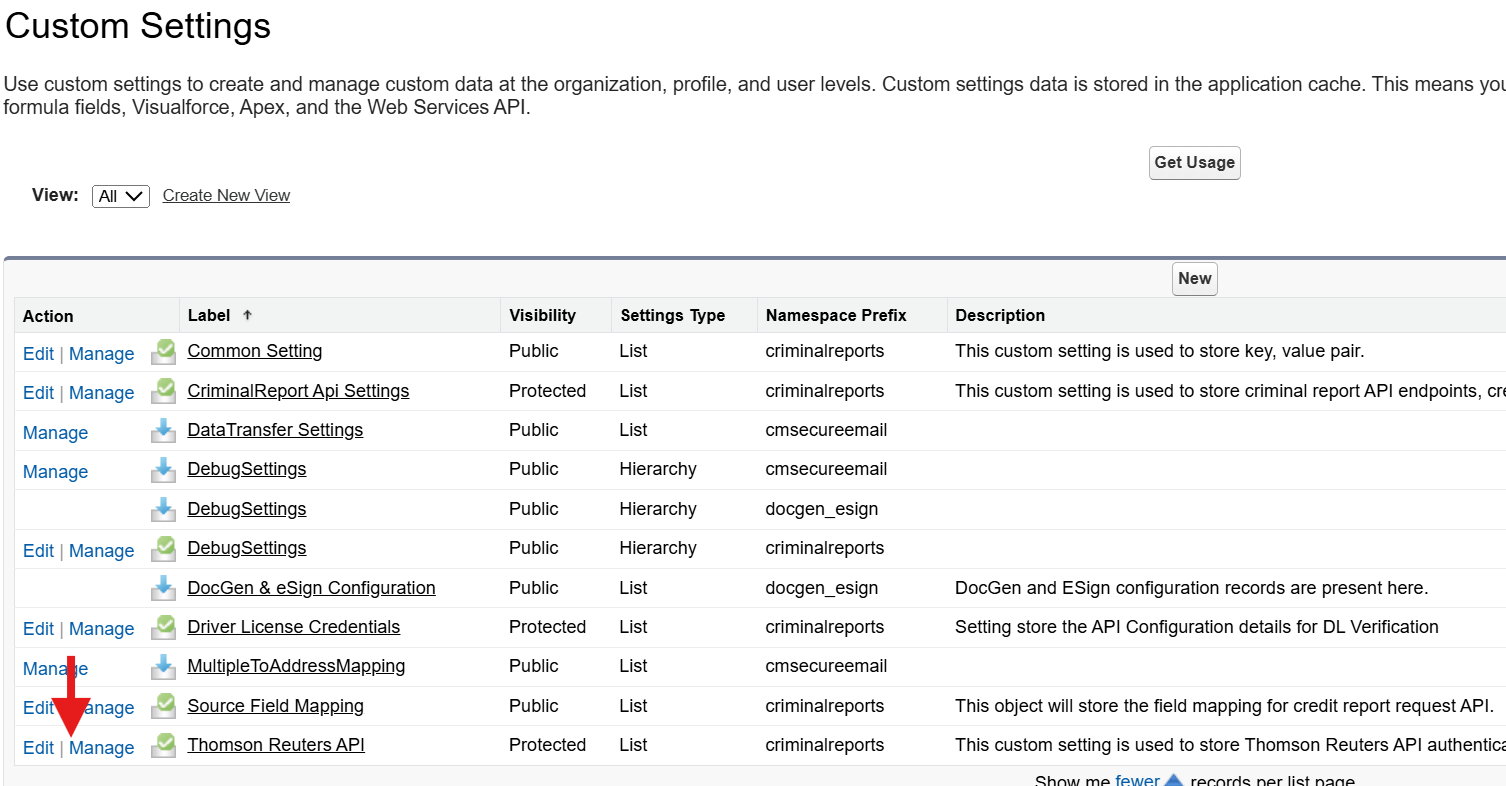
Go to Setup > Quick Find > Custom Settings
Click Manage next to Thomson Reuters API
Click New and fill in the fields
|
Field |
Value |
|---|---|
|
Base URL |
|
|
Adverse Media Search Endpoint for id |
|
|
Adverse Media Search Result |
|
|
Adverse Media Monitor Endpoint for id |
|
|
Adverse Media Monitor Endpoint |
|
|
Certificate Name |
|
Save the record after completing all fields.
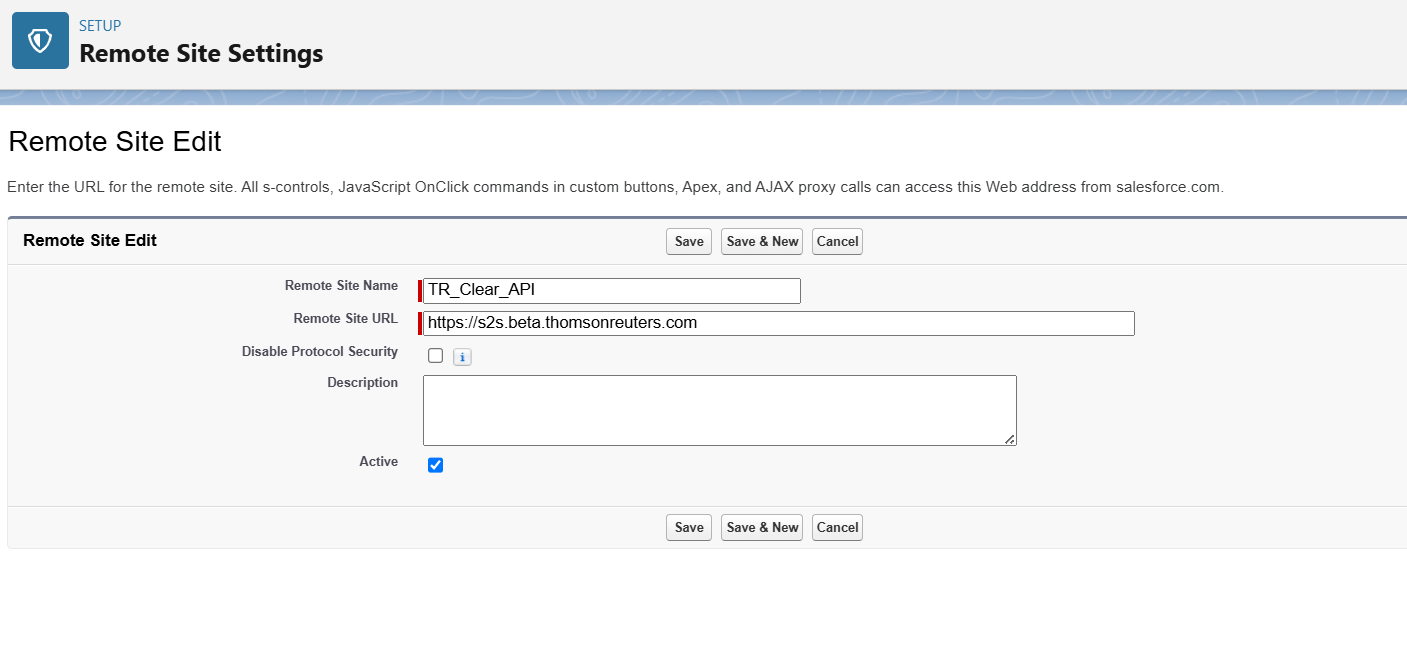
Create Remote Site Setting (If Not Present)
-
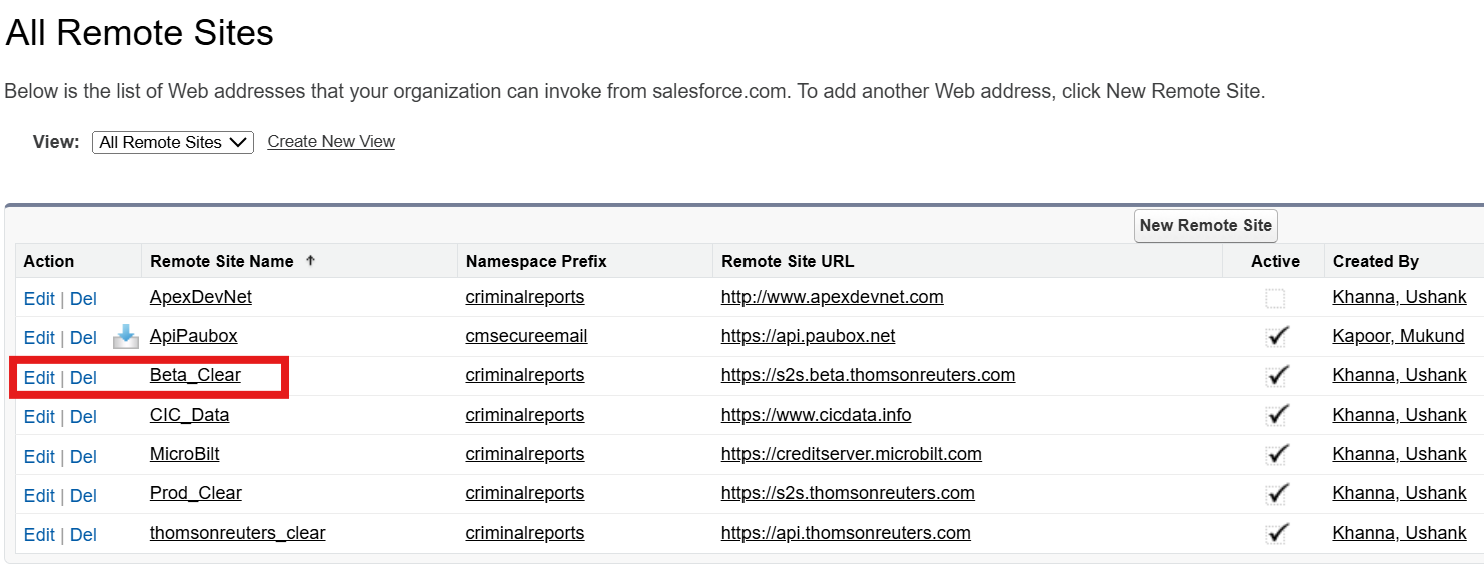
Go to Setup > Quick Find > Remote Site Settings
-
If not already present, click New Remote Site
-
Name:
TR_Clear_API -
URL:
https://s2s.beta.thomsonreuters.com-
Active: ✅
-
-
-
Save the setting.
Credentials Setup
To set up the credentials, you will first need to obtain the certificate from the provider. Once you have the certificate, follow the steps below to upload it to your Salesforce org.
https://cloudmaven.atlassian.net/wiki/external/ZjgzNWJhNWZhOGVhNDEwNTg3MWE2ZTNkODU3YjE2YmU
Once the above steps are completed, users will be able to perform Adverse Monitor Searches from Monitor List records with accurate pre-filled dates.Let me know if you'd like this in a downloadable format or accompanied by visuals/icons!