
Overview
This guide outlines the steps to configure custom buttons— ‘Add Monitor List Members’ and ‘Add to Monitoring List’—on any standard or custom Salesforce object. These buttons enable users to quickly associate records with an Adverse Monitor List, streamlining the process of subject onboarding for Thomson Reuters Adverse Media Monitoring.
Create ‘Add Monitor List Members’ Button on any Custom or Standard Object
1. Create ‘Add Monitor List Members’ Button
-
Go to Setup → Object Manager → Contact (or Custom or Standard Object).
-
Navigate to Buttons, Links, and Actions.
-
Click New Button or Link.
-
Fill in the details:
|
Field |
Value |
|---|---|
|
Label |
Add Monitor List Members |
|
Detail Type |
List Button |
|
Content Source |
Visualforce Page |
|
Content |
|
-
Click Save.
2. Add Button to List View Buttons Layout
-
Go to List View Buttons Layout under the same object.
-
Locate List View and click Edit.

-
In the Custom Buttons section:
-
Select Add Monitor List Members from Available Buttons
-
Click Add → to move it to Selected Buttons
-
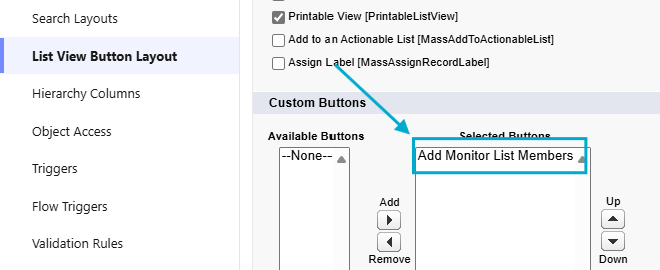
-
Click Save.
Create ‘Add to Monitoring List’ Button on any Custom or Standard Object
1. Create ‘Add to Monitoring List’ Button
-
Go to Setup → Object Manager → Contact (or Custom or Standard Object).
-
Navigate to Buttons, Links, and Actions.
-
Click New Action.
-
Fill in the action details:
|
Field |
Value |
|---|---|
|
Action Type |
Lightning Web Component |
|
Lightning Web Component |
|
|
Label |
Add to Monitoring List |
-
Click Save.
2. Add Button to Page Layout
-
Go to Page Layouts under the same object.
-
Select the active layout.
-
Drag the Add to Monitoring List button into the Salesforce Mobile and Lightning Experience Actions section.
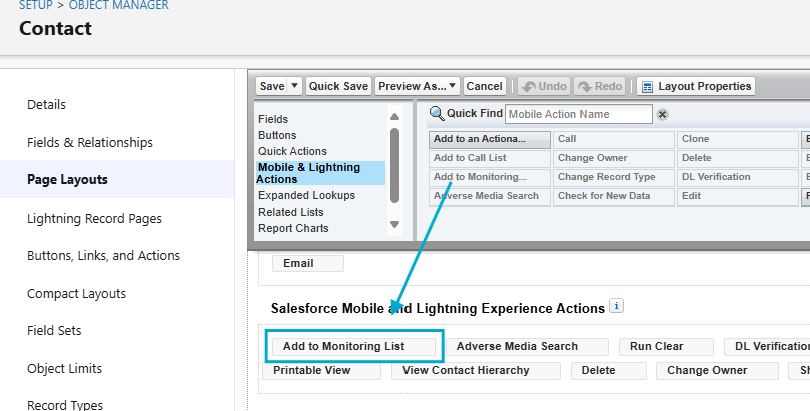
-
Save the layout.