
Overview
This guide explains how to view, download, and manage the Document Signing Certificate in DocGen & eSign. The certificate is available after the document workflow has been successfully completed and provides a detailed audit trail of the document signing lifecycle, including the signing activity performed by each signer.
When Is the Signing Certificate Available?
The Signing Certificate is available only after the Document Workflow Status becomes Workflow Completed.
The certificate is generated once all required signers have successfully completed their signing actions.
Note: The certificate is not available while the document is still Awaiting Signature, or if the workflow has Expired, Failed, been Declined, or Voided.
View the Signing Certificate
To view the certificate:
-
Open the relevant Document Workflow record in Salesforce.
-
Ensure that the workflow status is Workflow Completed.
-
Click View Certificate.
-
The Signing Certificate will open and display the complete audit trail of the document.
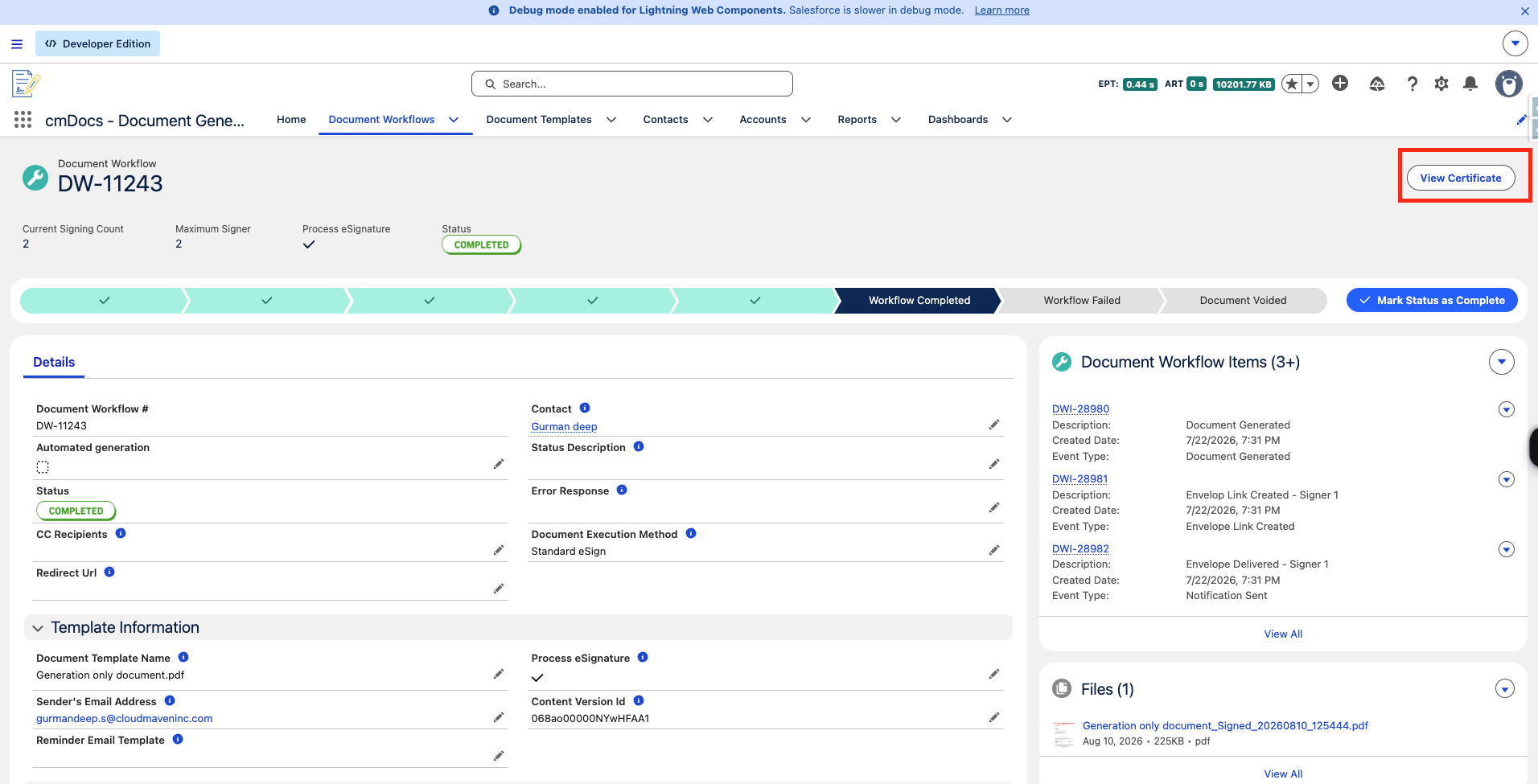
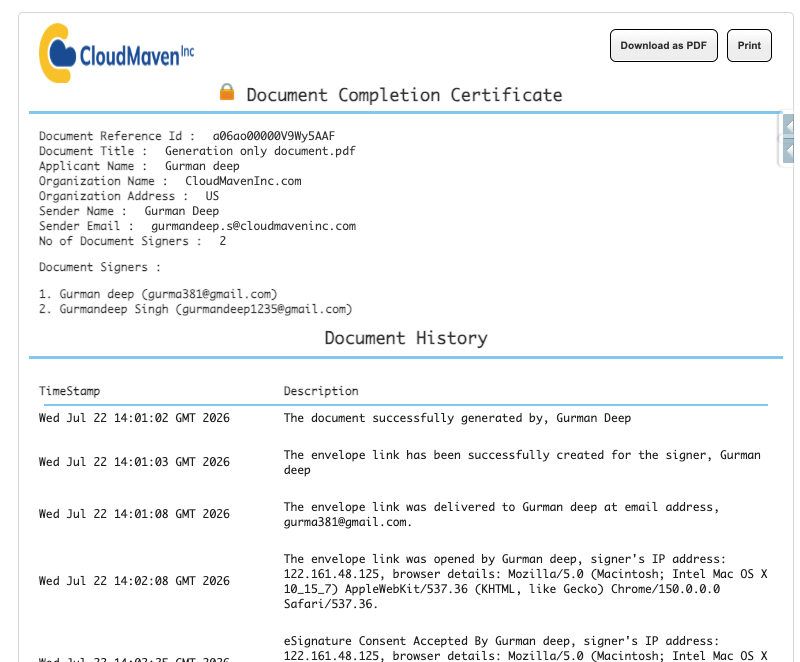
The certificate provides a detailed history of the document lifecycle, allowing users to review how the document progressed through the signing process.
The Certificate Includes
The certificate provides information such as:
-
Document and workflow details
-
Signer information
-
Signing sequence
-
Signing dates and times
-
Signing activity and events
-
Document workflow history
-
Other audit information associated with the signing process
This provides a complete record of the document's signing lifecycle and helps verify that the required signing actions were completed.
Download the Signing Certificate as a PDF
The certificate can be downloaded as a PDF for record-keeping or further review.
-
Open the Document Workflow record.
-
Click View Certificate.
-
Select Download as PDF.
-
The certificate PDF will be generated and stored under the Files section of the Document Workflow record.
The downloaded certificate can then be accessed from the Document Workflow's related Files.
Automatically Download the Signing Certificate
DocGen & eSign also provides an option to automatically generate and store the Signing Certificate after all required signers have completed the document.
To enable this functionality:
-
Go to Setup in Salesforce.
-
Navigate to Custom Settings.
-
Open DocGen & eSign Configuration.
-
Click Manage.
-
Create or update the following setting:
Name:
Enable_Certificate_Download_AutomationValue:
true -
Save the configuration.
Once enabled, the system will automatically generate and download the Signing Certificate when all required signers have completed the document.
The certificate will be automatically attached to:
-
The Document Workflow record
-
The Parent/Source Record associated with the document workflow
This eliminates the need for users to manually download the certificate after every completed signing workflow.