
1. Overview
Payment Guru allows you to securely store payment methods and reuse them to process future payments without asking the customer to re-enter details. This is ideal for repeat billing scenarios like subscription payments, invoices, or installment collection.
2. Log In to Salesforce
➡ Access your Salesforce org with the appropriate credentials.
3. Navigate to the Source Record
Open existing record or create a new one
-
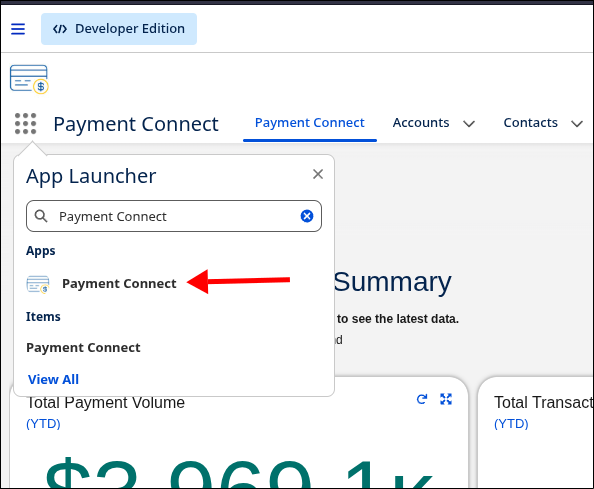
Go to the Payment Connect App
-
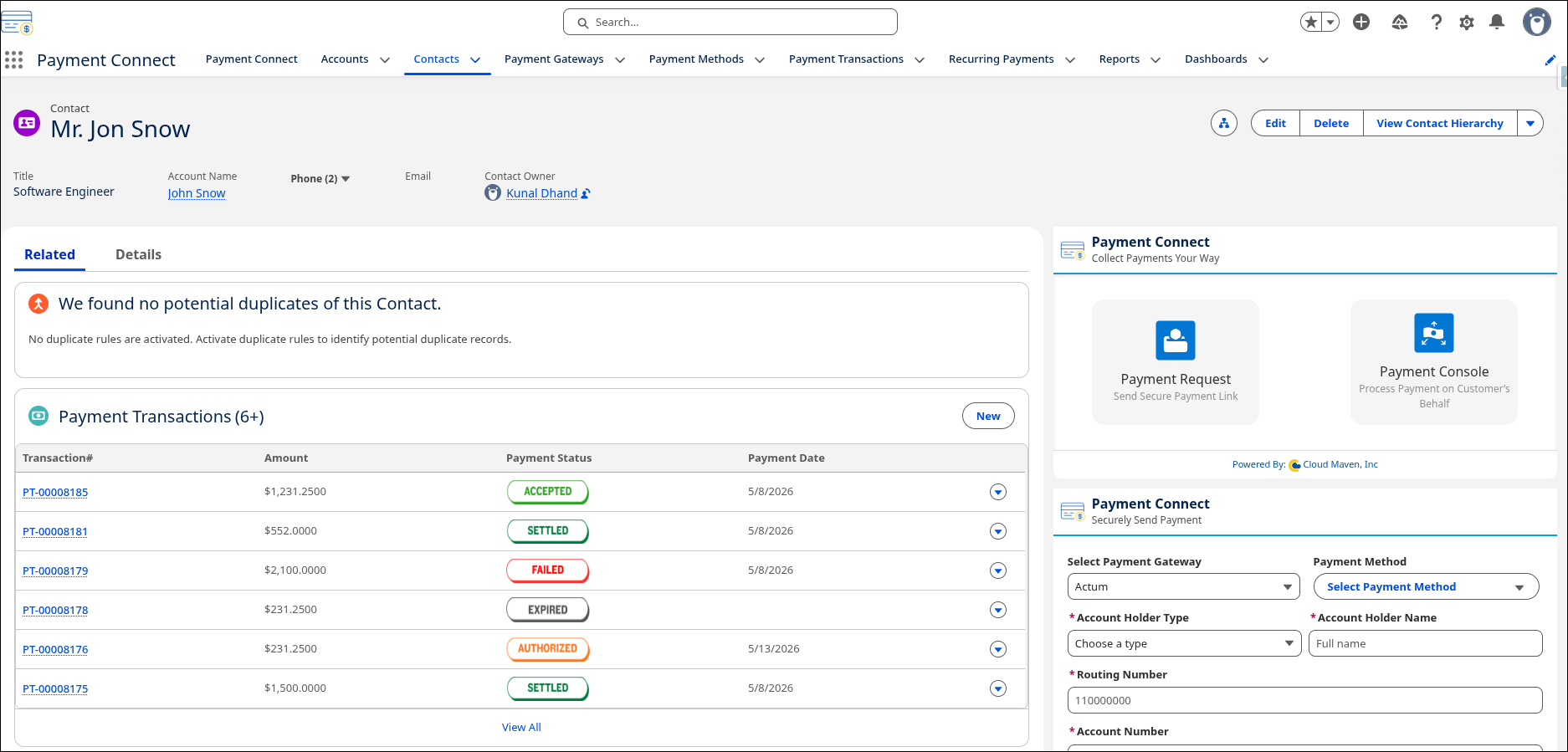
Search for the Record from where you want to initiate the Search.
4. Steps to Use Saved Payment Method
-
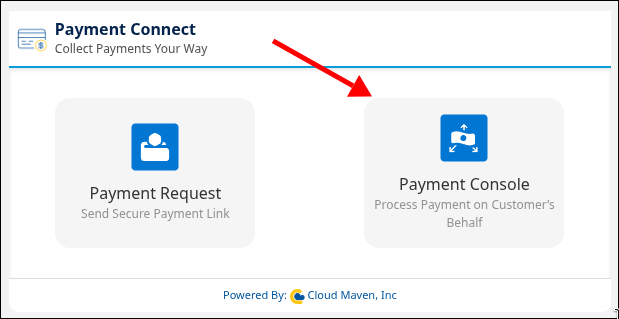
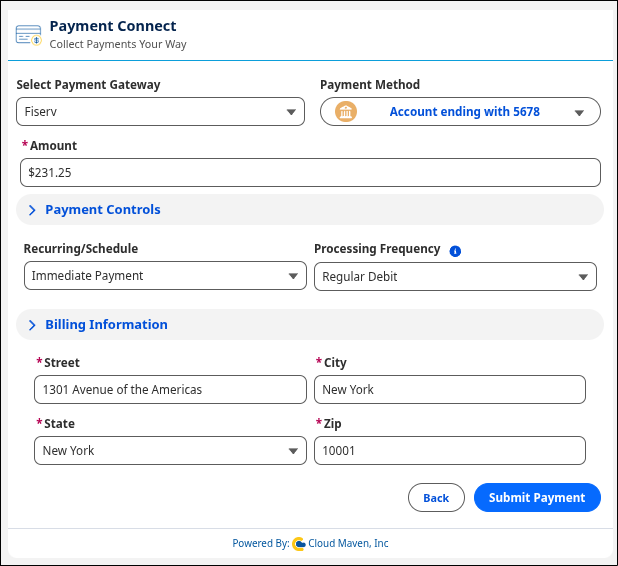
Navigate to the Payment Console screen.
-
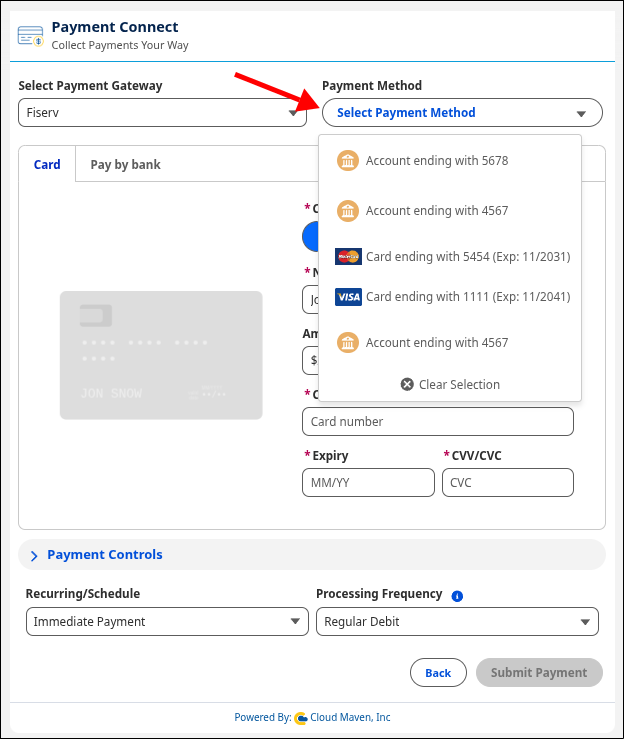
Select the Payment Gateway from the dropdown. The gateway marked as default is auto-selected.
-
Choose Saved Payment Method from the list (retrieved based on record association and gateway).
-
Enter the Amount to be charged.
-
Enter Billing Address if enabled by the gateway.
-
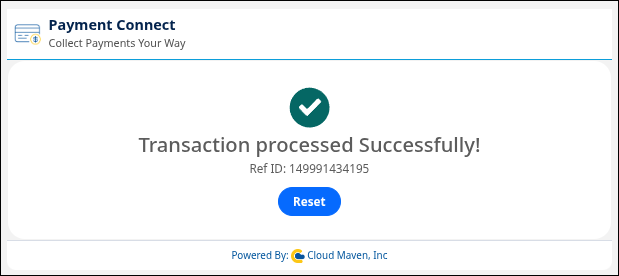
Click Submit Payment.
5. What Happens in Salesforce
When a payment is submitted using a saved method, the following processes and records are created automatically:
5.1 Payment Transaction Record Created
A new Payment Transaction record is generated with:
-
Linked Payment Method ID
-
Associated Parent Record
-
Captured Amount
-
Payment Date
-
Status (e.g., Accepted/Captured)
-
Gateway Reference ID
As we used an existing payment method so no new record for payment method is created.