
1. Overview
The Payment Request workflow allows users to generate a payment link that is sent to the customer via email. The customer can open the link, enter their payment details, and complete the payment.
2. Log In to Salesforce
➡ Access your Salesforce org with the appropriate credentials.
3. Navigate to the Source Record
Open existing record or create a new one
-
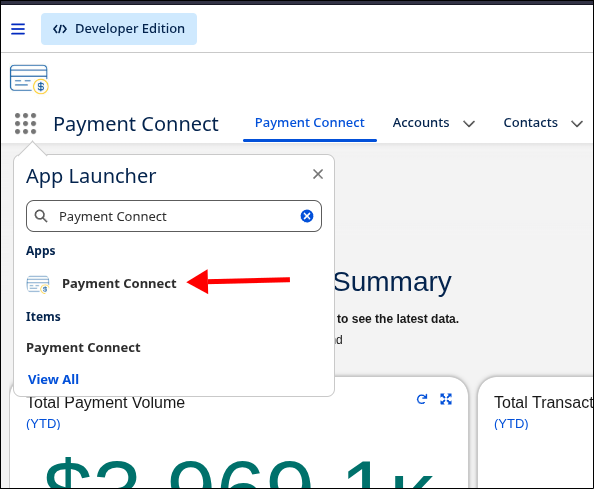
Go to the Payment Connect App
-
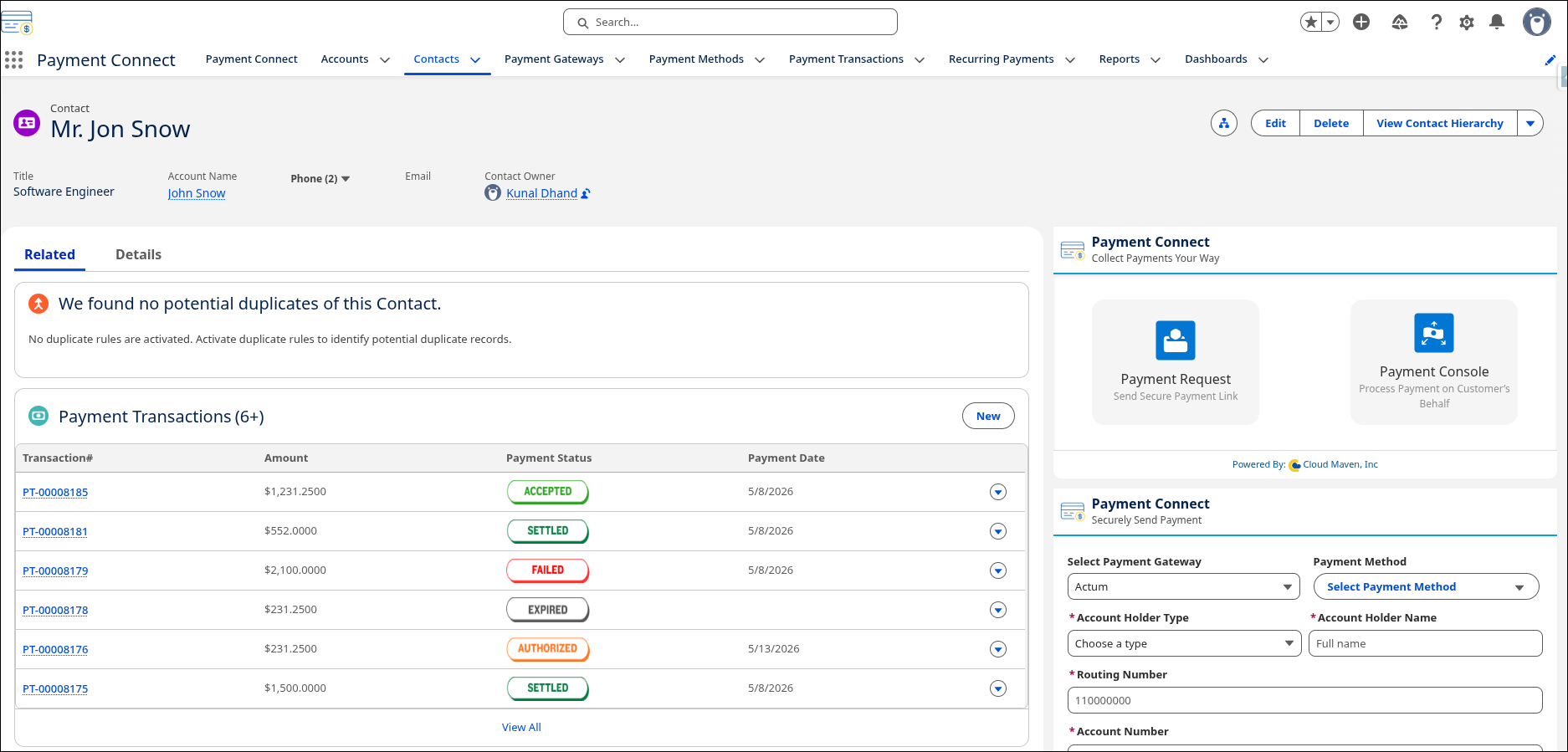
Search for the Record from where you want to initiate the Search.
4. How to Send Payment Links
-
Navigate to the Payment Connect application.
-
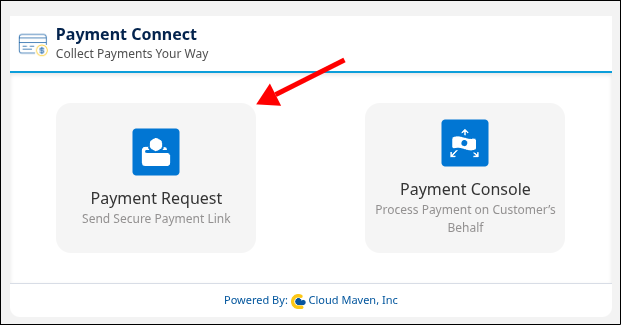
Select Payment Request from the home screen.
-
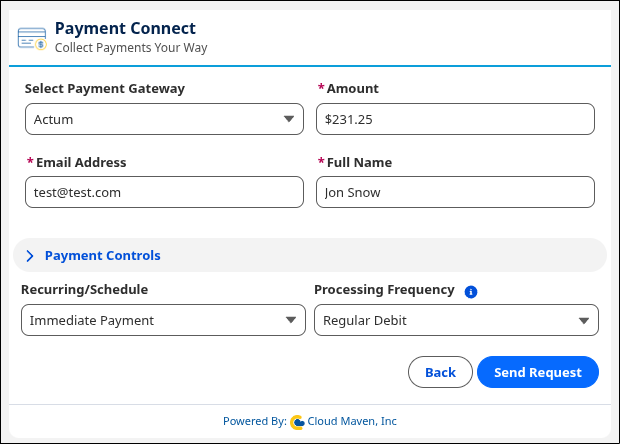
Choose the payment gateway from the dropdown. The gateway marked as default is auto-selected.
-
Enter the customer's email address. The email is auto-populated from the parent record based on the mapping configuration .
-
Enter the Name of the customer to whom you want to send the payment request.
-
Specify the payment amount.
-
Click Send Request to generate and send the payment link.
5. What Happens Inside Salesforce
When a payment request is sent:
-
A new Payment Transaction record is created in Salesforce.
-
The Amount and email entered is stored on this record.
-
The Payment Status is initially set to
Open. -
The Payment Request Link is stored on the transaction record and is included in the email sent to the customer.
-
The Link Expiry Date is also set on the Payment Transaction based on the duration configured in Custom Metadata.
6. Customer Experience
-
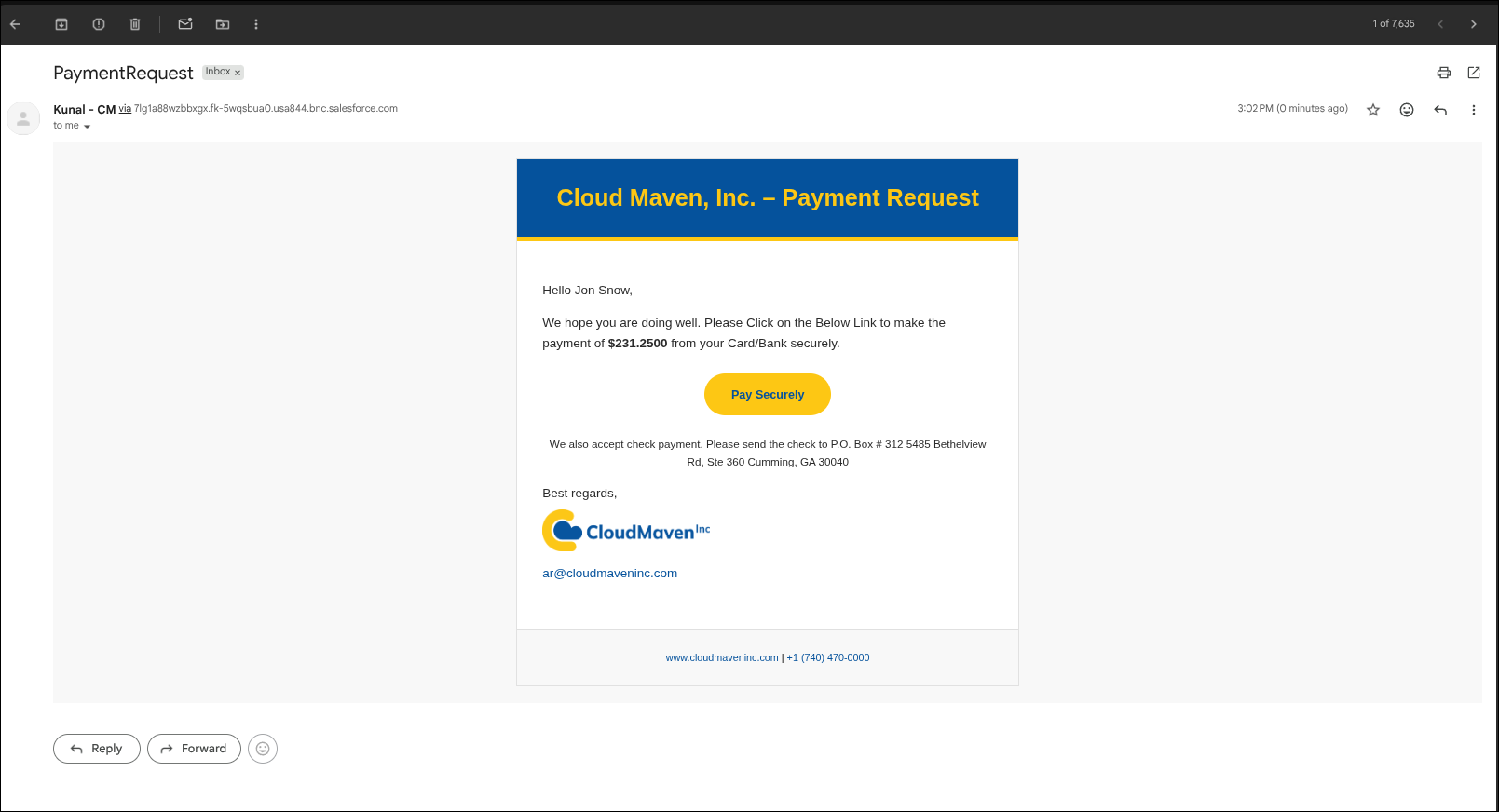
The customer receives an email with a Pay button.
-
Clicking the Pay button redirects the customer to the payment page.
-
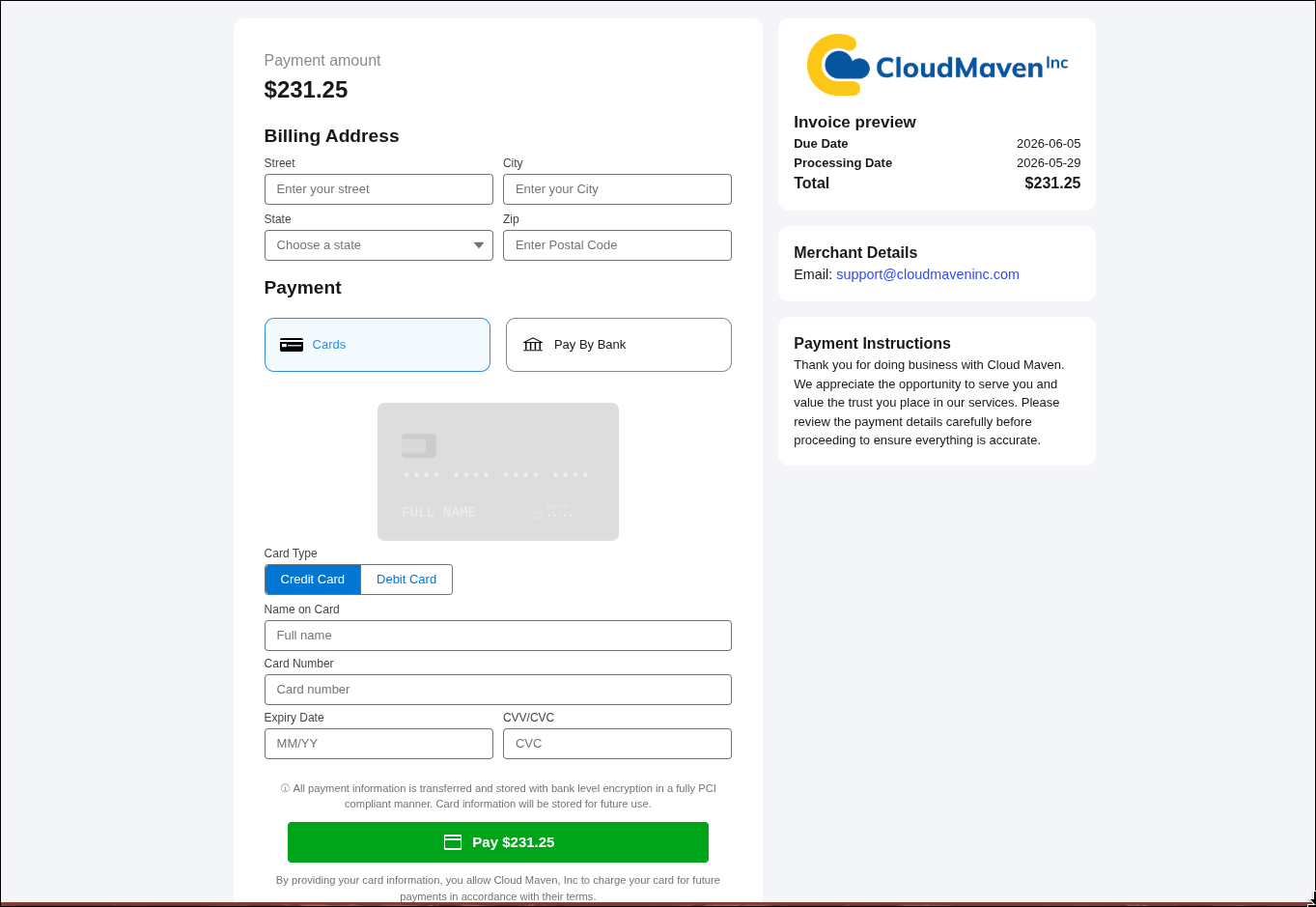
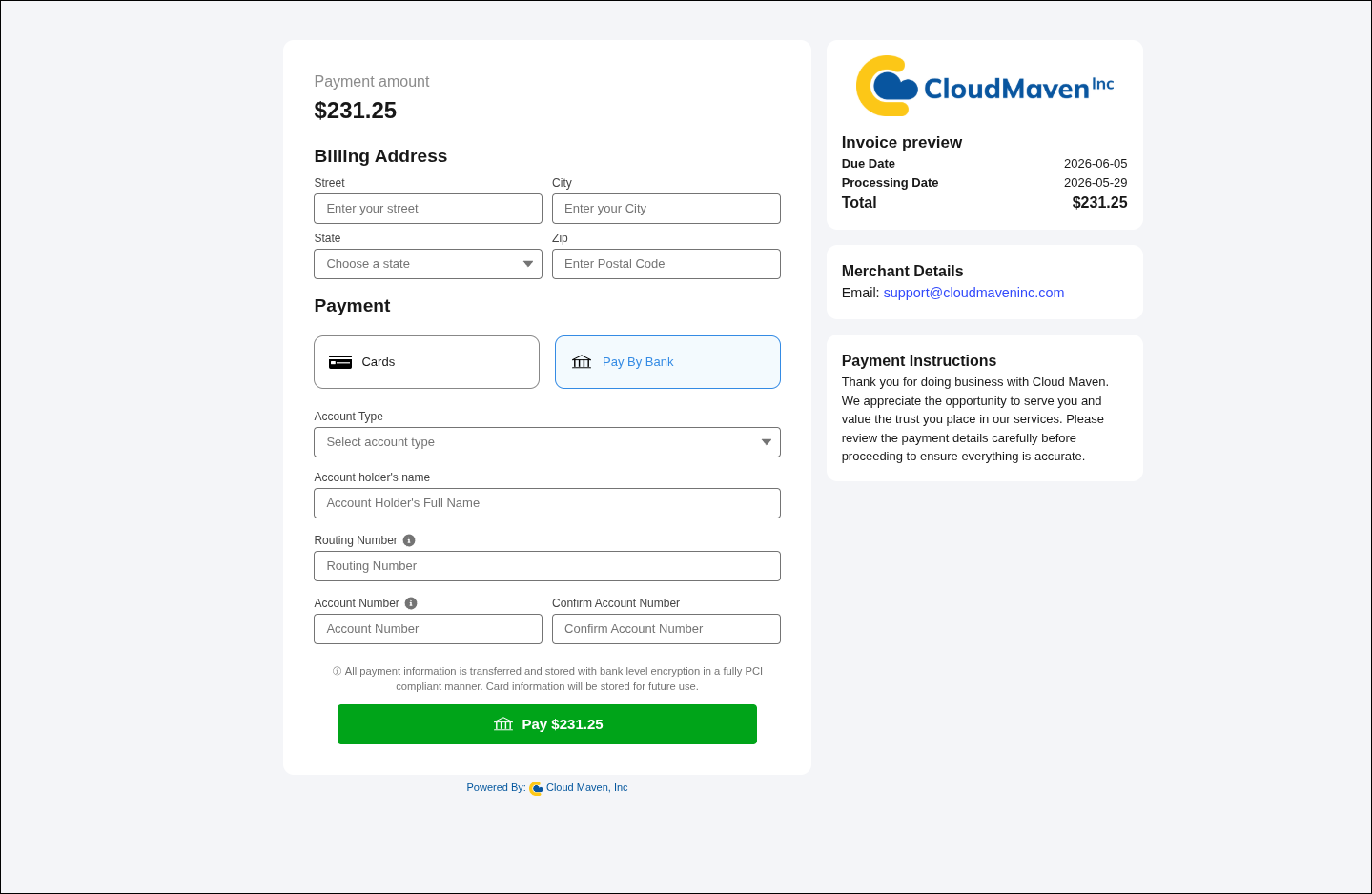
The customer can choose between:
-
Card Payment
-
Pay by Bank (ACH)
-
|
|
|---|
The billing address is optional and can be hidden based on the payment gateway configuration.
-
The payment is processed securely.
-
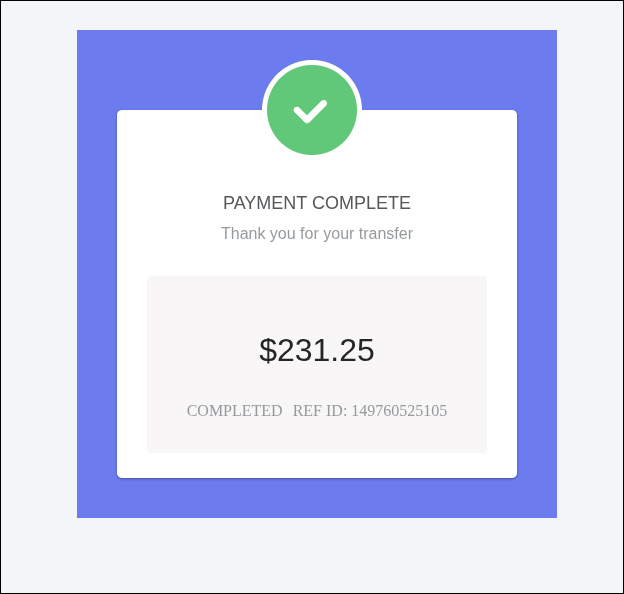
After the successful payment, a Payment Complete card is shown with the reference ID
-
A confirmation email is also send to that customer on the same email address with the payment details like amount, date, reference id.
7. Records after completing the payment in salesforce
7.1 After the customer completes the payment:
-
If the payment is successful:
-
The Payment Status on the Payment Transaction record is updated to
Accepted/Captured.
-
-
If the payment fails or an error occurs:
-
The Payment Status is set to
Failed. -
The failure reason is recorded in the Gateway Error Message field of the transaction record.
-
7.2 Payment Method Record Handling:
-
If new payment details were entered during payment (and do not match any existing records for that gateway and parent record):
-
A new Payment Method record is created and linked by double encrypting the payment details.
-
-
If the payment details match an existing payment method:
-
The existing Payment Method record is updated accordingly.
-