
1. Overview
Payment Connect enables you to schedule automatic recurring payments using securely stored payment methods. Once configured, the system automatically generates and captures payments based on the defined frequency—eliminating the need for manual intervention.
Recurring payments can be initiated from the Payment Console or set up programmatically via Apex automation.
2. Log In to Salesforce
➡ Access your Salesforce org with the appropriate credentials.
3. Navigate to the Source Record
Open existing record or create a new one
-
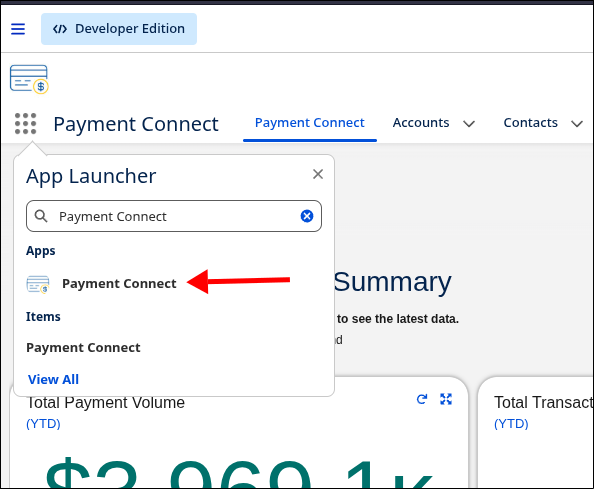
Go to the Payment Connect App
-
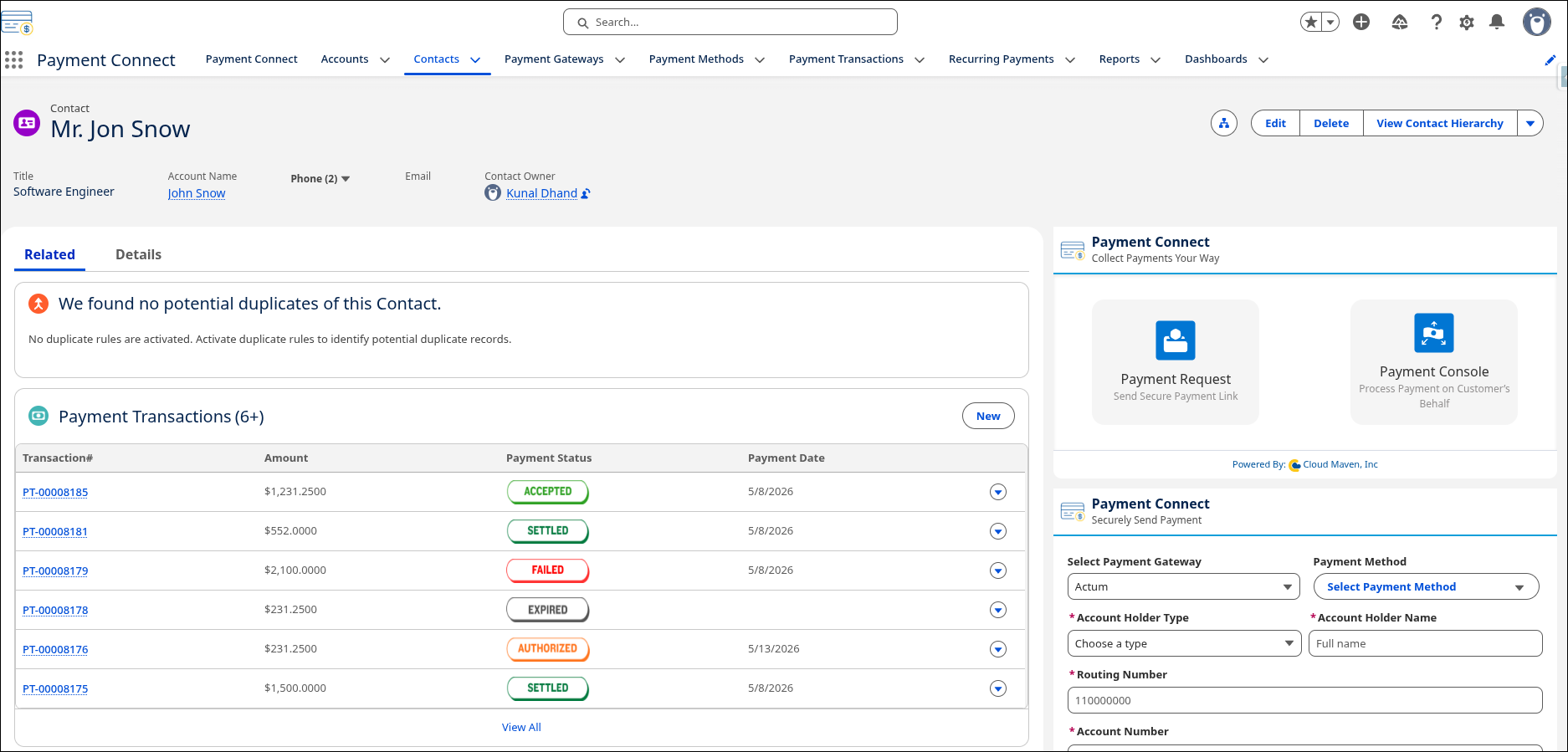
Search for the Record from where you want to initiate the Search.
4. Steps to Set Up a Recurring Payment
-
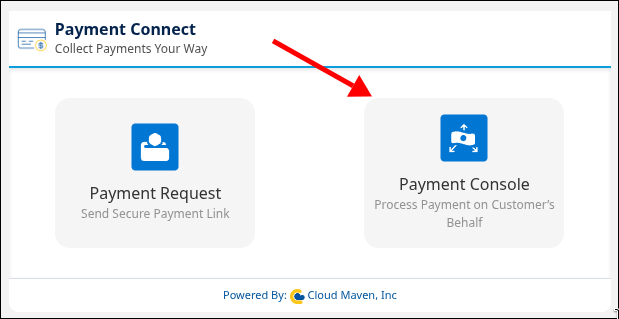
Navigate to the Payment Console screen.
-
Select the Payment Gateway from the dropdown. The gateway marked as default is auto-selected.
-
Fill all the payment details or select any payment method from the drop down.
-
Enter the amount.
-
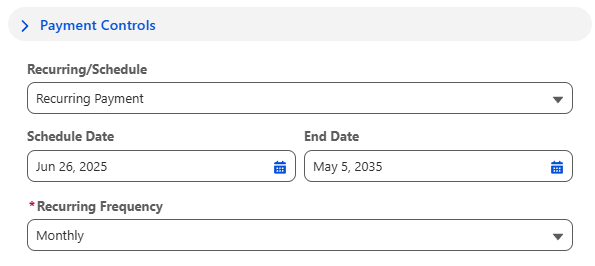
In the Payment Controls section, Select the Recurring payment from the drop down.
-
Set the start date from which the payment will start capturing.
-
Set the end date which will be used to stop the recurring payments.
-
Select the frequency (after how many times the payment should be capture, like -: Weekly, Monthly etc).
-
Enter Billing Address if enabled by the gateway.
-
Click Submit Payment.
5. What Happens in Salesforce
5.1 Payment Method Record Created
-
A secure Payment Method record is created (if new).
-
Credentials are double-encrypted.
5.2 Recurring Payment Record Created
A Recurring Payment record is created with:
-
Start Date and End Date
-
Frequency (Weekly, Monthly, etc.)
-
Amount
-
Associated Payment Method
-
Status = Active (after passing the end date it will be deactivated)
-
Due Amount (previous payment due)
5.3 Payment Transaction Record Created
If the start date is same as today then we will capture a payment and a Payment Transaction record is created with:
-
Linked with Payment Method ID.
-
Associated with Recurring payment.
-
Amount which will be captured.
-
Payment Status will be Accepted/Capture.
-
Payment Gateway ID will be linked
5.4 Batch to Capture Recurring Payments
-
A scheduled batch job named
BatchRecurringPaymentProcess:-
Periodically scans active recurring payment records.
-
On each recurrence, it:
-
Creates a new Payment Transaction record.
-
Automatically calls the Capture API using the stored credentials.
-
Updates the Payment Status accordingly.
-
Adjust the Next Schedule date based on the Frequency and Status on the Recurring Payment Record
-
-
6. Retry Failed Payment
If a recurring payment transaction fails, Payment Connect determines how to handle the failed transaction based on the configuration defined in the Custom Metadata Type Payment Connect Common Settings and its metadata record RetryFailedTransactionsDaily.
-
When
RetryFailedTransactionsDailyis set to True –
The system automatically retries all previously failed recurring payment transactions daily through a scheduled batch process. -
When
RetryFailedTransactionsDailyis set to False –
The system defers retrying failed transactions until the next scheduled payment date. On that date, it captures both the due amount (from the failed attempt) and the regular recurring amount together.
This configuration provides flexibility in how failed recurring payments are recovered — either through daily automatic retries or combined capture in the next payment cycle.