
QuickBooks Budgets in Salesforce
The QuickBooks Connector brings your QuickBooks Online Budgets into Salesforce, so finance and operations teams can see planned amounts per account, customer, class, and department without leaving Salesforce.
Budgets are read-only in Salesforce. They are created and edited in QuickBooks Online, and the connector copies them into Salesforce — changes made to budget records in Salesforce are not sent back to QuickBooks.
Each QuickBooks Budget appears in Salesforce as:
-
A QuickBooks Budget record — the budget's name, type, period (start and end date), entry frequency, and sync status
-
A set of QuickBooks Budget Detail records — one for every budget amount, showing the amount, the period it applies to, and the account, customer, class, or department it is budgeted against
Before You Begin
-
Your QuickBooks company must be connected in the Admin Setup Console (see Admin Setup Console: A Step-by-Step Guide).
-
At least one Budget must exist in QuickBooks Online (Settings ⚙️ → Budgeting).
-
Your administrator must have given you access to the QuickBooks Budget objects.
1. Syncing Budgets from QuickBooks
1.1 Run a Full Budget Sync
-
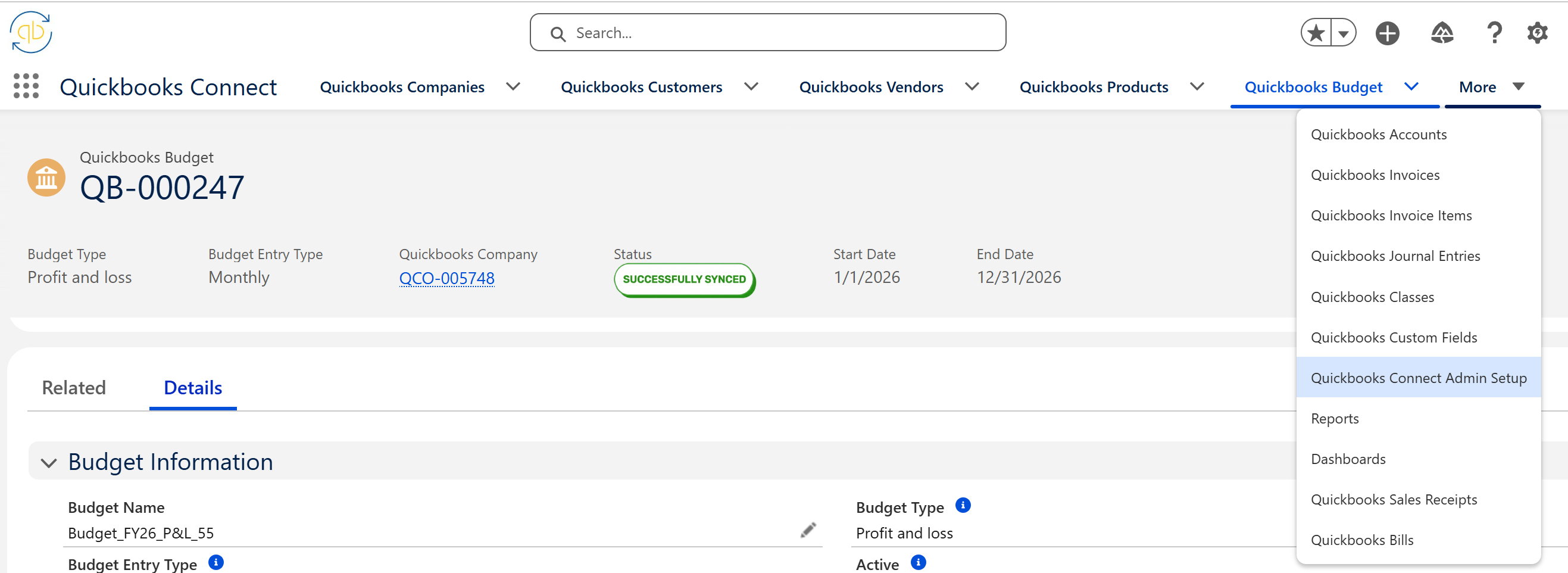
Open the QuickBooks Connect app and go to the Admin Setup Console.
-
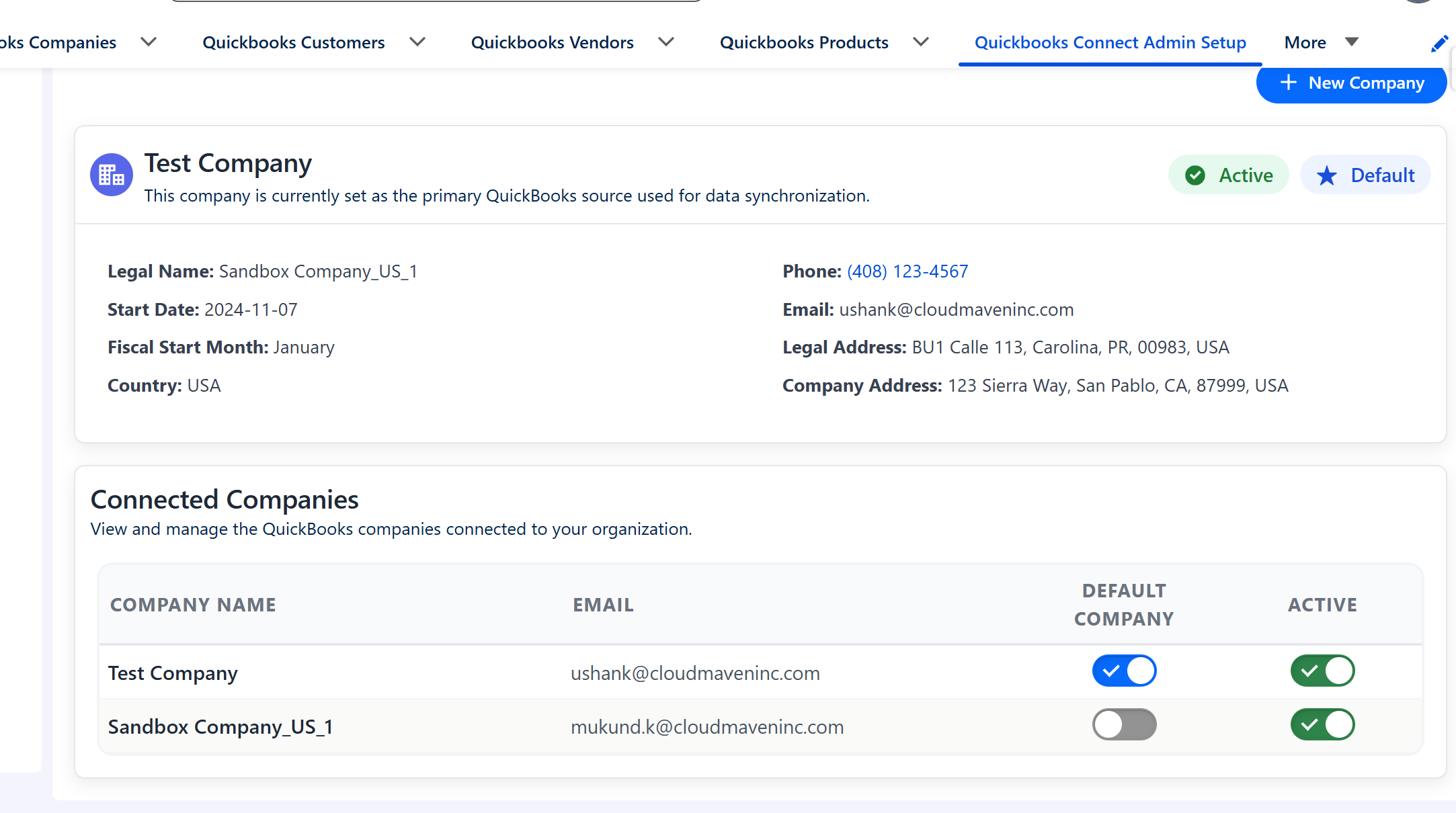
Select the company you want to sync (if more than one company is connected).
-
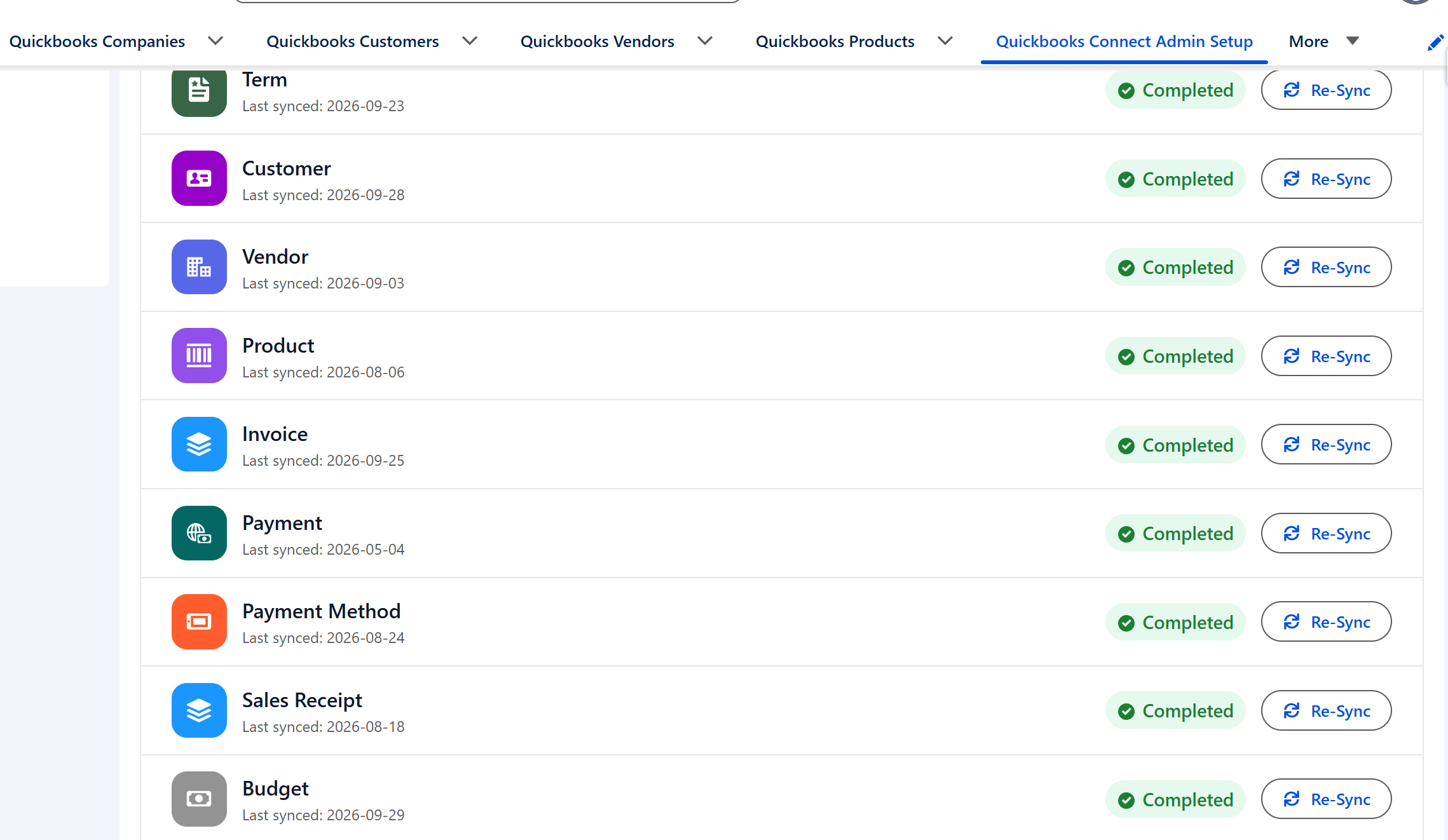
Open Sync Data from QuickBooks.
-
Click the Budget tile.
-
A message confirms that the sync has started. It may take a few minutes to complete — click Refresh to see the latest status and the last synced date on the Budget tile.
All Budgets in the selected QuickBooks company are copied into Salesforce. Running the sync again updates the existing records — it does not create duplicates.
1.2 Automatic Updates (Real-Time Sync)
If real-time sync is enabled for your company (Webhook URL and Send Webhook Updates configured in the Admin Setup Console), a Budget that is created or changed in QuickBooks Online is updated in Salesforce automatically, usually within a few minutes. No action is needed.
2. Viewing Budgets in Salesforce
-
Open the QuickBooks Budgets tab (or search for Quickbooks Budget in the App Launcher) and select the All list view.
-
Open a Budget record to see:
|
Field |
Description |
|---|---|
|
Budget Name |
Name of the budget in QuickBooks |
|
Budget Type |
Budget category — Profit and Loss |
|
Budget Entry Type |
How amounts are entered: Monthly, Quarterly, or Annually |
|
Start Date / End Date |
The period the budget covers |
|
Active |
Whether the budget is active in QuickBooks |
|
Quickbooks Company |
The QuickBooks company the budget belongs to |
|
Status |
Sync status (see Section 3) |
|
Last Sync Date |
When the budget was last updated from QuickBooks |
-
Scroll to the Quickbooks Budget Details related list to see each budgeted amount:
|
Field |
Description |
|---|---|
|
Amount |
The budgeted amount |
|
Budget Date |
The start of the period the amount applies to (for example, 2026-01-01 for January in a monthly budget) |
|
Account Ref Name |
The QuickBooks account the amount is budgeted against |
|
Customer Ref Name |
The customer, if the budget is broken down by customer |
|
Class Ref Name |
The class, if the budget is broken down by class |
|
Department Ref Name |
The department/location, if the budget is broken down by department |
💡 Tip: Budget Details can be used in Salesforce reports and dashboards — for example, to compare budgeted revenue by account or customer against actual invoice amounts.
3. Understanding Budget Sync Status
|
Status |
Meaning |
What To Do |
|---|---|---|
|
✅ Successfully Synced |
The budget and all its amounts are up to date |
Nothing |
|
❌ Failed |
The latest sync could not be completed |
Check Status Description for the reason, fix it, then run the Budget sync again |
|
❌ Salesforce Sync Failed |
An unexpected error occurred while saving the budget in Salesforce |
Check Status Description and contact your administrator or Cloud Maven support |
4. Good to Know
-
Edit budgets in QuickBooks. Changes made directly to Budget records in Salesforce are overwritten by the next sync.
-
Removed amounts stay in Salesforce. If a line (for example, an account) is removed from a budget in QuickBooks, its existing Budget Detail records remain in Salesforce. Ask your administrator to remove them if needed.
-
Multiple companies: run the Budget sync for one company at a time — wait for the first sync to finish before starting the next.
-
Large budgets with many accounts and periods may take longer to sync.
5. Frequently Asked Questions
Q: I clicked Budget but no budgets appear. Confirm that the budget exists in QuickBooks Online for the selected company, wait a few minutes, and click Refresh. If budgets still do not appear, ask your administrator to check that you have access to the QuickBooks Budget objects.
Q: A budget changed in QuickBooks but not in Salesforce. Real-time updates depend on the company's webhook configuration. Run the Budget sync from Sync Data from QuickBooks to bring in the latest changes.
Q: Can I create a budget from Salesforce? No. Budgets are created in QuickBooks Online and synced into Salesforce.
For technical details, see Technical Documentation - QuickBooks Budget Sync.
Need help? Contact support@cloudmaveninc.com