
1. Log In to Salesforce
➡ Access your Salesforce org with the appropriate credentials.
2. Navigate to the TR Adverse Monitor List Record
-
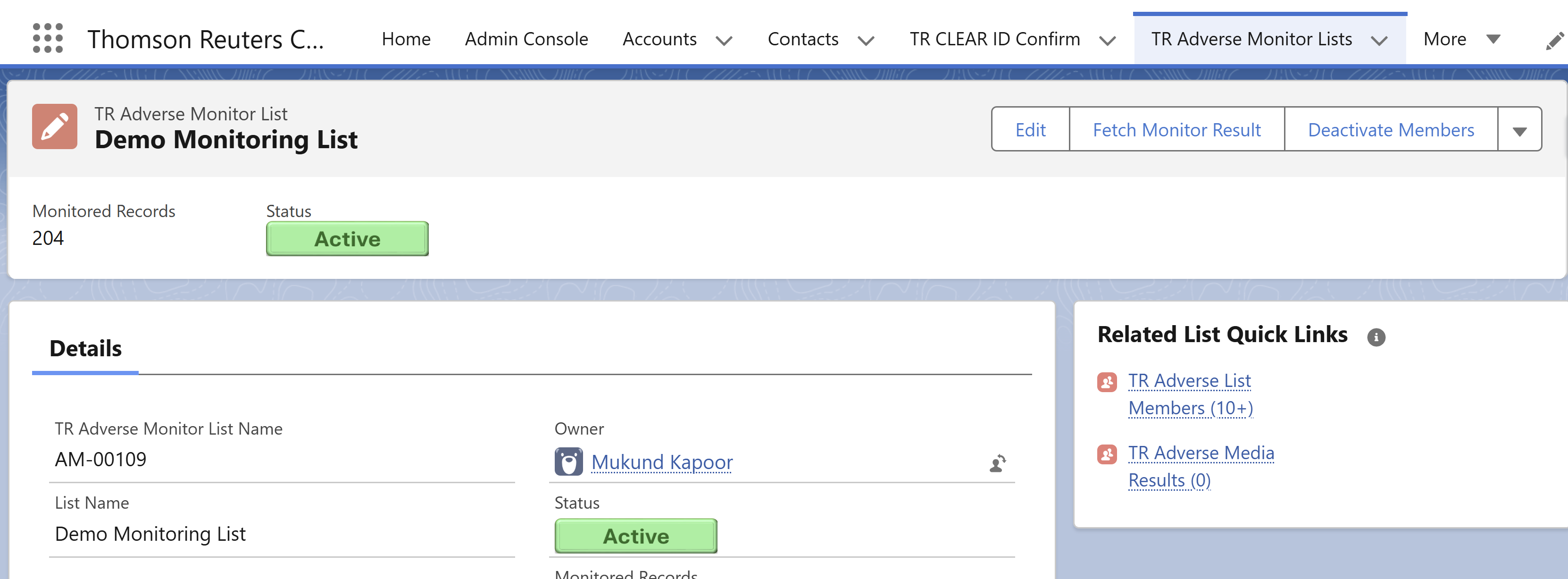
Go to the Monitor List for which you want to perform the Adverse Search and open the corresponding Monitor List record.
3. Click the "Fetch Monitor Result" Button
-
At the top right corner of the screen, you will see a button named Fetch Monitor Result. Click on this button.

5. Set the Article Search Date Range
-
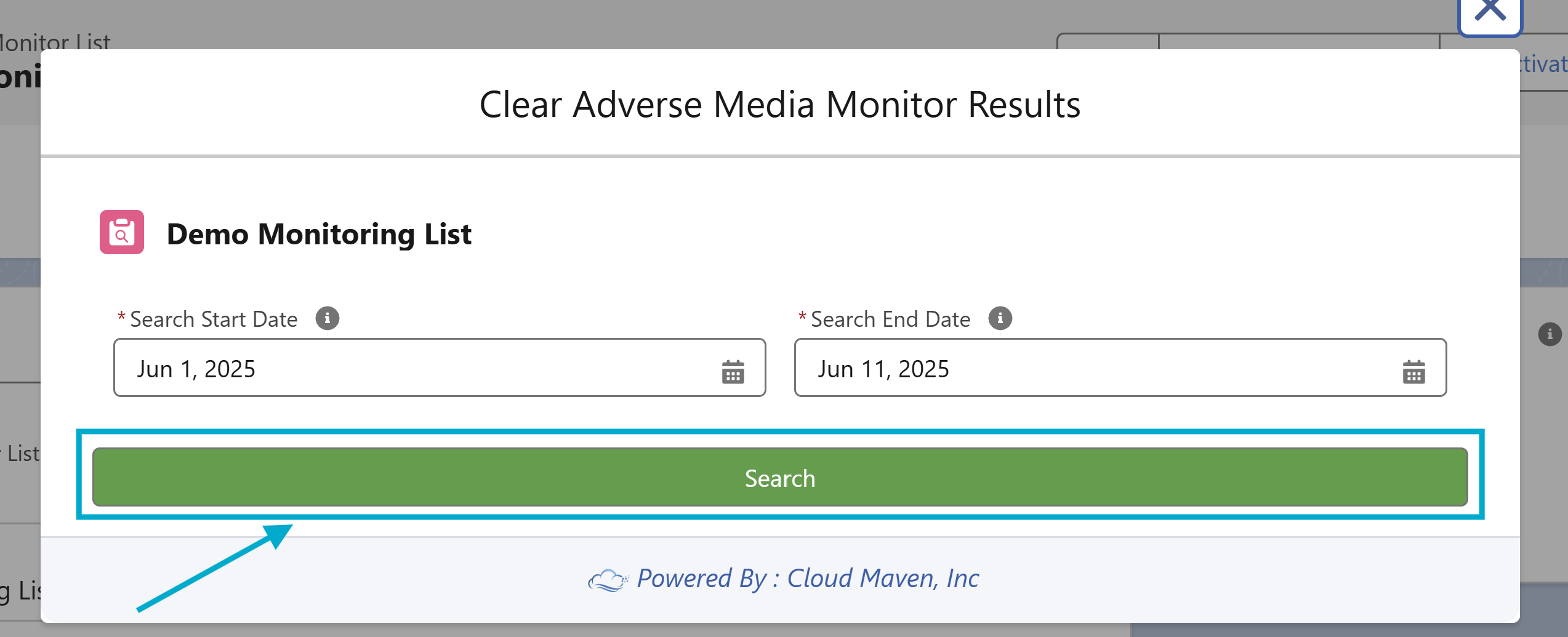
As soon as you click the Fetch Monitor Result button, a new screen will appear where you can configure your search.
-
You will see fields to select the Search Start Date and Search End Date for this Monitor List. These fields are initially populated with default values, but you can change them as needed. Now, Click on the Search Button.
6. Initiate the Search
-
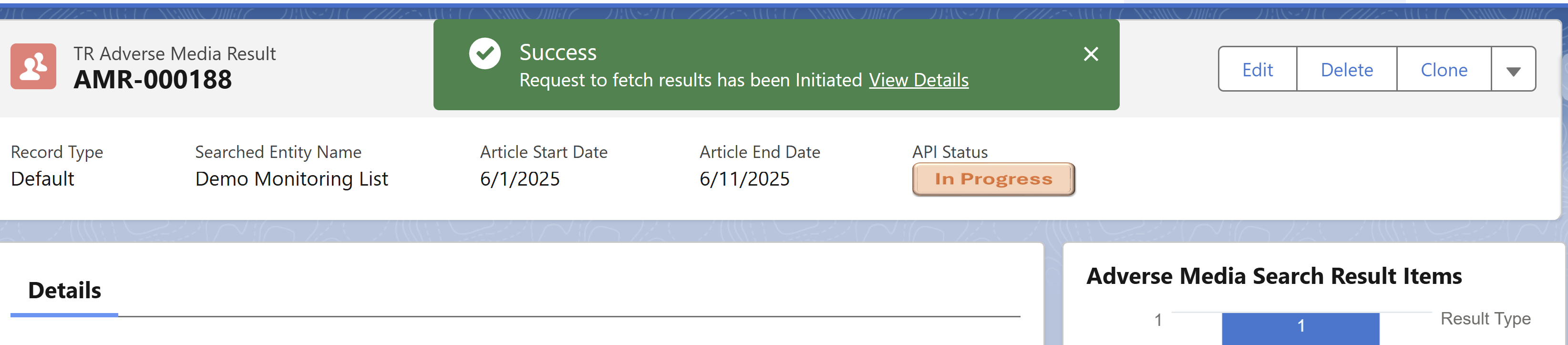
After setting the required dates, click the Search button. The system will fetch the results, and you will be redirected to the Adverse Media Result page.
7. Review Results
➡ Please refer to the detailed guide here:
https://cloudmaven.atlassian.net/wiki/external/NGY4NThkMGVkZTU4NDYxZTk2NTliY2JmOTE2NDMyZjA#4.-View-Monitoring-List-Results
📩 Need Help?
For any questions or support, don't hesitate to get in touch with us at: 📧