
Jira Ticket Ref: CP-397
Administrators can configure a custom message that appears during the eSign document flow. When configured, this message replaces the applicable default system message.
Overview
The eSign document flow now supports configurable user-facing messages at the Document Template Level. Organizations can provide instructions, reminders, or additional information that reflects their business process without changing application code.
Enhancement
-
Custom messages can be configured at the Template Level.
-
Administrators define the message using a configurable key/value pair.
-
The application retrieves the configured value when the eSign functionality is executed.
-
If a custom message is available, the applicable eSign flow displays the configured message.
Admin Configuration
Configure the custom message on the Document Template record using the custom field docgen_esign__Custom_Message_Configuration__c.
The field was created on the Document_Template__c object as a Long Text Area field named Custom Message Configuration.
|
Field |
Description |
|---|---|
|
Object |
|
|
Field API Name |
|
|
Field Label |
Custom Message Configuration |
|
Data Type |
Long Text Area |
Default JSON
The following default JSON is added to the custom message configuration field:
The messages are stored in Salesforce as a stringified JSON object, since the Salesforce field does not accept a standard JSON object.
"{\"successMessage\":\"Your document was generated successfully.\",\"failureMessage\":\"We could not generate your document.\",\"voidedMessage\":\"This document has been voided.\",\"alreadySignedMessage\":\"This document has already been signed.\",\"declineDocumentMessage\":\"You have declined this document.\",\"workflowExpiredMessage\":\"This signing workflow has expired.\",\"signingInfoMessage\":\"Please review the document carefully, complete all required fields, and sign the document to continue.\"}"
We can update the custom messages, and the same messages will be reflected on the document signing page.
Do not change anything other than the text message values in the default JSON.
The custom message key must exactly match the key provided in the default JSON.
Custom Message Display Options
Create an option for each custom message so administrators can control which messages are displayed during the eSign flow.
|
Option |
JSON Key |
Displayed When |
Default Message |
|---|---|---|---|
|
Show Success Message |
|
The document is generated successfully. |
Your document was generated successfully. |
|
Show Failure Message |
|
The document cannot be generated. |
We could not generate your document. |
|
Show Voided Message |
|
The document has been voided. |
This document has been voided. |
|
Show Already Signed Message |
|
The document has already been signed. |
This document has already been signed. |
|
Show Decline Document Message |
|
The user declines the document. |
You have declined this document. |
|
Show Workflow Expired Message |
|
The signing workflow has expired. |
This signing workflow has expired. |
|
Show Signing Info Message |
|
The signer needs instructions before continuing. |
Please review the document carefully, complete all required fields, and sign the document to continue. |
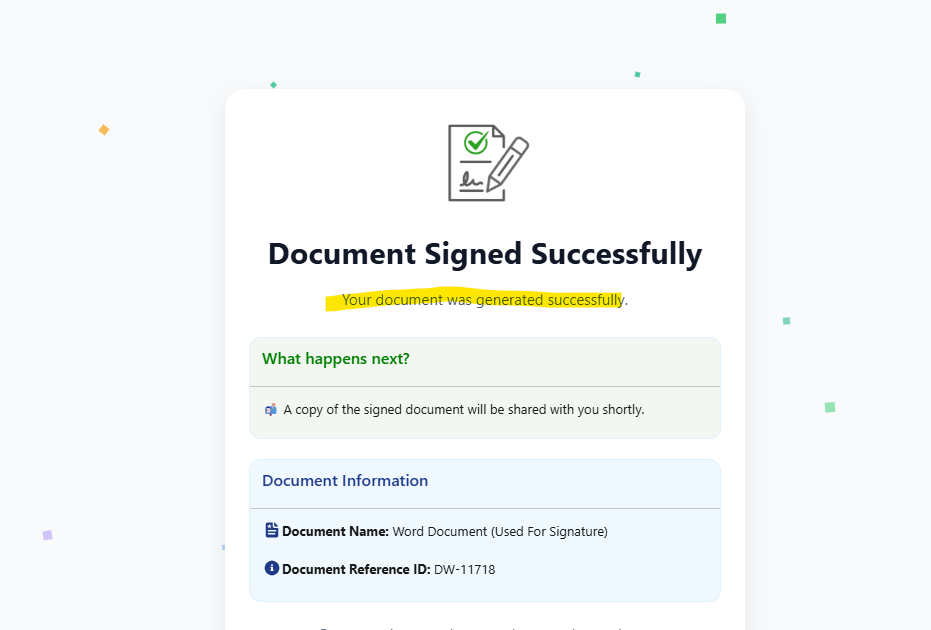
Success Custom Message
Use the successMessage key to configure the message shown when the document is generated successfully.
Success Custom Message: Your document was generated successfully.
Failure Custom Message
Use the failureMessage key to configure the message shown when the document cannot be generated.
Failure Custom Message: We could not generate your document.
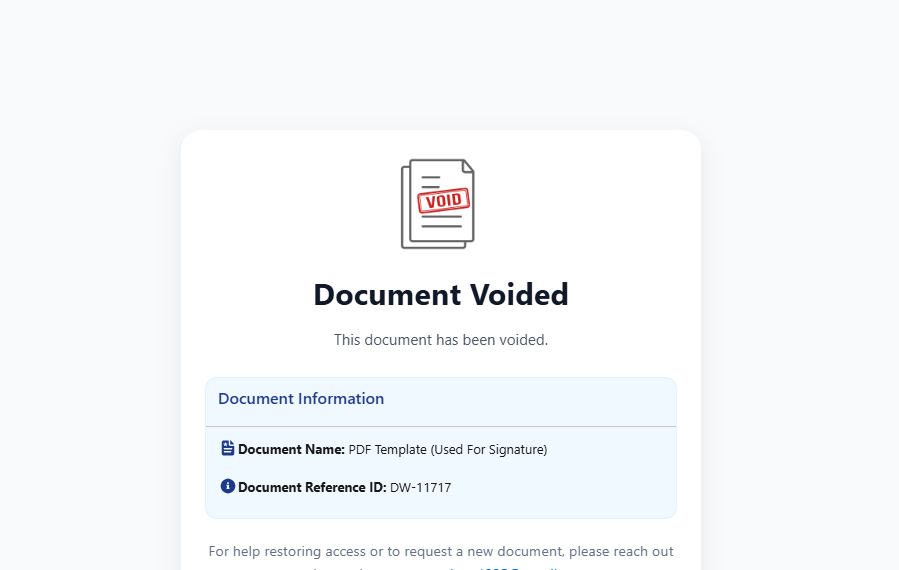
Voided Custom Message
Use the voidedMessage key to configure the message shown when the document has been voided.
Voided Custom Message: This document has been voided.
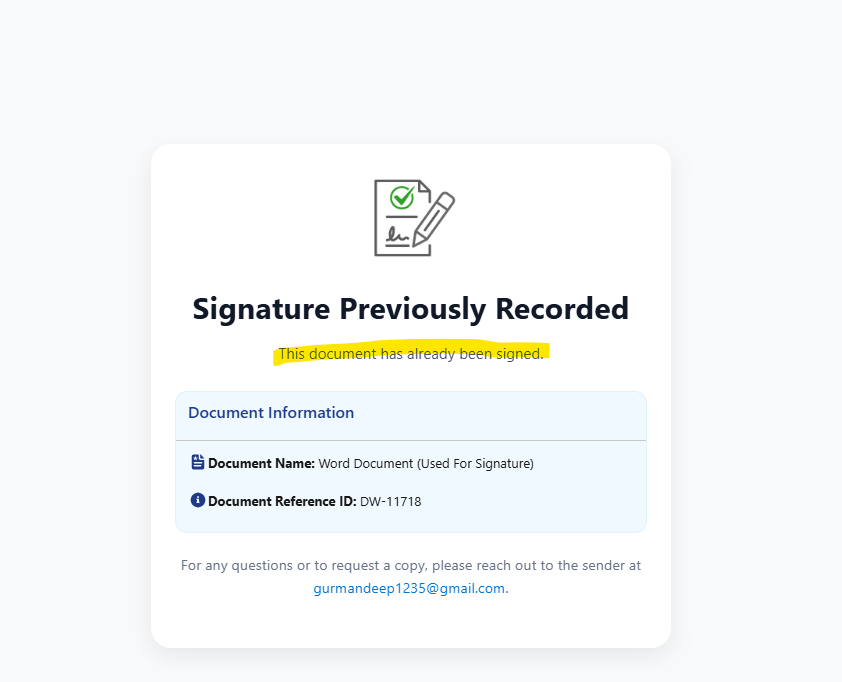
Already Signed Custom Message
Use the alreadySignedMessage key to configure the message shown when the document has already been signed.
Already Signed Custom Message: This document has already been signed.
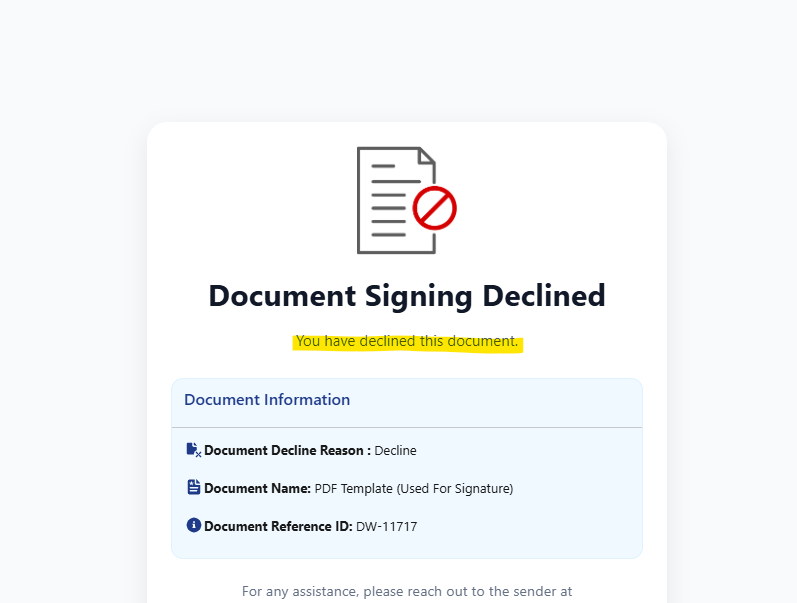
Decline Document Custom Message
Use the declineDocumentMessage key to configure the message shown when the user declines the document.
Decline Document Custom Message: You have declined this document.
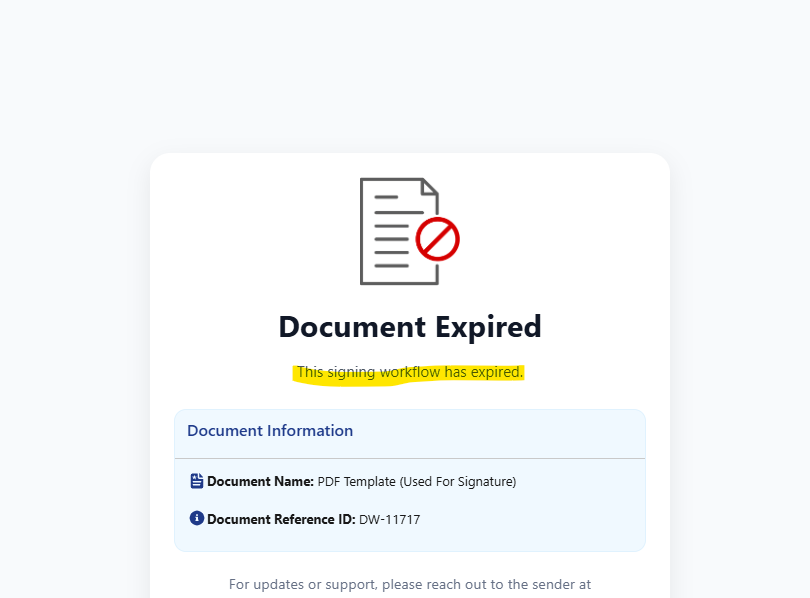
Workflow Expired Custom Message
Use the workflowExpiredMessage key to configure the message shown when the signing workflow has expired.
Workflow Expired Custom Message: This signing workflow has expired.
Signing Info Custom Message
Use the signingInfoMessage key to configure the instruction message shown to the signer before continuing.
Signing Info Custom Message: Please review the document carefully, complete all required fields, and sign the document to continue.

Benefits
-
Provides flexibility for customizing user-facing eSign messages.
-
Allows administrators to update messaging without modifying application code.
-
Supports organization-specific instructions and communication.
-
Centralizes configurable messages within Salesforce Custom Settings.
Use clear, concise wording that helps users understand what they need to do before completing the eSign process.