
Overview
This guide provides step-by-step instructions for administrators to configure and manage dynamic signer assignments on Document Templates in Salesforce. Dynamic signer configuration allows signer information to be retrieved directly from Salesforce fields, simplifying signer management, maintaining the correct signing order, and streamlining the document signing process.
Access the Document Signers
-
Log in to Salesforce.
-
Navigate to the Document Template tab.
-
From the list view, select the Document Template you want to configure.
-
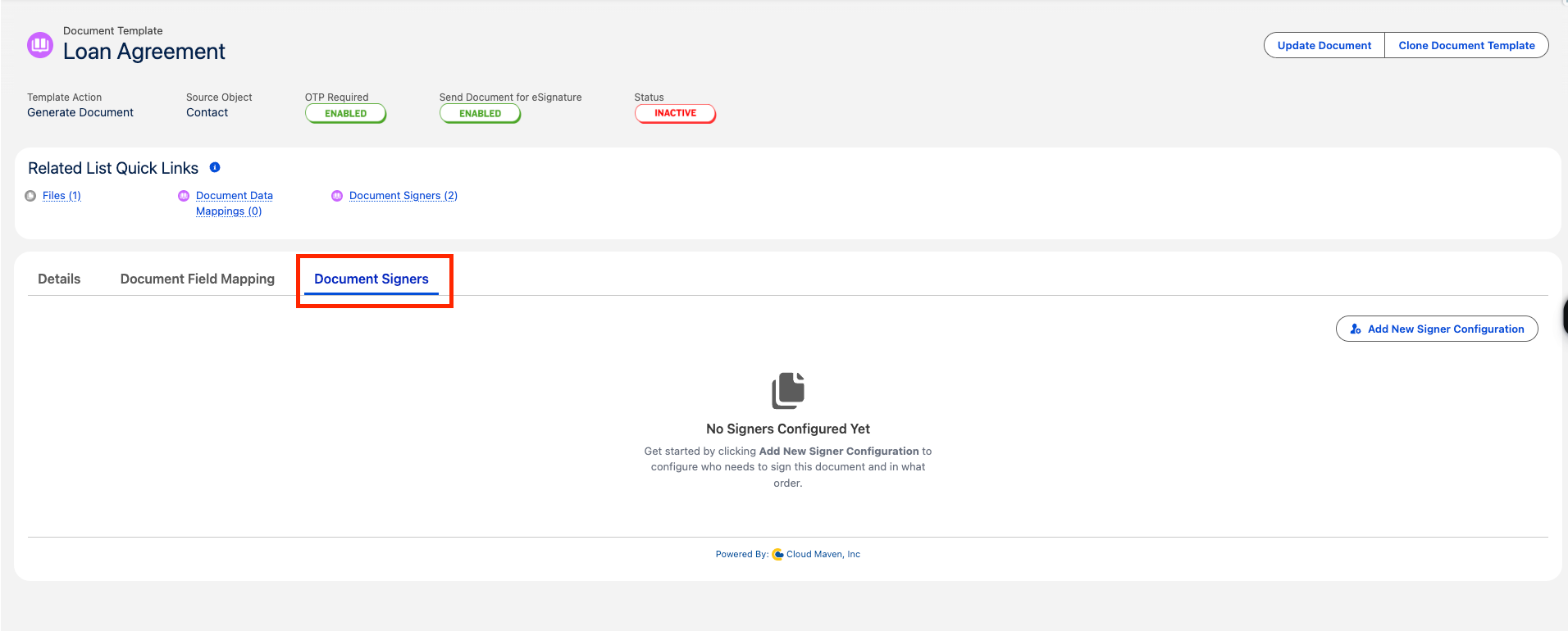
Open the Document Signers tab to access the field mapping interface.
Add a New Signer Configuration
-
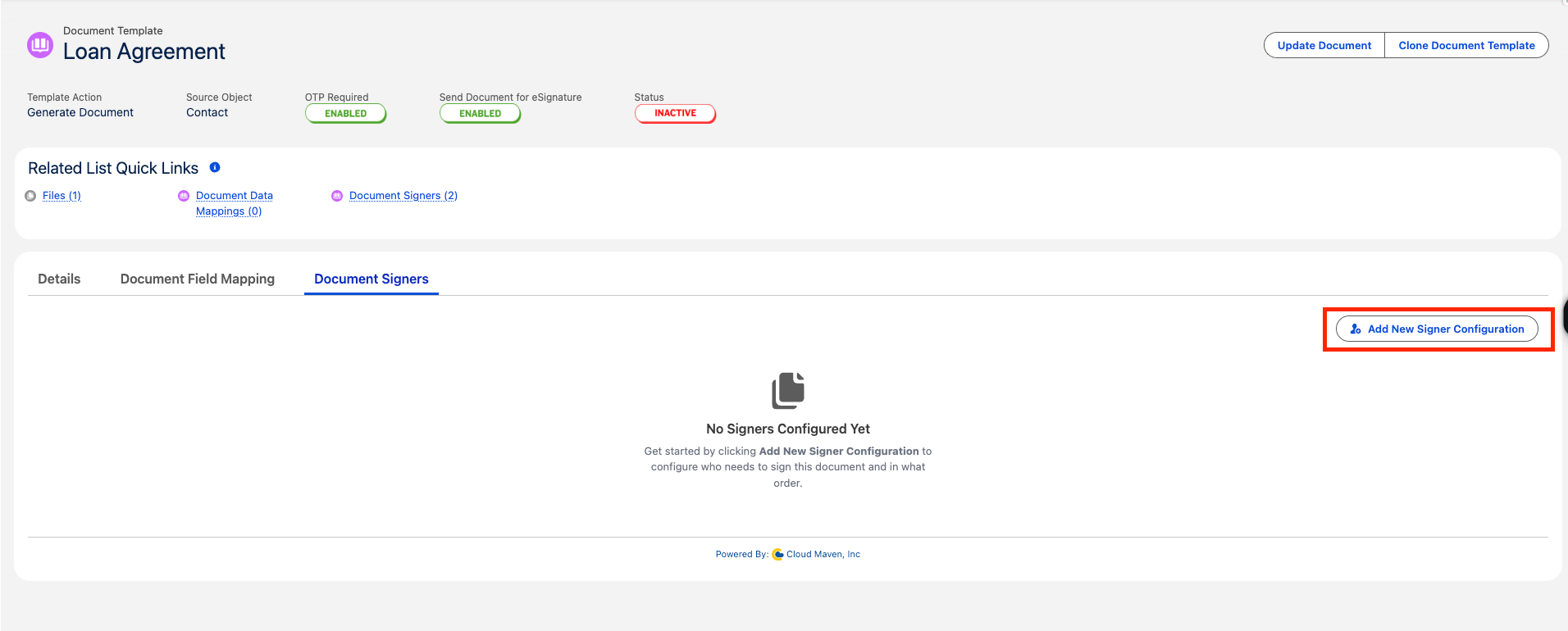
Click Add New Signer Configuration.
-
A configuration form will open, prompting you to provide the required signer details.
Configure Signer Details
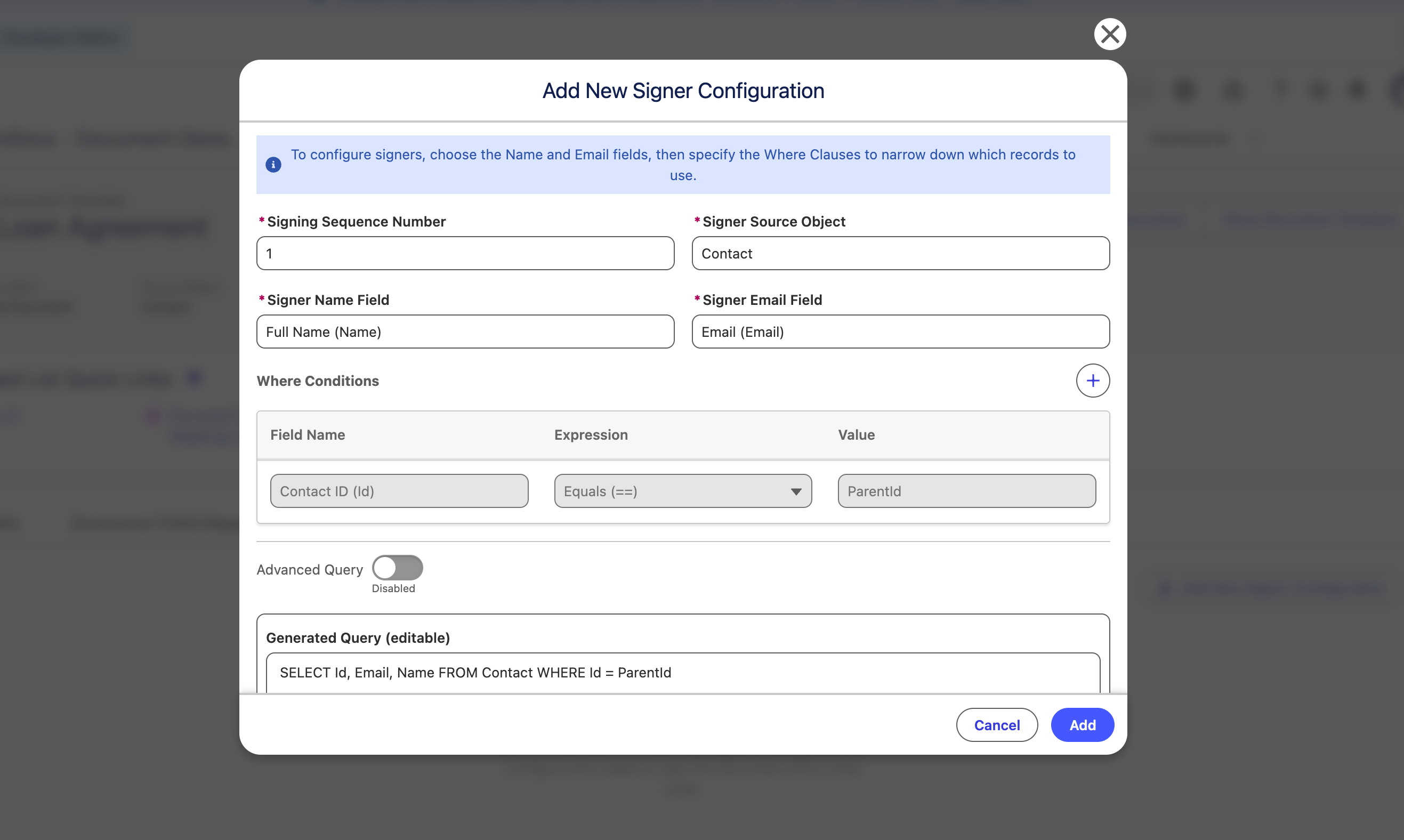
When adding a signer configuration, you can define the signer source, signer fields, signing order, and conditions used to identify the appropriate signer record.
Enter the following details:
Basic Signer Configuration
-
Signing Sequence Number: Enter a number to define the order in which the signer will receive and sign the document. The system supports sequential signing only.
-
Signer Source Object: Select the Salesforce object from which the signer information will be retrieved.
-
Signer Name Field: Select the field that contains the signer's name.
-
Signer Email Field: Select the field that contains the signer's email address.
The available name and email fields are based on the selected Signer Source Object.
Where Conditions
Use Where Conditions to specify which records from the selected Signer Source Object should be retrieved.
This below condition is not editable. If you change the Signer Source Object, you must specify the corresponding lookup field that relates the signer object to the source object.
|
Field Name |
Expression |
Value |
|---|---|---|
|
Contact ID (Id) |
Equals (==) |
ParentId |
Important: A condition linking the signer record to the document's source record must always be included. The condition should compare the signer object's Id or appropriate Lookup/relationship field with ParentId.
ParentId represents the ID of the source record from which the document is being generated.
For example, if a document is generated from an Account record and the signer source object is Contact, the query could use the Contact's Account relationship to identify the appropriate signer:
AccountId = ParentId
This ensures that the signer is retrieved from the correct source record.
Advanced Query Configuration
The Advanced Query option provides additional control over how signer records are retrieved.
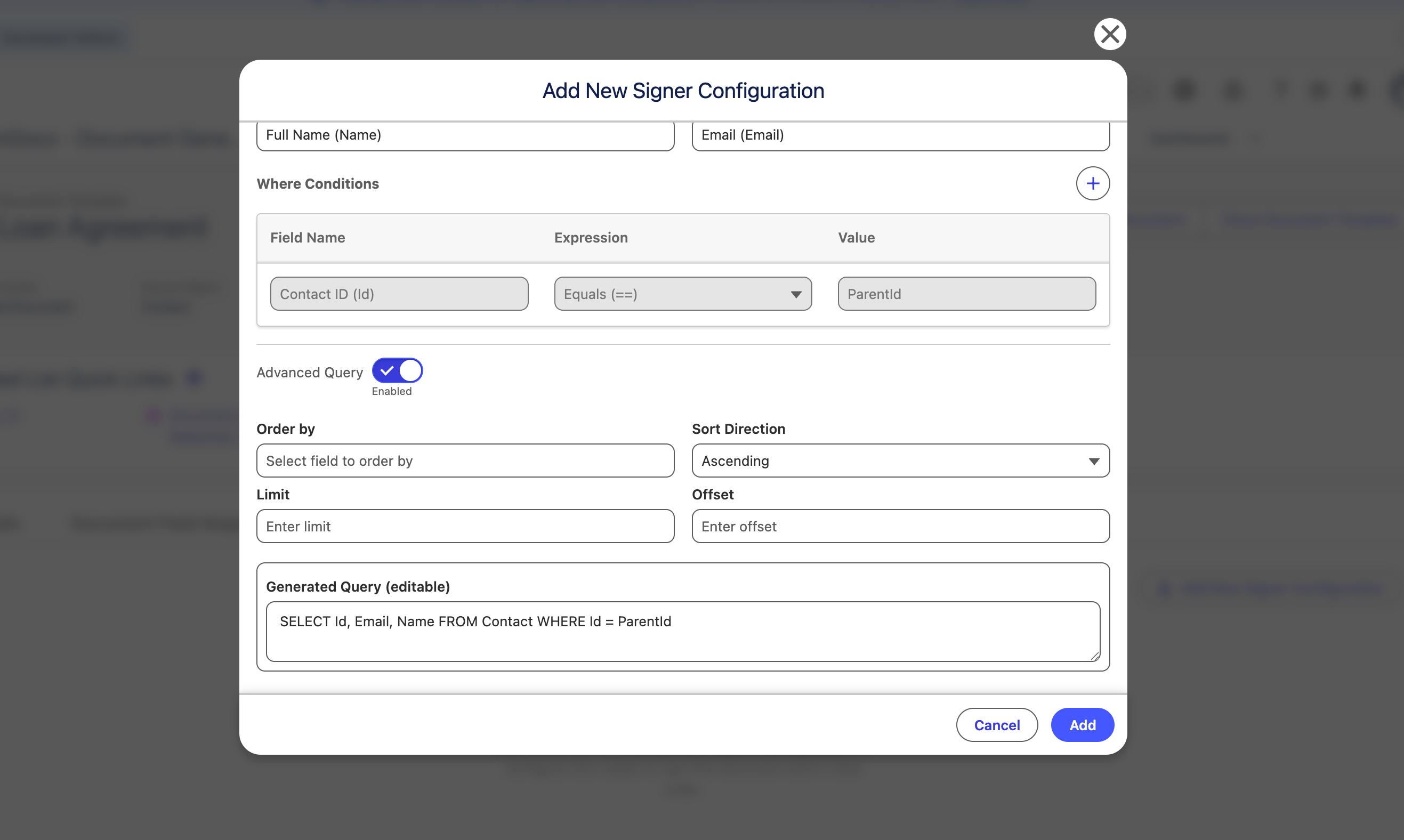
Enable the Advanced Query toggle to access additional query options, including:
-
Order By: Select the field used to sort the returned signer records.
-
Sort Direction: Choose Ascending or Descending.
-
Limit: Specify the maximum number of records to retrieve.
-
Offset: Specify the number of records to skip before returning results.
-
Generated Query: View and edit the SOQL query generated from the configured conditions.
Custom SOQL Query
When Advanced Query is enabled, you can also edit the Generated Query directly to create a custom SOQL query based on your specific requirements.
For example:
SELECT Id, Email, Name
FROM Contact
WHERE Id = ParentId
You can modify the query to include additional filtering, sorting, or other supported SOQL functionality.
Important: When using a custom query, you must include a condition that relates the signer record to ParentId. This can be through the record's Id field or an appropriate lookup/relationship field.
ParentId represents the ID of the source record from which the document is being generated. This condition ensures that the query retrieves signer records associated with the correct source record.
Example
If the document is generated from an Account and the signer is a Contact associated with that Account, the custom query could be:
SELECT Id, Email, Name
FROM Contact
WHERE AccountId = ParentId
ORDER BY CreatedDate ASC
LIMIT 1
This query:
-
Retrieves the Contact's Id, Email, and Name.
-
Retrieves only Contacts associated with the source Account.
-
Sorts the matching Contacts by creation date.
-
Returns only the first matching Contact.
Configure Multiple Signers
To configure additional signers:
-
Repeat Steps 2 and 3 to add each additional signer.
-
Assign a unique Signer Sequence number to each signer.
-
Ensure that the sequence numbers reflect the intended signing order.
-
Map each signer to the appropriate signature field in the document.