Jira Ticket
Jira reference: [CP-397] Make success and failure messages configurable at template level - Jira
Scope: Search is currently available for Word document mapping only.
Word Document Mapping Search
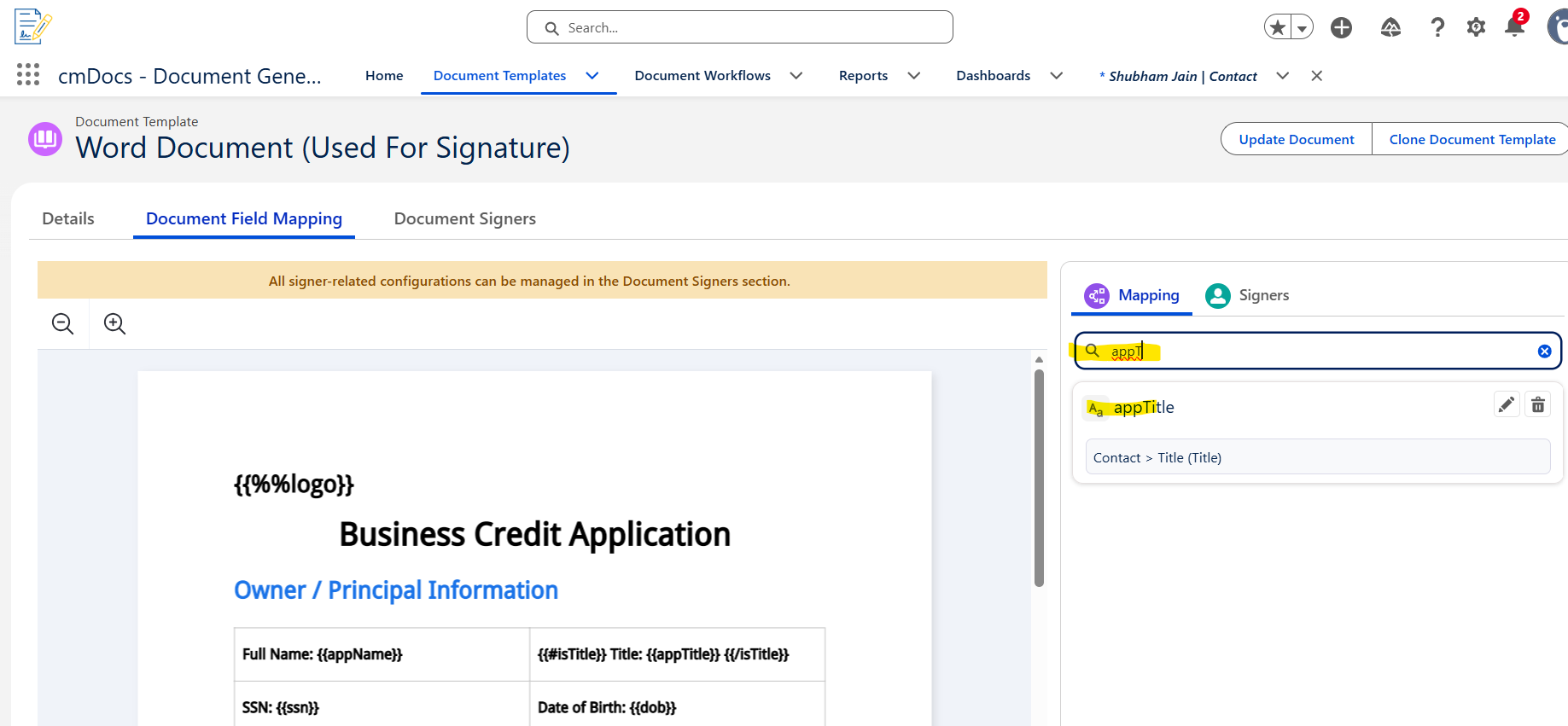
The Search function makes it easier to find mapping fields in a Word document. Enter a mapping value in the search field, and the document mapping view filters the results to show matching entries.
How it works
-
Open the Document Template object.
-
Click the New button to create a new fresh template.
-
Upload a Word file with proper mapping by enclosing fields to be mapped in double curly braces, for example
{{appTitle}}. -
Open the created document.
-
In the document mapping section, search for the required mapping value.
Example
If the Word document contains the mapping {{appTitle}}, enter appTitle in the Search field. The mapping view filters out unrelated entries and displays the matching result for easier access.
Benefit: Searching for a mapping value reduces manual scanning and helps users locate the correct field quickly, especially in documents with many mappings.
Acceptance Criteria
-
Search functionality is available in the document mapping view for Word documents.
-
Users can search for mapping values such as
{{appTitle}}using the Search input field example we can search appTitle directly in the mapping field created using the search box. -
The mapping list filters results based on the entered search text.
-
Unrelated mapping entries are hidden while matching entries remain visible.
-
Clearing the search input restores the full mapping list.
Availability
-
Supported document type: Word documents
-
Supported area: Document mapping
-
Search behavior: Filters mapping entries based on the entered text