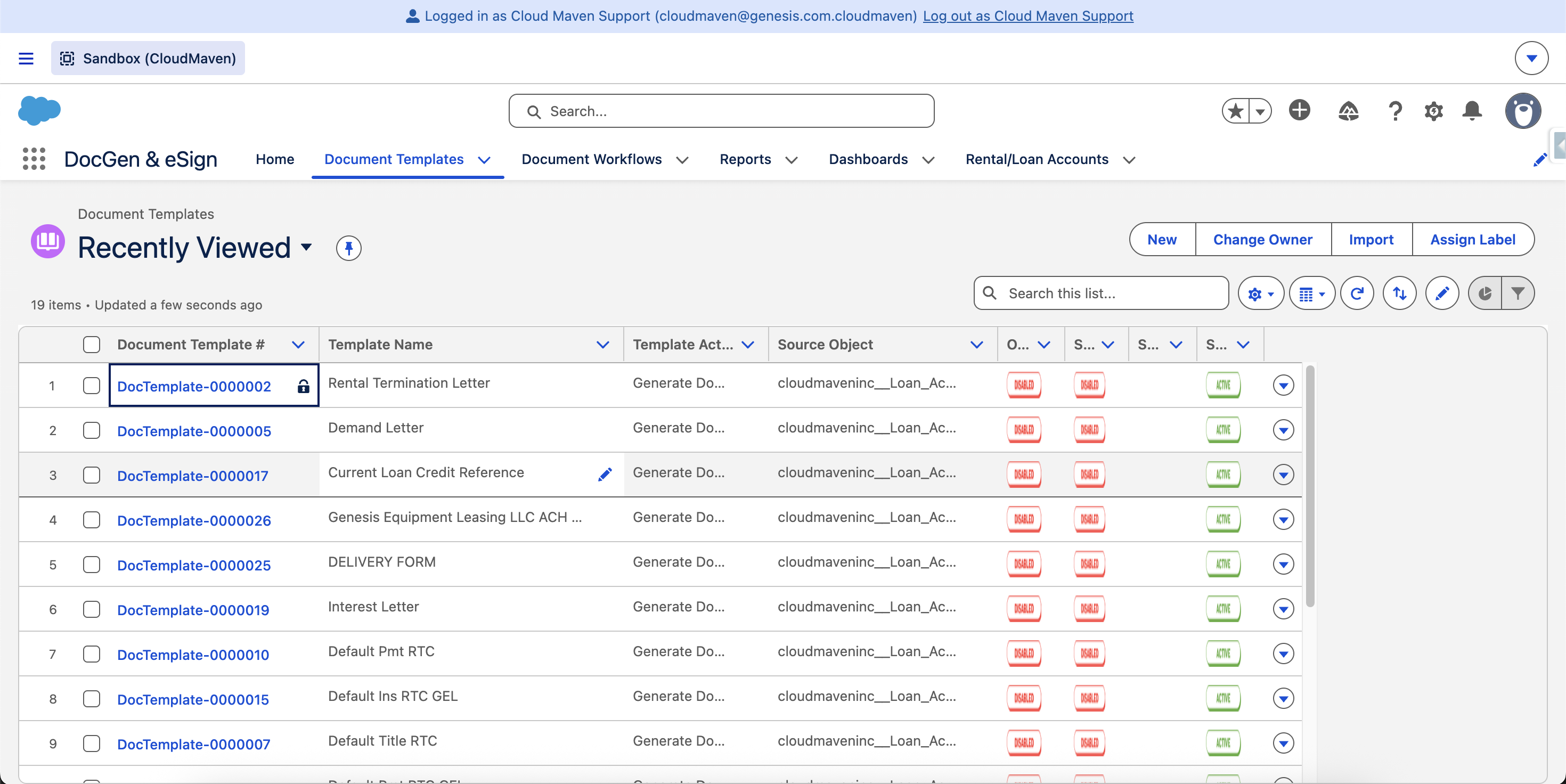
Overview
This page explains how to enable template grouping, create template folders, and verify that the folders are available for document templates.
Enable Folder Functionality.
-
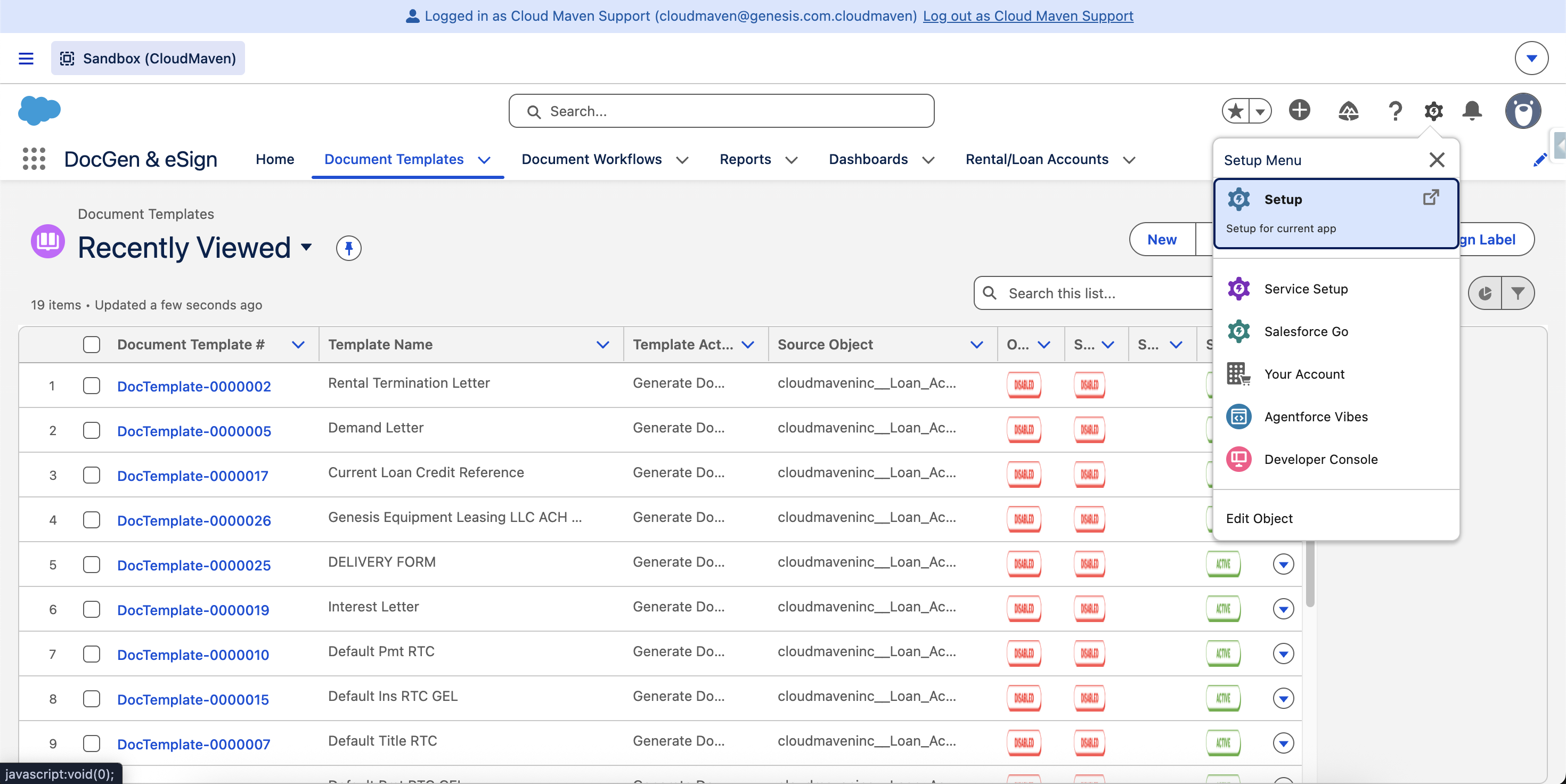
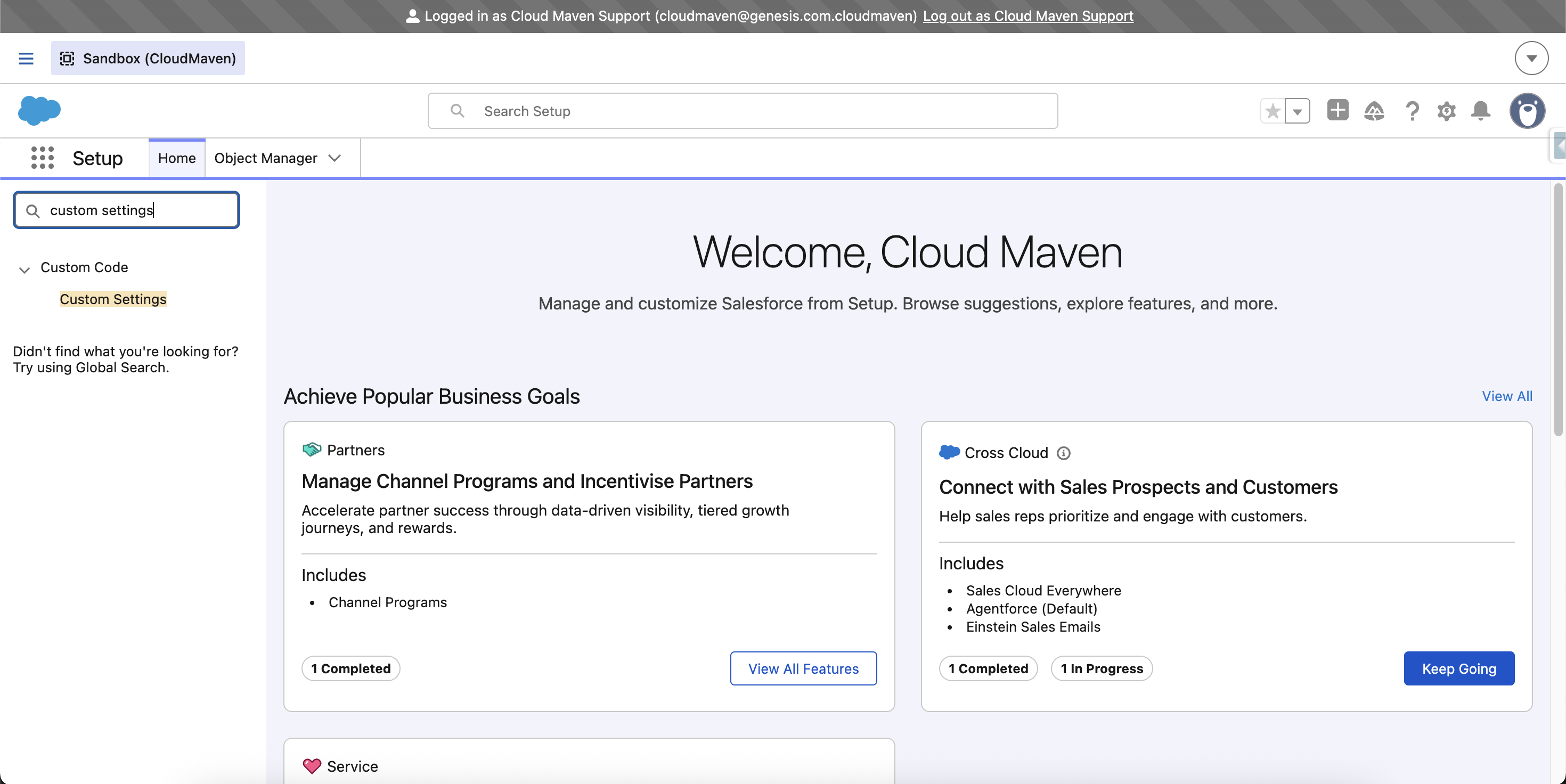
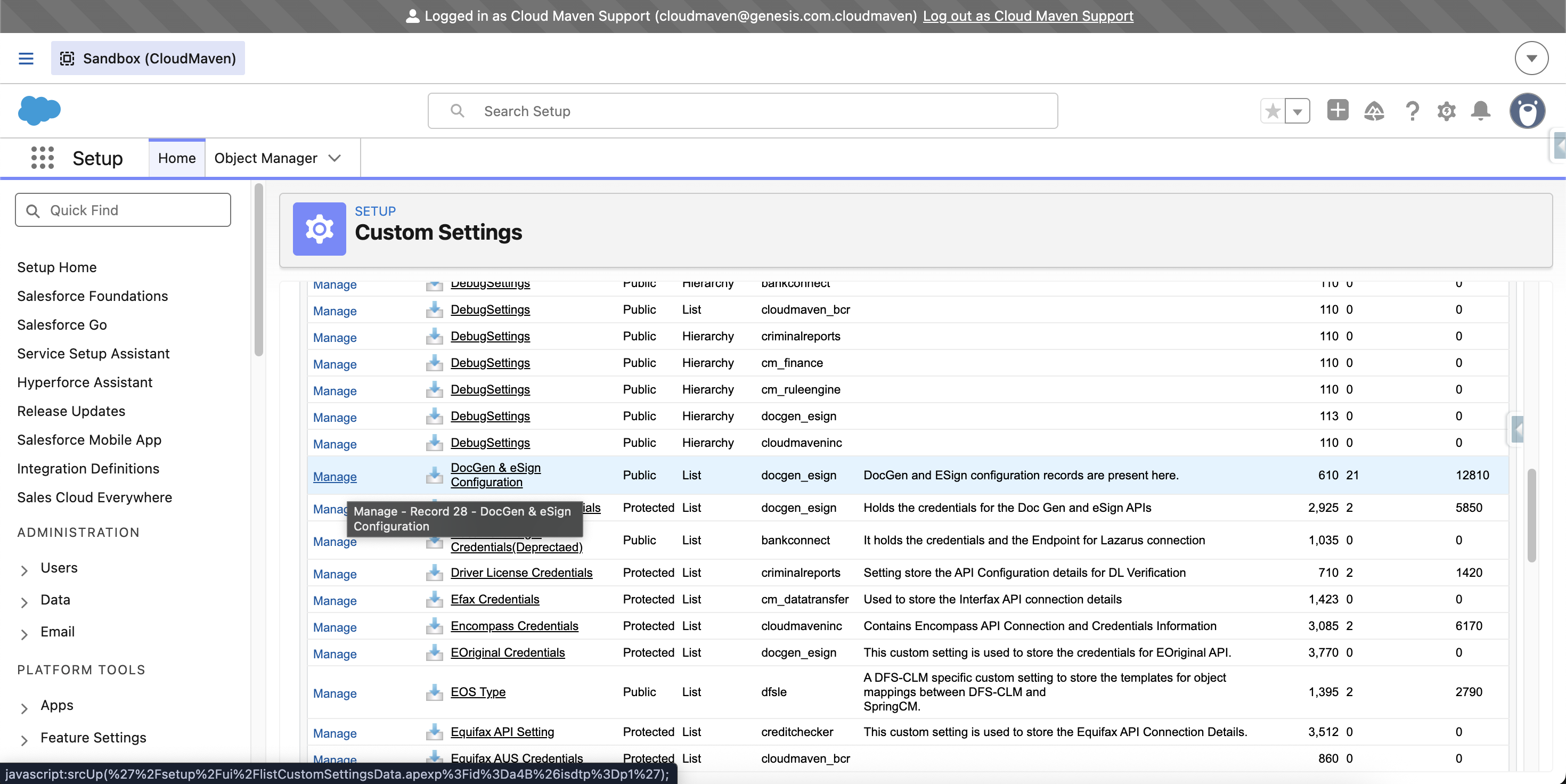
Go to Setup → Custom Settings.
-
Open DocGen & eSign Configuration.
-
Click Manage → New.
-
Create a new setting with the following details:
-
Name:
Enable_Template_Grouping -
Value:
true
-
-
Click Save.
Create Template Folders.
-
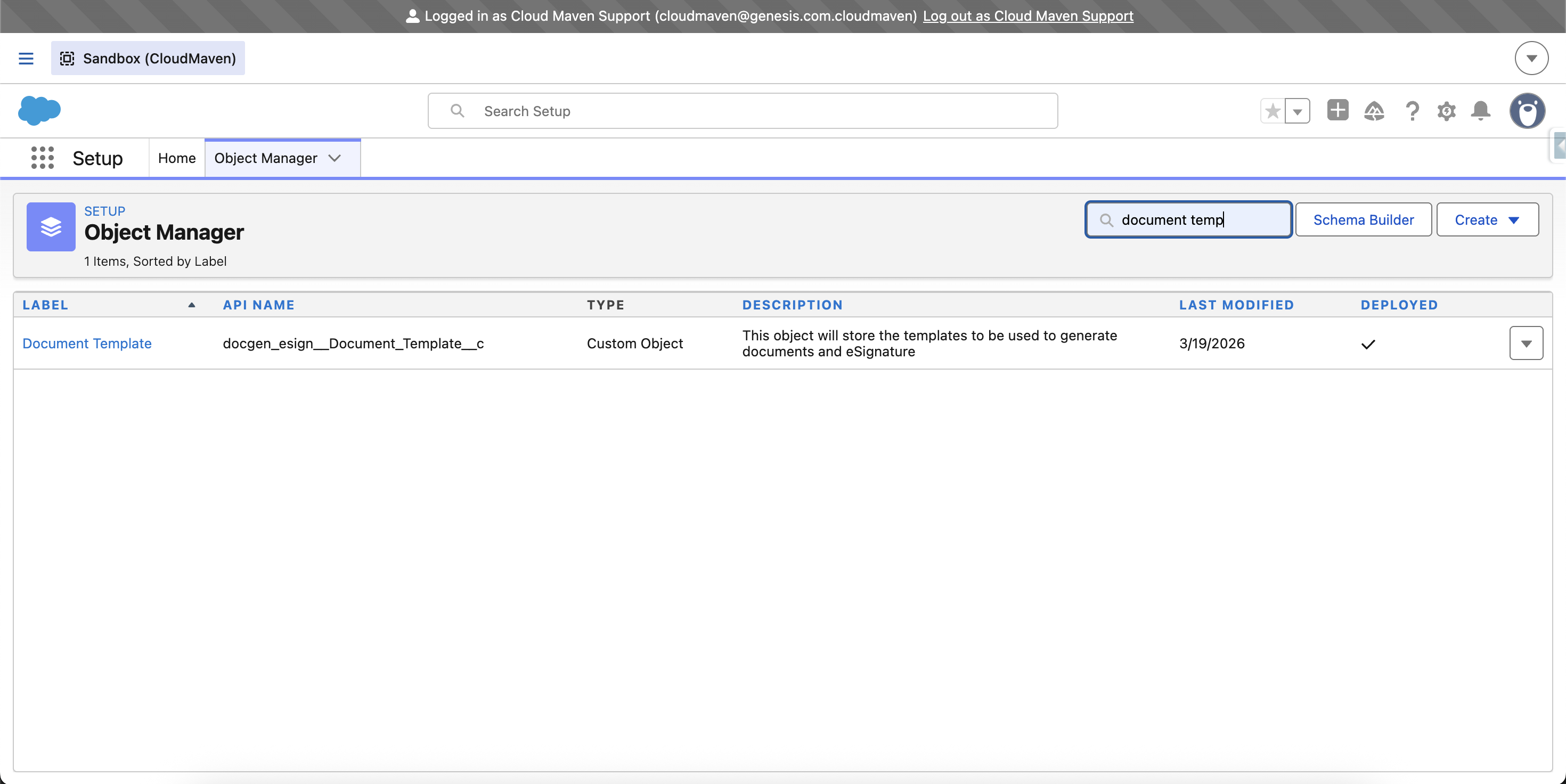
Go to Setup → Object Manager.
-
Search for and select Document Template.
-
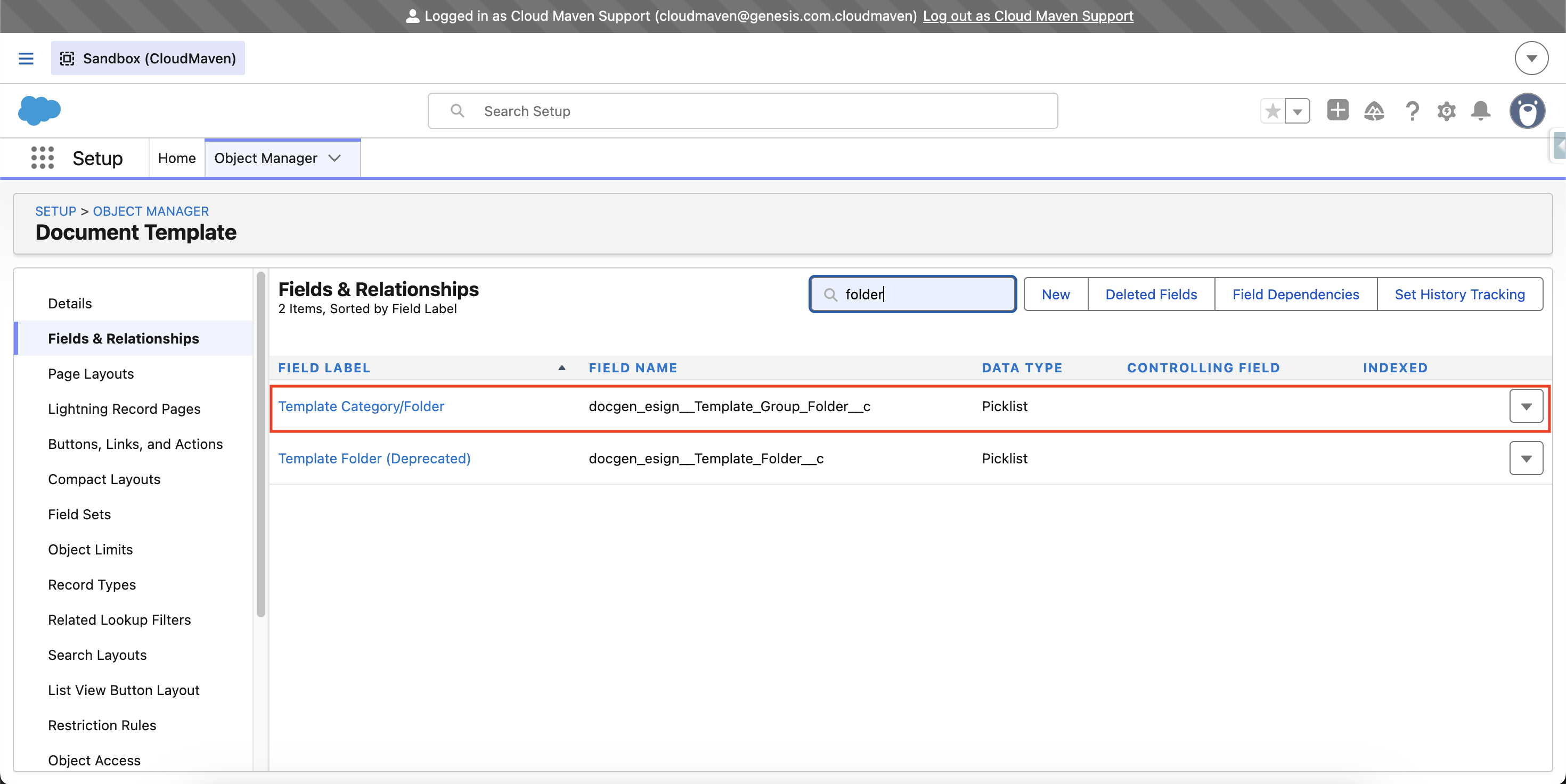
Navigate to Fields & Relationships.
-
Open the Template Category/Folder field.
-
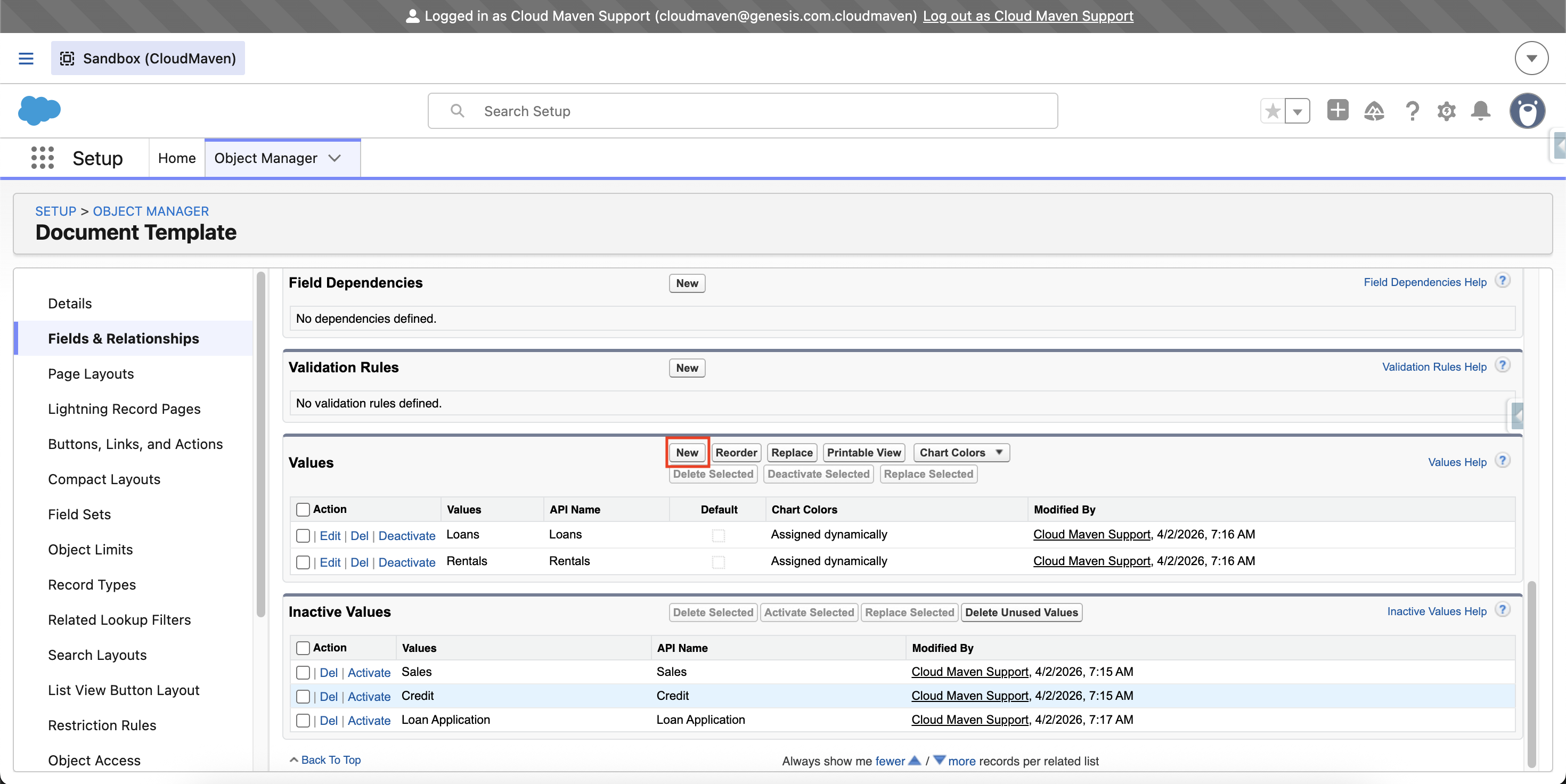
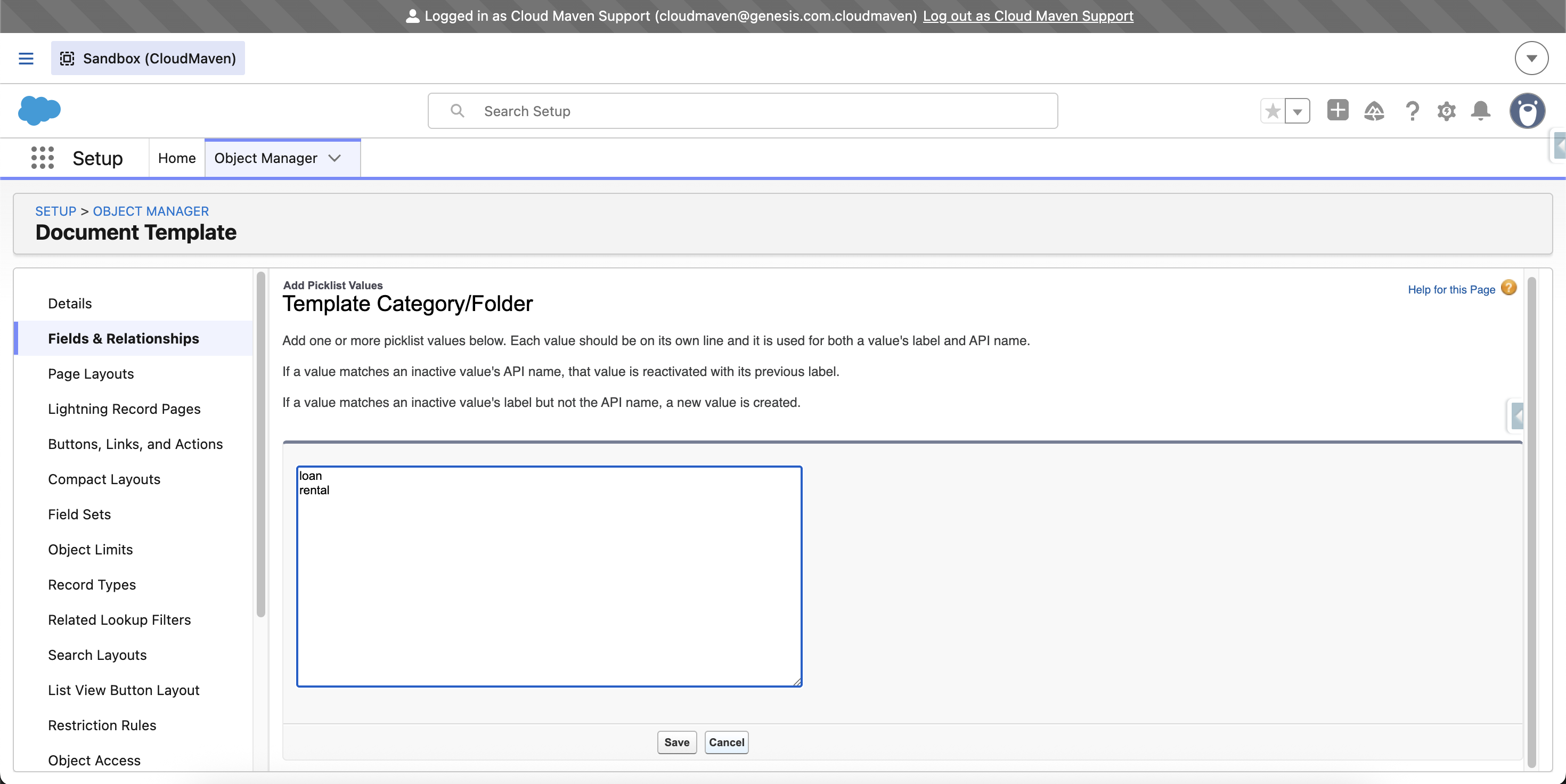
Scroll to the Values section and click New.
-
Add the required folder names, for example:
-
Loan
-
Rental
-
-
Optionally, deactivate any outdated or unused folders.
Verify the Configuration.
-
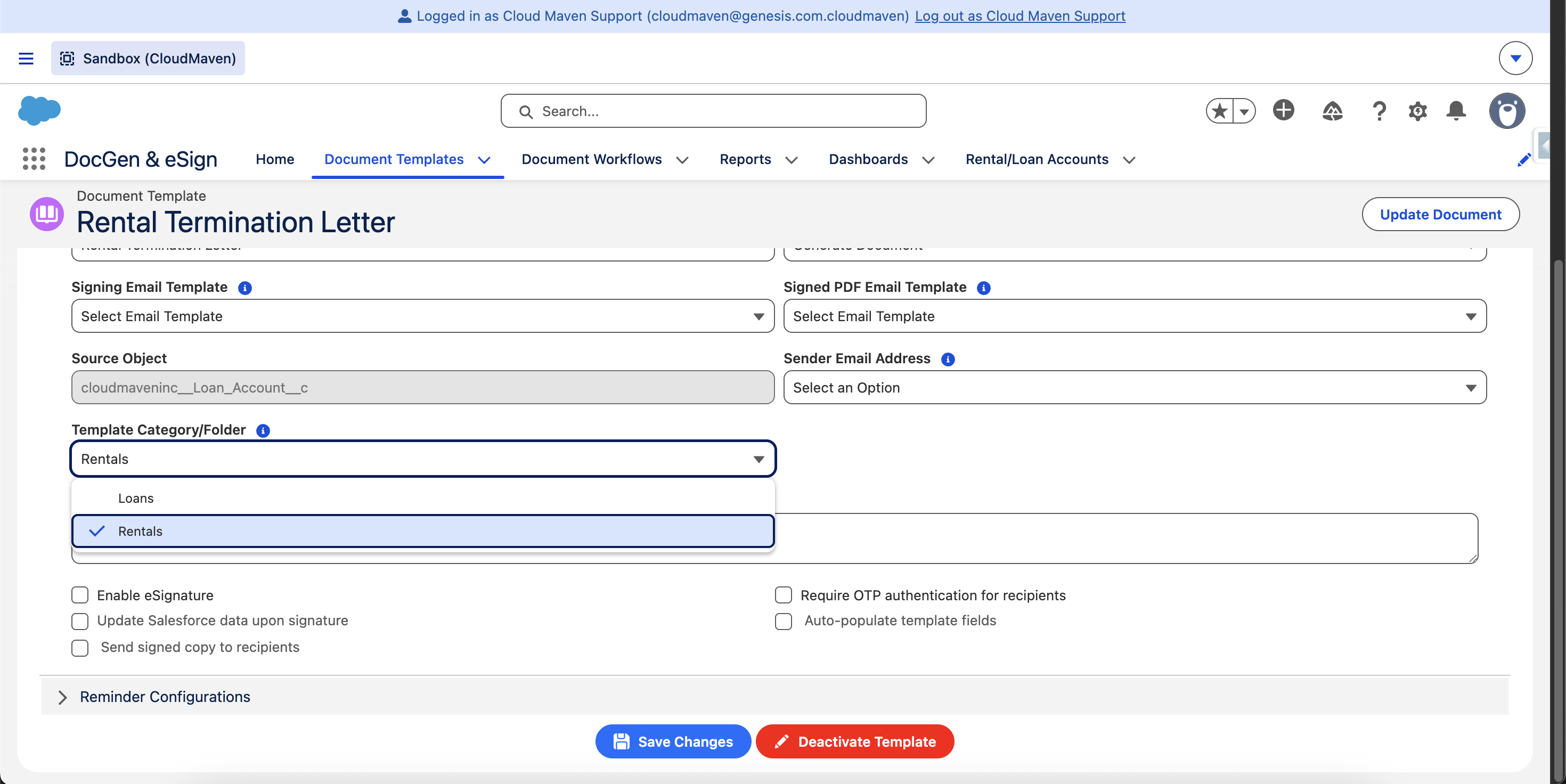
Navigate to Document Templates.
-
Open an existing template or create a new template.
-
Locate the Template Category/Folder field.
-
Verify that the newly created folders, such as Loan and Rental, are available for selection.