
Overview
This guide explains how to configure Child Object Mapping so that fields from child objects become available for mapping within a DocGen & eSign document PDF template.
Navigate to Custom Metadata Types
-
Log in to Salesforce.
-
Go to Setup.
-
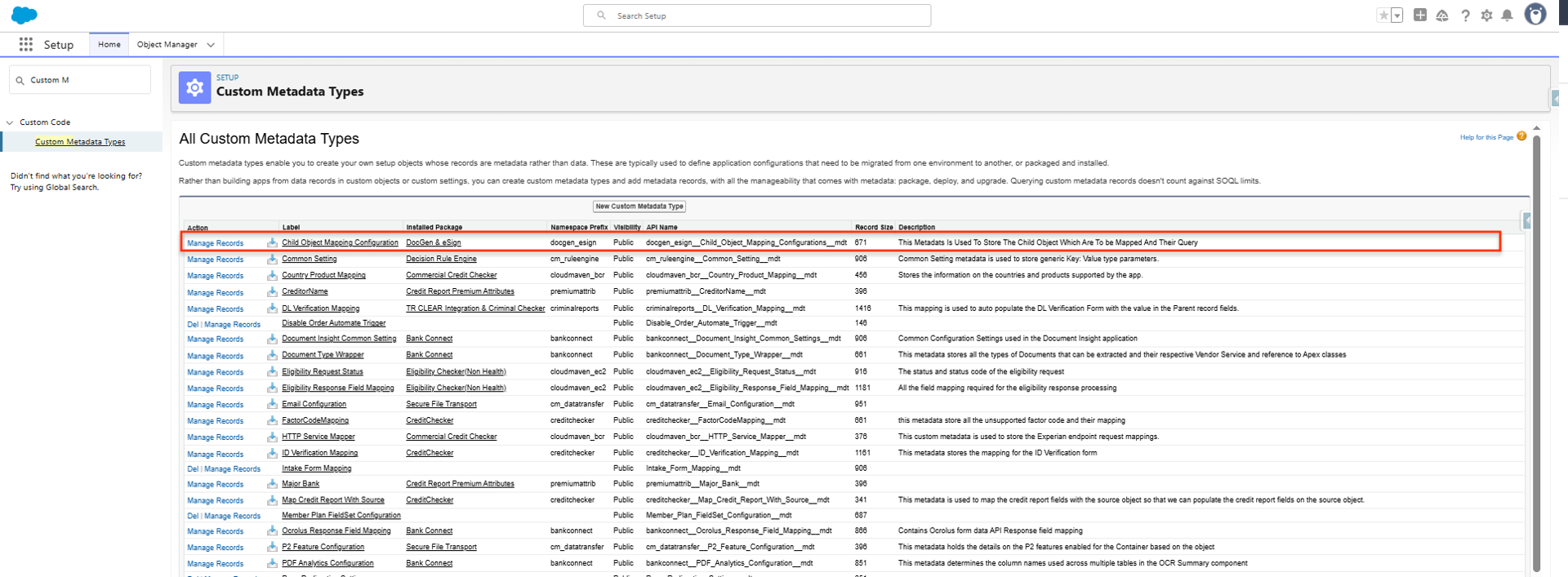
In the Quick Find box, search for Custom Metadata Types.
-
Locate Child Object Mapping Configuration.
-
Click Manage Records.
Create a New Mapping Record
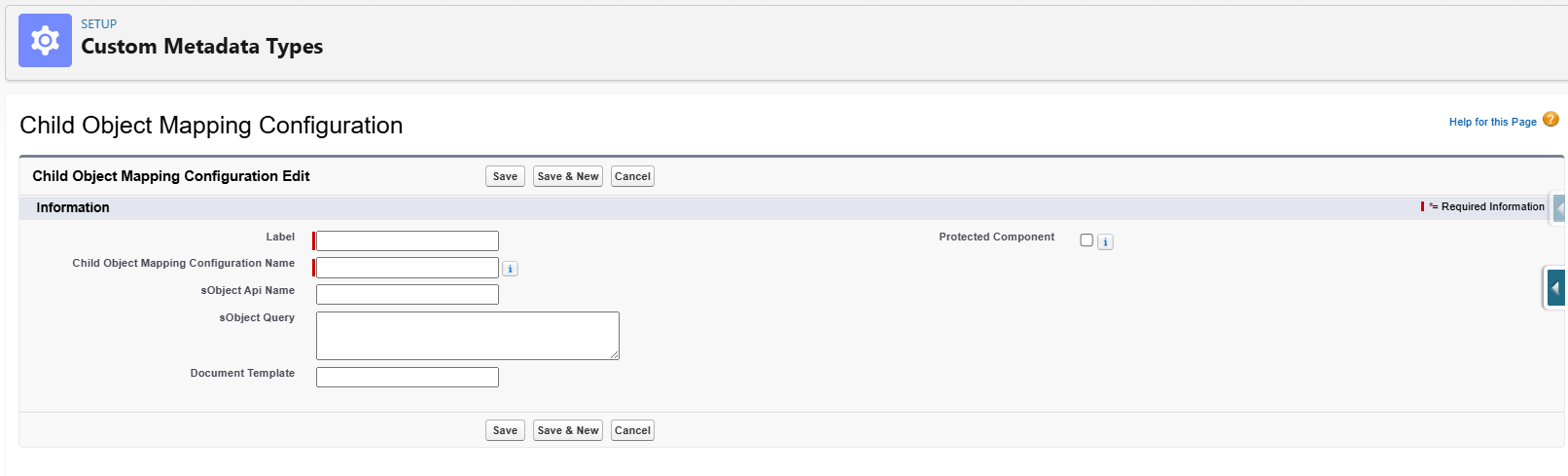
Click New to create a new Child Object Mapping record.
Enter the Mapping Details
Provide the following information:
-
Label: Enter a descriptive name for the mapping configuration.
-
sObject API Name: Enter the API name of the child object whose fields you want to make available in the document template.
-
sObject Query: Enter the query criteria used to identify the required child record. The query should contain a WHERE clause that uniquely identifies the child record.
Important: The condition must be specific enough to ensure that the query returns exactly one record.
-
Document Template: Enter the Document Template ID where this child object mapping will be used. You can associate the mapping with multiple templates by entering multiple Template IDs separated by a semicolon (;).

Save the Configuration
-
Click Save.
-
Refresh the Document Template.
-
Open the Document Field Mapping section.
-
The fields from the configured child object should now be available for mapping in the document template.
Note: Make sure the sObject Query uniquely identifies a single child record. An incorrect or non-unique query may prevent the expected child object fields from being available or may return an unintended record.