
Overview
This guide explains how to add new fields—such as Signature, Initials, Text, Checkbox, Date, and Dropdown fields—to a document template using the Form Creator, and update that PDF on Document Template.
Go to Document Template
Navigate to the Document Template section and open the document template you want to configure.
Select the required document template and proceed to configure its fields.
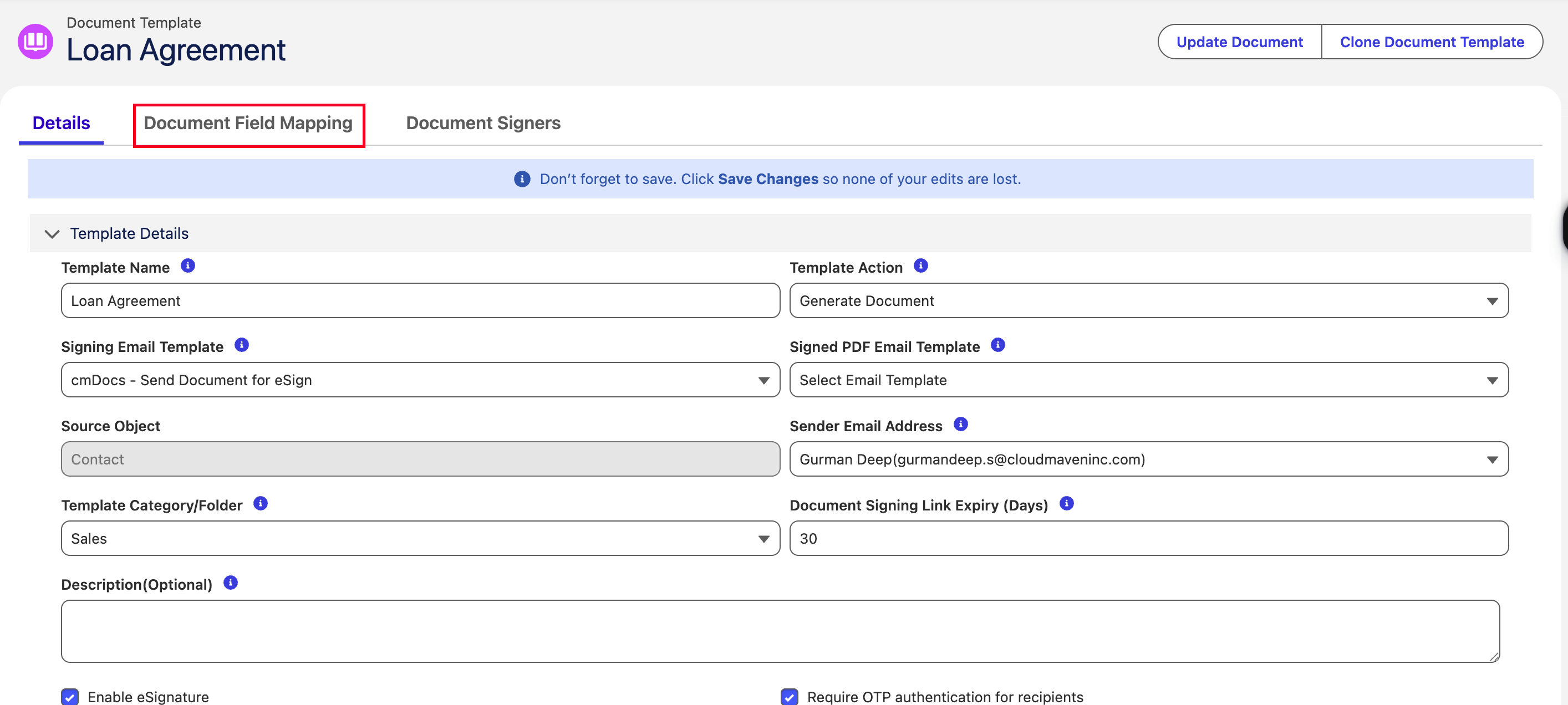
Configure Document Field Mapping
Navigate to Document Field Mapping for the selected document template.
Document Field Mapping is used to associate fields in the document with the corresponding Salesforce fields or signer information.
Before adding new fields, review the existing mappings to ensure that the required fields are correctly configured.
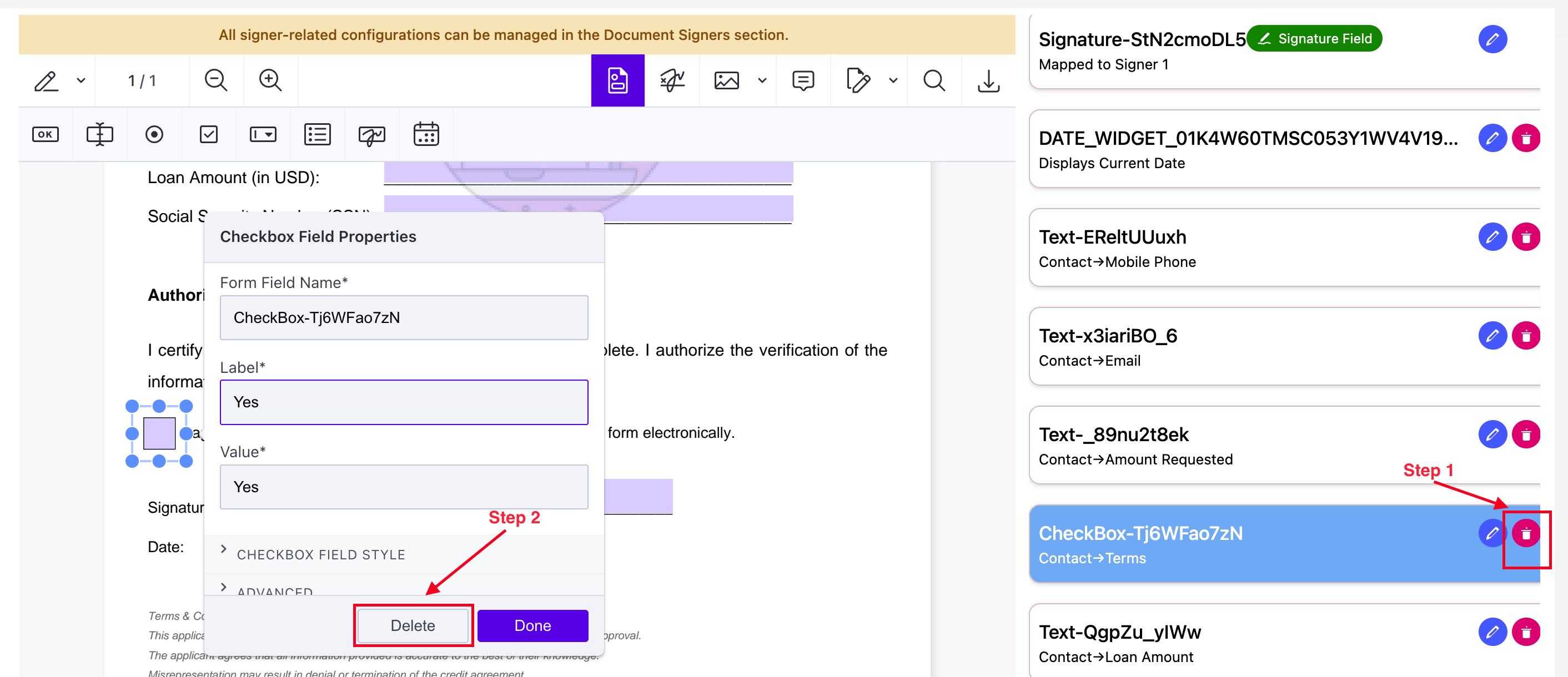
Important: If a field is already mapped and you need to rename or remove that field from the PDF, delete the existing field mapping first. Renaming or removing a mapped field without deleting its mapping may result in errors during document generation.
Add Fields Using Form Creator
Open the document in Form Creator and add all required fields to the document.
Using the drag-and-drop interface, you can place fields such as:
-
Signature
-
Initials
-
Text
-
Checkbox
-
Date
-
Dropdown
-
Internal Signature
Each field should be positioned correctly within the document layout and assigned to the appropriate signer when applicable. Fields can also be marked as Required when necessary.
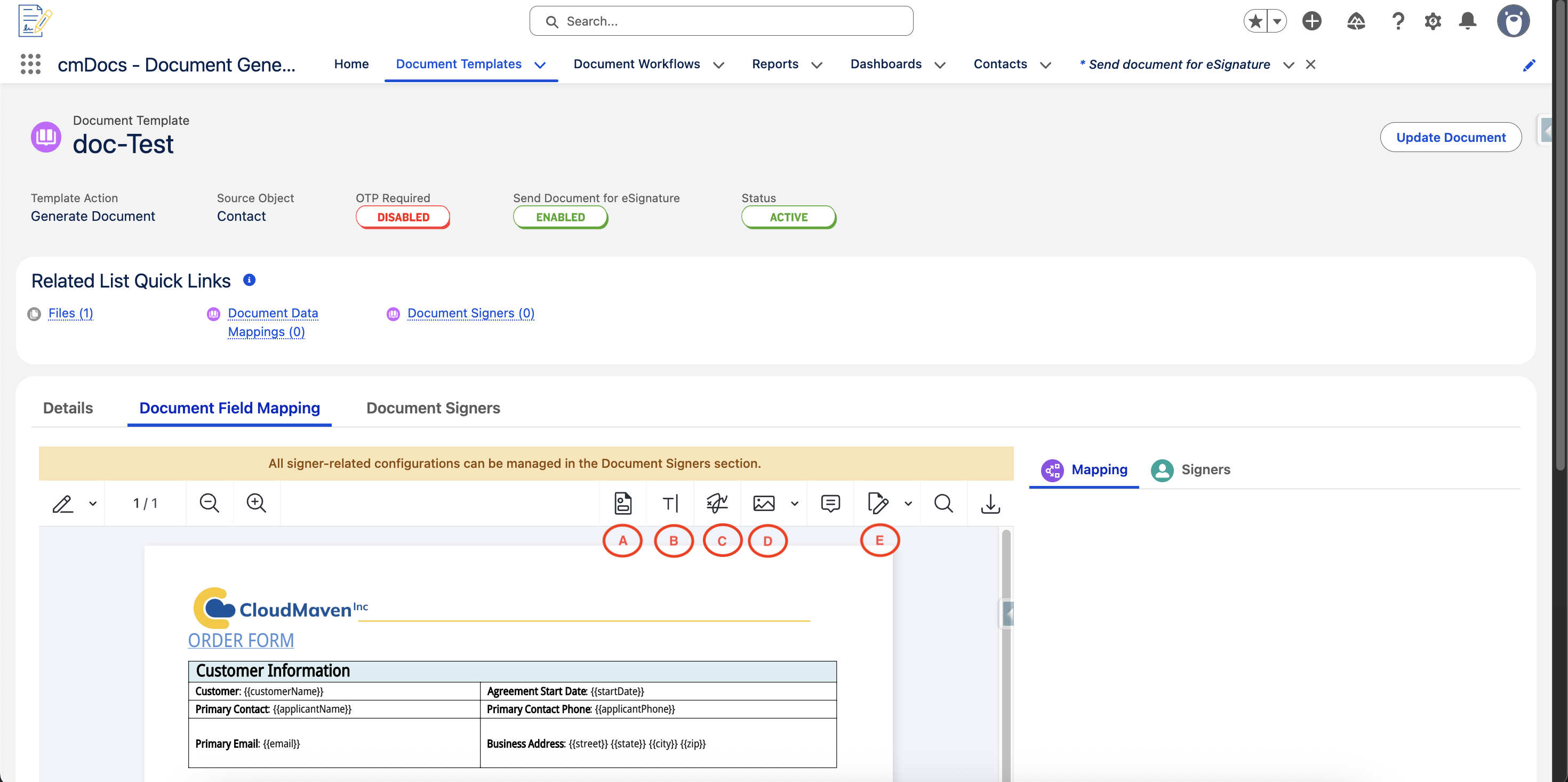
Form Creator Actions
|
Label |
Action |
Description |
|---|---|---|
|
A |
Add Fields |
Add form fields such as Signature, Initials, Date, Text, or other supported fields directly to the document. |
|
B |
Add Text |
Insert static or custom text anywhere within the document. |
|
C |
Signature (Internal) |
Add a signature field for an internal user or signer. |
|
D |
Add Image |
Insert an image into the document. |
|
E |
Merge / Split Document |
Merge multiple documents or split an existing document as required. |
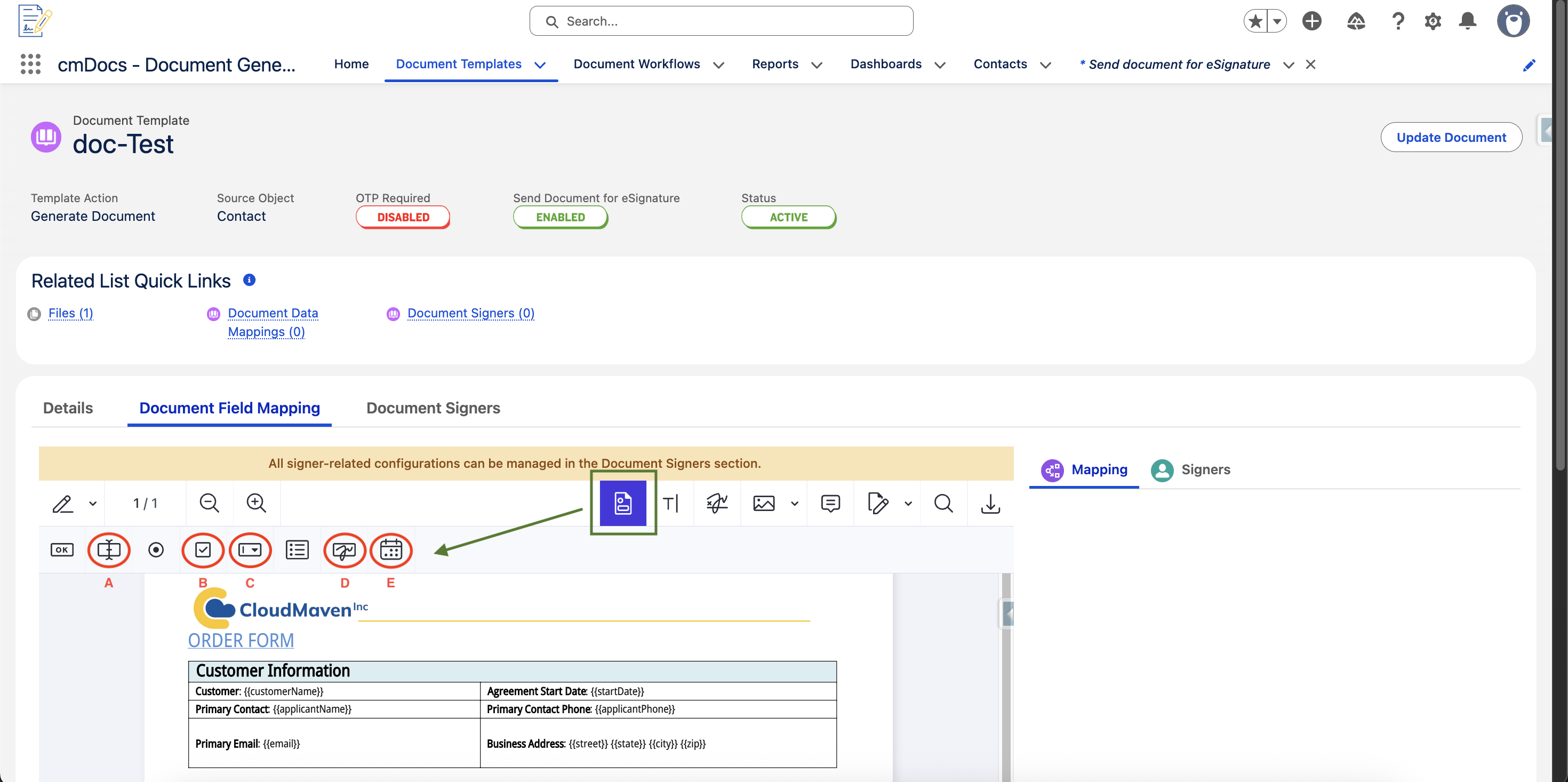
Available Field Types
|
Label |
Field Type |
Description |
|---|---|---|
|
A |
Name Field |
Adds a text input field to capture signer details such as name or other custom text. |
|
B |
Checkbox |
Adds a checkbox that allows the signer to select or confirm an option. |
|
C |
Dropdown |
Adds a dropdown field with predefined selectable options. |
|
D |
Signature |
Adds a signature field for capturing the signer's digital signature. |
|
E |
Date |
Adds a date field for capturing the signing date or another relevant date. |
Style Fields Using Form Creator
1.Navigate to the Form Creator.
2.Locate the field you want to style.
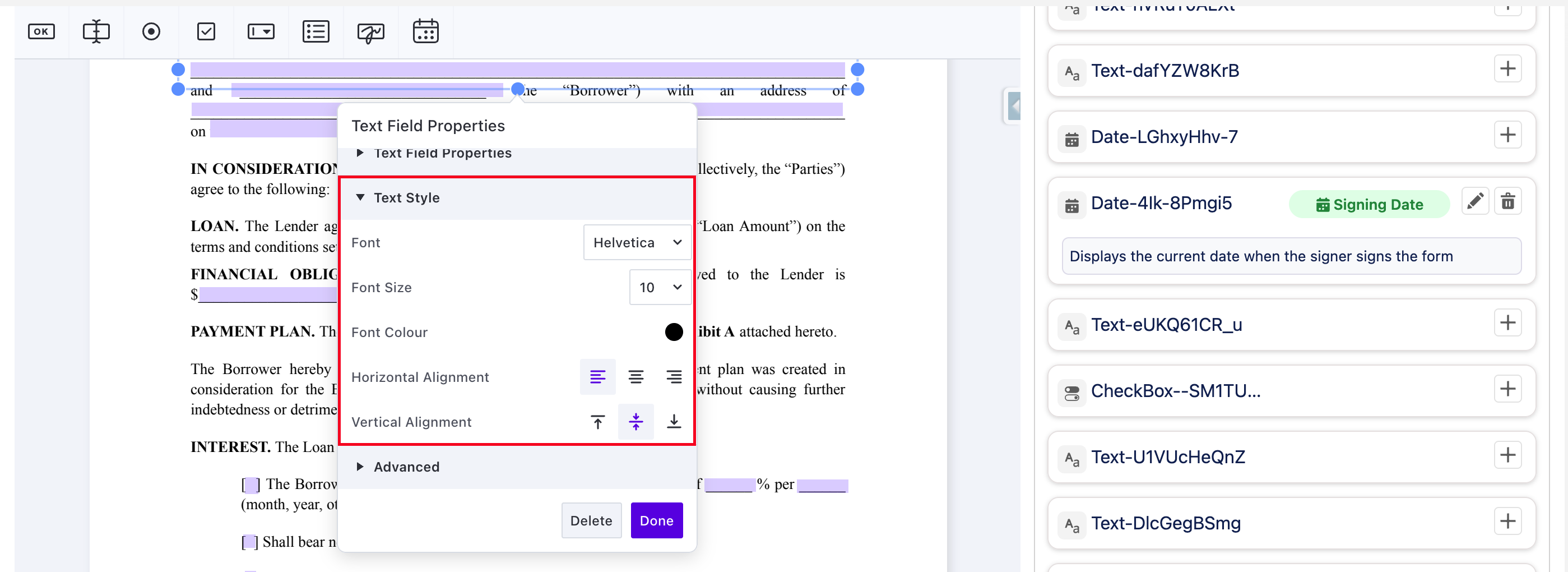
3. Right-click on the field and select Field Properties.
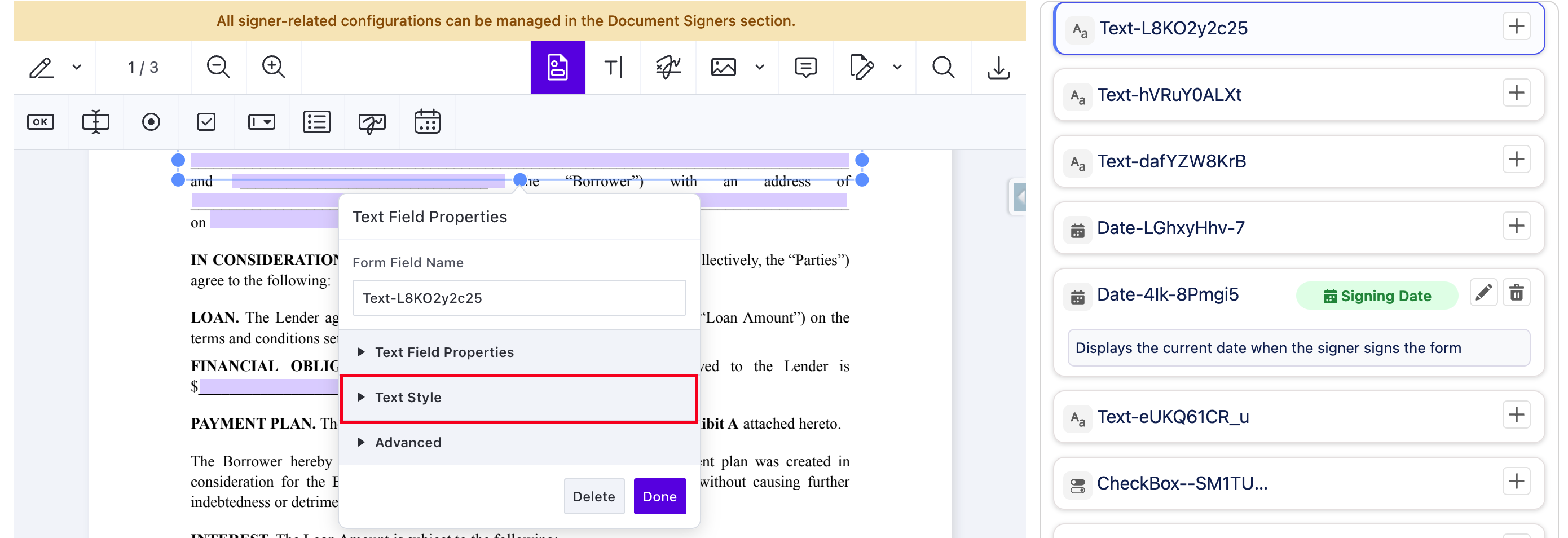
-
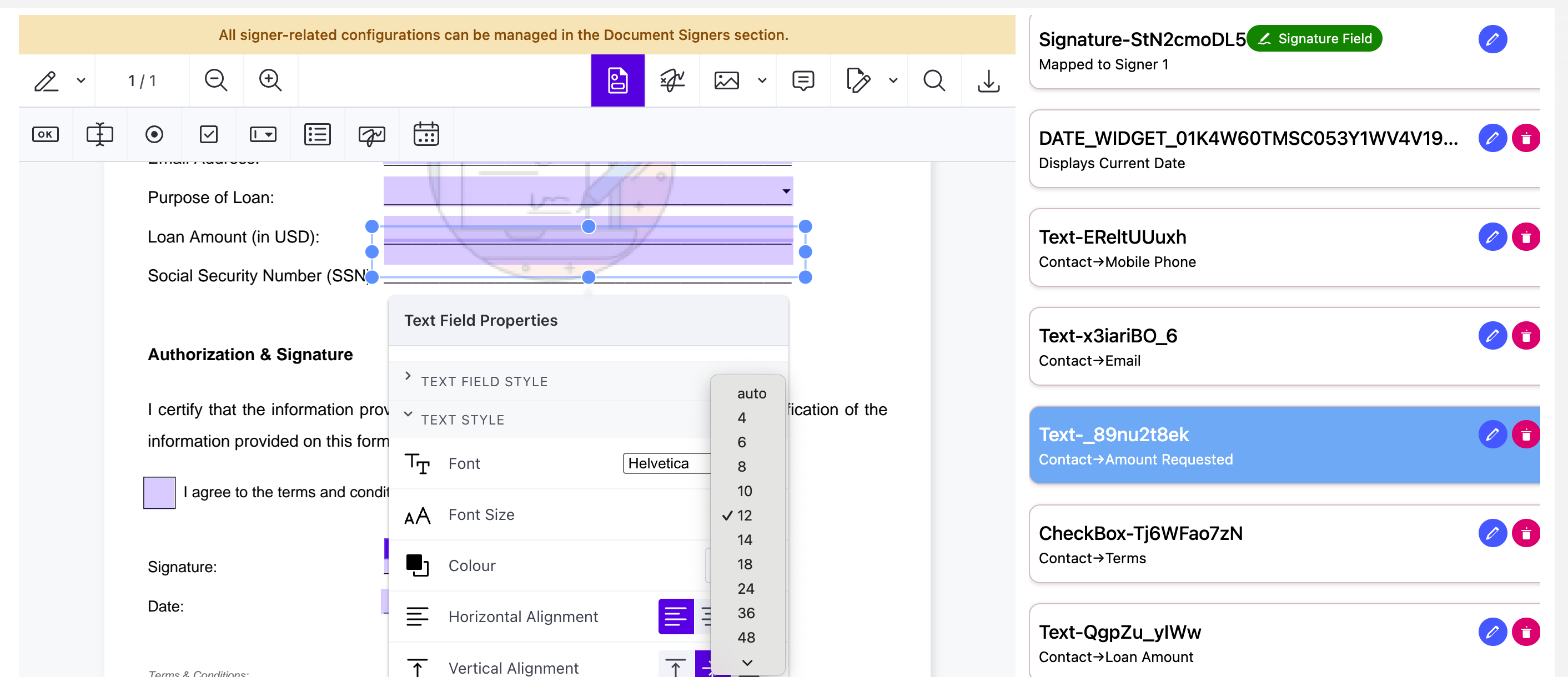
Under Text Style, you can customize the field’s appearance, including:
-
-
Font
-
Font Size
-
Font Color
-
-
Under Horizontal Alignment, select the desired alignment for the field text.
-
Under Vertical Alignment, select the desired vertical positioning of the text.
-
Click on Done to Save the changes.
Download the Updated Template
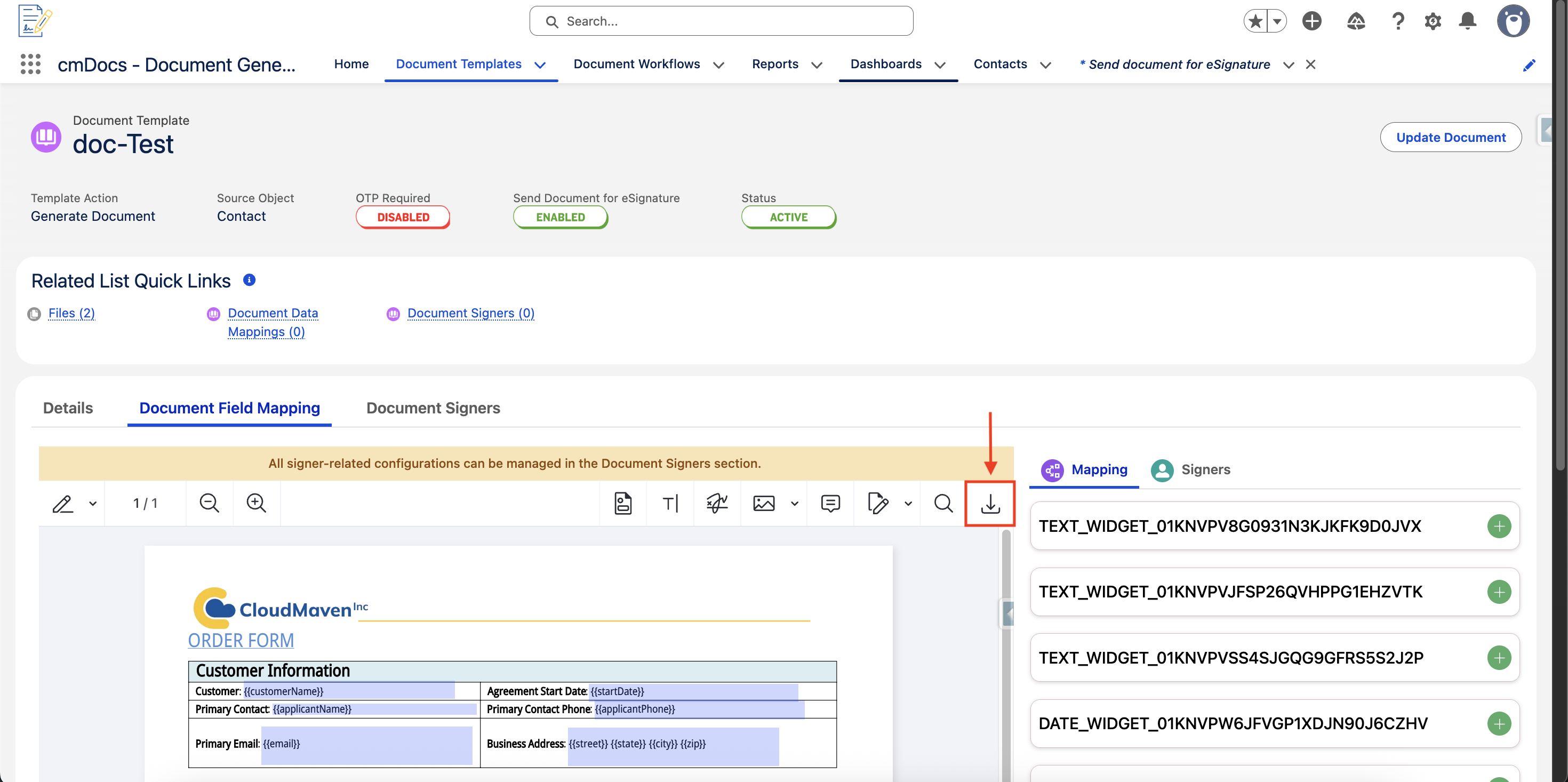
After adding or modifying the required fields, click Download Template to download the updated document.
The downloaded document contains the newly added fields and their corresponding placeholders.
Upload the Updated Template
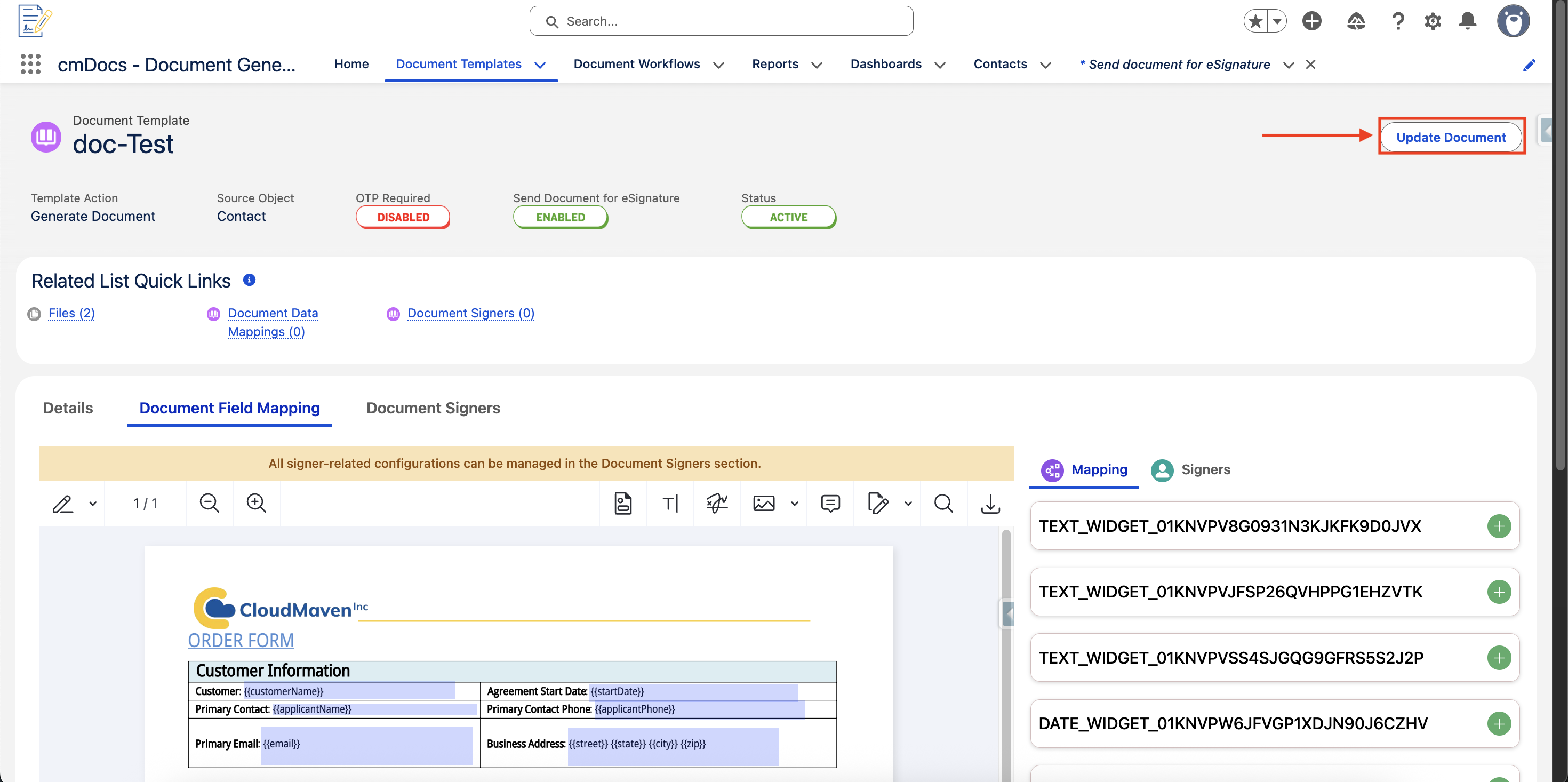
Navigate to the Update Document section and upload the template you downloaded in the previous step.
Uploading the updated template ensures that the latest field configuration is recognized and included in the document generation process.
Training Video
For a visual walkthrough of the process, refer to the training video:
Important Notes
Renaming or Removing an Existing Field
If you need to rename or remove a field that is already mapped:
-
Delete the existing field mapping.
-
Rename or remove the field in the PDF.
-
Upload the updated template.
-
Recreate the field mapping if required.
Failing to remove the existing mapping before changing the field name may cause document generation errors.
Handling Large Text Values
If you are unsure how much text will be populated in a field, the value may exceed the available field space.
To prevent the text from overflowing outside the field, set the Font Size to Auto. The system will automatically adjust the font size to fit the available space.
Checkbox Fields Mapped to Salesforce Boolean Fields
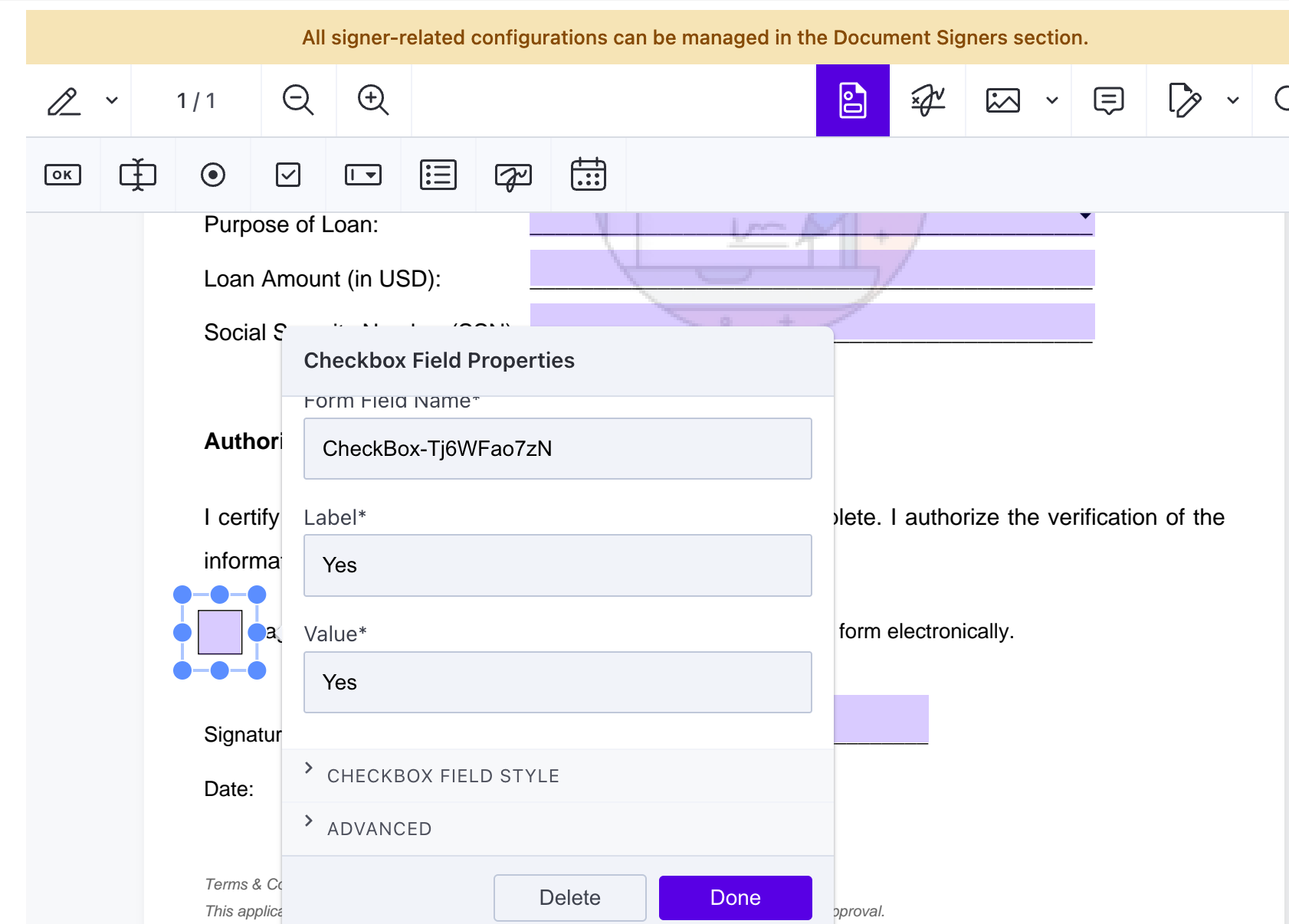
When a checkbox is mapped to a Salesforce field that returns true/false, set the checkbox Label / Value to:
Yes
For example, if the Salesforce field returns true, the checkbox will be selected.
If the checkbox depends on a specific Salesforce value rather than a true/false value, configure the checkbox value accordingly.
Example:
If the checkbox should be selected only when Account Industry = Agriculture, set the checkbox Value to:
Agriculture
The checkbox will then be selected only when the Salesforce record contains the matching value.
Picklist / Dropdown Fields
When adding a picklist or combobox field that is mapped to a Salesforce picklist field, do not manually add the picklist options in the PDF.
The system automatically retrieves the available picklist options from Salesforce and populates them in the document field.