
Overview
Document field mappings can now pull values from records up to five lookup hops away, for example Contact → Account → Parent Account → Parent Account → Name. Previously, mappings stopped at one hop (such as Contact → Account).
Jira Ticket Ref
[CP-427] Rotech: Analysis on Allow Dynamic Mapping upto 5 levels - Jira
How to access
-
Log in to Salesforce.
-
Go to Document Templates.
-
Create a new document template, or open an existing one.
-
In the data mapping section, click the + icon.
-
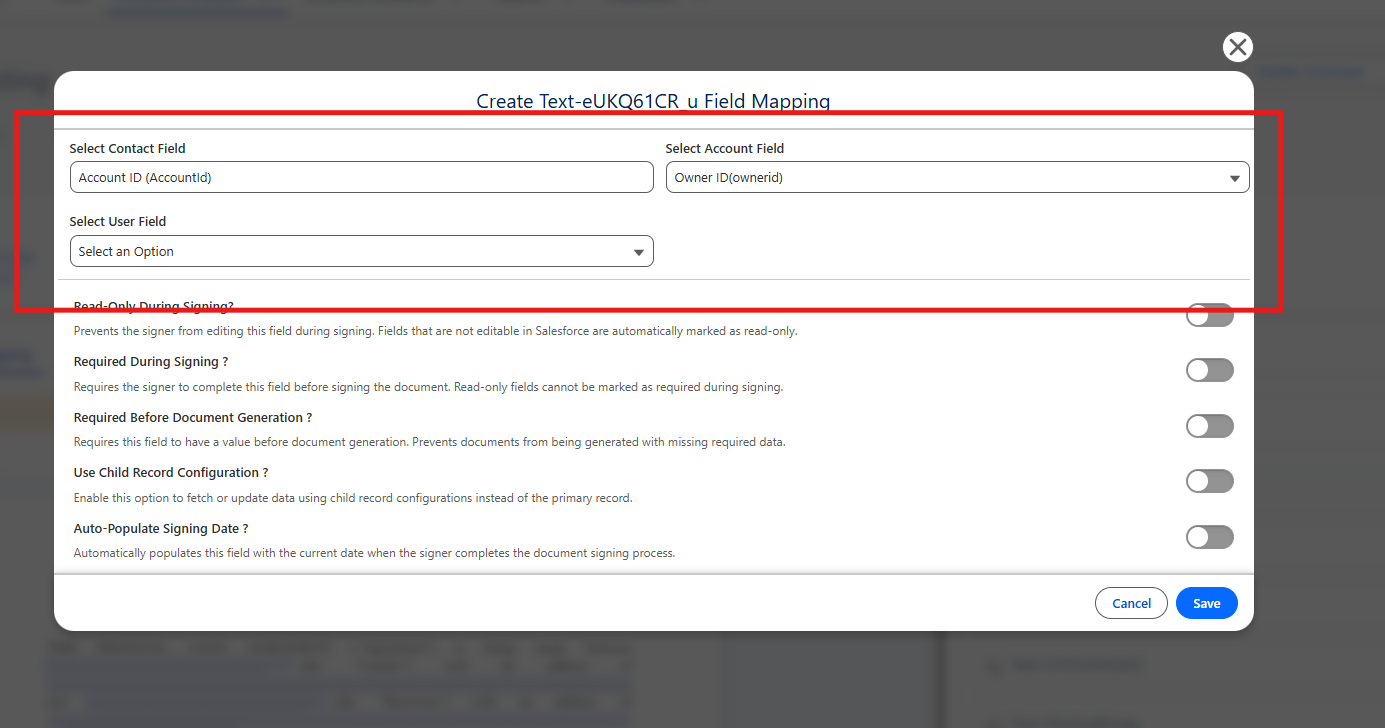
The mapping screen opens. Select a lookup field to start following a multi-level path.
Example
Think of it as following a chain of links, one record at a time, until you reach the value you want.
Scenario: A welcome letter is generated for a Contact. The letter must show the email of the Account Manager, the user who owns the contact's Account, so the customer knows who to reach.
That email is not on the Contact. To reach it, the mapping has to follow a chain:
Contact → its Account → that Account's Owner (a User) → the Owner's Email
Before this release: the mapping could only go one step, to fields on the Account itself. The owner's email could not be reached.
After this release: you can follow the chain step by step.
Sample data
|
Record |
Value |
|---|---|
|
Contact |
John Smith |
|
Account on the Contact |
Acme Corp |
|
Owner of Acme Corp |
Priya Sharma |
|
Priya Sharma's email |
priya.sharma@acme.com |
How to map it
-
Open the Contact document template and click + in the data mapping section.
-
First dropdown: select AccountID. Because AccountID is a link to another record, a new dropdown appears.
-
Second dropdown: select OwnerID. OwnerID is also a link, so another dropdown appears.
-
Third dropdown: select Email. Email is a plain field, so no more dropdowns appear and the path is complete.
-
Click Save.
What you should see
-
The mapping is saved as
Account.Owner.Email. -
The welcome letter for John Smith shows priya.sharma@acme.com.
-
If Acme Corp's owner changes to another user, the next letter shows the new owner's email automatically.
-
Reopening the mapping shows all three dropdowns with the same selections.
What's new
-
Multi-level lookup dropdowns. When you pick a lookup field in the mapping screen, a new dropdown opens for the next related object. You can follow up to five hops.
-
Two-column layout. Hops 2 and 4 appear in the left column and hops 3 and 5 in the right, so long paths stay readable.
-
Smarter path changes. Changing a choice at any level clears the levels below it and opens the next one only if the new choice is a lookup.
-
Edit mode restores the full path. Opening a saved deep mapping rebuilds every dropdown with its saved value. A spinner shows while it loads, and an error message appears if the path can't be restored.
-
Save is blocked until the path is complete. If the last selection is still a lookup, saving shows a message asking you to finish the path.
-
Correct data type. The mapping's data type now comes from the final field at the end of the path.
-
Single-hop mappings unchanged. Existing direct and one-hop mappings keep working and are saved in the same format as before.
Technical changes
Five components changed: four Apex classes and the mapping LWC.
|
Component |
Type |
Change |
|---|---|---|
|
|
Apex |
New path helpers: |
|
|
Apex |
|
|
|
Apex |
|
|
|
Apex |
|
|
Mapping LWC (JS and HTML) |
LWC |
Extra dropdowns for hops 2 to 5, hop 1 prefetch and caching, edit-mode restore, save block for incomplete paths, new two-column layout |
Stored formats
Deep paths are saved as standard relationship names, so custom lookups (__c) are stored as __r.
|
Level |
Sent by the LWC |
Saved in |
|---|---|---|
|
0 (direct field) |
|
|
|
1 (legacy) |
|
Unchanged |
|
2 to 5 |
|
|